
Create and Manage Your Organisation
An organisation is the workspace for your events, team members, billing, and settings. When organisation creation is available, you can create a Free organisation or choose Team and pay for the yearly plan during setup.
Before you start
You need:
- a signed-in Lylac account;
- the organisation name you want your team to recognise;
- owner or admin access to rename an existing organisation;
- owner access to delete an organisation.
Create an organisation
Open New organisation
Open the organisation switcher in the header and choose New organisation. If you do not belong to an organisation yet, Lylac opens this screen automatically.
Enter a name
Enter the company, department, or team name in Name. You can change it later.
Choose a plan
Choose Free or Team from Plan. Free is selected by default. Choosing Team displays the payment form for the yearly plan.
Create the organisation
Choose Create organisation. A Free organisation opens after it is created. For Team, complete the payment form first. Lylac then creates and opens the organisation.
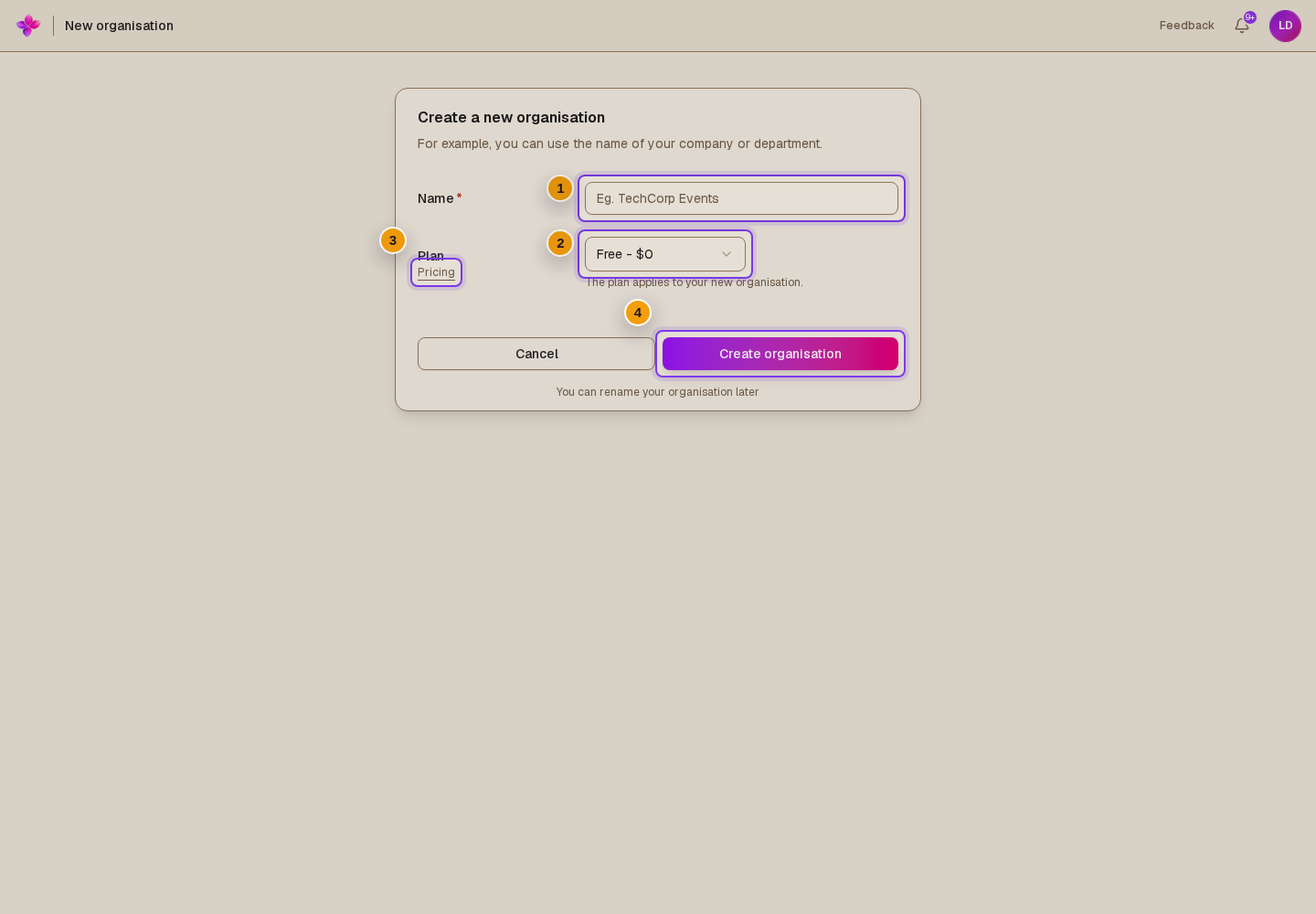
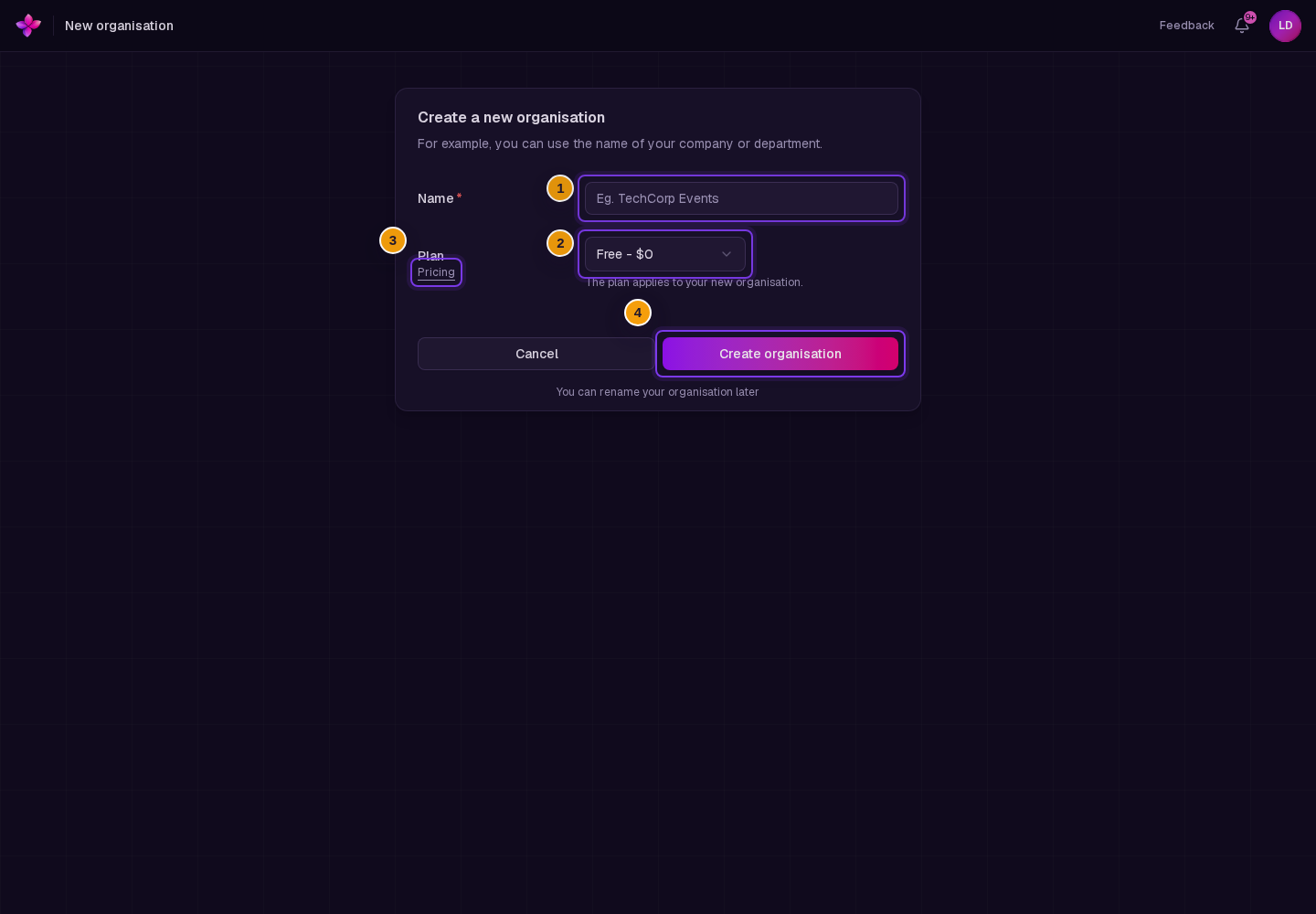
Some deployments disable new organisation creation while the service is in pre-launch. The setup screen can still appear. A blocked Free attempt shows Failed to create organisation: Creating organisations is currently disabled while we are in pre-launch. A blocked Team setup shows Failed to create organisation: Creating organisations is currently disabled. If either message appears, contact Lylac Support.
Rename the organisation
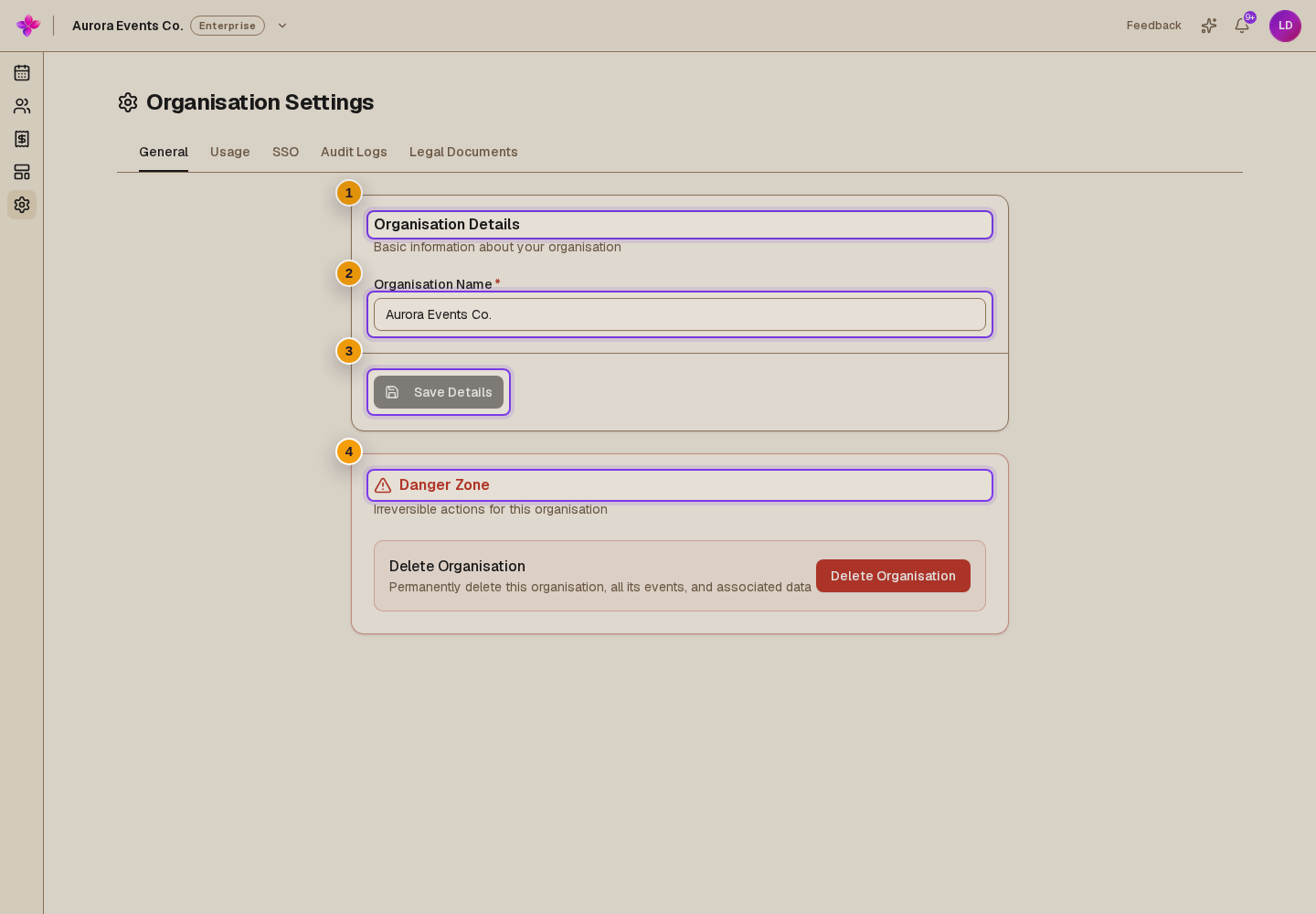
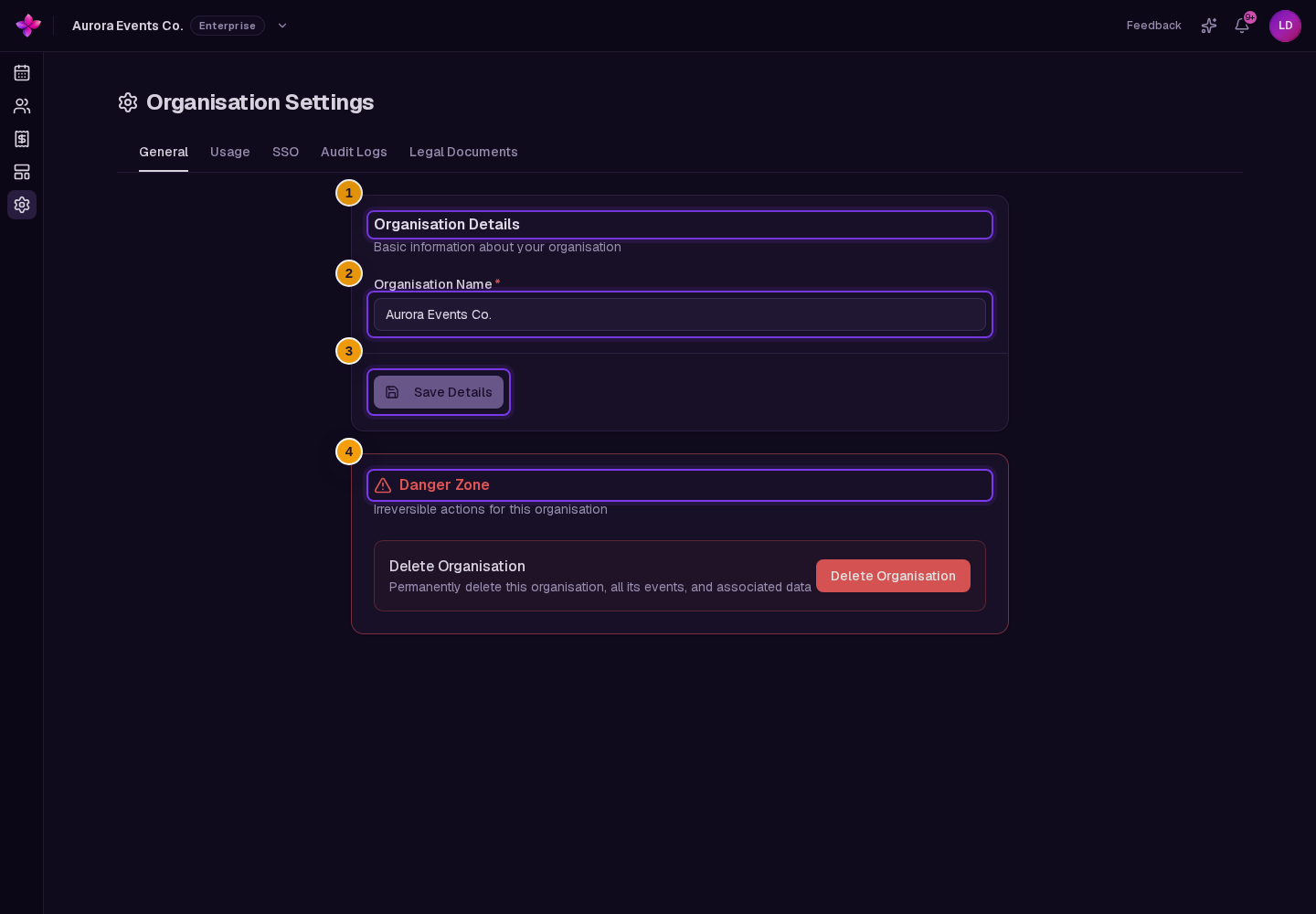
Owners and admins can change the organisation name from Org settings.
Open General settings
Choose Org settings in the organisation navigation. Organisation Settings opens on the General tab.
Change Organisation Name
In Organisation Details, replace the current Organisation Name. Save Details becomes available after the name changes.
Save the change
Choose Save Details. Lylac updates the organisation name after the save succeeds.
Review legal documents
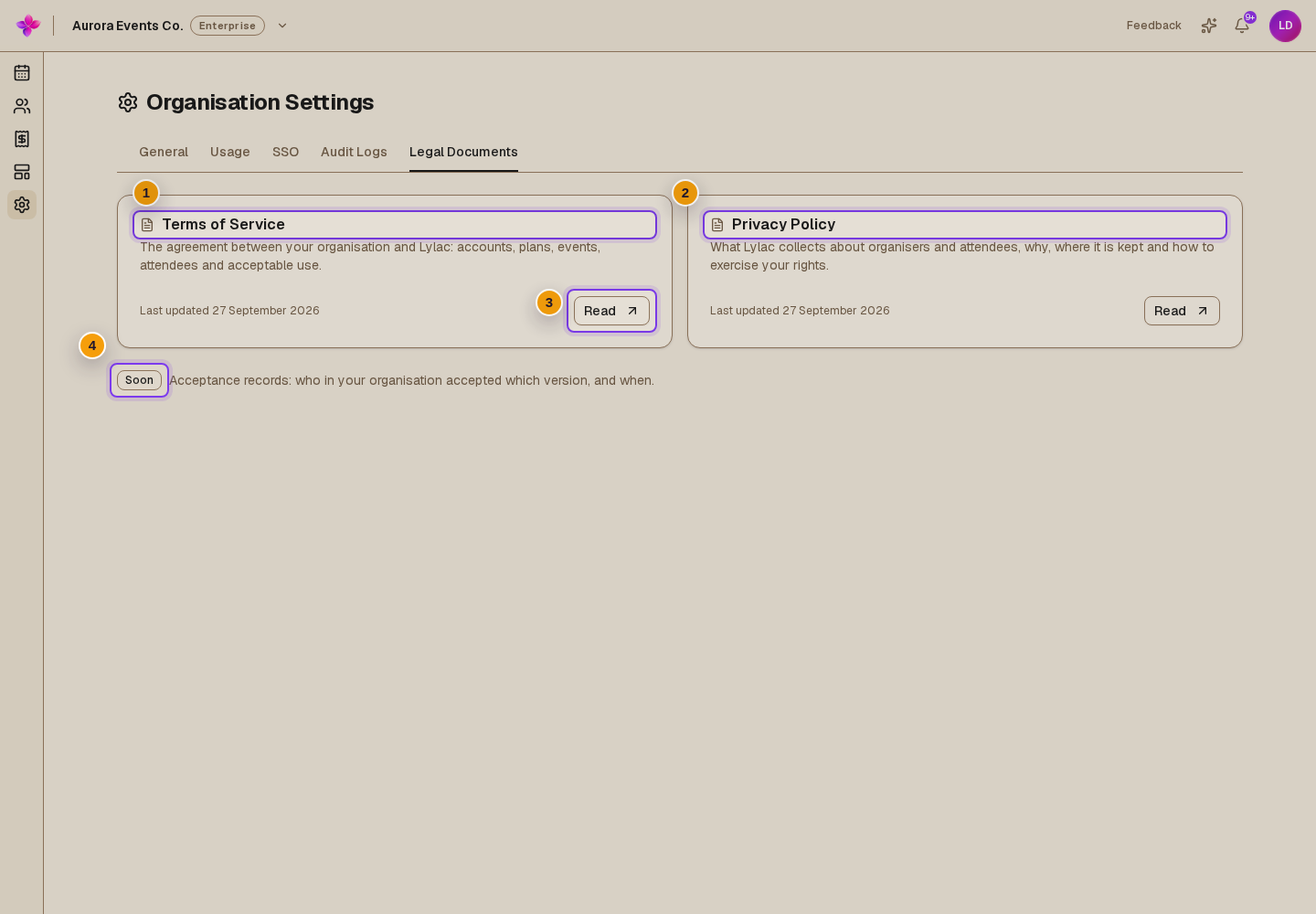
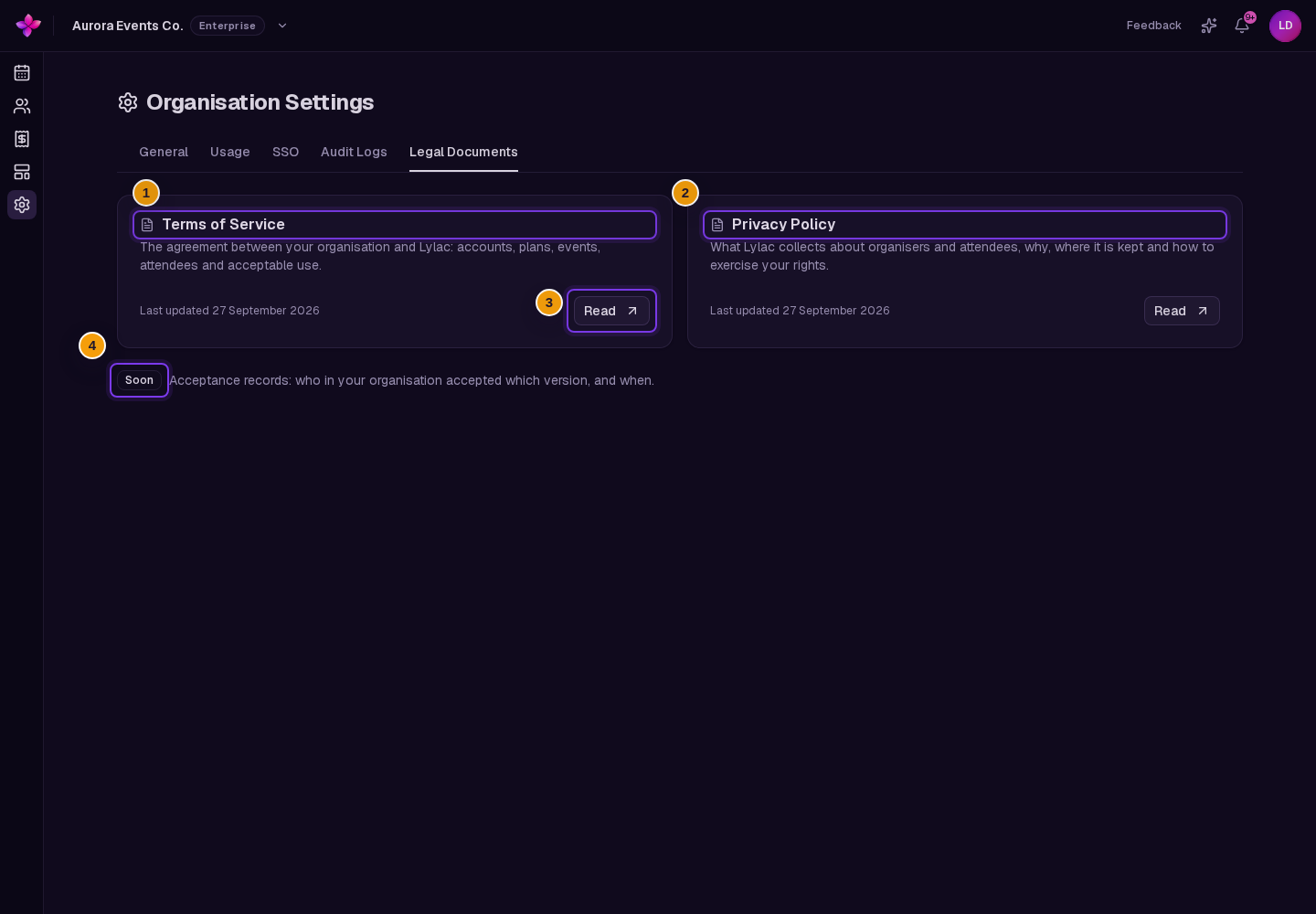
The Legal Documents tab lists the current Terms of Service and Privacy Policy. Each card shows its last updated date and a Read button that opens the document in a new tab.
Open Org settings
Choose Org settings in the organisation navigation.
Open Legal Documents
Choose the Legal Documents tab.
Open a document
Choose Read on the document you need. Organisation acceptance records are marked Soon and are not available yet.
Delete an organisation
Only an owner can delete an organisation. Deletion is permanent and removes the organisation, its events, team members, uploaded files, and associated data.
Open Danger Zone
On the General tab in Org settings, find Danger Zone and choose Delete Organisation.
Review the warning
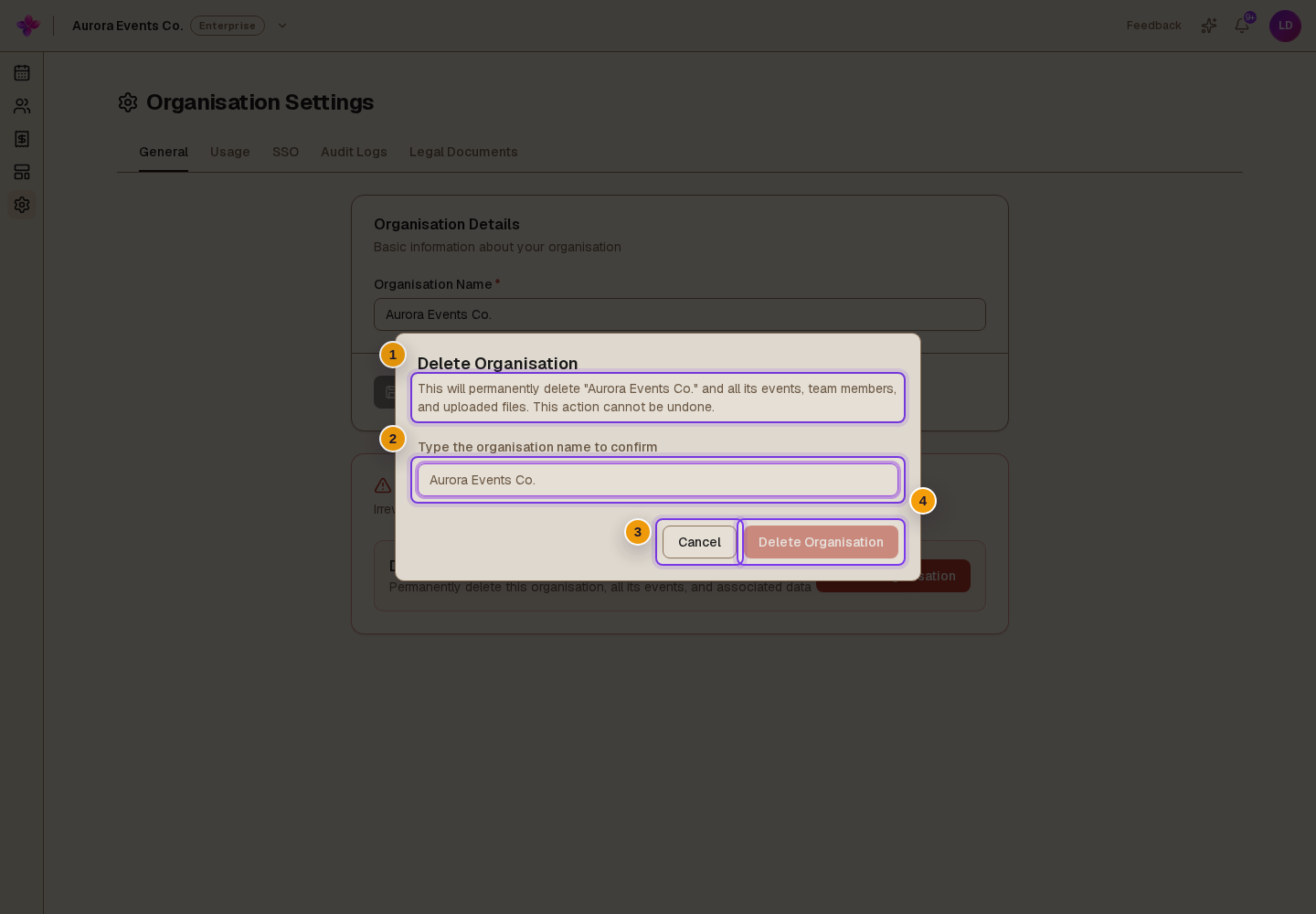
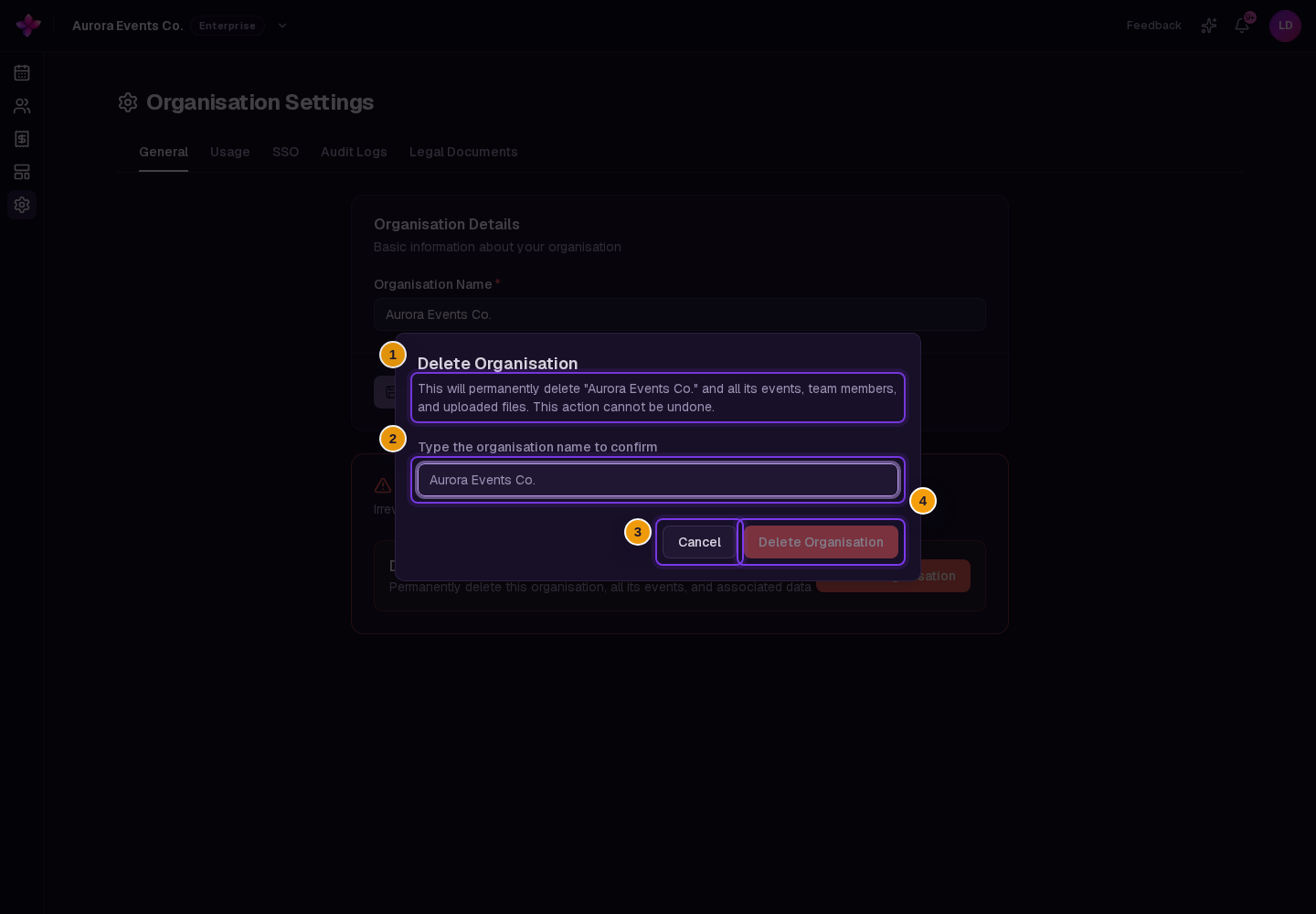
Read the confirmation message. This action cannot be undone.
Type the organisation name
Enter the exact organisation name in the confirmation field. The final button remains unavailable until the text matches.
Confirm deletion
Choose Delete Organisation in the confirmation. After deletion succeeds, Lylac returns you to the dashboard.
If something goes wrong
The organisation is not created. Check the name and try again. If Lylac shows Failed to create organisation: Creating organisations is currently disabled while we are in pre-launch. or Failed to create organisation: Creating organisations is currently disabled., contact Lylac Support.
Save Details is unavailable. Enter a valid name that differs from the current organisation name.
Deletion is rejected. Only an owner can delete the organisation. Ask an owner to complete the deletion.
You cannot find acceptance records. This part of Legal Documents is marked Soon and is not available yet.
Next steps
- Invite and manage team members.
- See pricing to compare organisation plans.