
Open an Event You Are Attending
The Attending area keeps your events and invitations together. Use Your events to find an event and open its attendee view.
Before you start
You need:
- a Lylac account;
- attendee access to at least one event;
- a confirmed place if you joined a waitlist.
Open your event
Open Attending
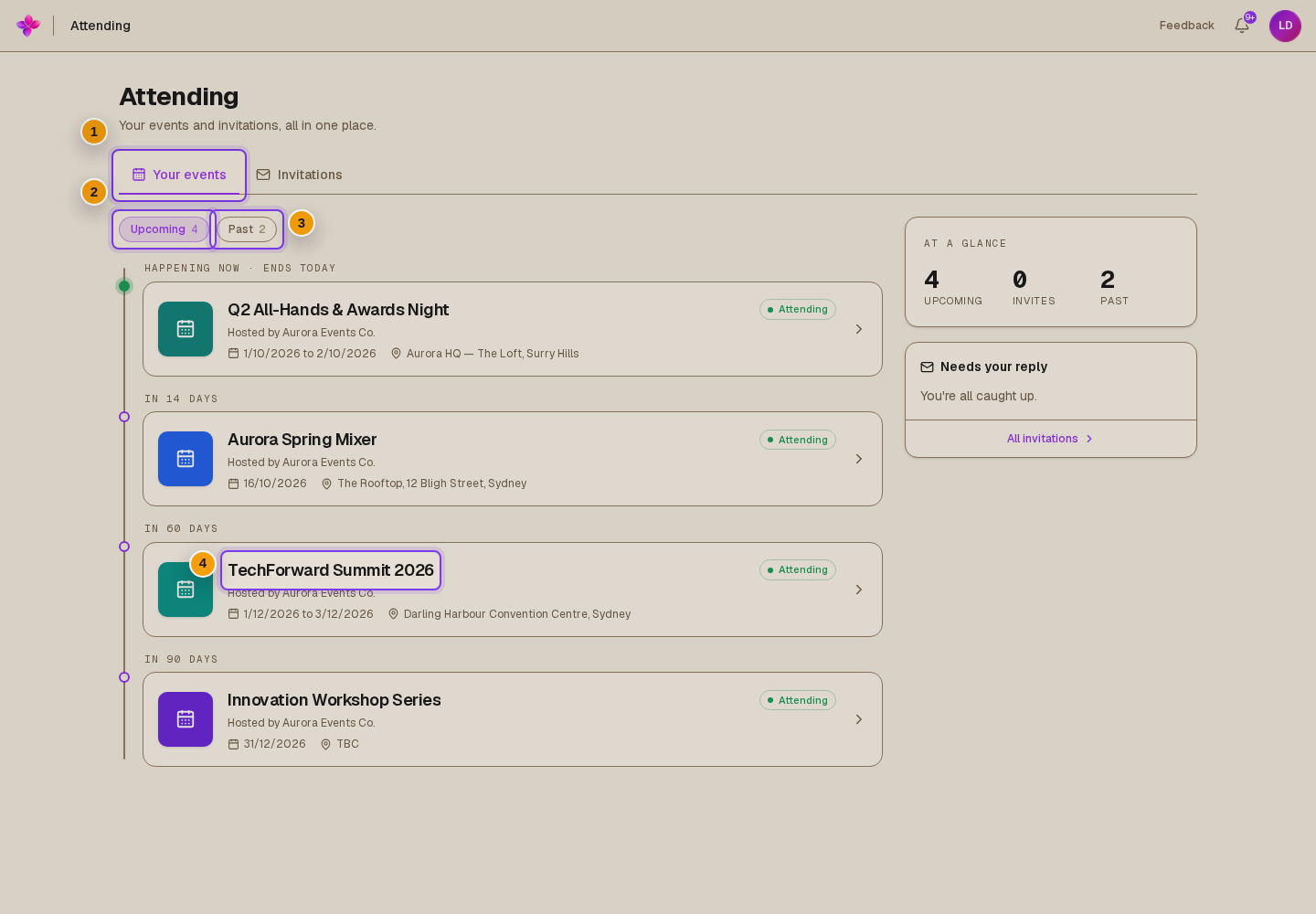
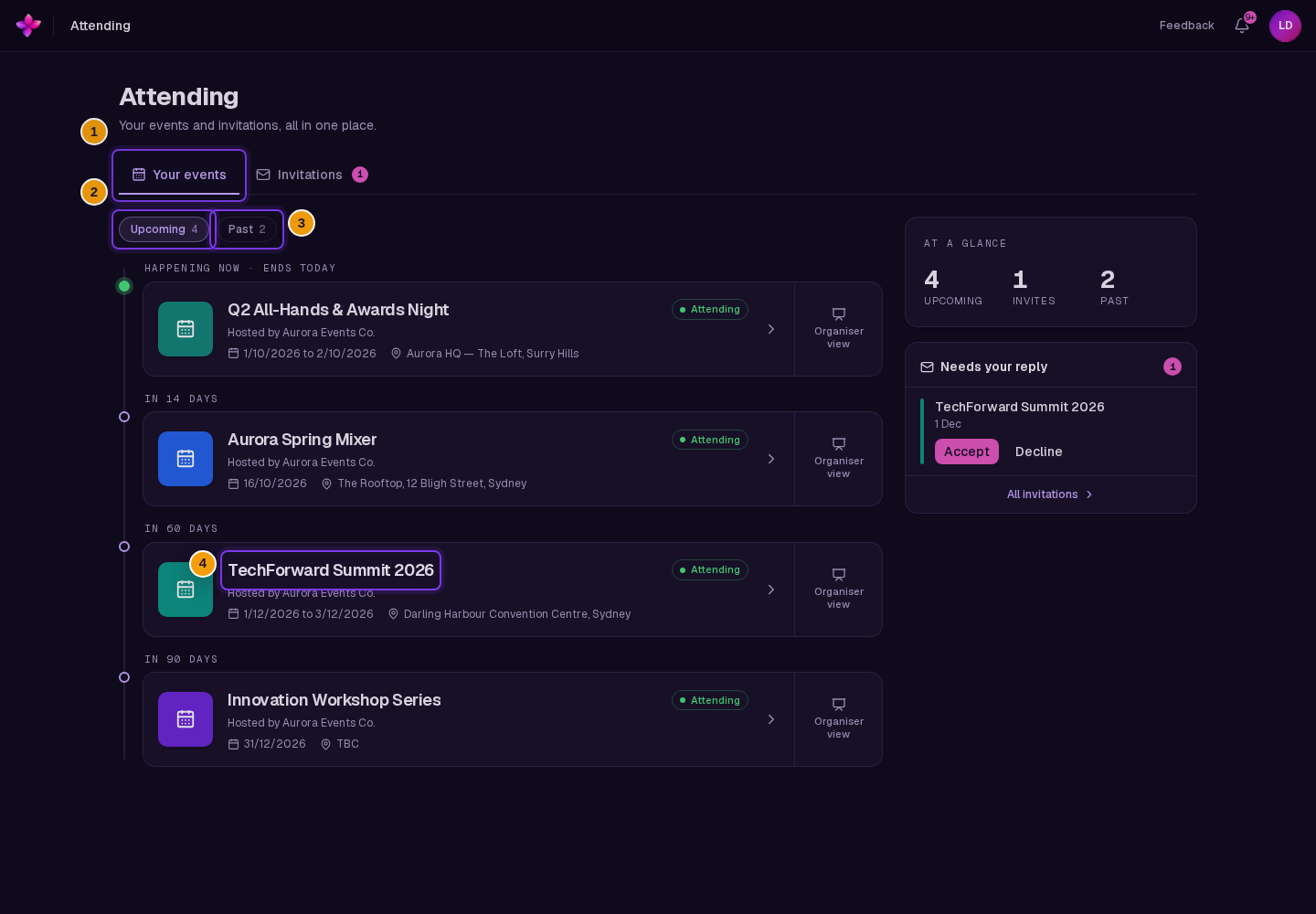
Sign in to Lylac and open Attending. The Your events tab opens first.
Choose upcoming or past events
Choose Upcoming for events that are happening now or have not started. Choose Past for events that have ended or were cancelled.
Review the event card
Each card shows the event name, host, date, location when one is set, and your status. Statuses can include Attending, Waitlisted, Attended, and Cancelled.
Open the event
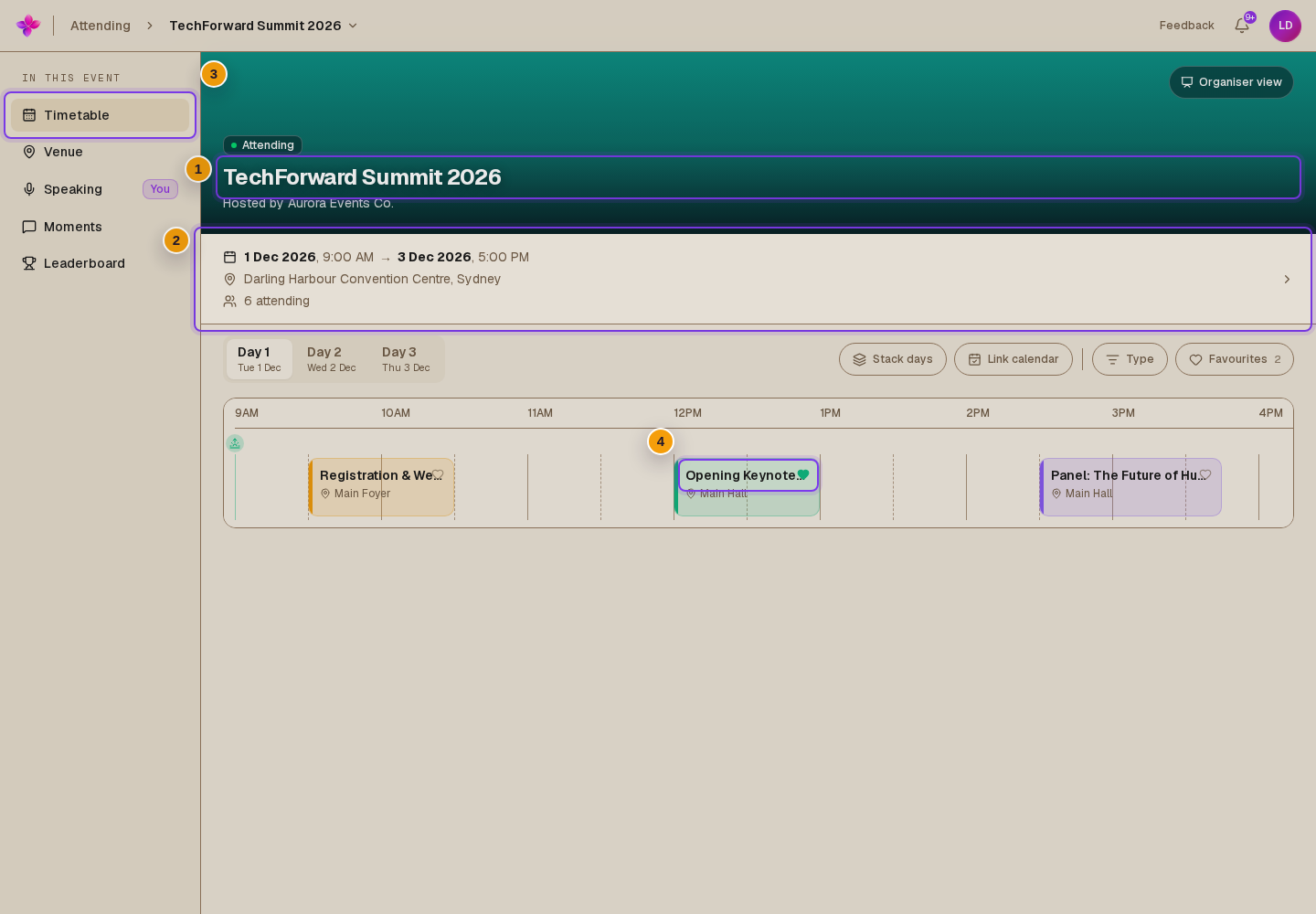
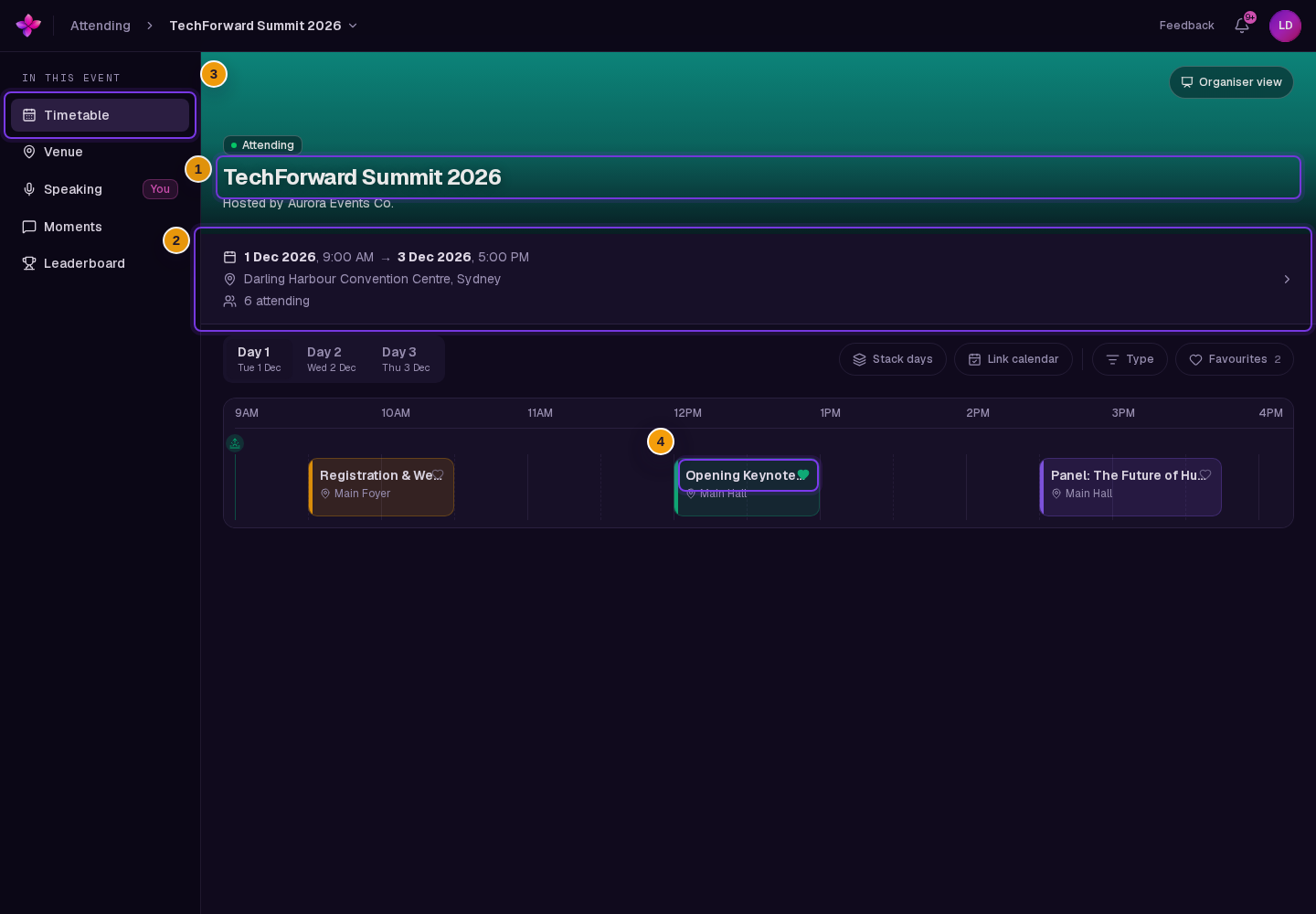
Choose an event card with attendee access. The event opens on Timetable.
A Waitlisted card does not open until a place becomes available and your status changes to Attending.
Use the event navigation
Move between Timetable, Venue, Moments, and Leaderboard. Speaking also appears when Lylac has matched you to a speaker profile for the event.
If something goes wrong
No events appear. Open Invitations and check whether you still need to respond. Make sure you signed in with the email address that received the invitation.
The event card does not open. Check its status. A Waitlisted card stays closed until a place becomes available.
Lylac says the event was not found or you do not have access. Return to Your events and open the event from its card. If it is missing, ask the organiser to confirm your access.
If the event list still does not load, refresh the page or sign in again.
Next steps
- Manage your invitations if an event still needs your response.
- View the timetable and event details after you open an event.