
Buy Event Capacity and Understand Plan Gates
Lylac checks an organisation's event allowance when a draft is published, not when it is created. You can create and edit any number of drafts. If publishing would exceed the allowance, Lylac shows the available purchase path.
Free organisations can add Boost to a specific event. Team organisations can buy additional event slots for the current billing year.
Before you start
You need:
- owner or admin access to buy Boost or an additional event slot;
- a payment method accepted by Stripe;
- the draft or Free event you want to publish or upgrade.
Understand the event allowances
| Plan or purchase | Event allowance |
|---|---|
| Free | 1 Free event can be Upcoming or In progress at a time. Draft, completed, cancelled, discarded, and Boost events do not use this allowance. |
| Boost | A one-time $459 upgrade for one event in a Free organisation. Boost remains with that event. |
| Team | 4 published events per billing year, plus purchased event slots. Drafts and discarded drafts do not count. Published events keep their place in the year's allowance after completion or cancellation. |
| Enterprise | No event-count limit is currently applied. |
All prices are in AUD and include GST.
Create a Free event at the allowance
When a Free organisation already has an Upcoming or In progress Free event, New event still opens the standard form. Lylac explains that the new event can be saved as a draft but needs Boost before it can be published alongside the active event.
Open New event
From the organisation events dashboard, choose New event.
Read the Free plan message
The message says that the Free plan allows 1 active free event and that one is already live.
Choose the draft or Boost path
Complete the required event details. Choose Save as draft to create it without paying, or choose Purchase Boost event to publish now to open checkout.
Pay and create the Boost event
In the Boost checkout, choose Pay $459 & create after entering the payment details.
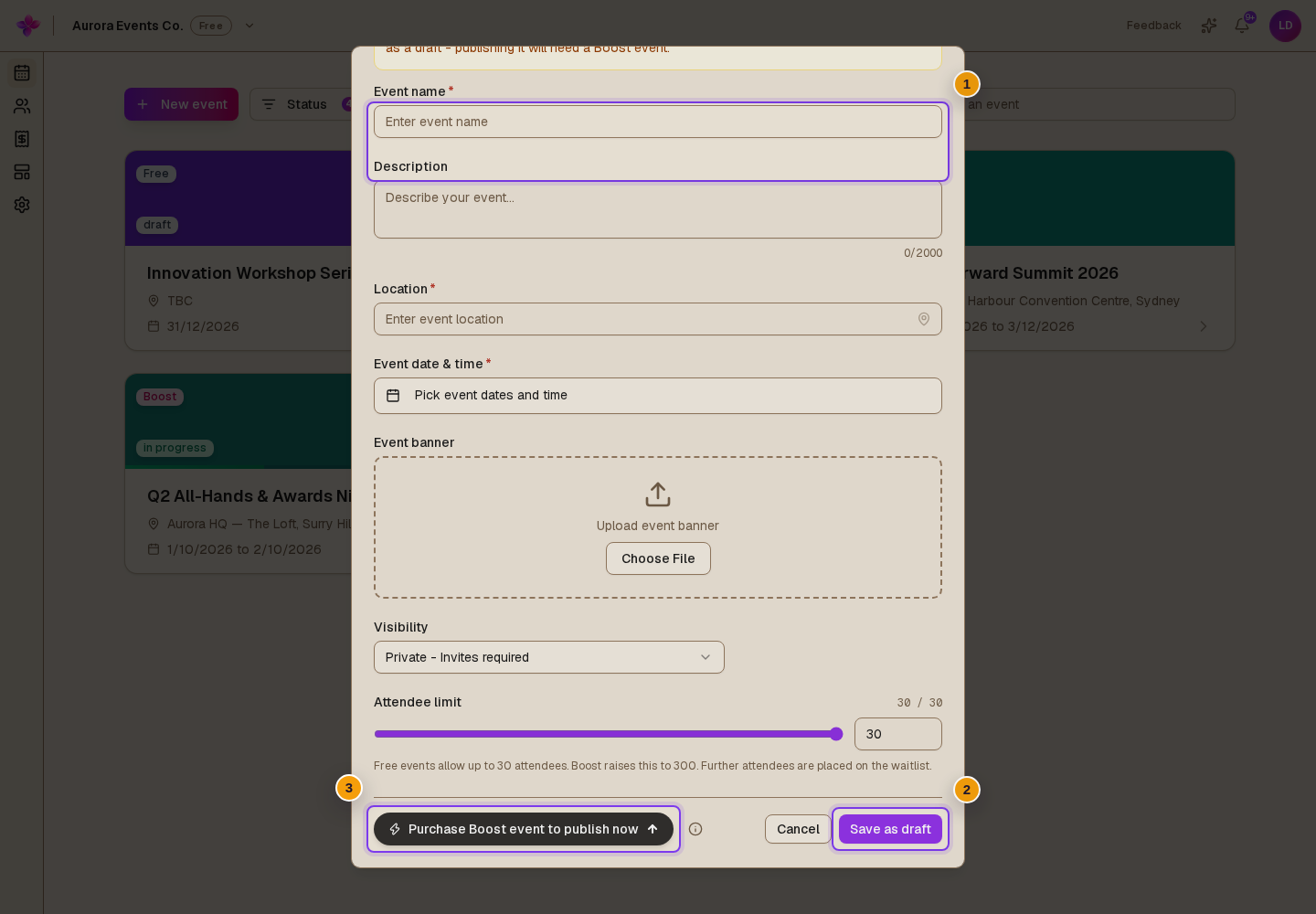
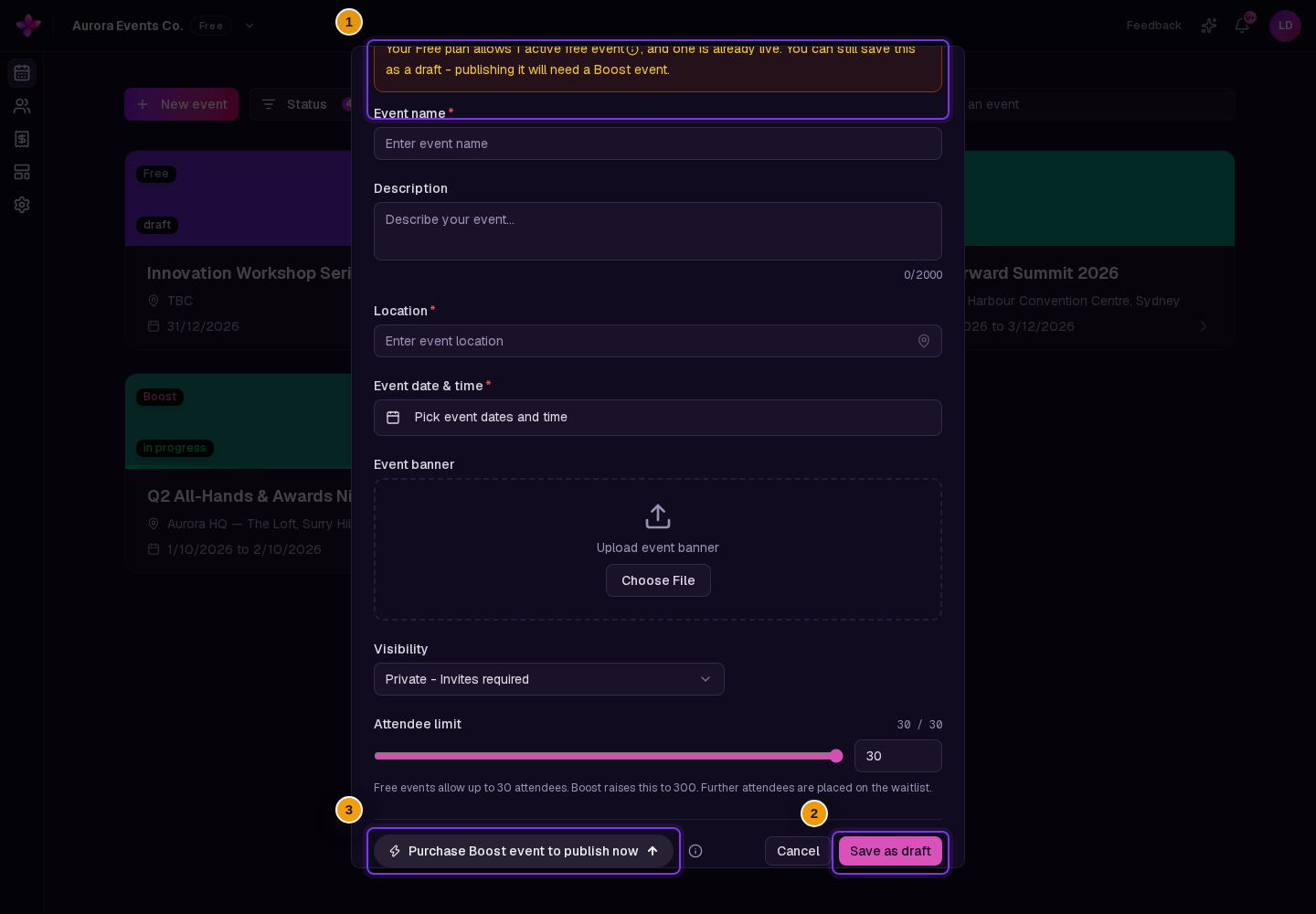
If the Free organisation is below its allowance, the same form shows Create free event and Purchase Boost event.
Add Boost to an existing Free event
Find the event card
On the events dashboard, find a Free event that has not completed, been cancelled, or been discarded.
Open Upgrade event
Choose the upward-arrow control labelled Upgrade event on the event card.
Review Boost
The side panel shows the Boost features, the $459 one-time price, and Upgrade event.
Complete payment
Choose Upgrade event. In Complete Payment for Boost, enter the payment details and choose Complete Payment.
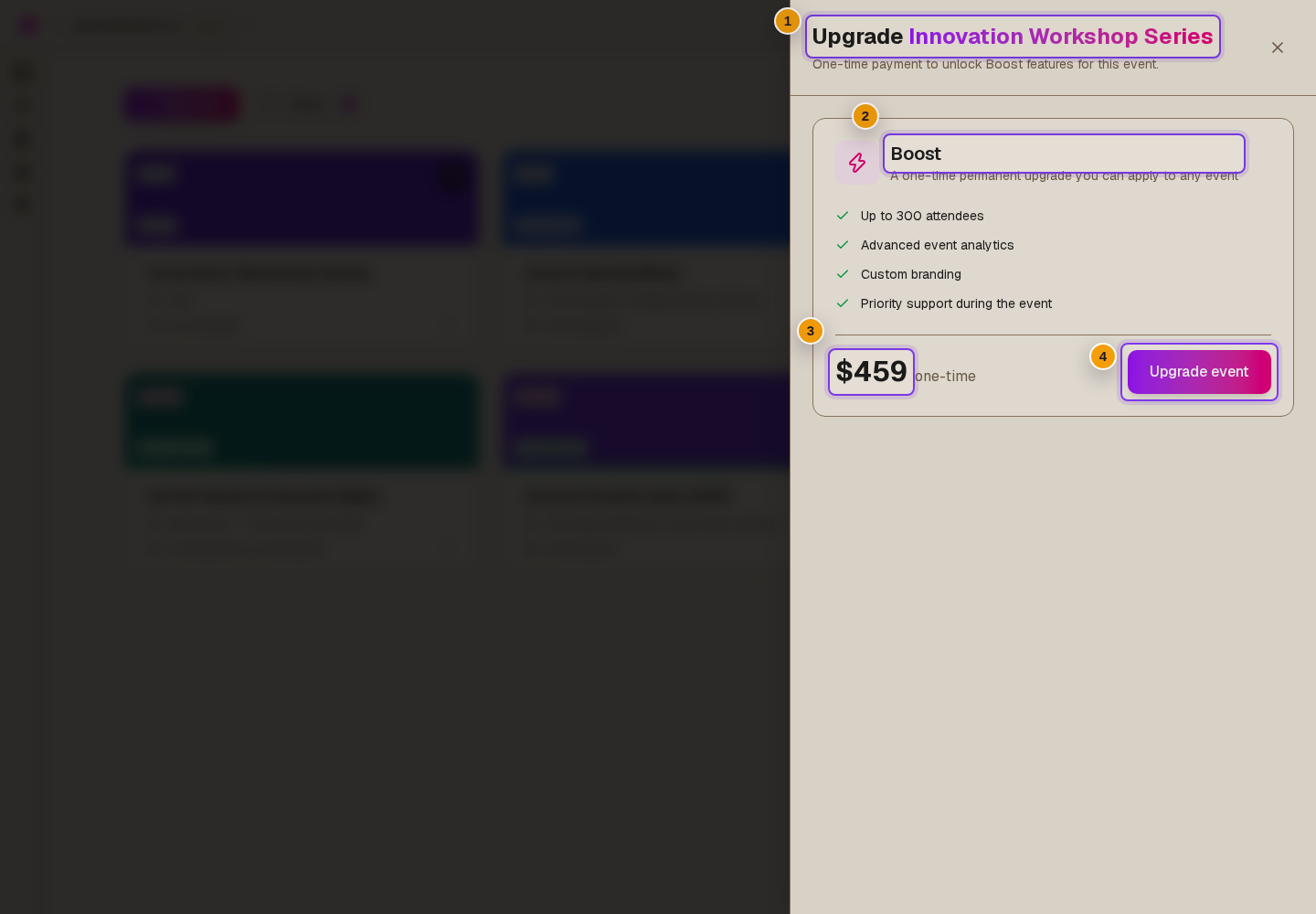
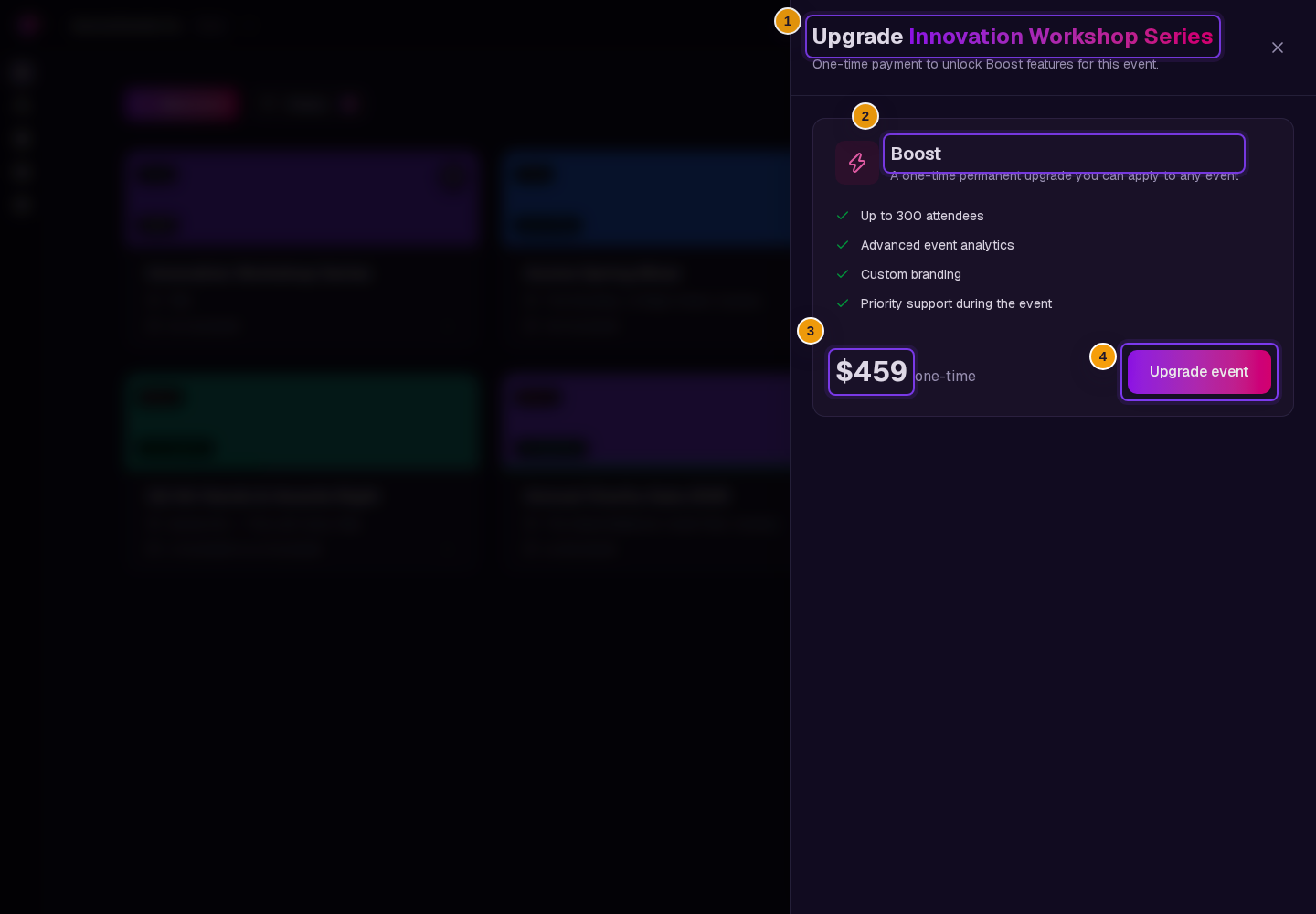
Buy an additional Team event slot
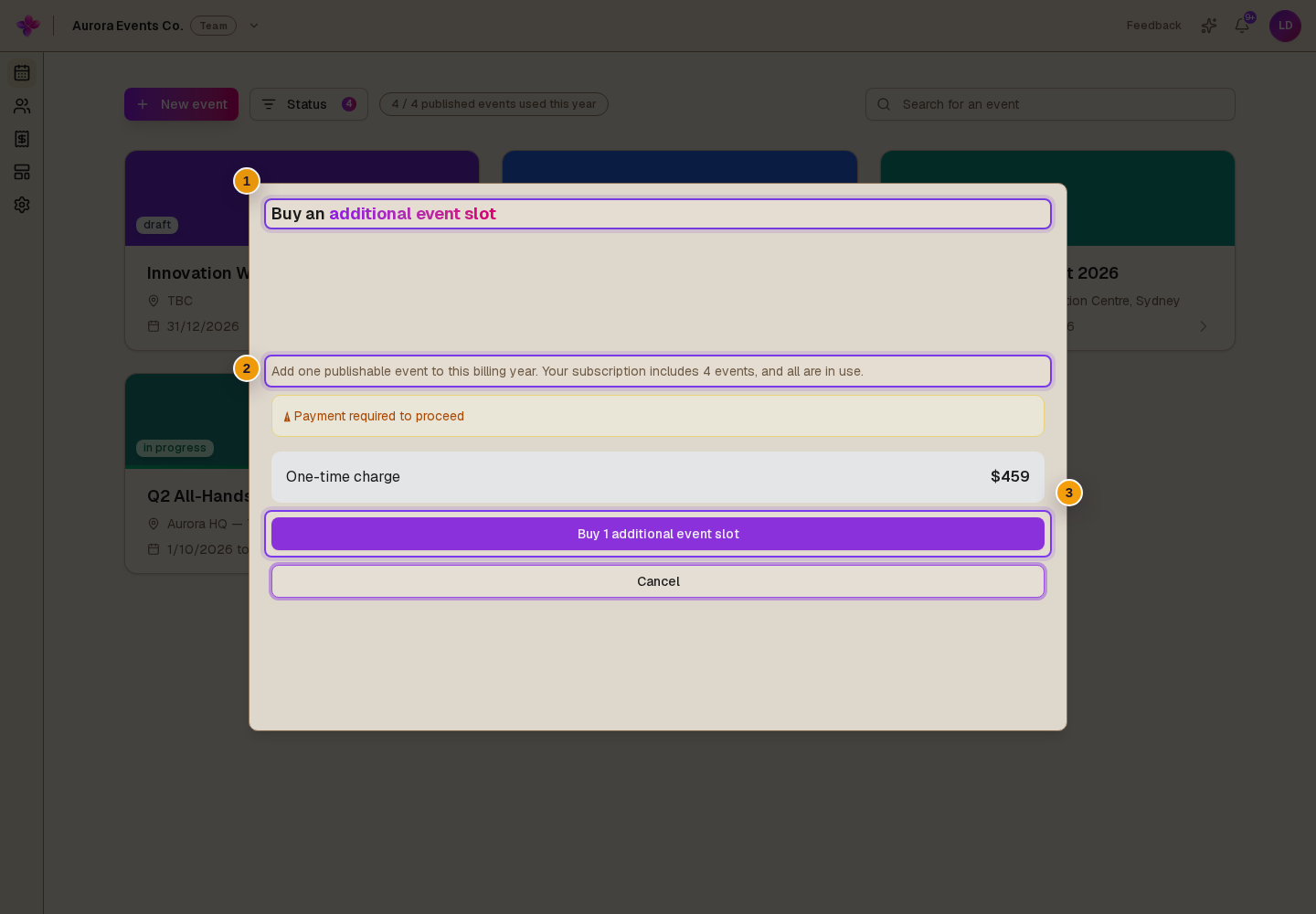
Team organisations can always create drafts. The purchase path appears when someone tries to publish a draft after the organisation has used its current billing-year allowance.
Check the usage indicator
The events dashboard shows the number of published events used this year for a Team organisation. The total includes previously purchased slots.
Create and prepare the draft
Choose New event and save the event as a draft. At the allowance, the form explains that publishing will need an additional event slot.
Try to publish
Choose Publish event from the draft. The publish warnings show You've used all [number] events for this billing year. Choose Buy event slot.
Buy the slot
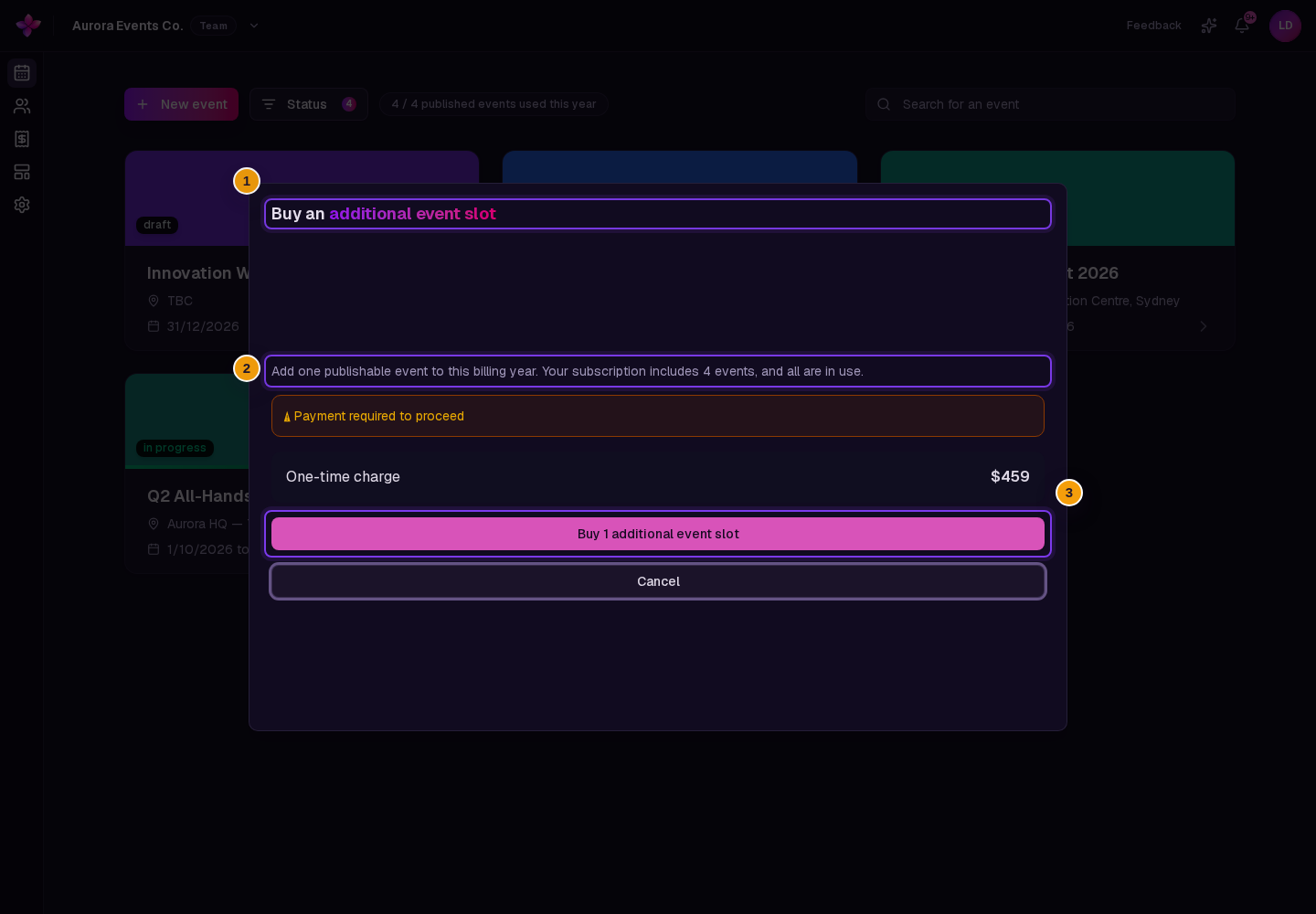
In Buy an additional event slot, enter the payment details and choose Buy 1 additional event slot. Each slot costs $459.
Publish the draft again
After Slot purchased appears, close the window, return to the draft, and choose Publish event again.
If something goes wrong
You do not see the Boost path. Boost is for events in Free organisations. Team organisations buy additional event slots, and Enterprise organisations do not currently have an event-count limit.
The Boost payment button is unavailable. Complete the required event name, location, date, and time fields first.
You do not see Buy event slot. The Team purchase link appears in the publish warnings after the organisation has used its current allowance. It does not replace New event.
The draft is still blocked after payment. Wait for Slot purchased, close the window, return to the draft, and choose Publish event again. Refresh the dashboard if the new allowance has not appeared.