
Expired or Invalid Sign-In Link
Lylac email sign-in links expire after 30 minutes and can only be used once. Request a fresh link if the sign-in screen says the link has expired or has already been used.
Before you start
You need:
- access to the email address you use with Lylac;
- the newest Lylac sign-in email you requested;
- access to your organisation's identity provider if your organisation uses single sign-on.
Request and use a fresh link
Return to the sign-in screen
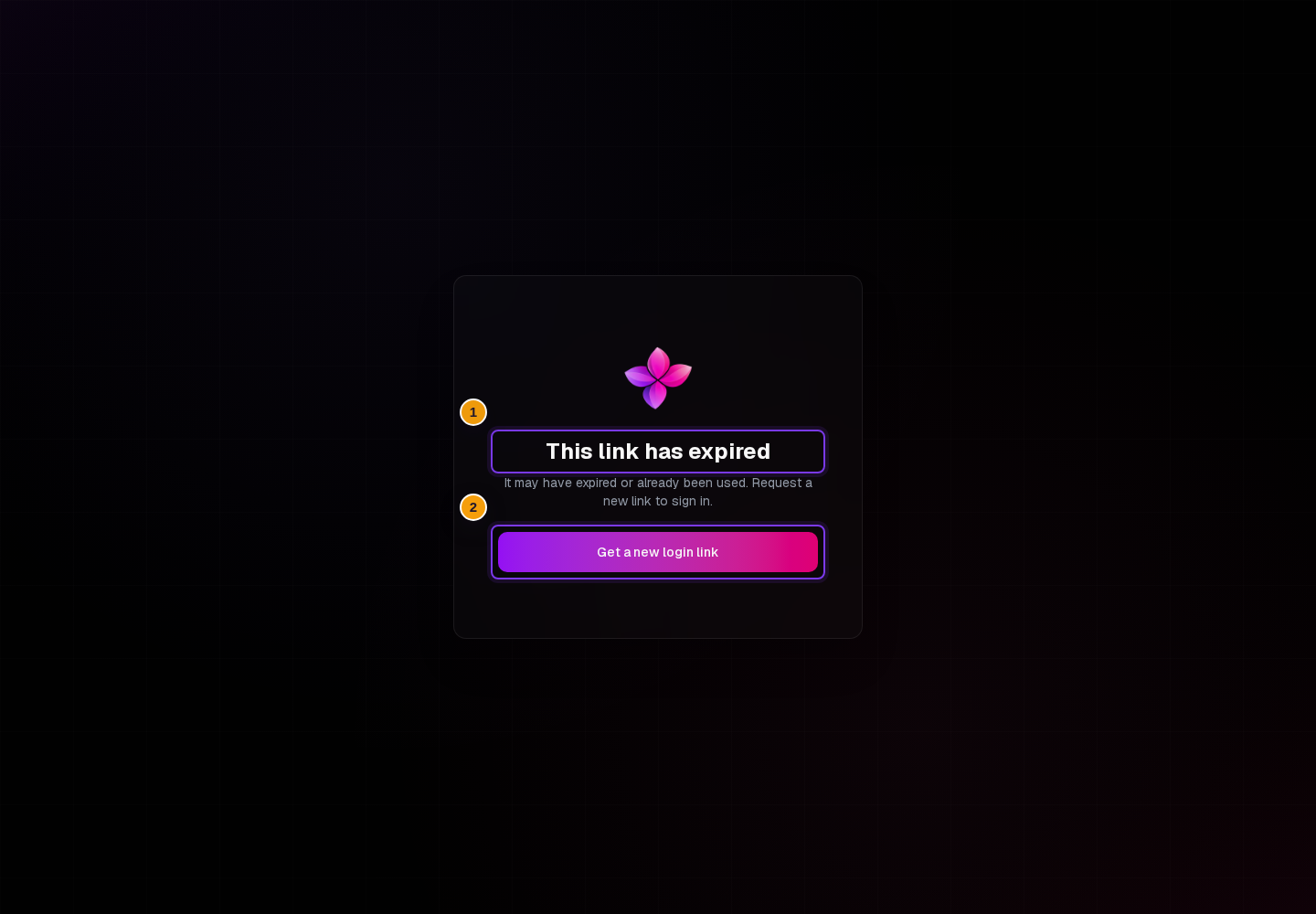
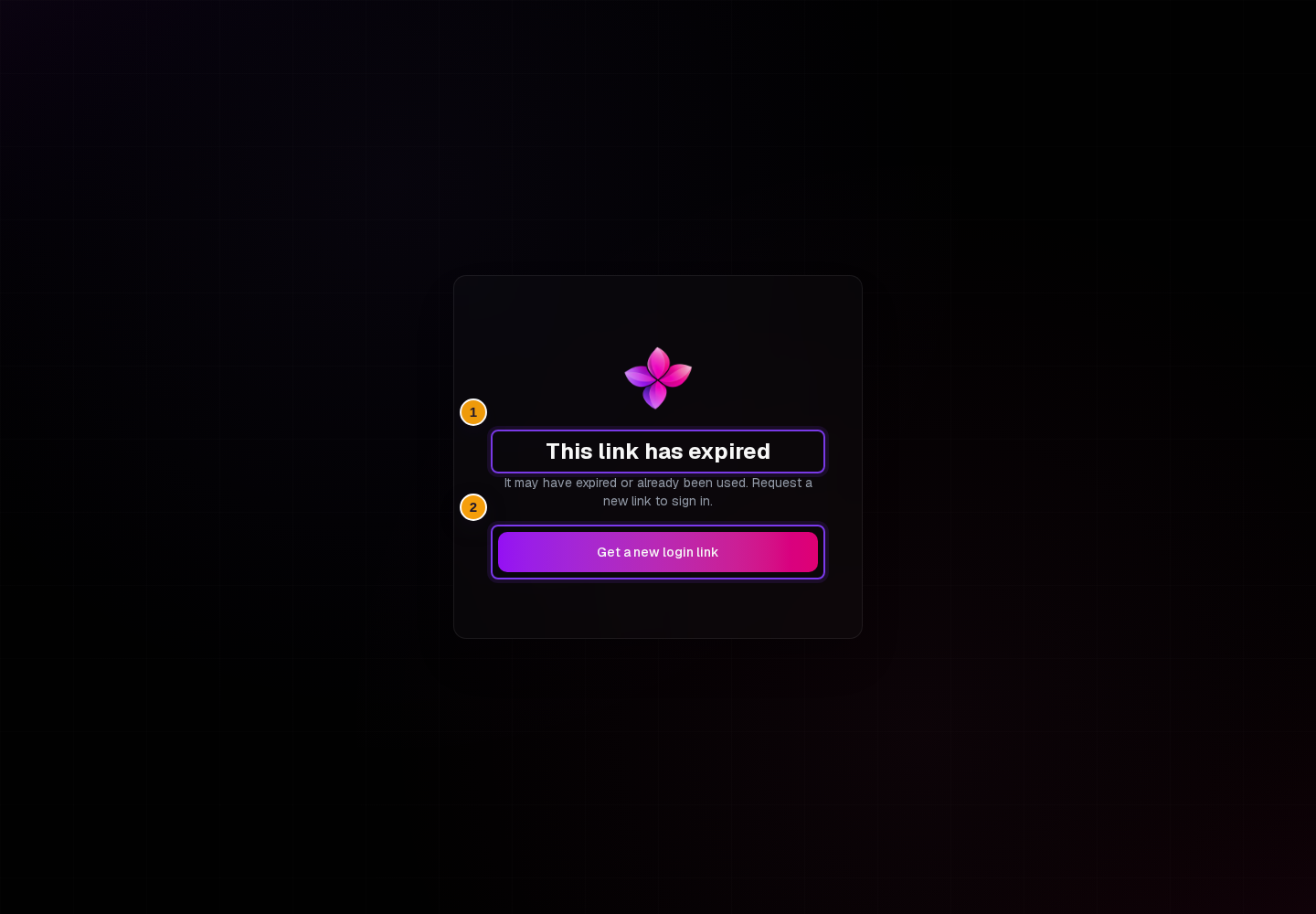
On This link has expired, choose Get a new login link. You can also open the sign-in screen directly.
Submit your email address
Enter the email address for your Lylac account and choose Continue with email.
If that address belongs to an organisation that uses single sign-on, Lylac sends you to its identity provider instead of sending an email link.
Open the fresh email
For email-link sign-in, wait for Check your email, then open the sign-in email you just requested.
Confirm once
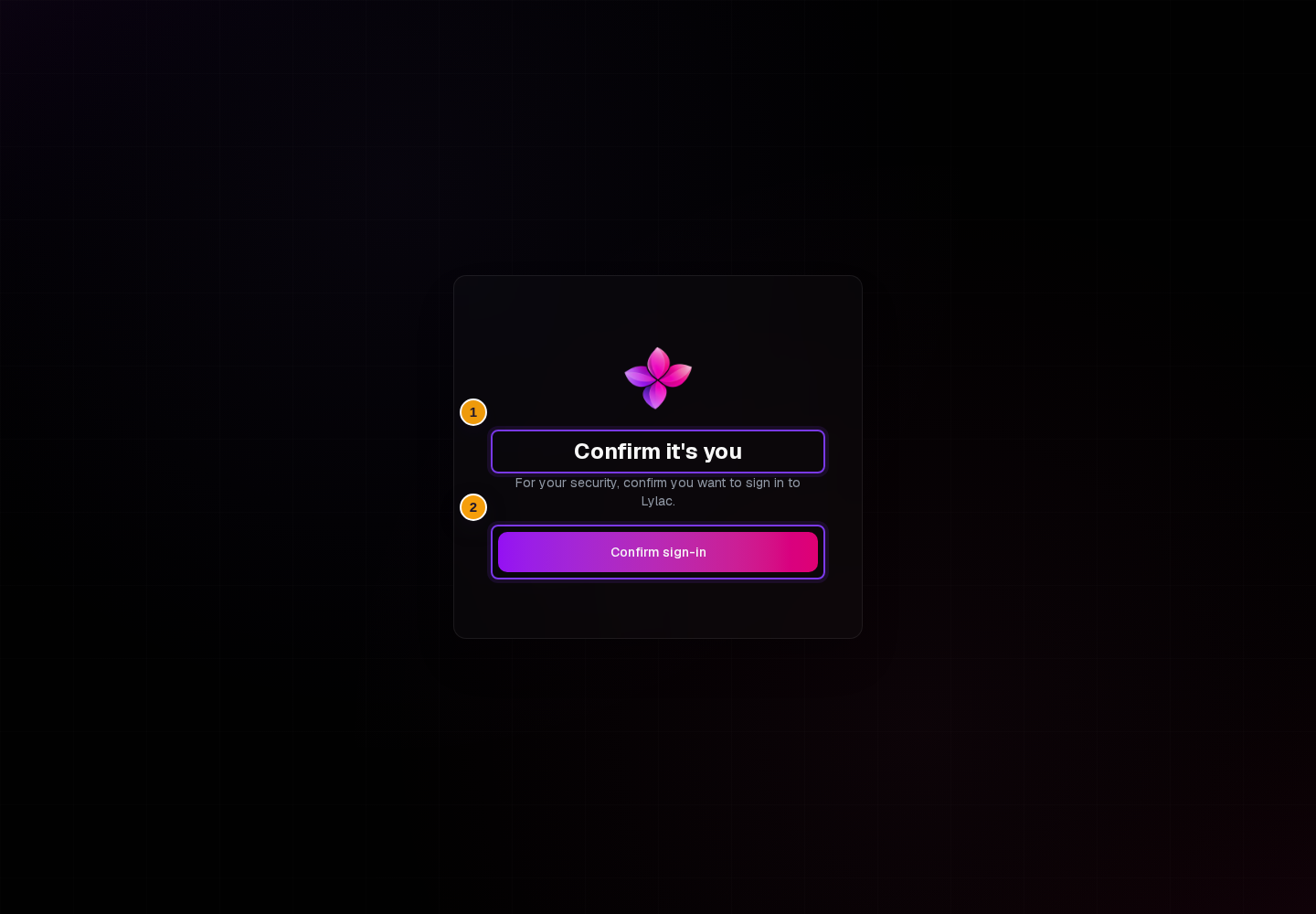
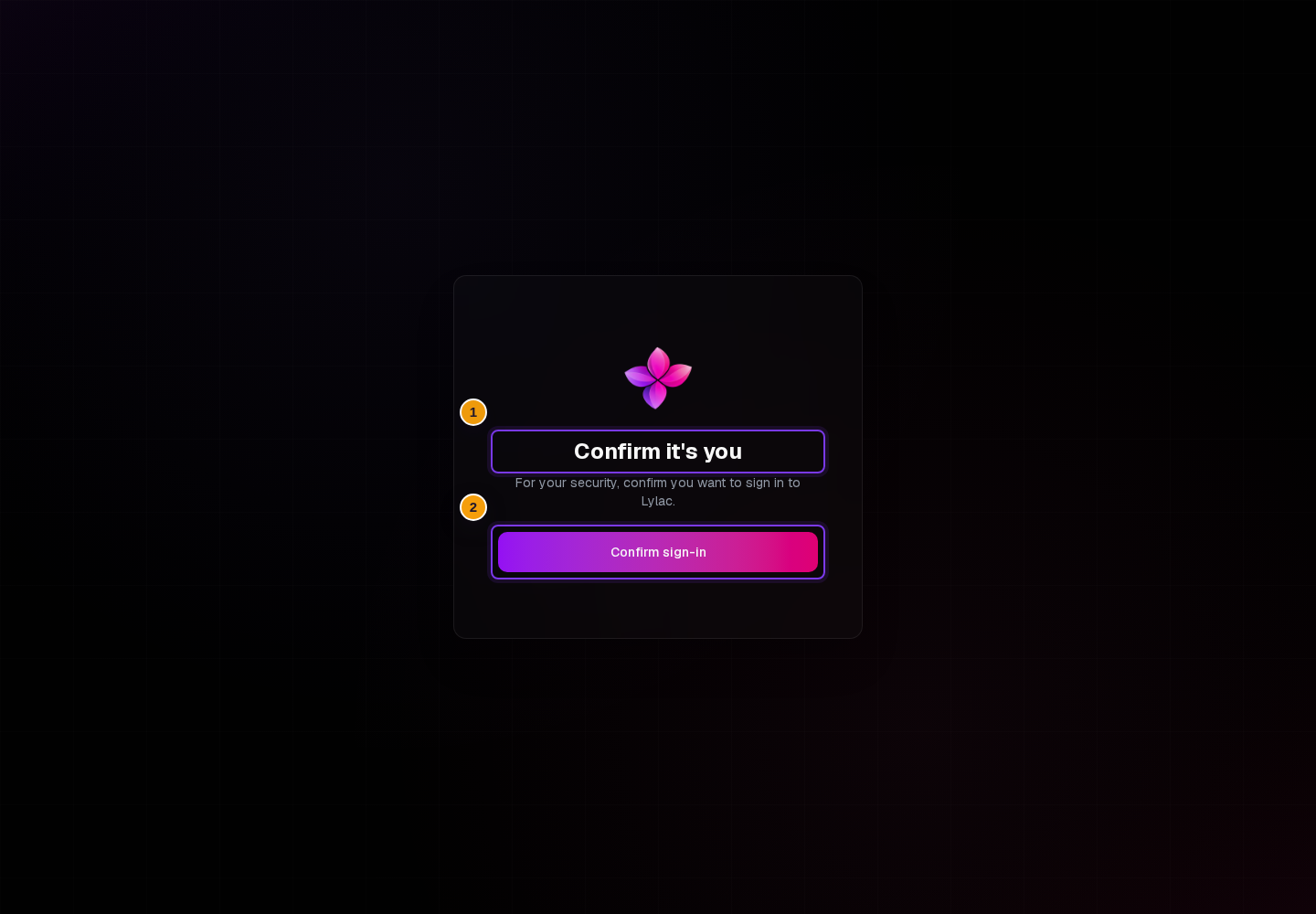
Choose the sign-in link. On Confirm it's you, choose Confirm sign-in once and let the page finish loading.
If the fresh sign-in still fails
The new link says it is expired or used. Return to the sign-in screen and request one more link. Open that fresh email and choose Confirm sign-in only once. If this keeps happening, choose Contact support.
Lylac says there were too many attempts. Wait a few seconds, then submit the email address once more.
No sign-in email arrives. On Check your email, confirm that the displayed address is correct. Choose Use a different email to correct it. If Lylac sends you to organisation single sign-on instead, it does not send an email link.
Single sign-on does not complete. Start again from the sign-in screen with your organisation email. If the error asks you to contact your administrator, send them the message shown on the page.
Next steps
- Review Create your Lylac account and sign in for every sign-in option.
- Use Cannot access an organisation or event if sign-in works but the expected area is missing.