
Set Up the Venue and Floor Plans
The Venue page manages the location, map and floor plans attendees see.
Before you start
You need owner, admin or editor access to the organisation. Have the location and any floor-plan images ready.
Save the location
Open Venue
Choose Venue in the event navigation.
Update Location
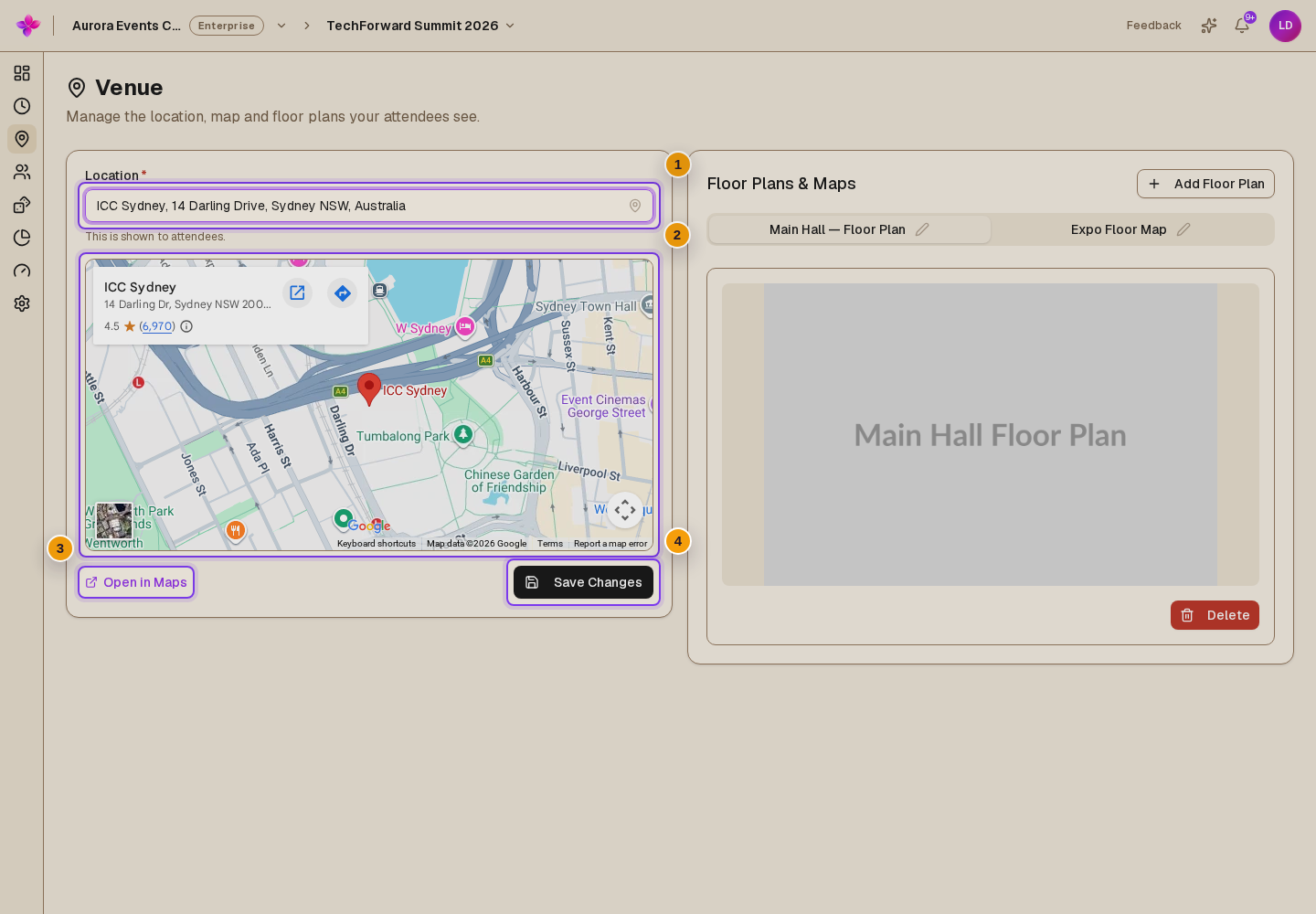
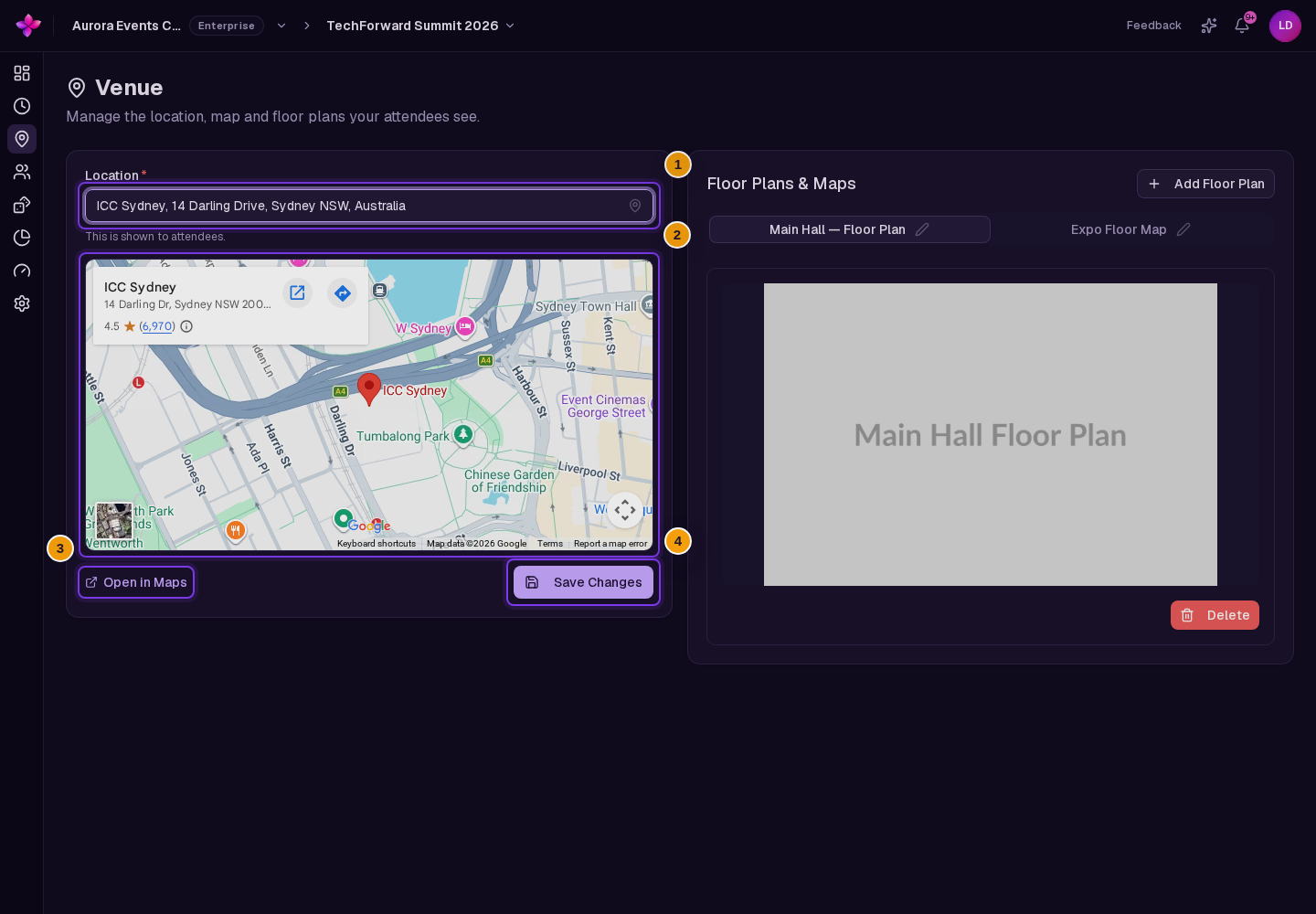
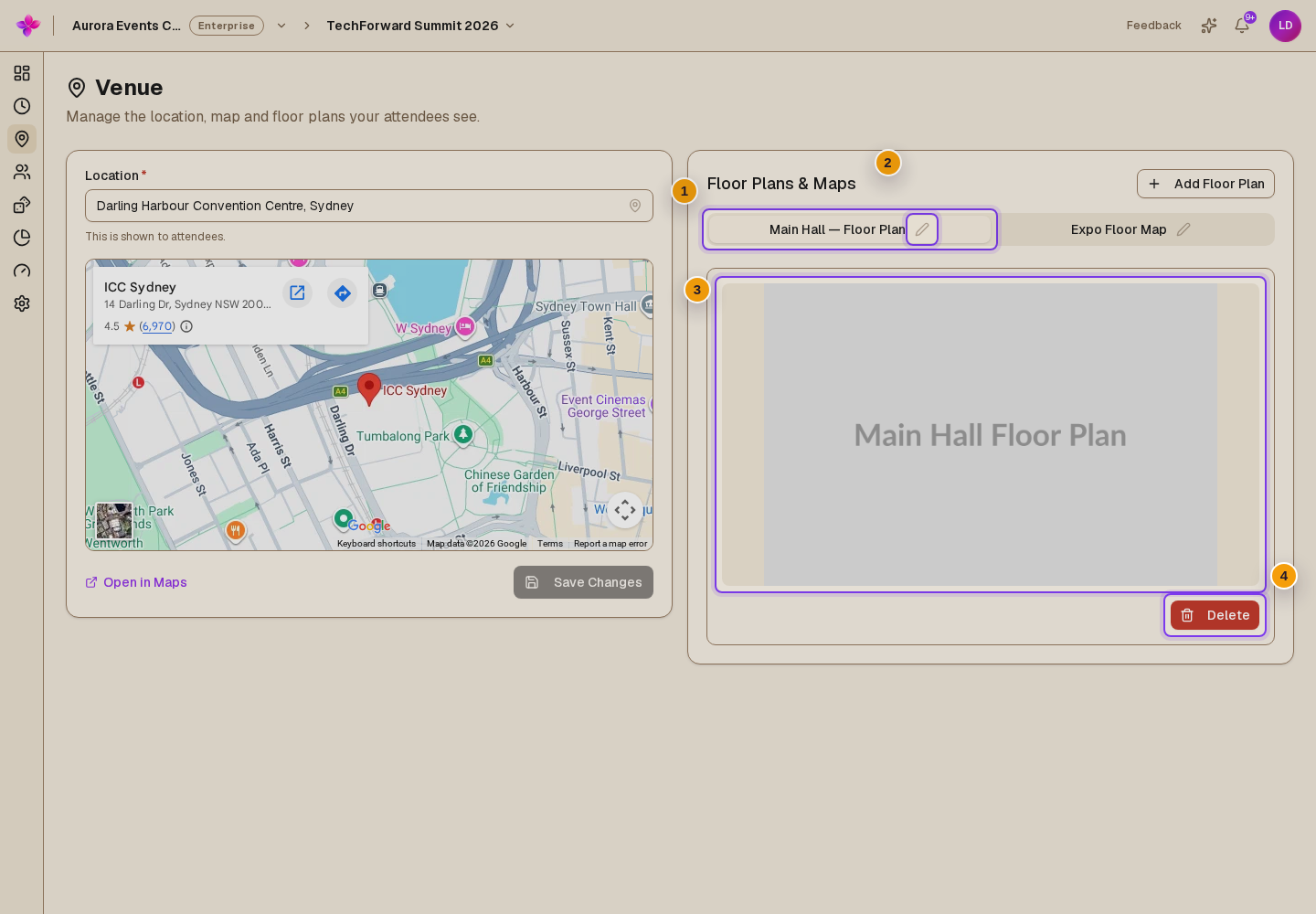
Enter the venue in Location. Choose a place suggestion if available and check the map. Use Open in Maps to check the location in a separate tab.
Save the change
Choose Save Changes. This button becomes available when the location differs from the saved value.
Add a floor plan
Open the upload dialog
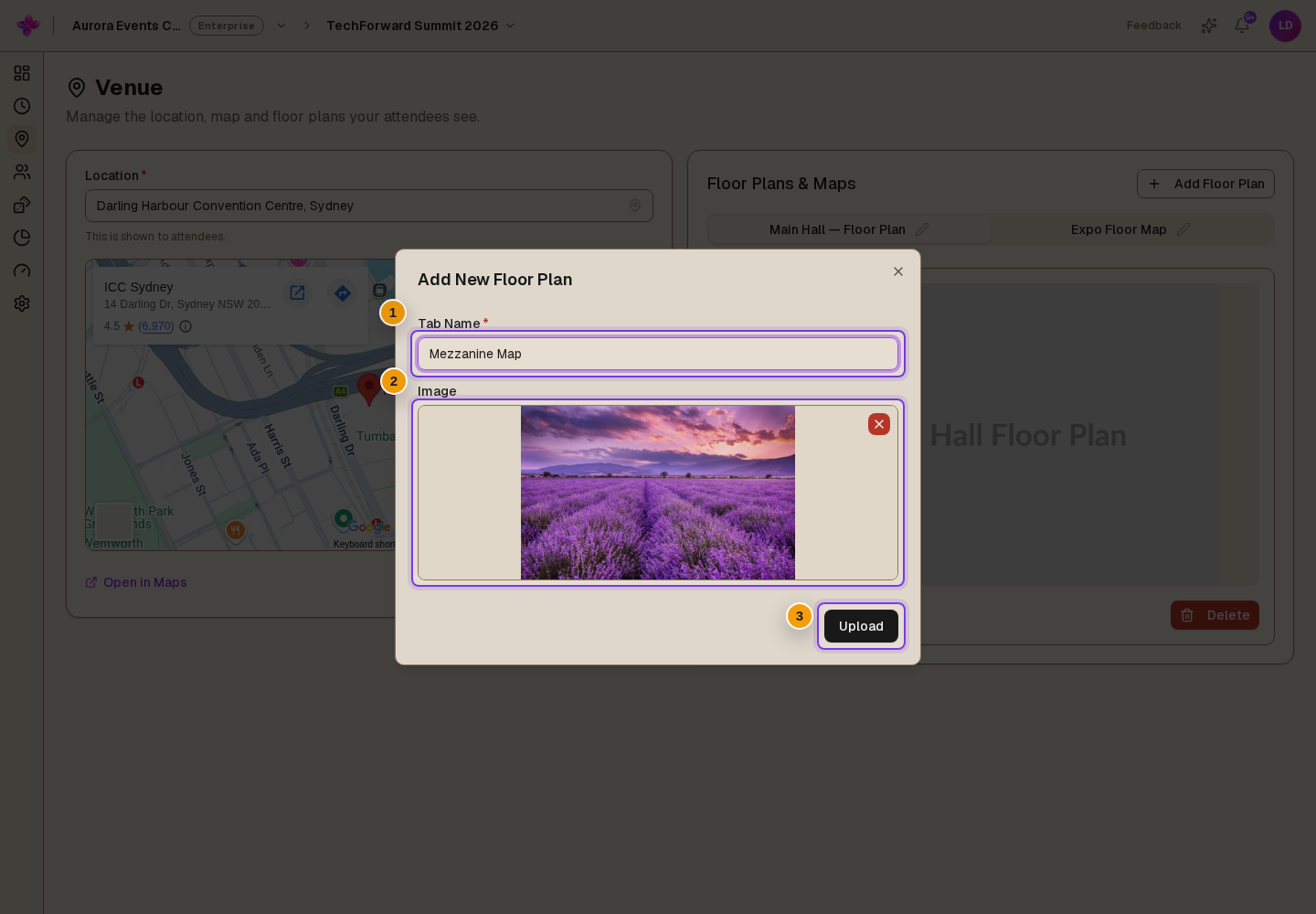
Under Floor Plans & Maps, choose Add Floor Plan.
Name and choose the image
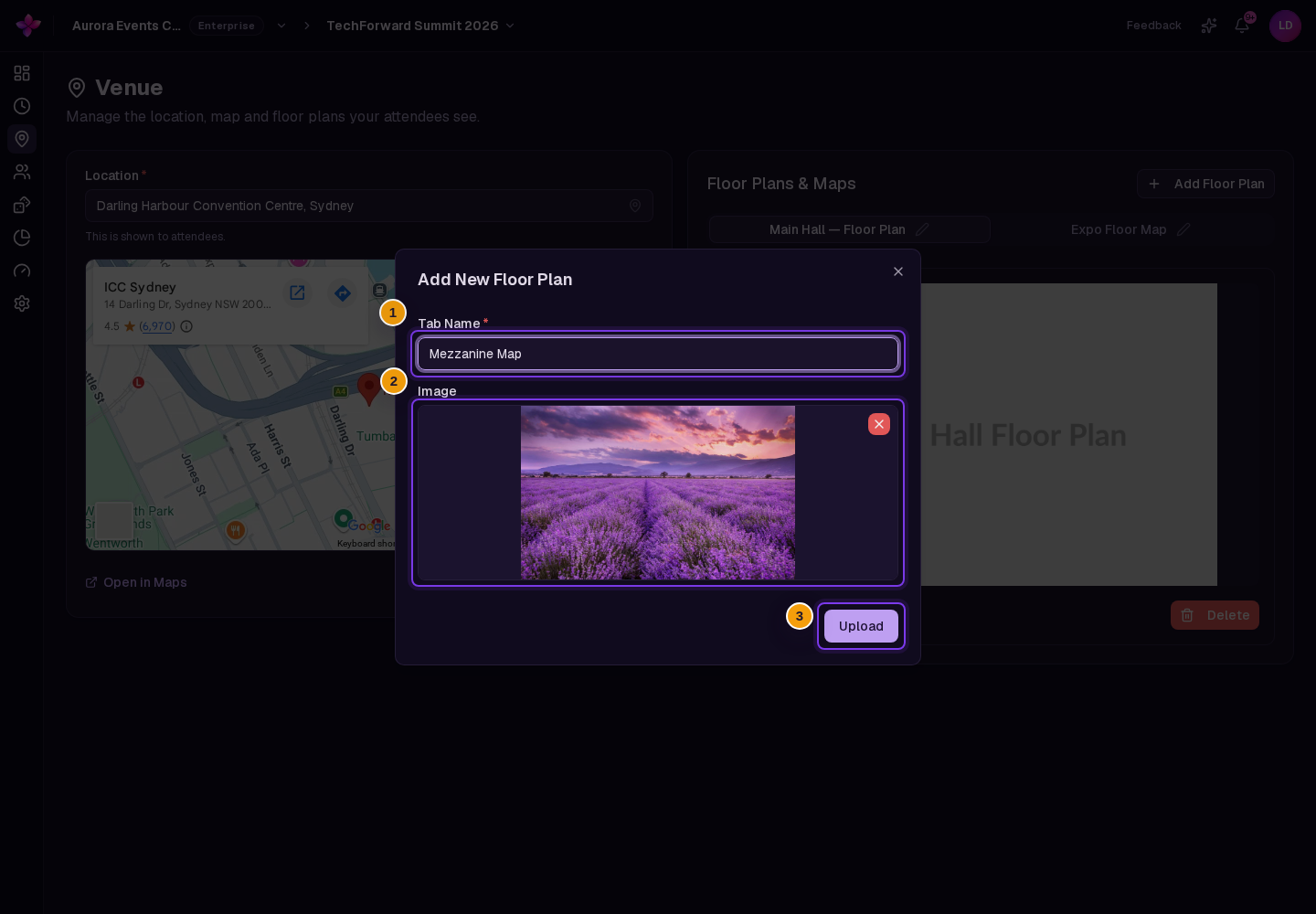
In Add New Floor Plan, enter a Tab Name and choose Choose File. Use a JPEG, PNG, GIF or WebP image.
Upload the image
Check the preview, then choose Upload. The tab name must be valid and an image must be selected.
Rename or remove a floor plan
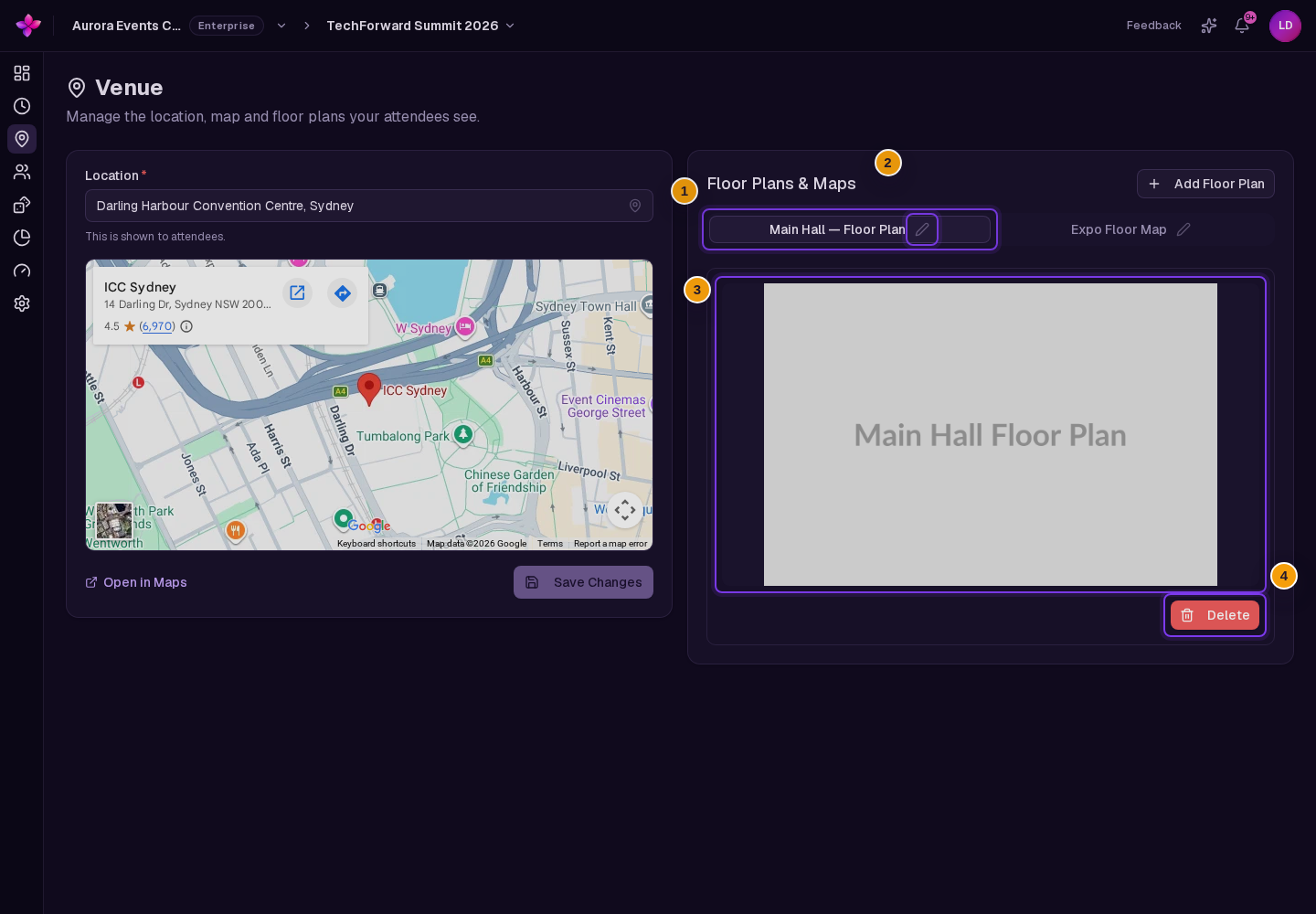
Select a floor-plan tab to view its image. Use the rename control beside the tab name, enter the new label, then choose the tick labelled Save label. To remove the active image, choose Delete and confirm.
If something goes wrong
The map shows the wrong place. Make the location text more specific and check Open in Maps before saving.
Upload is unavailable or fails. Select an image and enter a valid tab name. If the image is rejected, try a smaller file in a supported format.