
Manage Billing, Plans and Payouts
Use Billing and Ticketing to review your organisation's plan, manage payment details and invoices, change a Team subscription, and connect Stripe for paid ticket payouts.
Owners and admins can manage subscriptions, billing details, invoices, and an existing payout account. Only an organisation owner can start payout setup.
Before you start
You need:
- owner or admin access for billing changes;
- owner access if the organisation has not started payout setup;
- access to the organisation's payment method when changing paid plans;
- business and bank details when setting up ticketing payouts.
Review the current plan
Open Billing
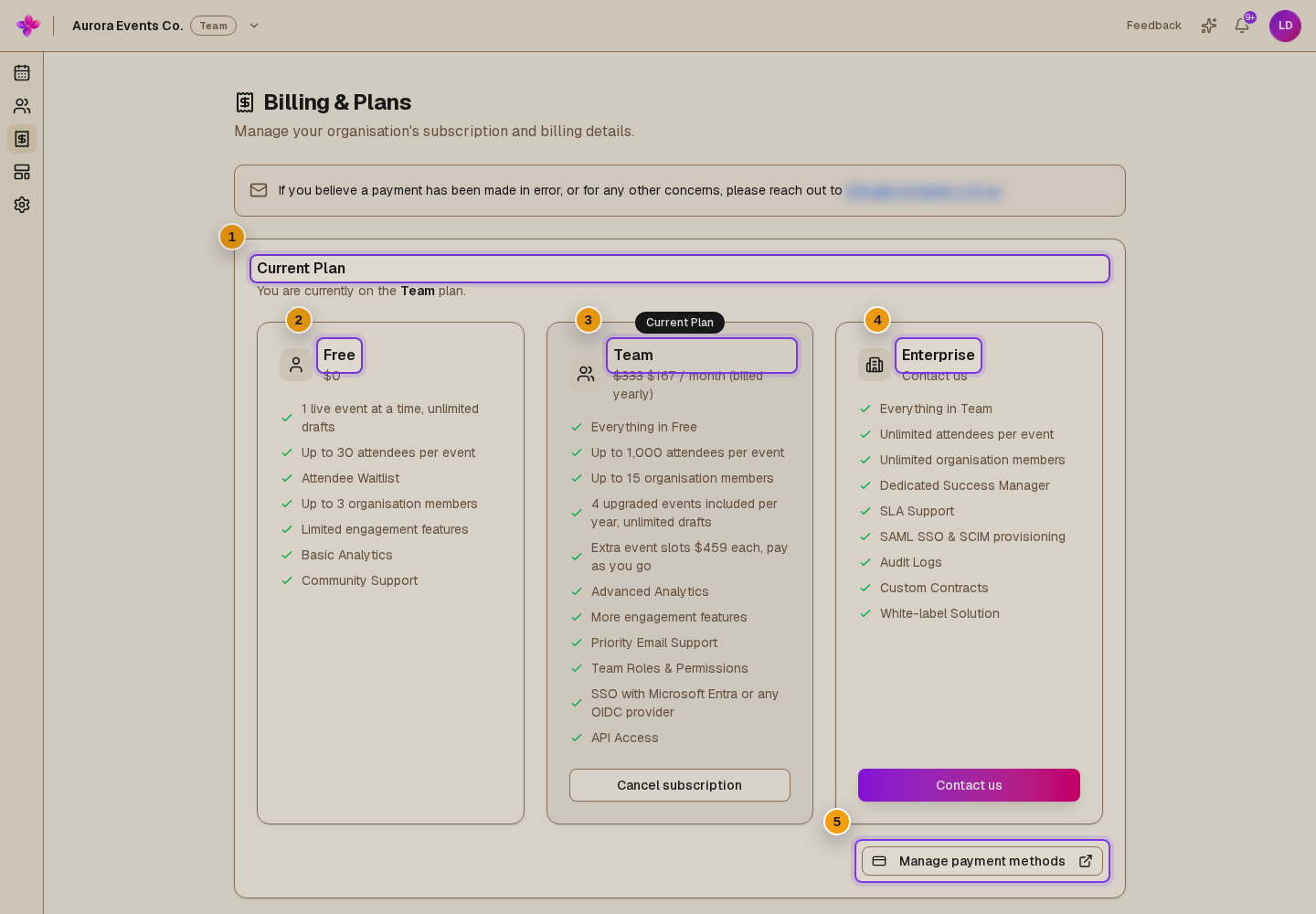
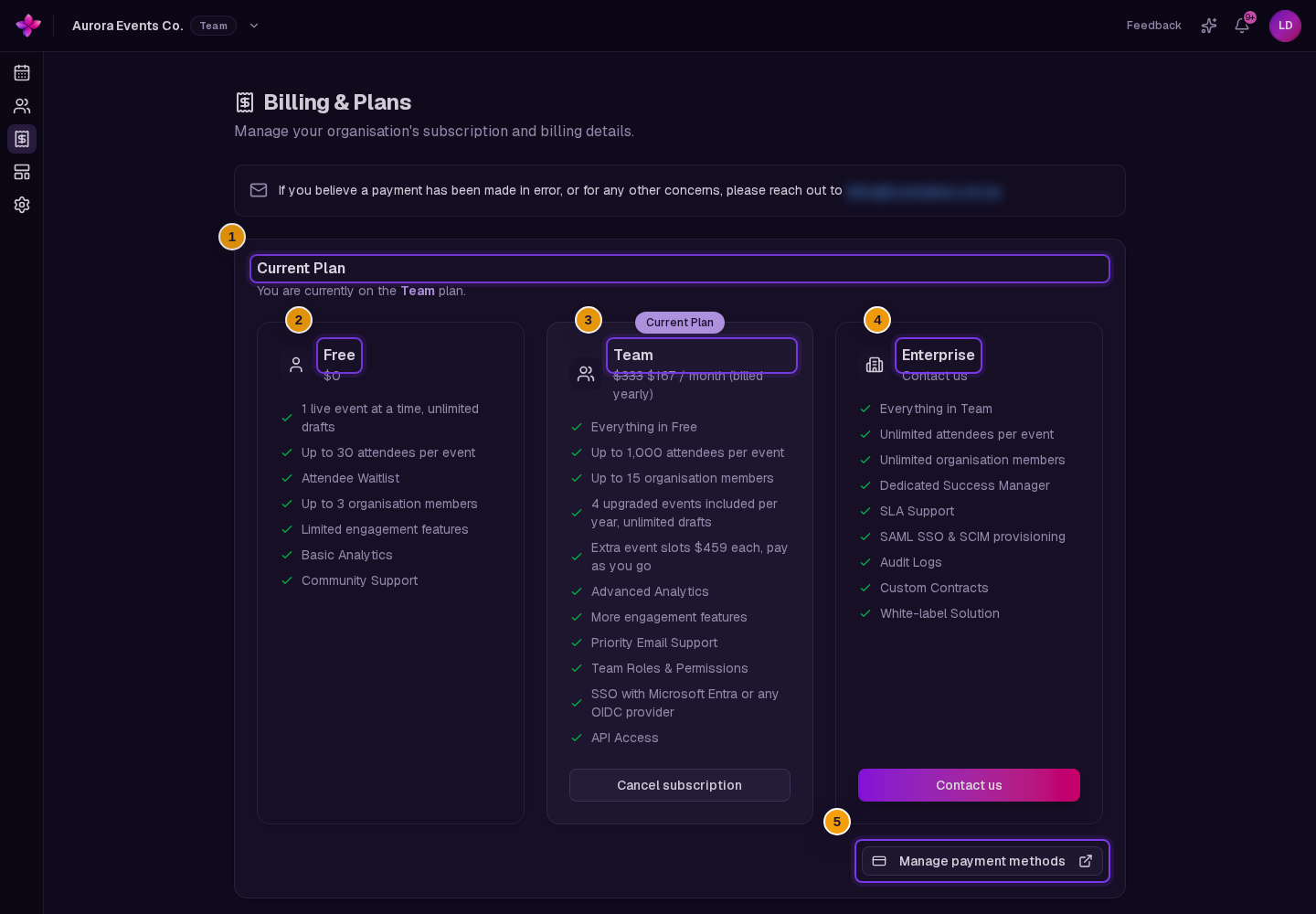
Choose Billing and Ticketing from the organisation navigation. The page heading is Billing and Ticketing.
Read Current Plan
The Current Plan card shows whether the organisation is on Free, Team, or Enterprise. A Team subscription scheduled to end also shows its cancellation date.
Compare the plan cards
Review the Free, Team, and Enterprise cards. The active plan is marked Current Plan. Choose Contact us on the Enterprise card if you want to discuss that plan.
Open payment management when needed
Choose Manage payment methods to open Stripe's billing portal in a new tab.
Upgrade a Free organisation to Team
Find the Team card
On a Free organisation, choose Upgrade on the Team card.
Review the yearly charge
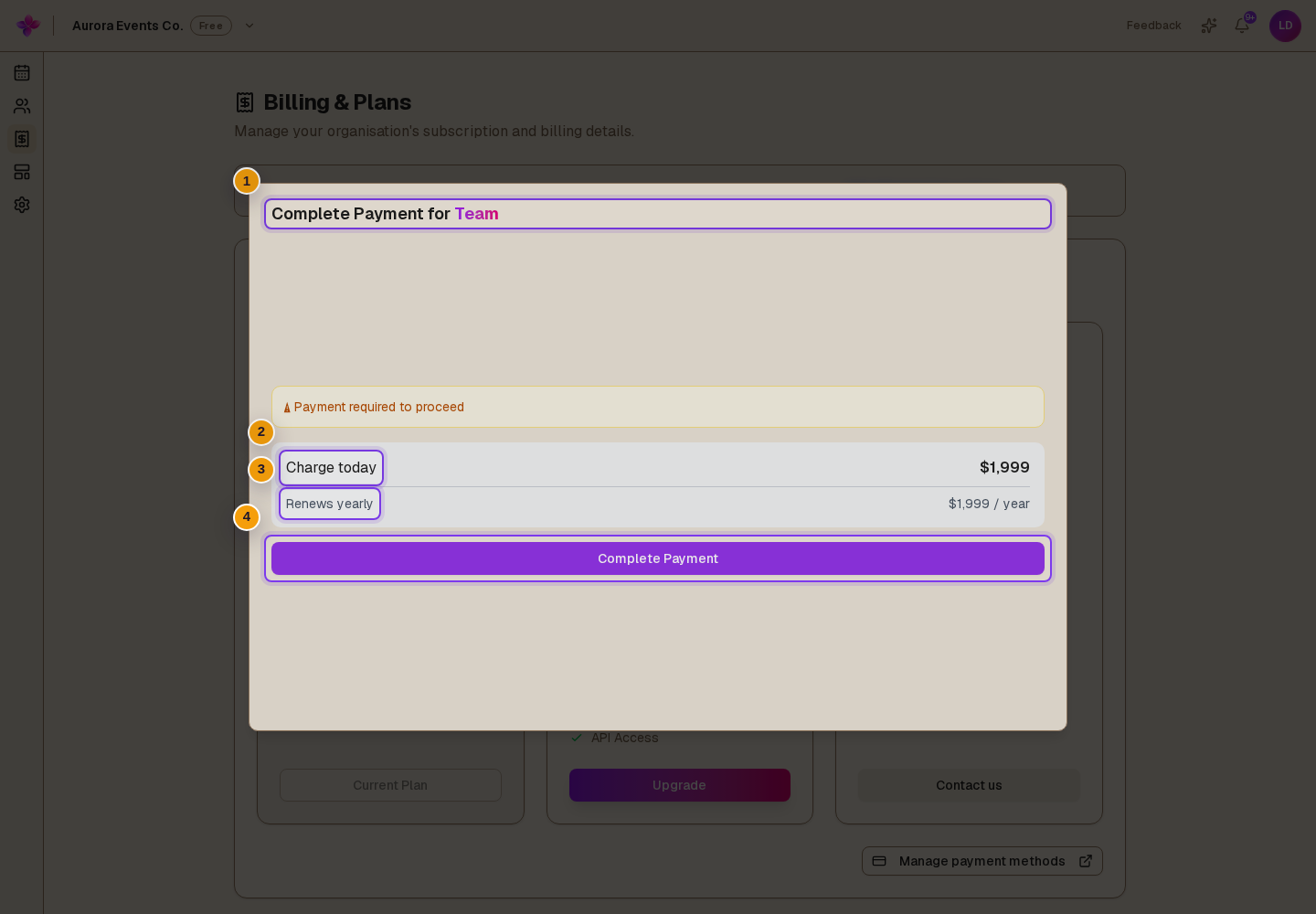
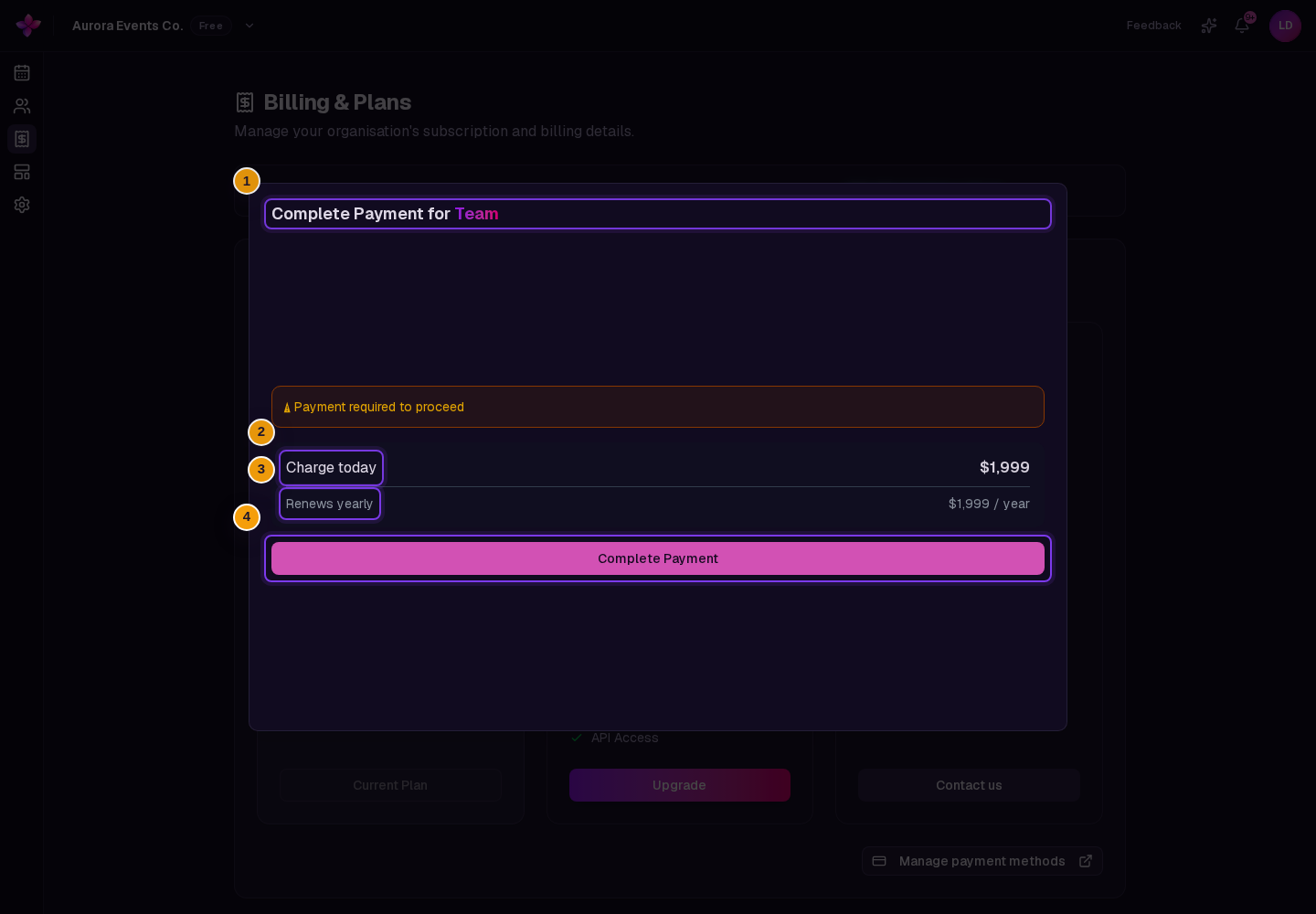
The Complete Payment for Team window shows Charge today and Renews yearly. Review both amounts before paying.
Complete payment
Enter the payment details in the embedded Stripe form and choose Complete Payment.
Wait for confirmation
When payment succeeds, the window shows All done. Lylac updates the organisation after Stripe confirms the plan change.
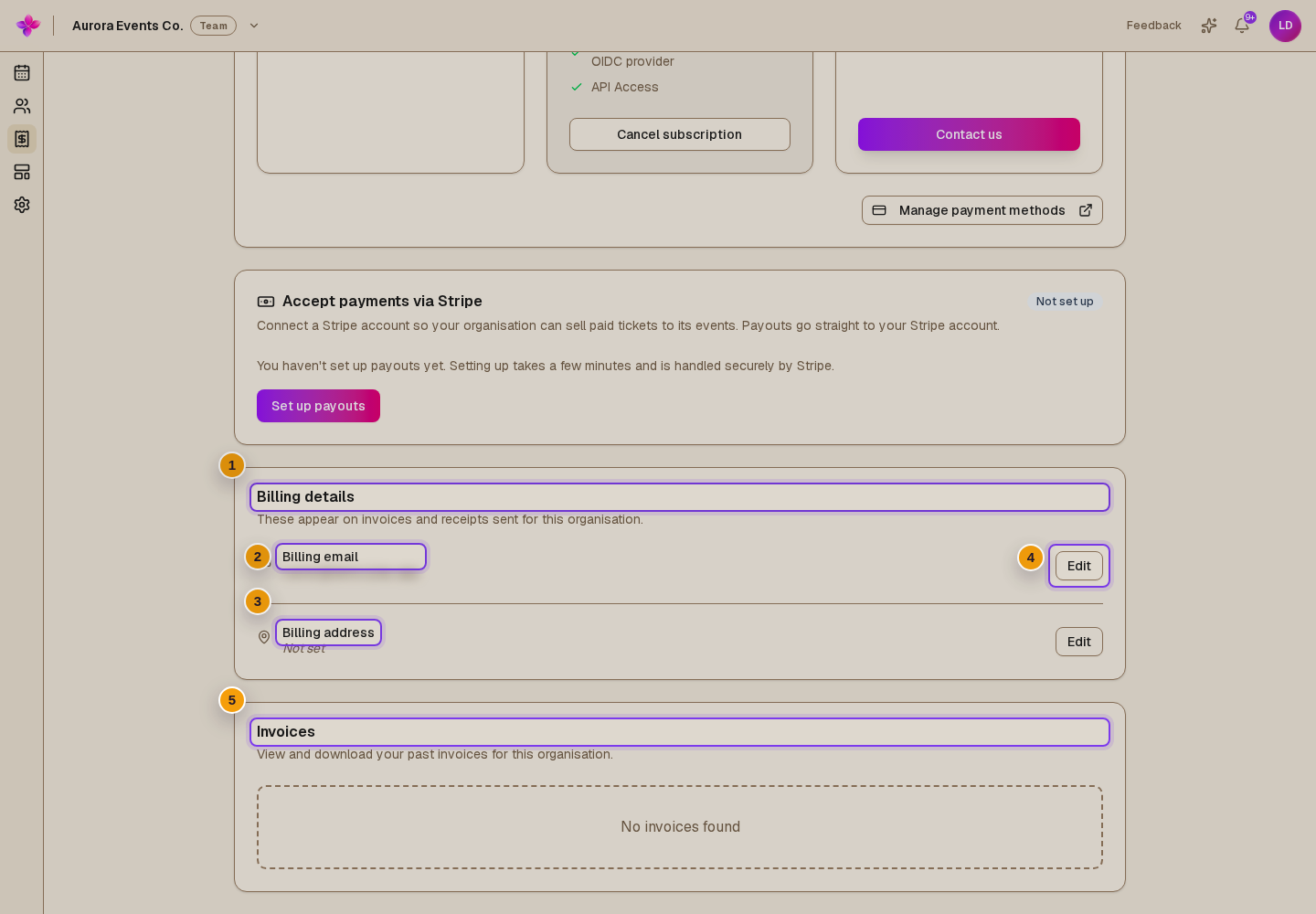
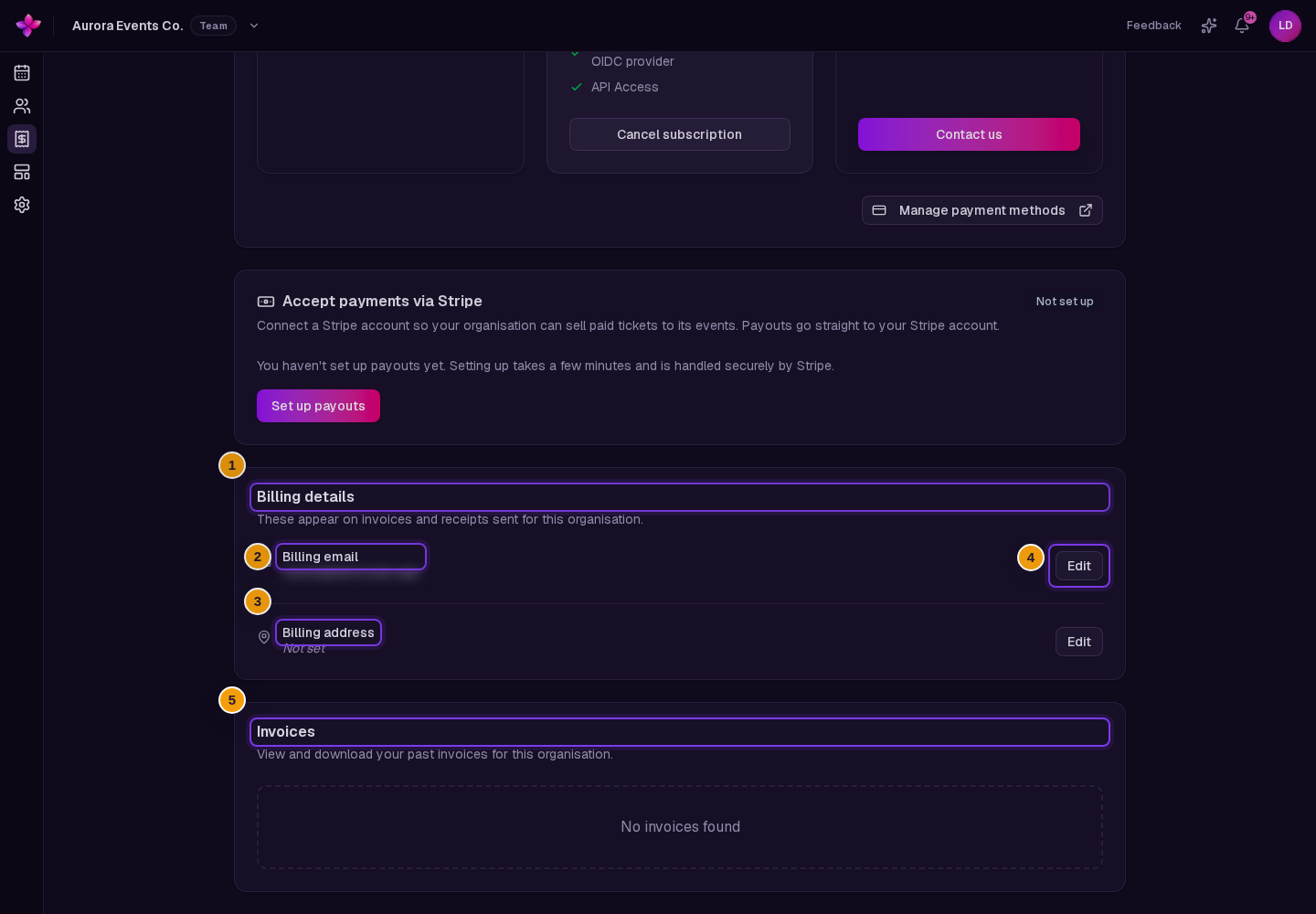
Manage billing details and invoices
Update the billing email
In Billing details, choose Edit beside Billing email. Enter the email address, then choose Save.
Update the billing address
Choose Edit beside Billing address. The form includes address lines, city, state or region, postal code, and a two-letter country code such as
AU. Choose Save.Review invoices
The Invoices card lists available past invoices. Choose View to open an invoice or PDF to open its PDF when those links are available.
Manage saved payment methods
Use Manage payment methods for saved cards and other Stripe-hosted billing settings.
Set up ticketing payouts
Connect Stripe before turning on paid ticketing. Ticket revenue is paid directly to the connected Stripe account.
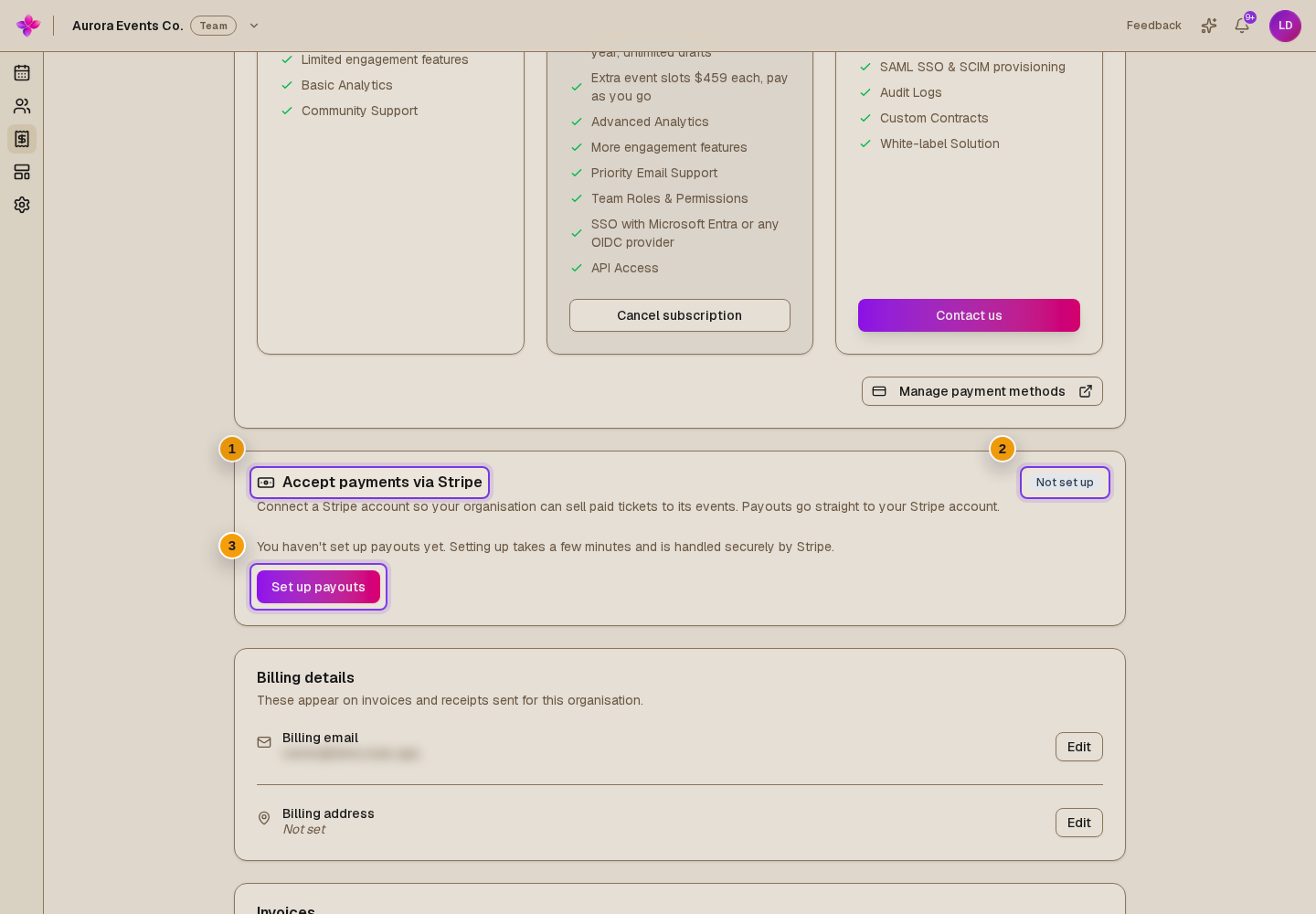
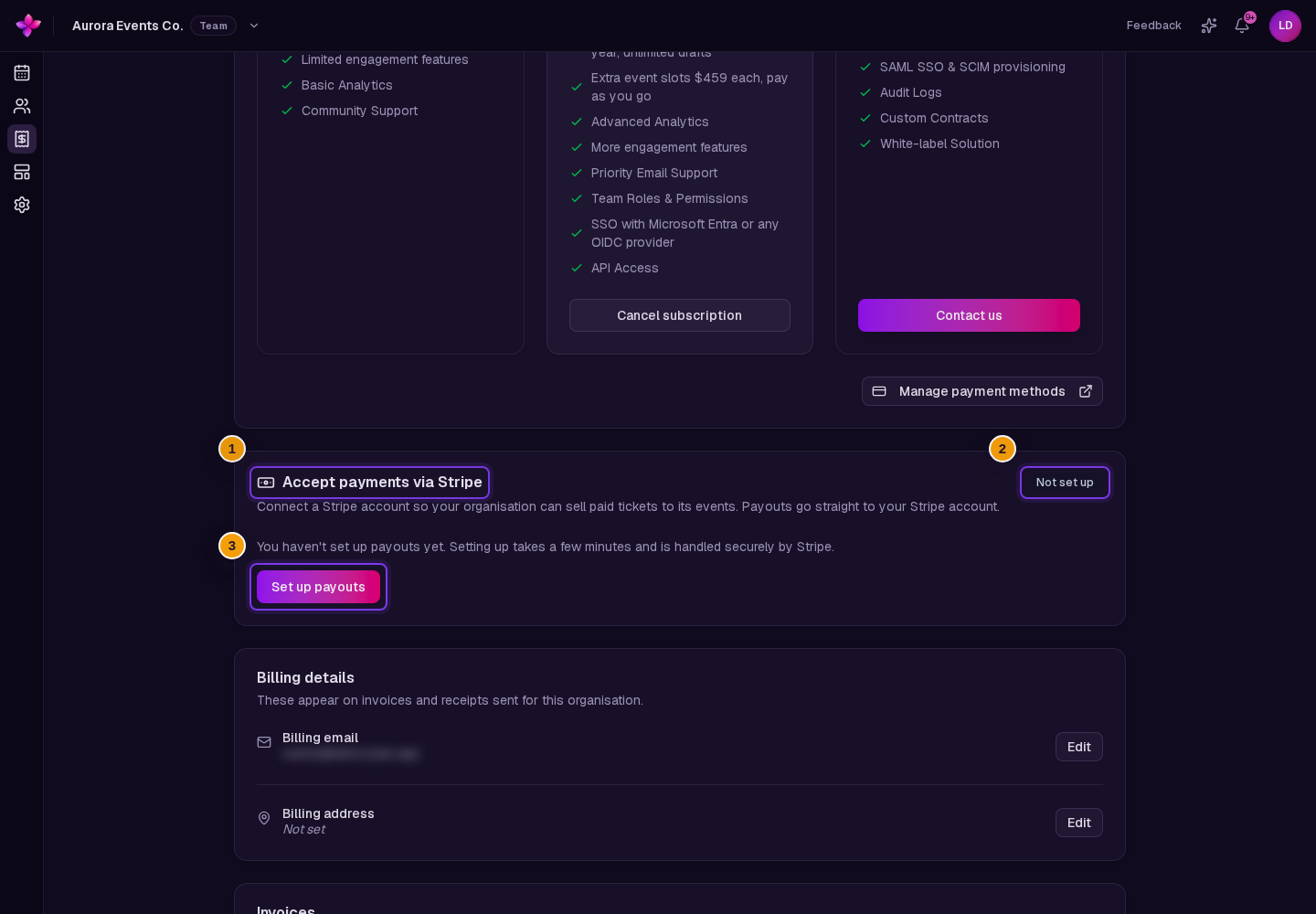
Check the payout status
Find Ticketing Setup. Its status is Not set up, In progress, Action needed, or Active.
Start payout setup as an owner
If the status is Not set up, an organisation owner chooses Set up payouts. Stripe then opens its secure embedded setup.
Complete the Stripe steps
Finish the requested business, identity, and bank details. Owners and admins can continue an existing setup. Choose Refresh status if the displayed status has not updated.
Confirm payouts are active
When the status is Active, the panel says that your organisation can accept ticket payments and shows Stripe account management.
Review ticket sales
Once an event is selling tickets, Tickets lists each event with how many of each ticket type have sold. Owners and admins also see net revenue for each event and in total. Net revenue is what your organisation keeps after Lylac and Stripe fees, estimated for Australian cards. When payouts are active, Tickets appears above Ticketing Setup.
Cancel or reinstate Team
Cancelling Team schedules the organisation to move to Free at the end of the current billing period. Team access continues until that date.
Start the cancellation
On the current Team card, choose Cancel subscription.
Confirm the schedule
Read Cancel your subscription?. Choose Cancel subscription to continue or Keep subscription to stop.
Schedule the cancellation
In Cancel Subscription, review the end-of-period message and choose Cancel Subscription.
Reinstate Team if needed
When cancellation is scheduled, the Team card shows Reinstate Plan. Choose it, then choose Reinstate Team Plan in the confirmation window.
![/dashboard/[orgID]/billing with the final Cancel Subscription window open and its end-of-period message and Cancel Subscription button visible](/cdn-cgi/image/width=3840,quality=75,format=auto/images/help/team-admins/billing/manage-billing-plans-and-payouts/05-cancel-subscription.light.png)
![/dashboard/[orgID]/billing with the final Cancel Subscription window open and its end-of-period message and Cancel Subscription button visible](/cdn-cgi/image/width=3840,quality=75,format=auto/images/help/team-admins/billing/manage-billing-plans-and-payouts/05-cancel-subscription.dark.png)
If something goes wrong
Manage payment methods does not open. Allow new tabs for Lylac, then try again. If it still fails, contact support.
The Team plan does not appear immediately after payment. Wait for Stripe confirmation, then refresh Billing and Ticketing.
Billing details cannot be saved. Check the email address and the two-letter country code, then try again.
Set up payouts is refused for an admin. An organisation owner must create the connected Stripe account. After that, owners and admins can continue setup and refresh its status.
The payout status looks stale. Choose Refresh status after completing the Stripe steps.