
Manage Your Account Profile
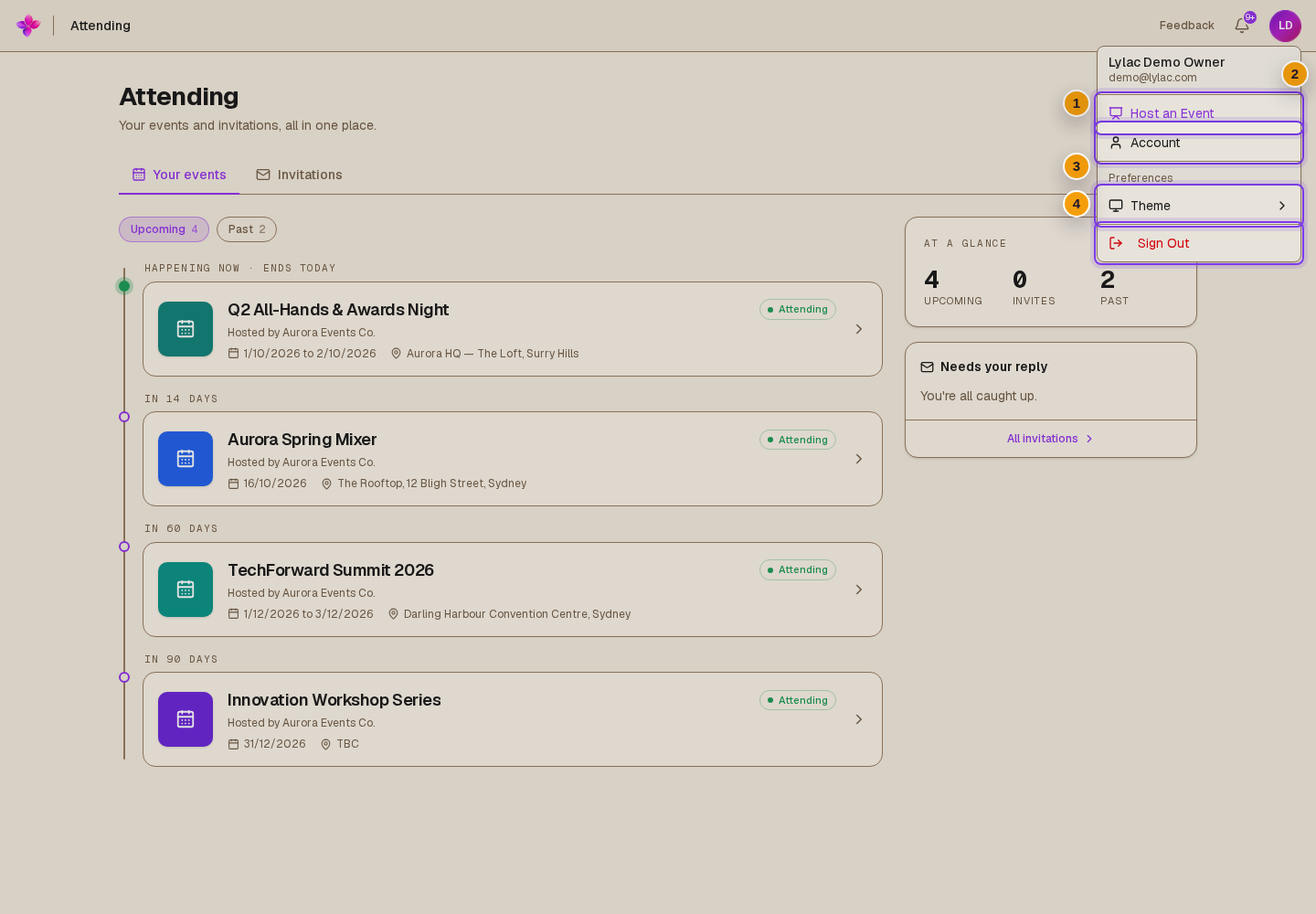
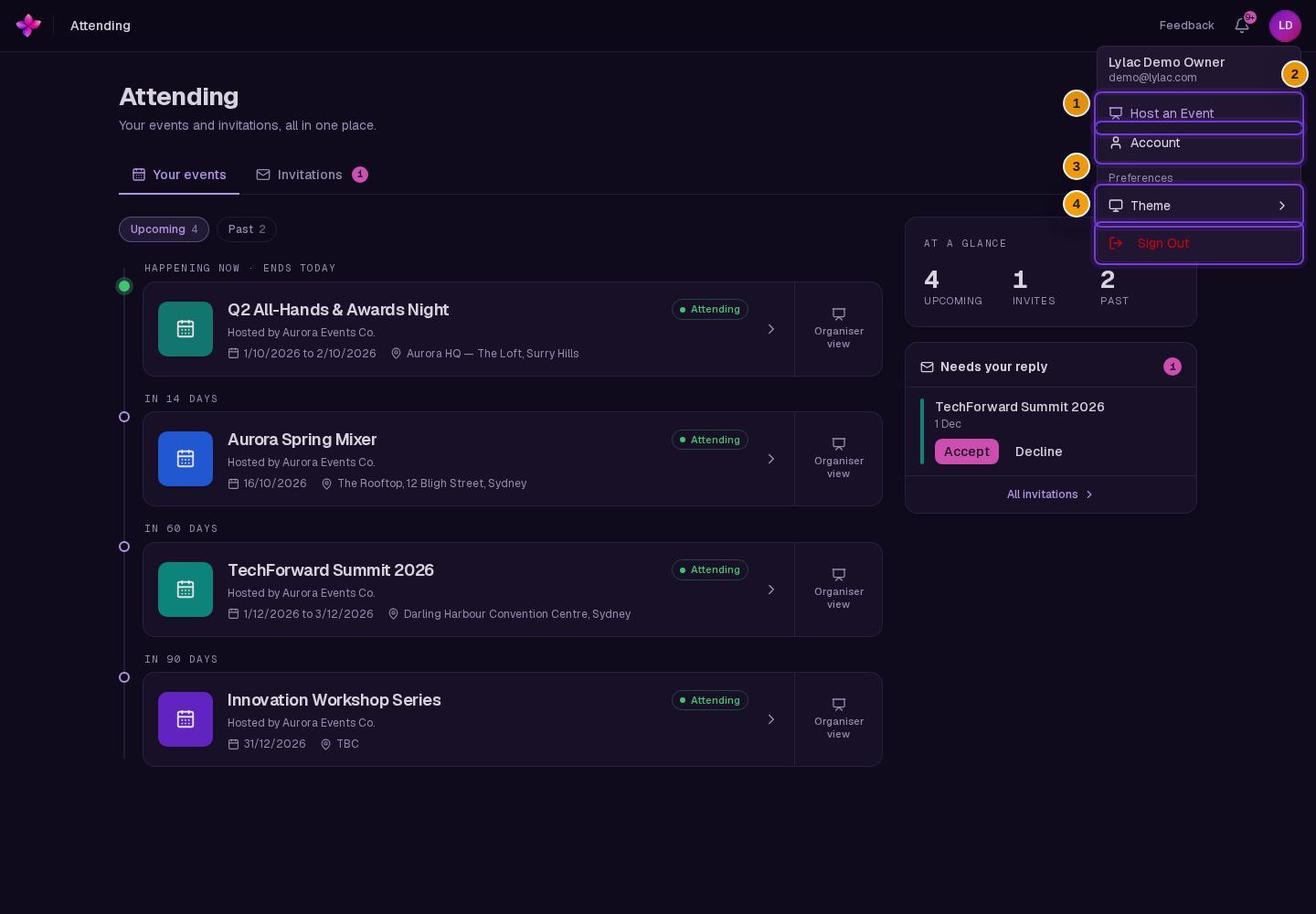
Open Account from the avatar or initials menu in the top right. The menu shows your name and email so you can check which account you are using.
Before you start
Use the account menu
The menu includes Account, a choice to switch between hosting and attending, Theme, and Sign Out. Under Theme, choose Light, Dark or System.
Update your profile
Open Profile
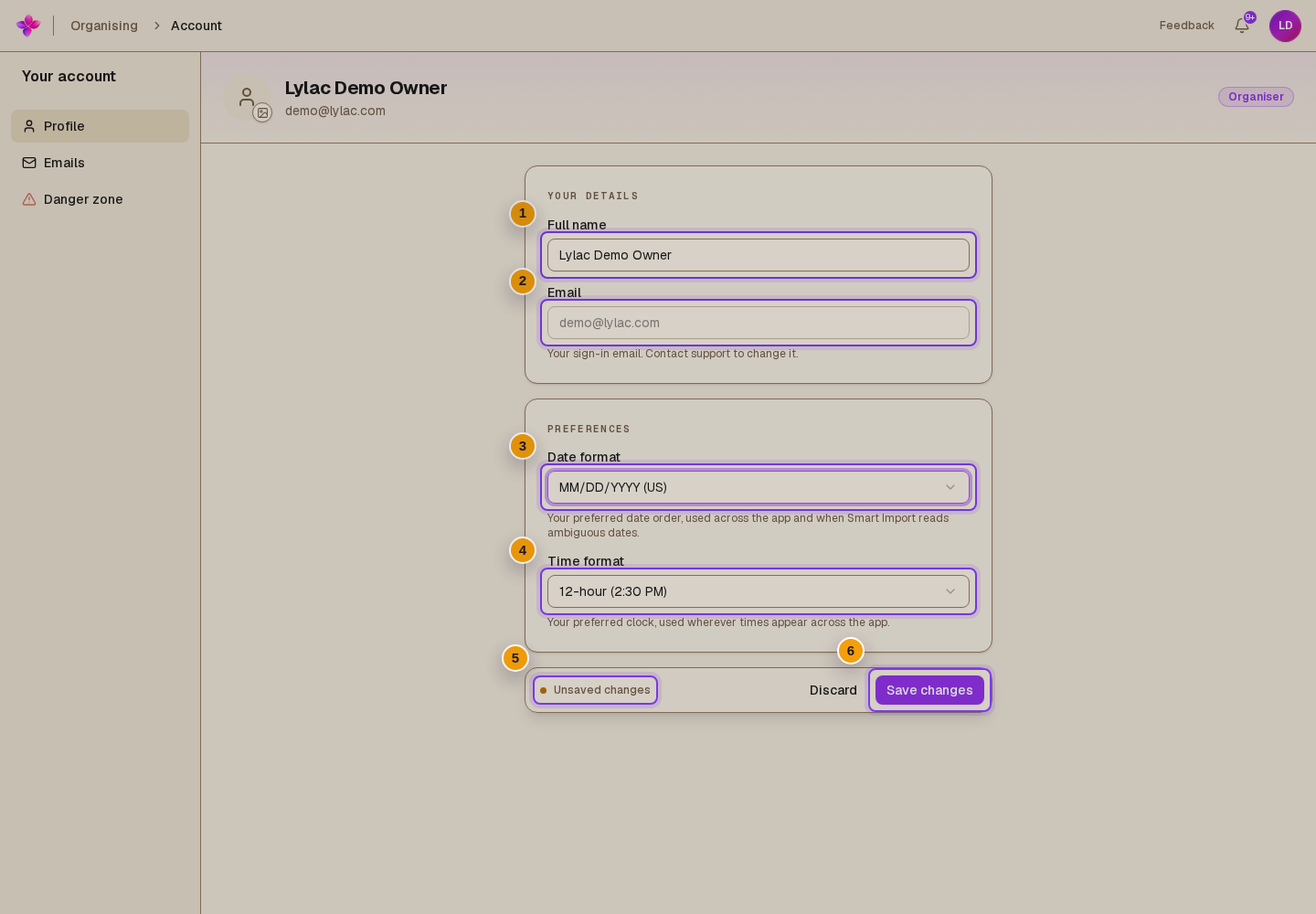
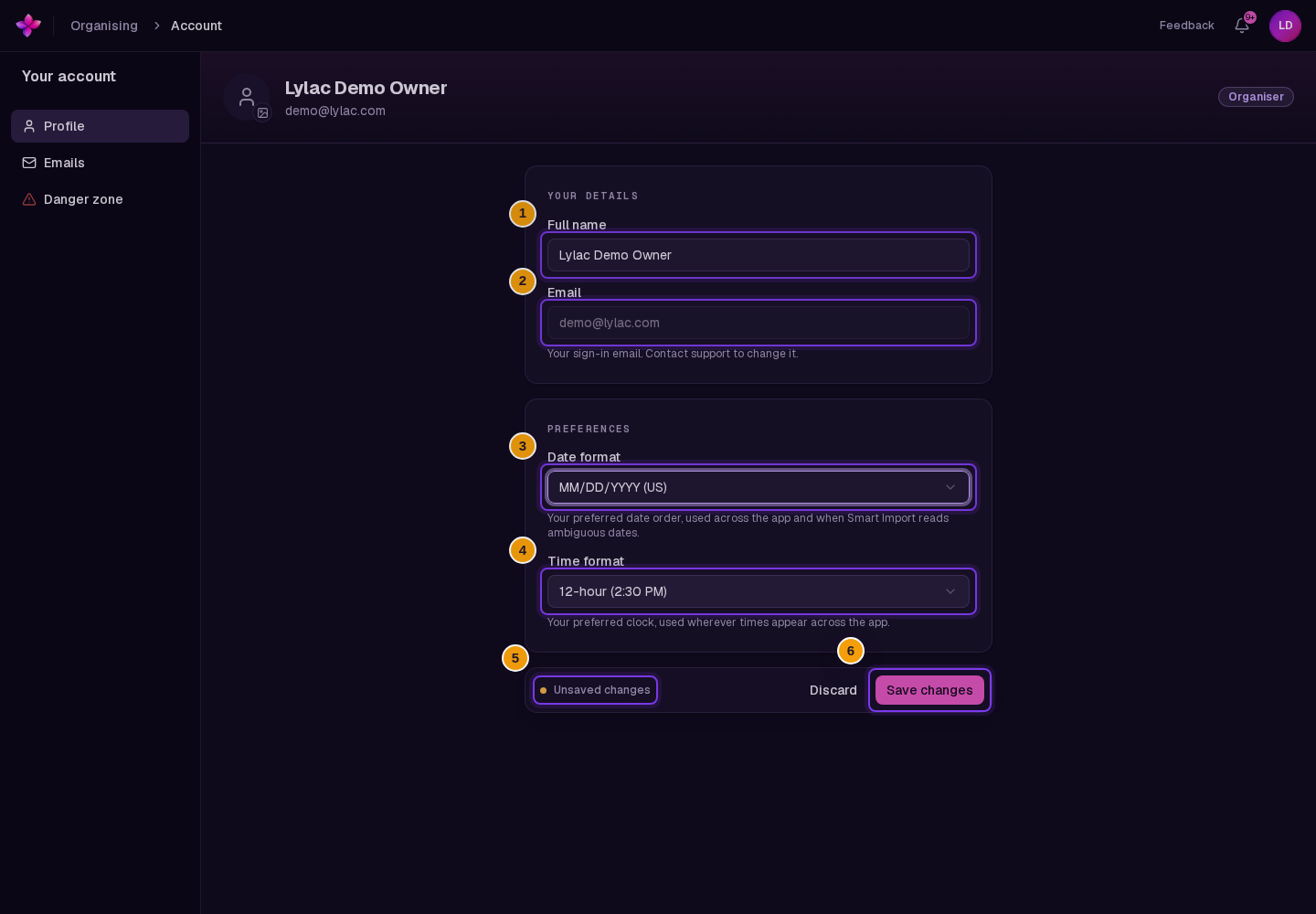
Choose Account from the account menu. The Profile tab contains Full name, Email, Date format and Time format.
Edit your details and preferences
Update your Full name if it is editable. Choose your preferred date order and either a 12-hour or 24-hour time format.
Your sign-in email is read-only. Contact support if it needs to change.
Save your changes
After you change your name or a format preference, the Unsaved changes bar appears. Choose Save changes, or Discard to return to the saved values.
Change your photo
Choose Change photo beside your avatar at the top of the account page and select an image. The photo uploads immediately, separately from Save changes.
To remove it, choose Remove photo, then Delete in the confirmation dialog.
If your organisation manages your name or photo through single sign-on, those controls may be locked. Ask your organisation's IT admin to update the managed details.
Deactivate or restore your account
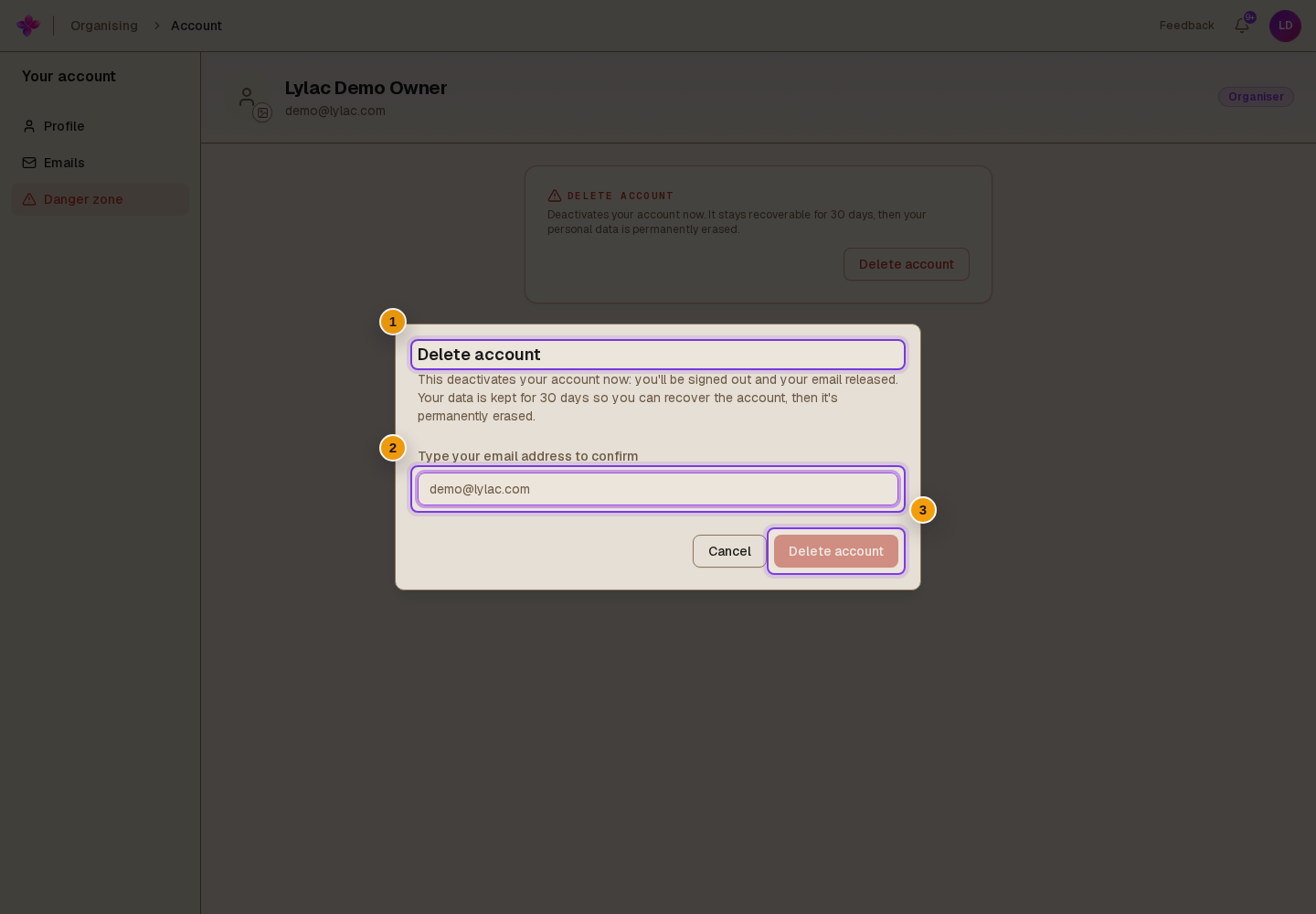
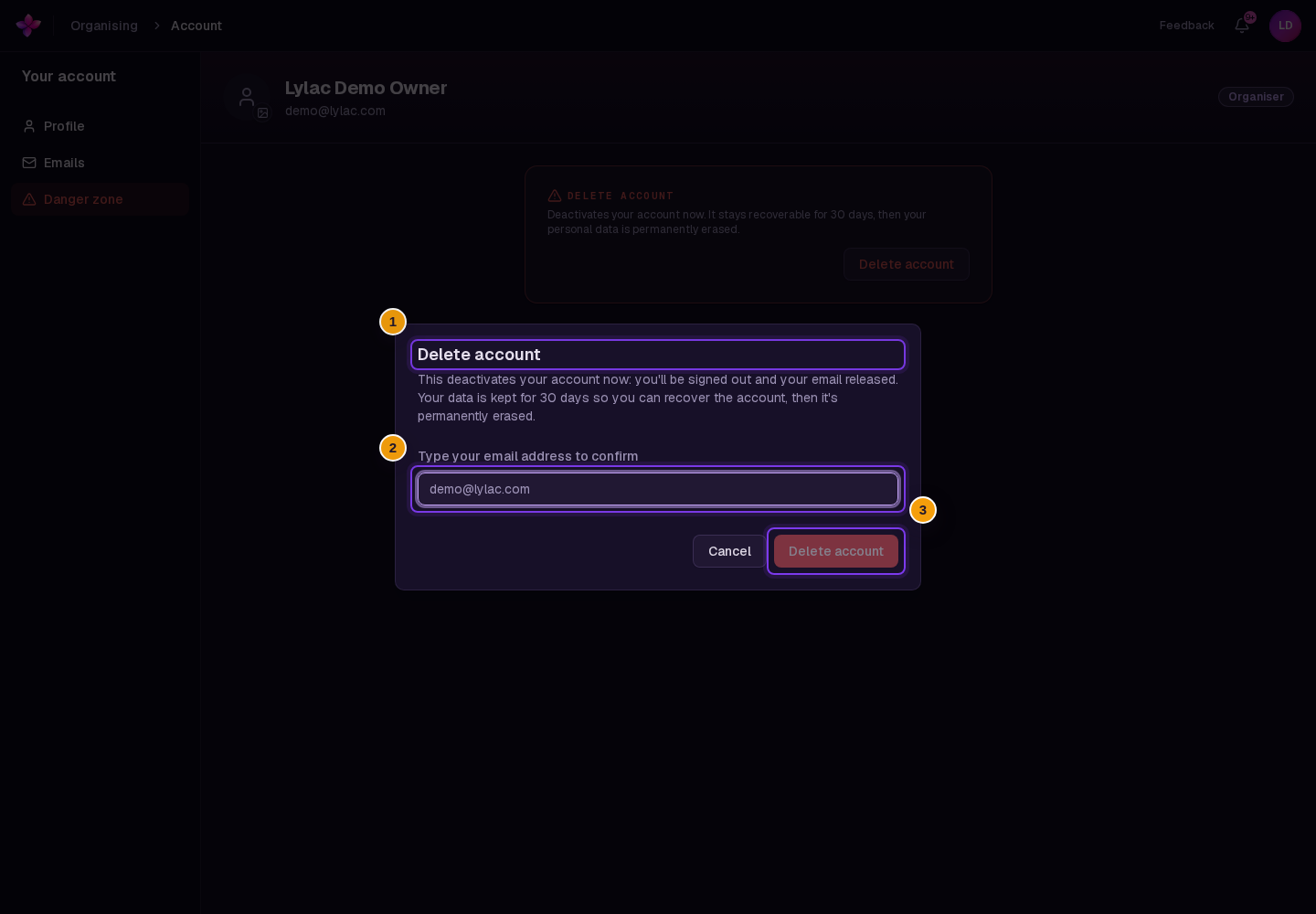
Open Danger zone in account settings. On small screens, this tab is labelled Danger. Choose Delete account, type your email address to confirm, then choose Delete account again.
This deactivates your account and signs you out. You have a 30-day recovery window. Sign in during that window and choose Restore my account to cancel deletion. Start fresh (delete permanently) finishes deletion immediately after confirmation and cannot be undone.
Organisation-managed accounts cannot use self-service deletion. If you are the only owner of an organisation, you must transfer ownership or delete that organisation first.
If something goes wrong
Save changes is missing. The bar appears only when your name, date format or time format has unsaved changes. Photo changes save separately.
Your name or photo is locked. Check the organisation management message beside the field and contact your IT admin.
Deletion is blocked. Read the message about organisation management or sole ownership before trying again.
If you still need help, choose Contact support.
Next steps
- Manage email preferences from the Emails tab.
- Choose your first view.