
Create Your Lylac Account and Sign In
Lylac uses password-free sign-in. You can receive a one-time email link, continue with Google or Microsoft, or use your organisation's single sign-on if your organisation requires it.
If your email address is new to Lylac, your account is created as part of sign-in. There is no separate password setup step.
Before you start
You need:
- access to the email address you want to use with Lylac;
- access to your Google or Microsoft account, if you choose that provider;
- your organisation email address, if your organisation requires single sign-on.
Sign in with an email link
Open the sign-in screen
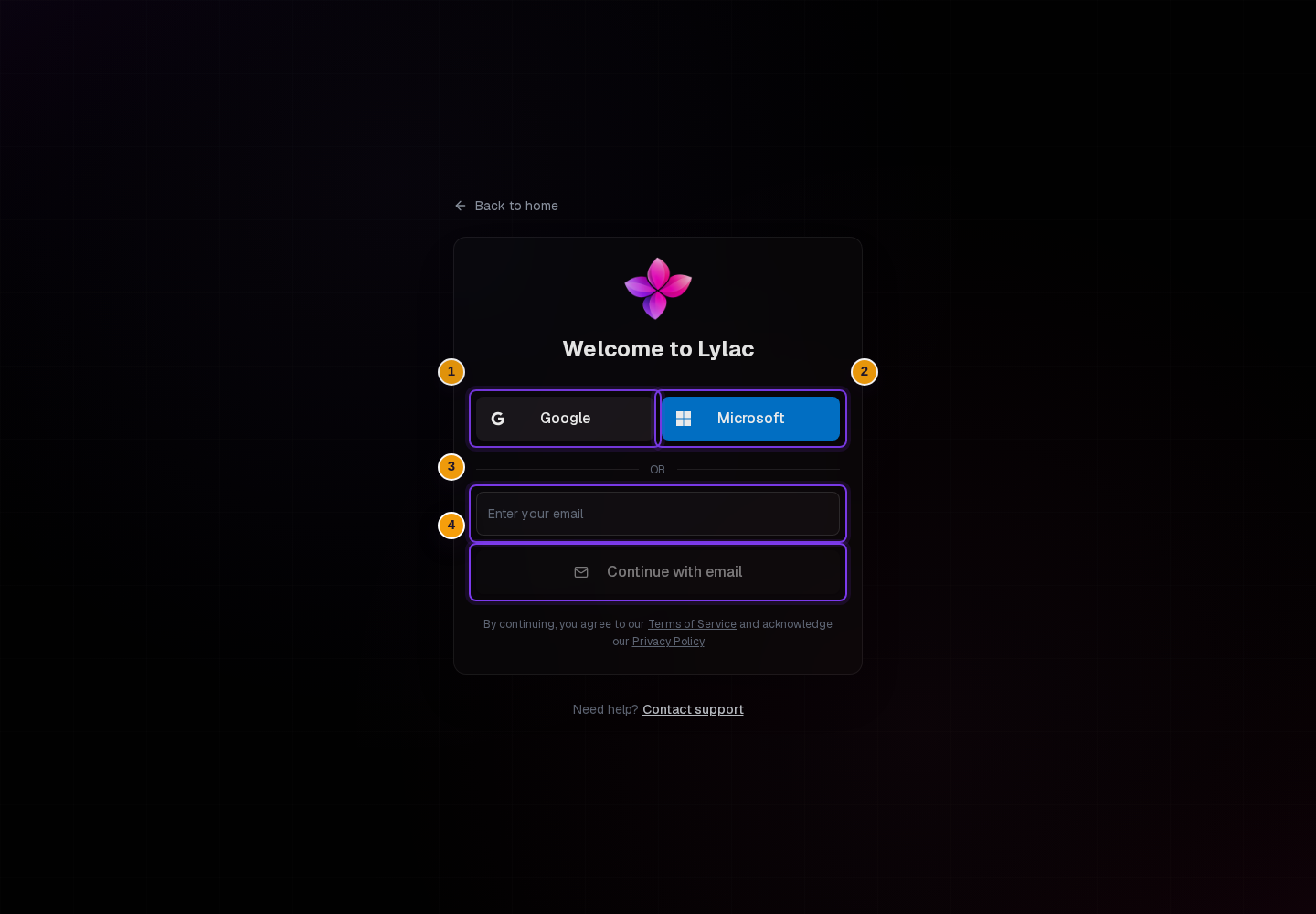
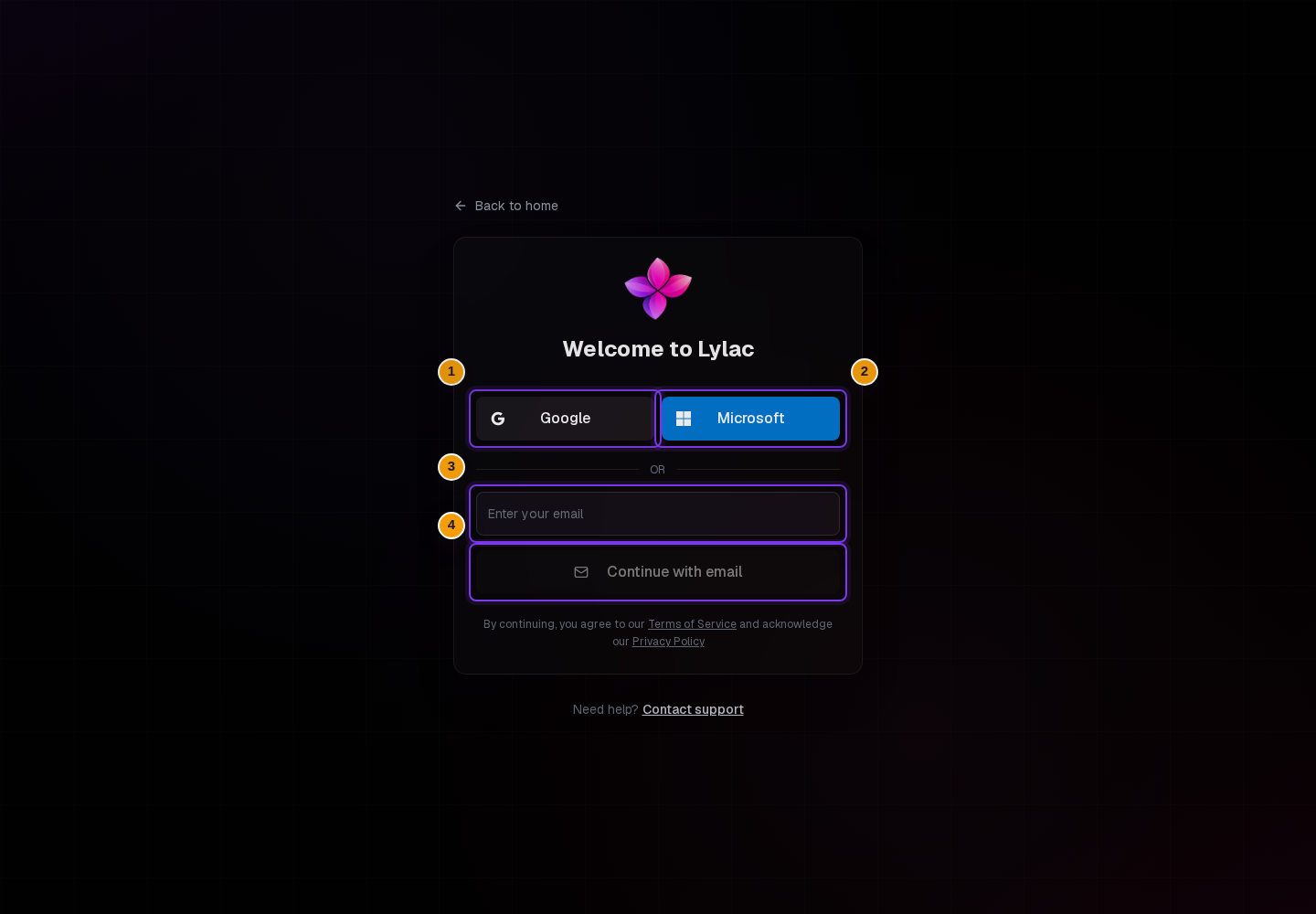
Open the sign-in screen and choose the email field when you want Lylac to send a one-time sign-in link.
Enter your email address
Use the email address that should be connected to your Lylac account. When you continue, Lylac checks whether the address must use organisation single sign-on.
Send the link
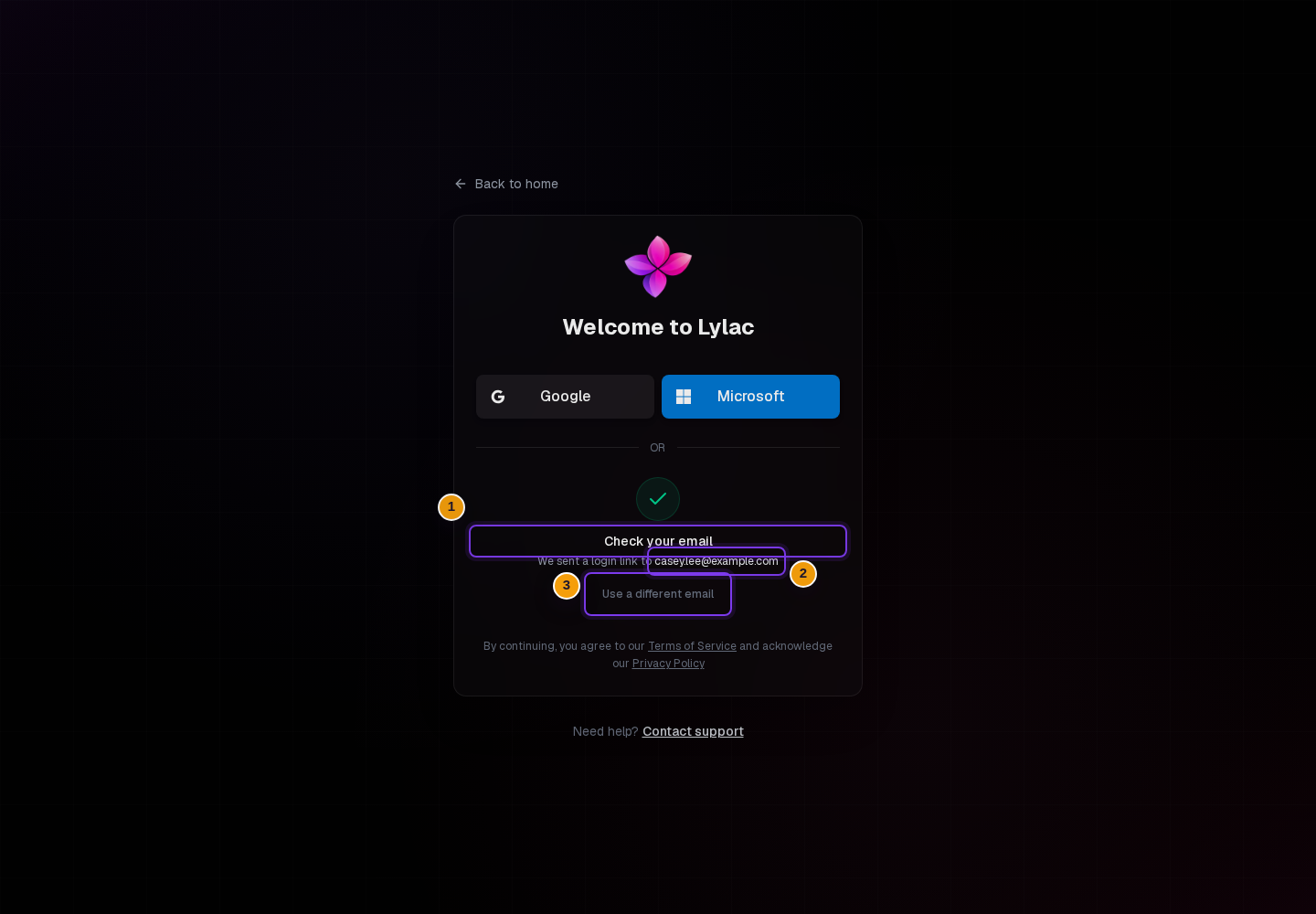
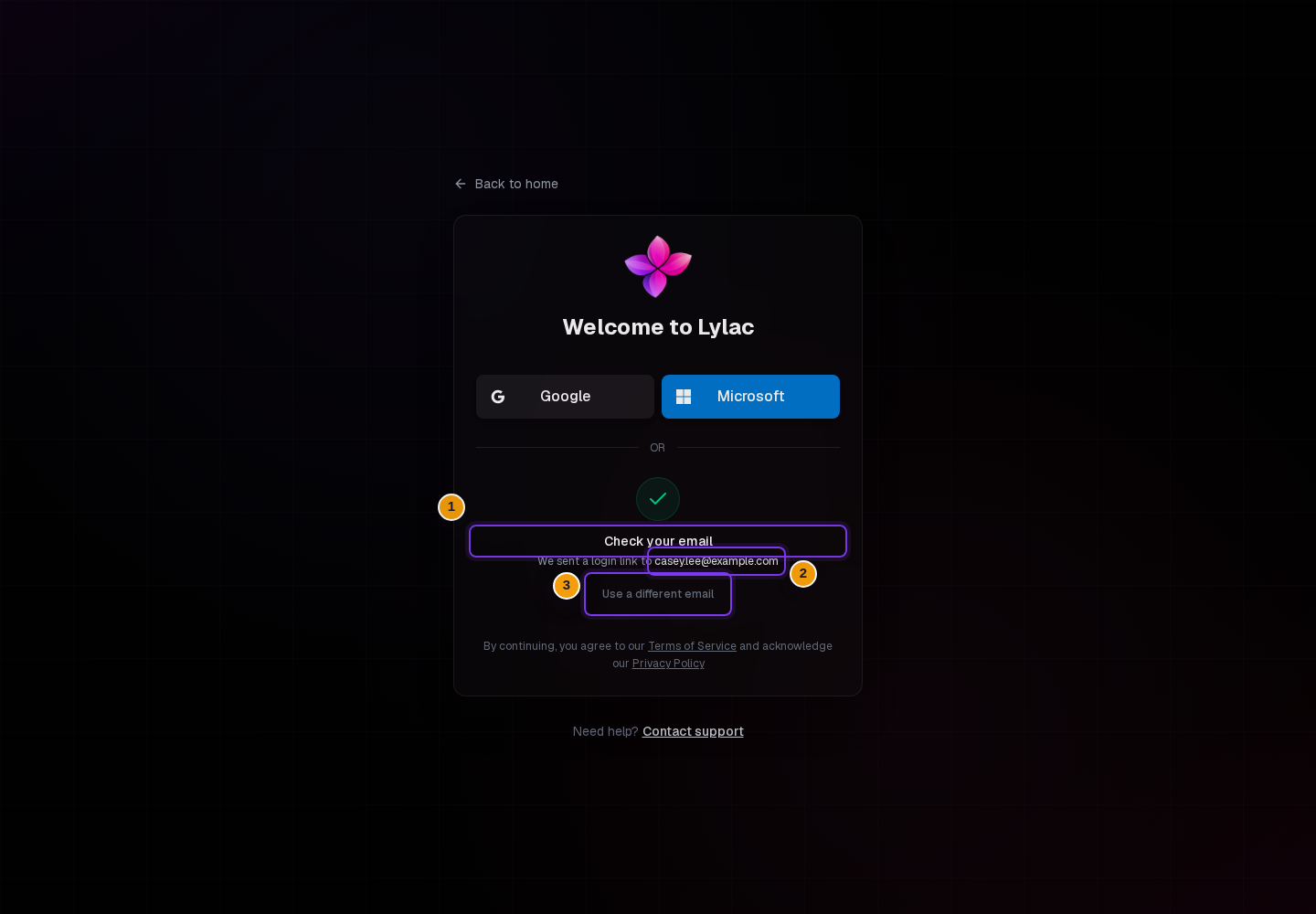
Choose Continue with email. If the address can use email links, Lylac sends a single-use link to that inbox and shows Check your email.
The email link expires after 30 minutes and can only be used once. Choose Use a different email if you entered the wrong address.
Open the email and continue
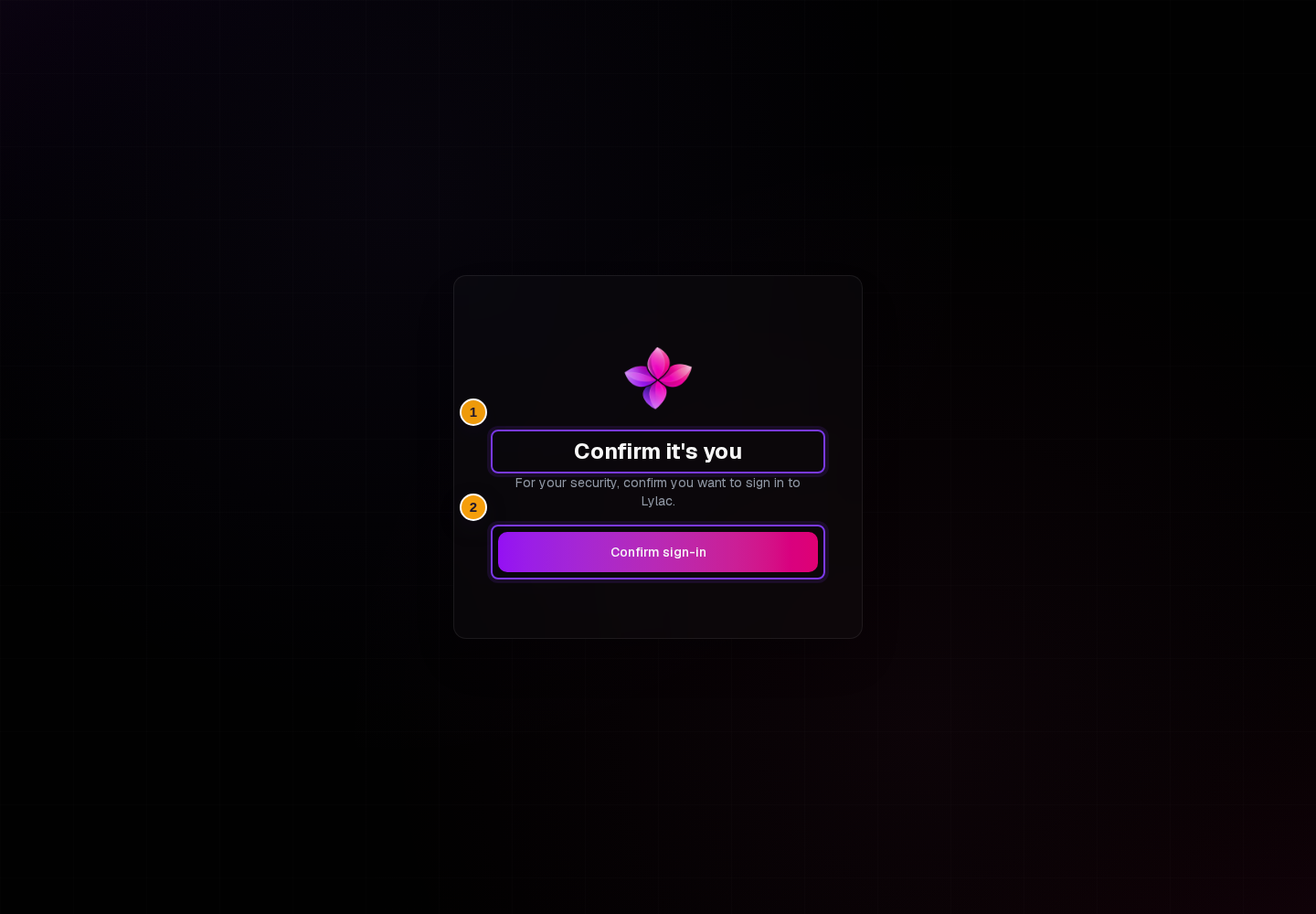
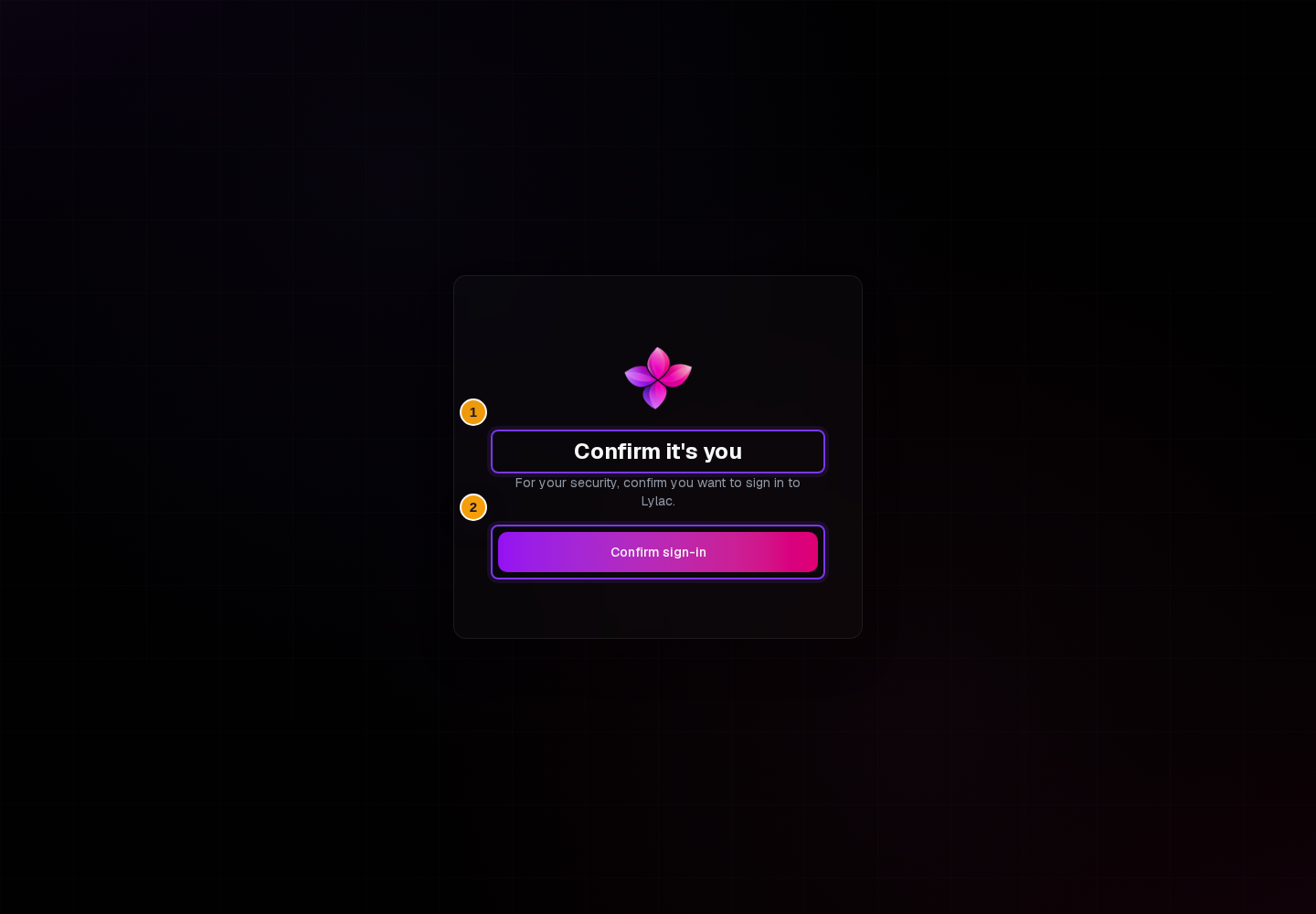
Choose the sign-in button in the email. On Confirm it's you, choose Confirm sign-in. Lylac then opens the next area for your account.
Sign in with Google or Microsoft
Choose your provider
Select Google or Microsoft on the sign-in screen. On small screens, Microsoft appears as an icon button labelled Sign in with Microsoft.
Complete the provider steps
Your browser opens the provider sign-in and consent screens. Follow the prompts there.
Return to Lylac
After the provider approves the sign-in, Lylac opens the right area for your account.
Sign in with organisation SSO
If your organisation requires single sign-on, enter your organisation email address and choose Continue with email. Lylac checks your email domain when you submit and sends you to your organisation's identity provider.
Enter your organisation email address
Use the work email address connected to your organisation.
Continue with email
Choose Continue with email. Lylac sends you to your organisation provider to sign in.
Finish the provider sign-in
After your provider returns you to Lylac, your account opens according to your organisation access and your saved Lylac view.
If something goes wrong
The email link did not arrive. Check the address, your spam folder, and whether your organisation requires SSO. Then request a new link.
The link says it is invalid or expired. Choose Get a new login link on the This link has expired screen. Each link expires after 30 minutes and can only be used once.
Google or Microsoft does not return you to Lylac. Try again from the sign-in screen. If your organisation requires SSO, use your organisation email and Continue with email instead.
If you still need help, choose Contact support.
Next steps
- Choose your first view if Lylac asks what brings you here.
- Accept an invitation if you joined from an event invite.
- Create your first event if you are hosting.