
Delete an Event
Deleting an event permanently removes the event and its related event records. You cannot undo it. If you need to retain the event, review Change event status first.
Before you start
You need owner or admin access to the organisation. Check the exact event name and make sure your team no longer needs the event.
Delete the event
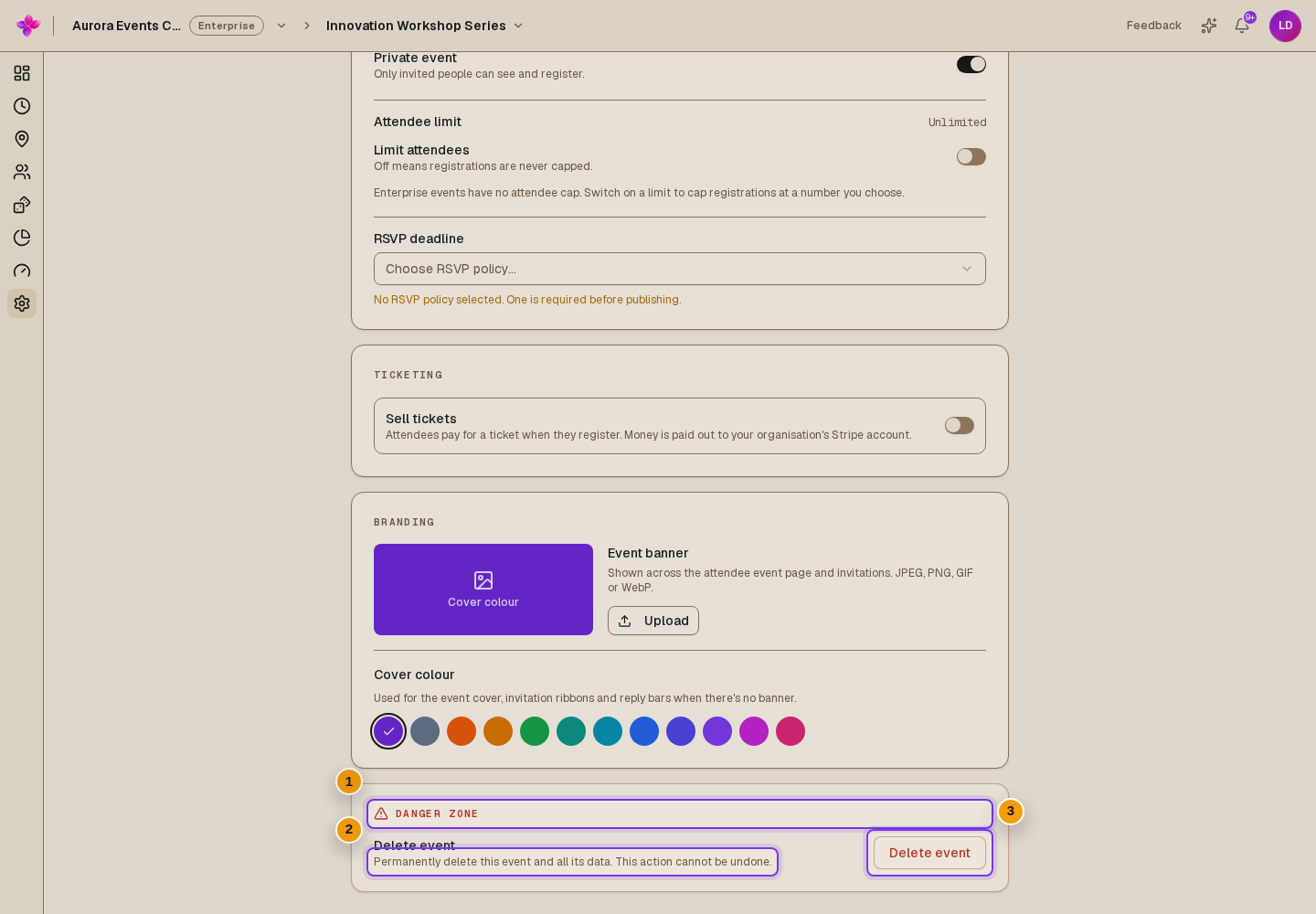
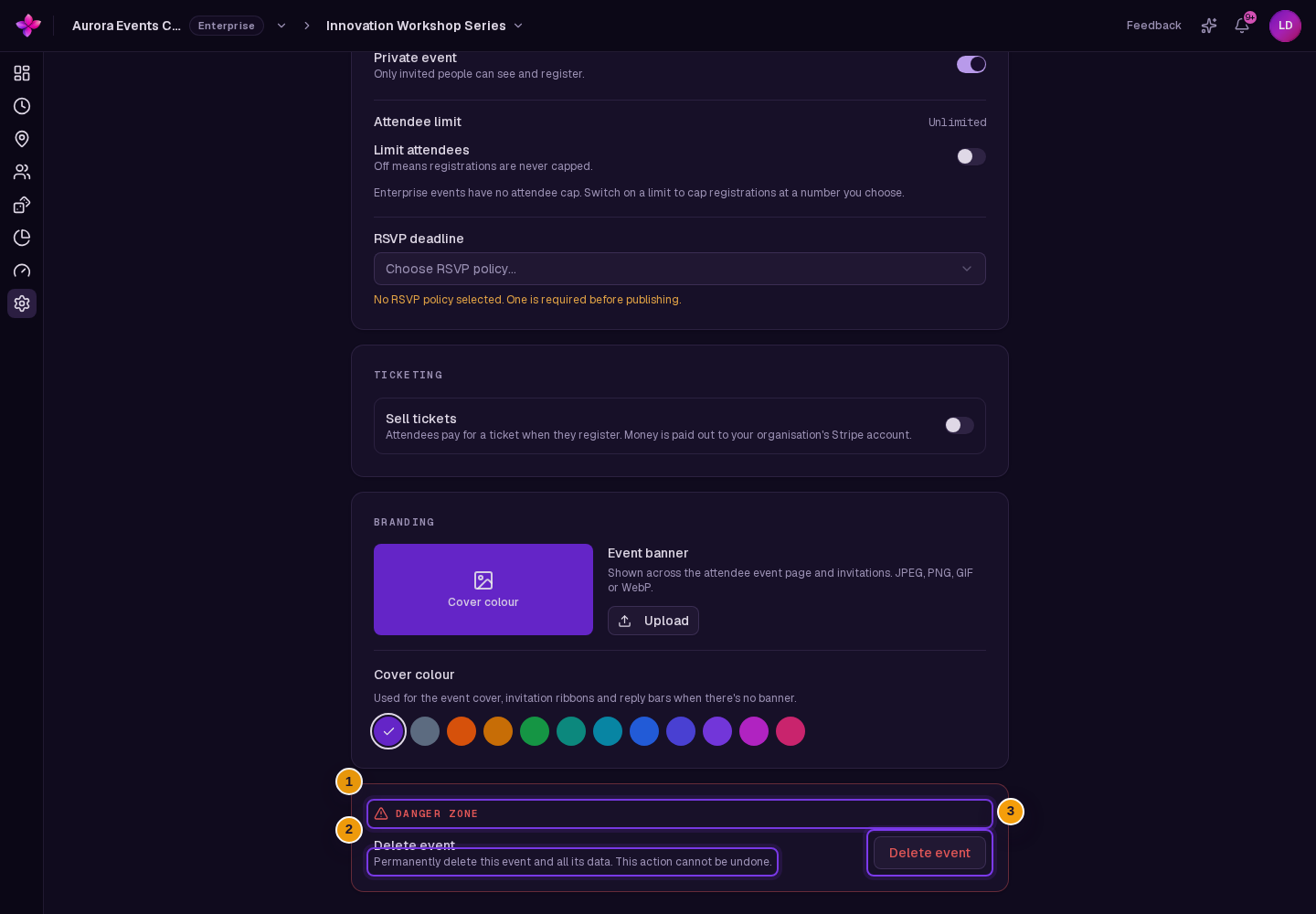
Open Danger zone
Open Event settings and scroll to Danger zone.
Choose Delete event
Read the deletion warning, then choose Delete event to open the confirmation.
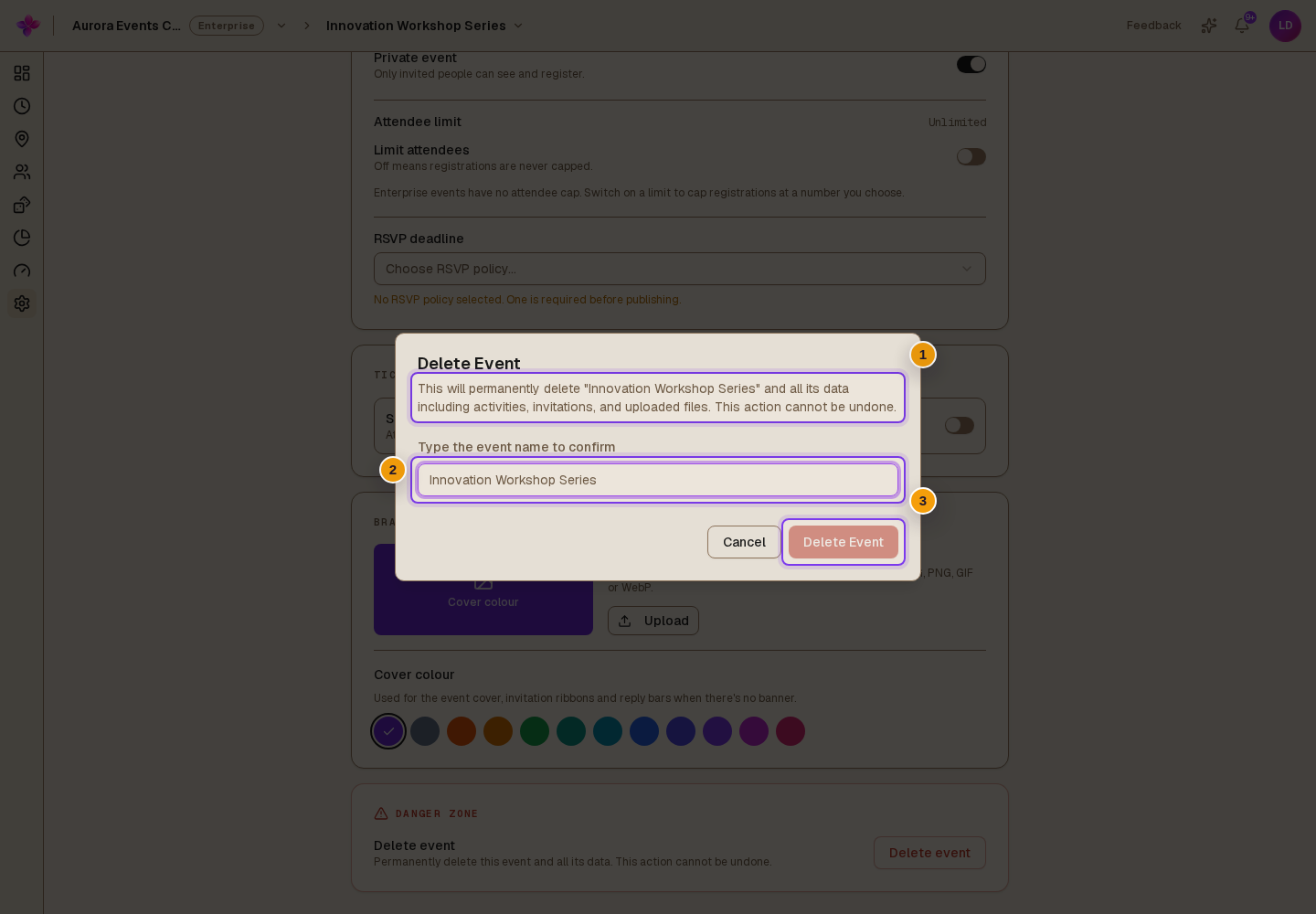
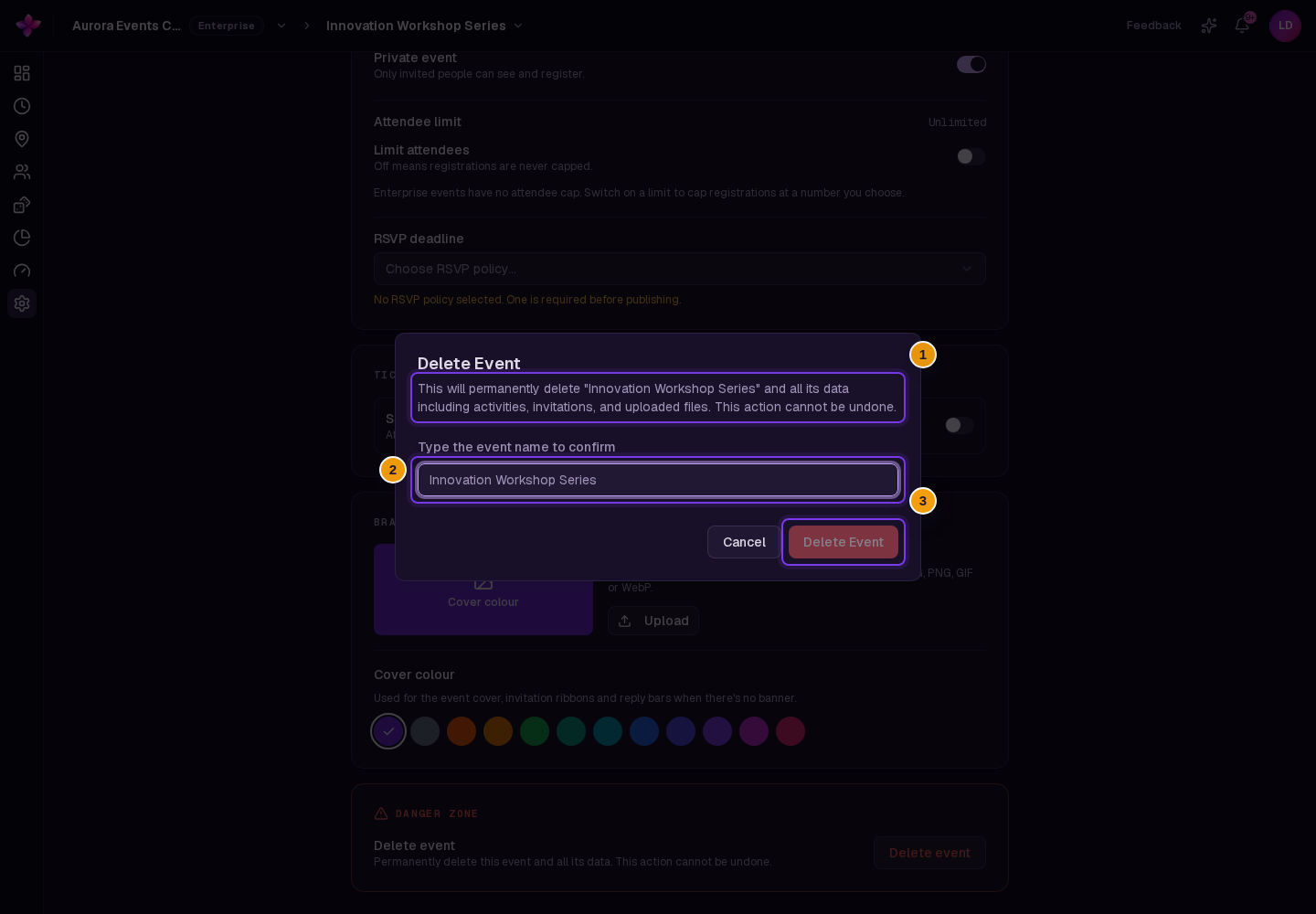
Type the event name
In Type the event name to confirm, enter the name exactly as shown, including punctuation and spacing.
Confirm deletion
Choose Delete Event in the dialog. After deletion succeeds, Lylac returns to the organisation dashboard.
If something goes wrong
The confirmation button is disabled. Check that the typed name exactly matches the event name.
Deletion fails. Read the error and check that you have owner or admin access. Refresh the dashboard to check whether the event still exists before trying again.