
Cannot Access an Organisation or Event
Lylac shows only organisations and events connected to the signed-in account. A missing membership, the wrong account, an event filter or a role restriction can stop you opening the area you expect.
Before you start
You need:
- the email address that received the invitation or access;
- the organisation or event name;
- an organisation owner, admin or event organiser who can confirm your access if needed.
Check your access
Confirm the signed-in account
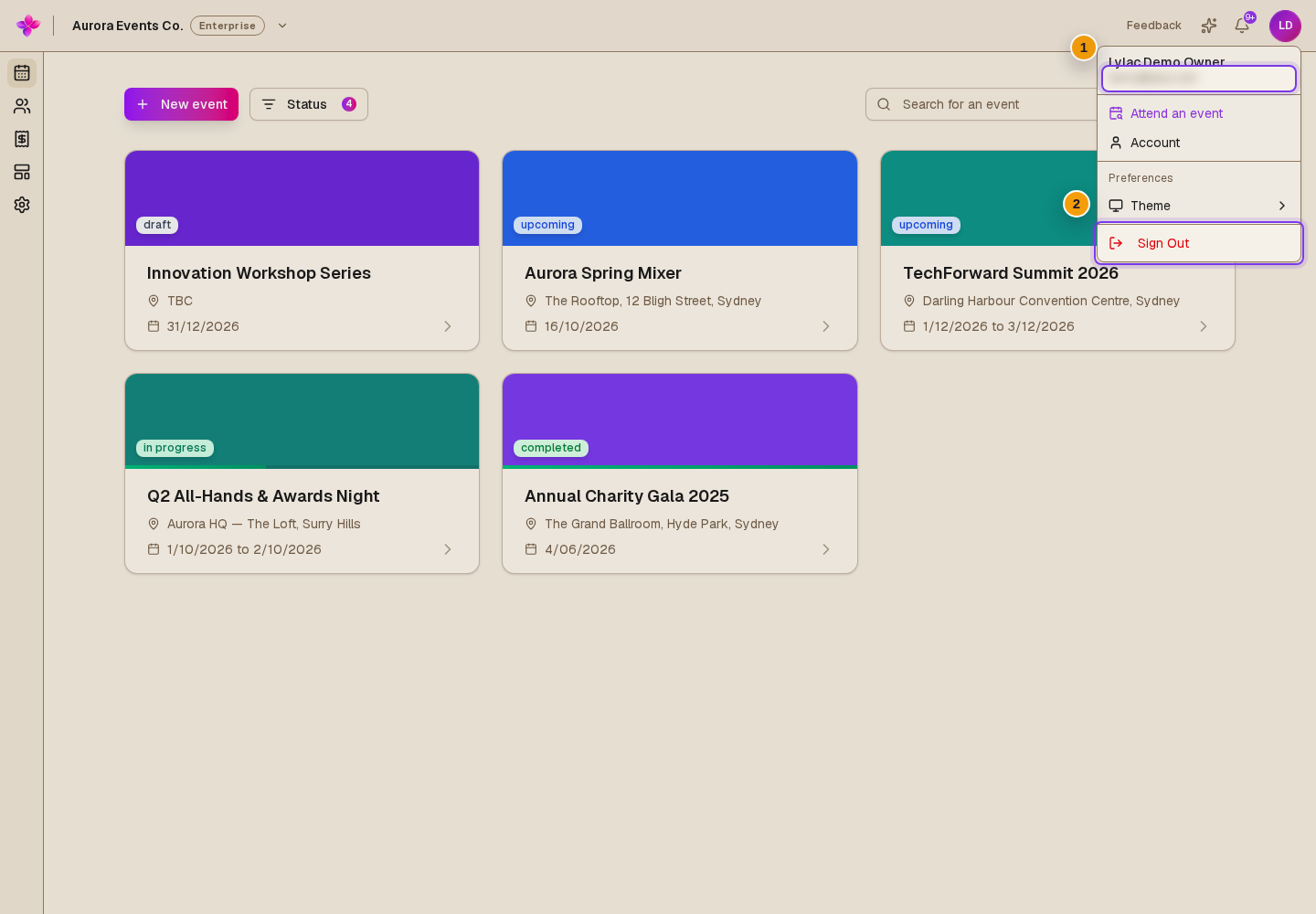
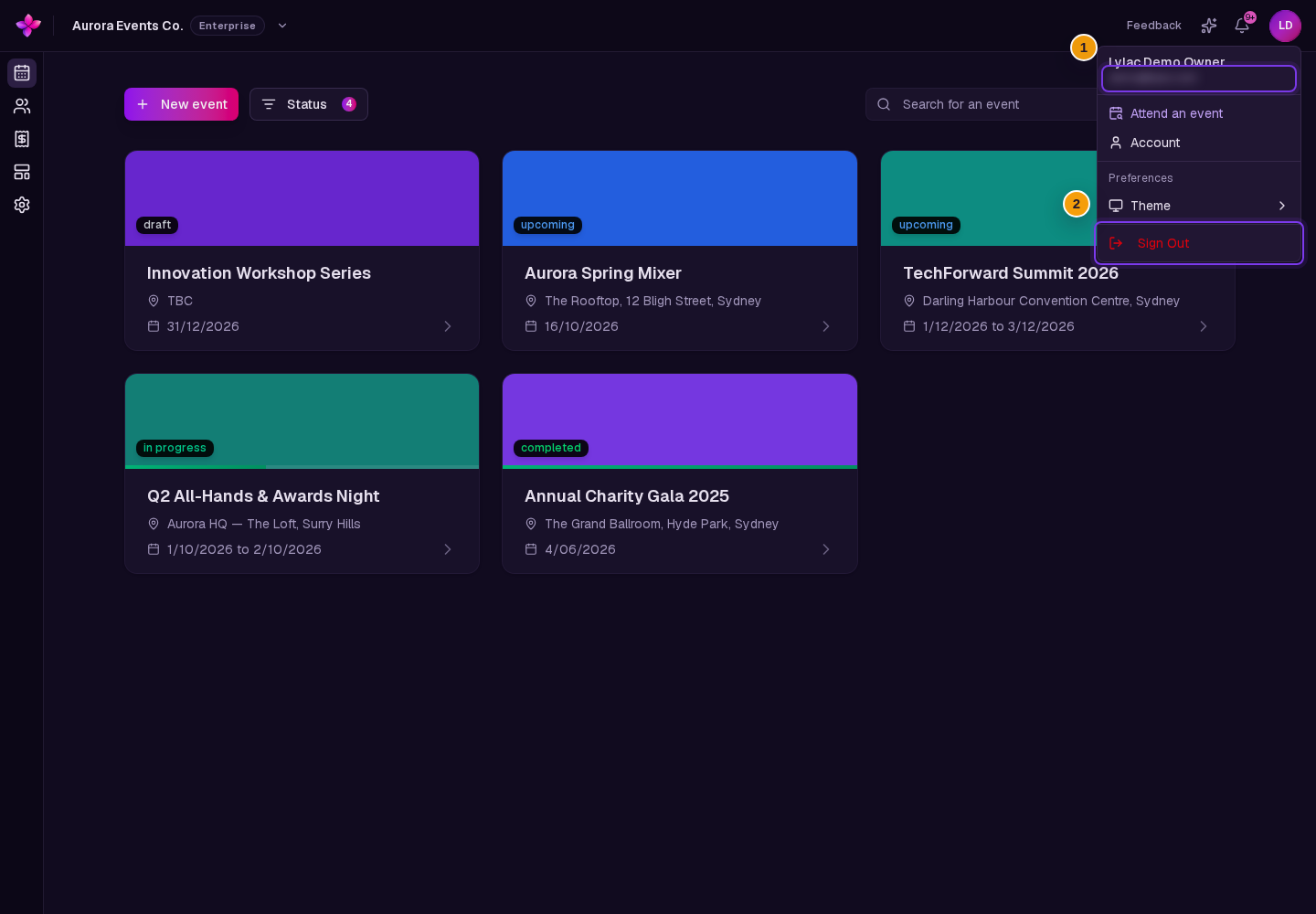
Open the round account menu in the header. Your email address appears at the top. If it is wrong, choose Sign Out, then sign in with the address that received access.
Switch to the right organisation
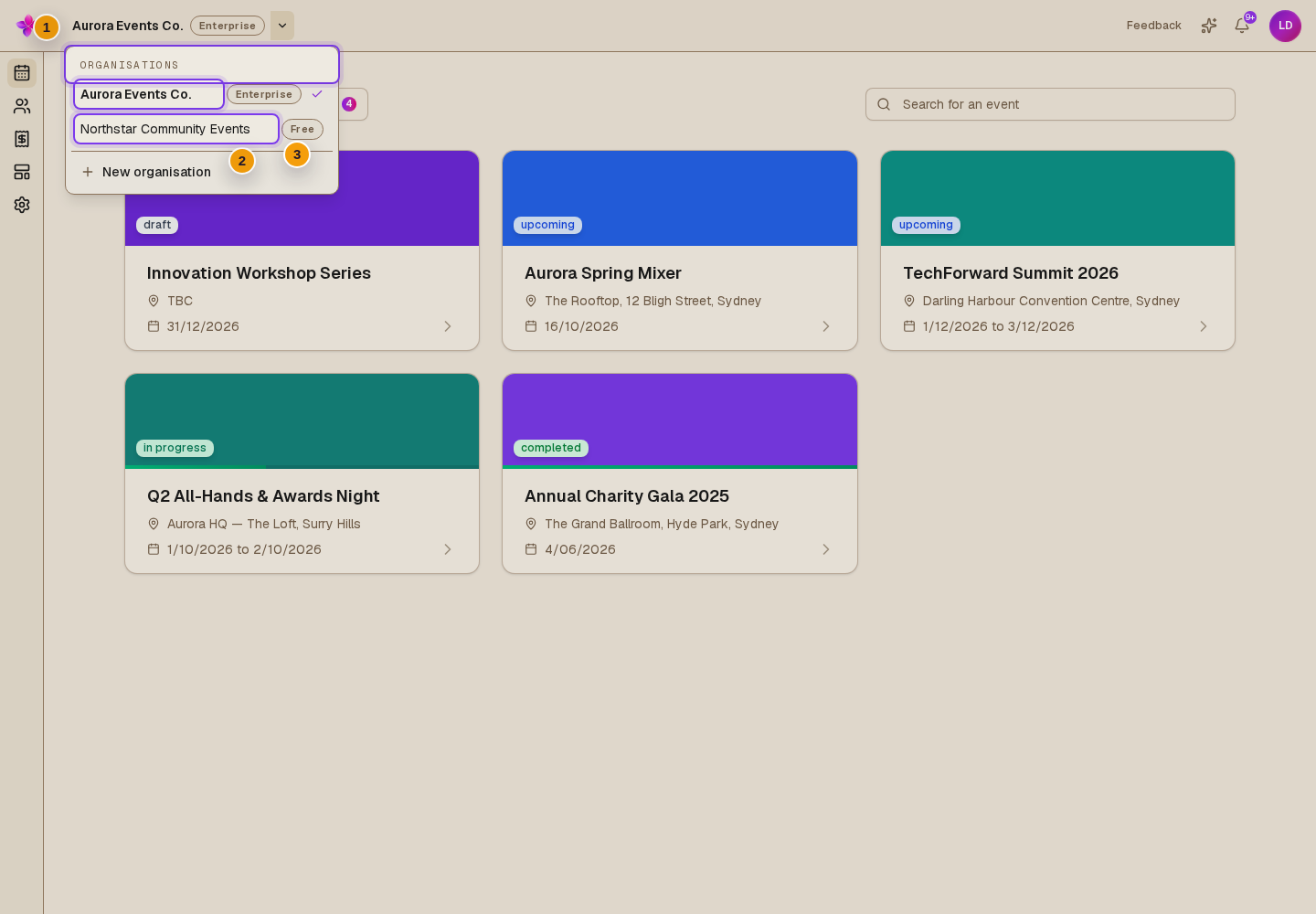
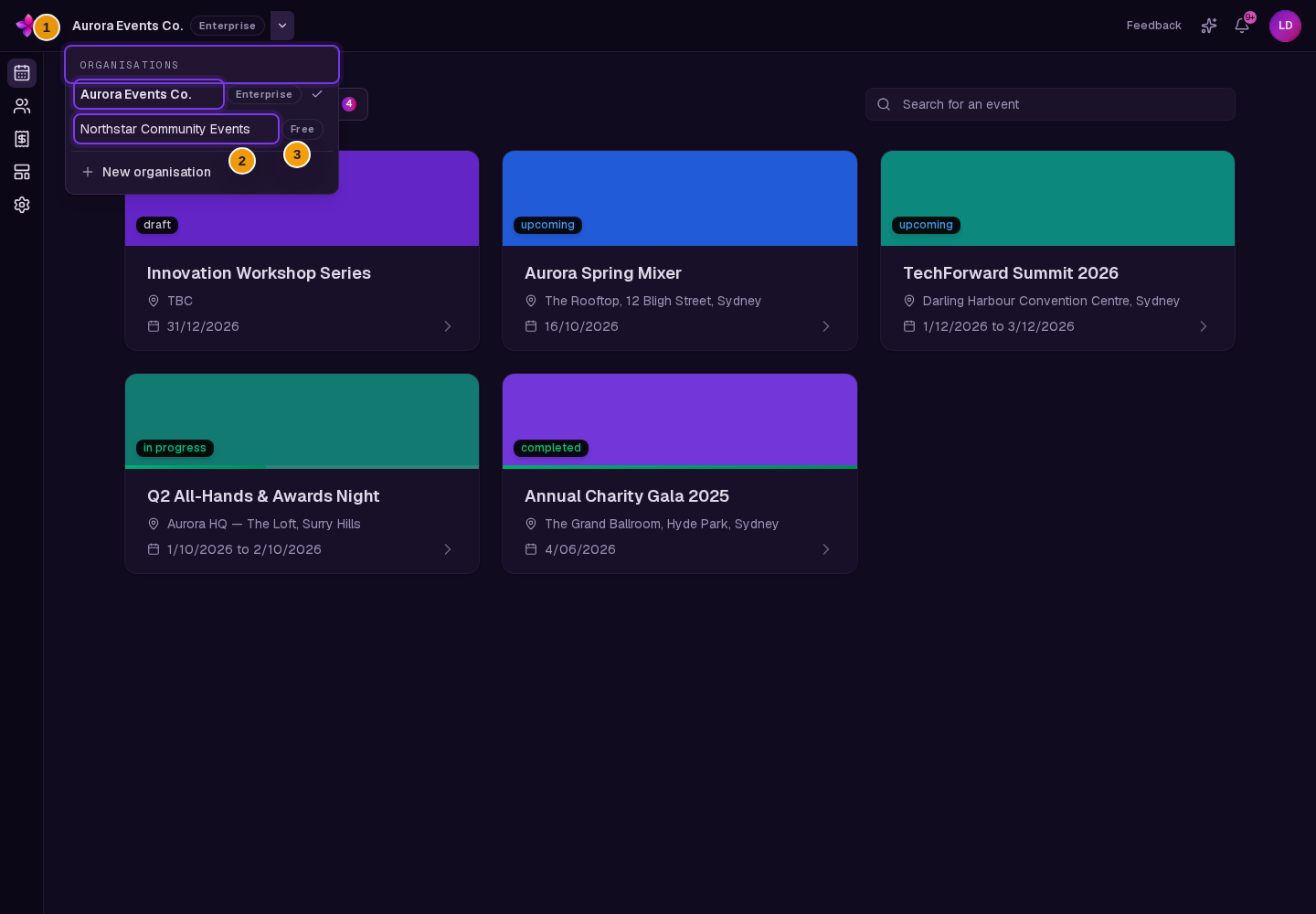
In the hosting dashboard, choose Switch organisation beside the current organisation name. Select the organisation you need from Organisations.
If it is not listed, ask an owner or admin to confirm your membership and the email address they used.
Check the event list
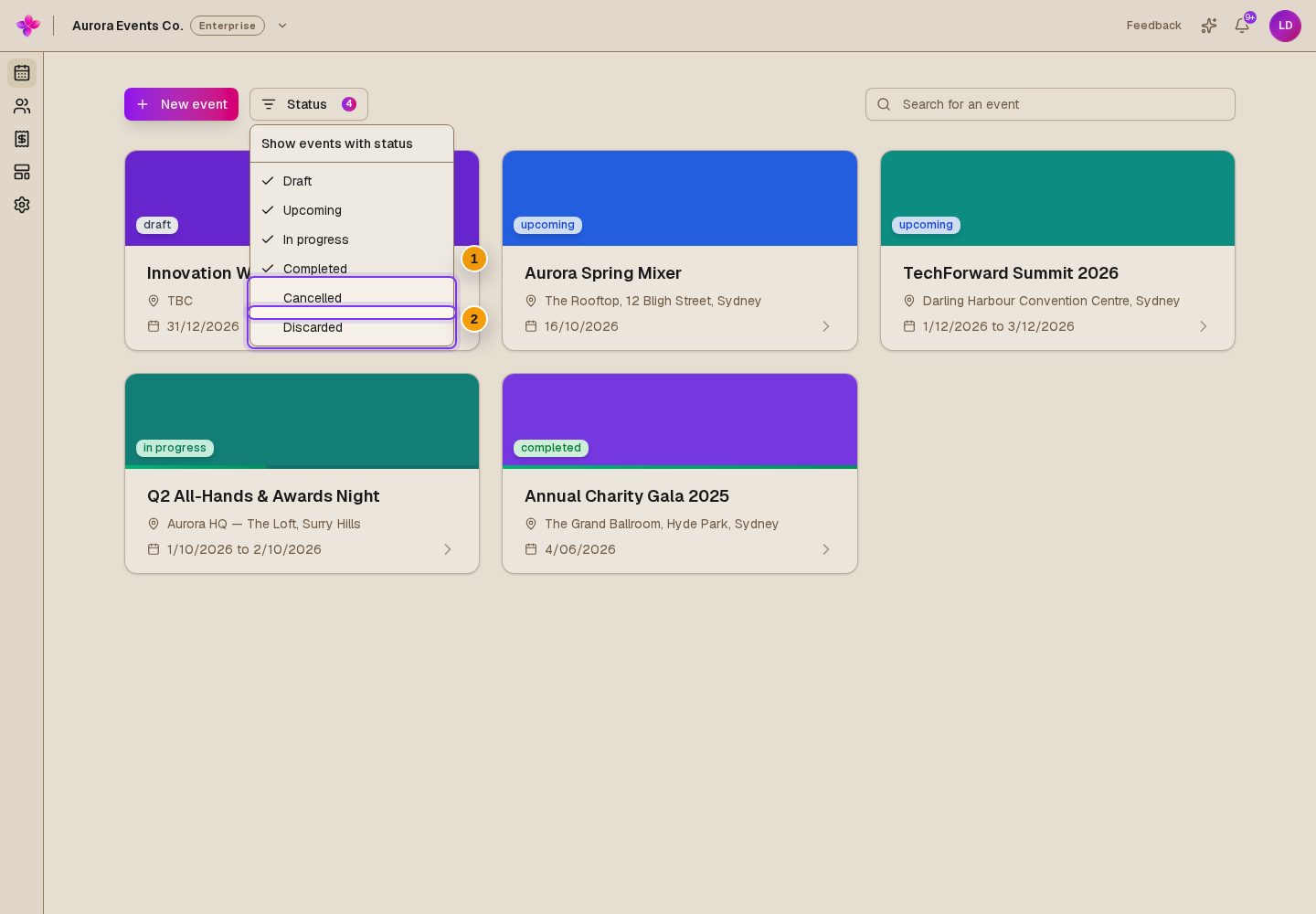
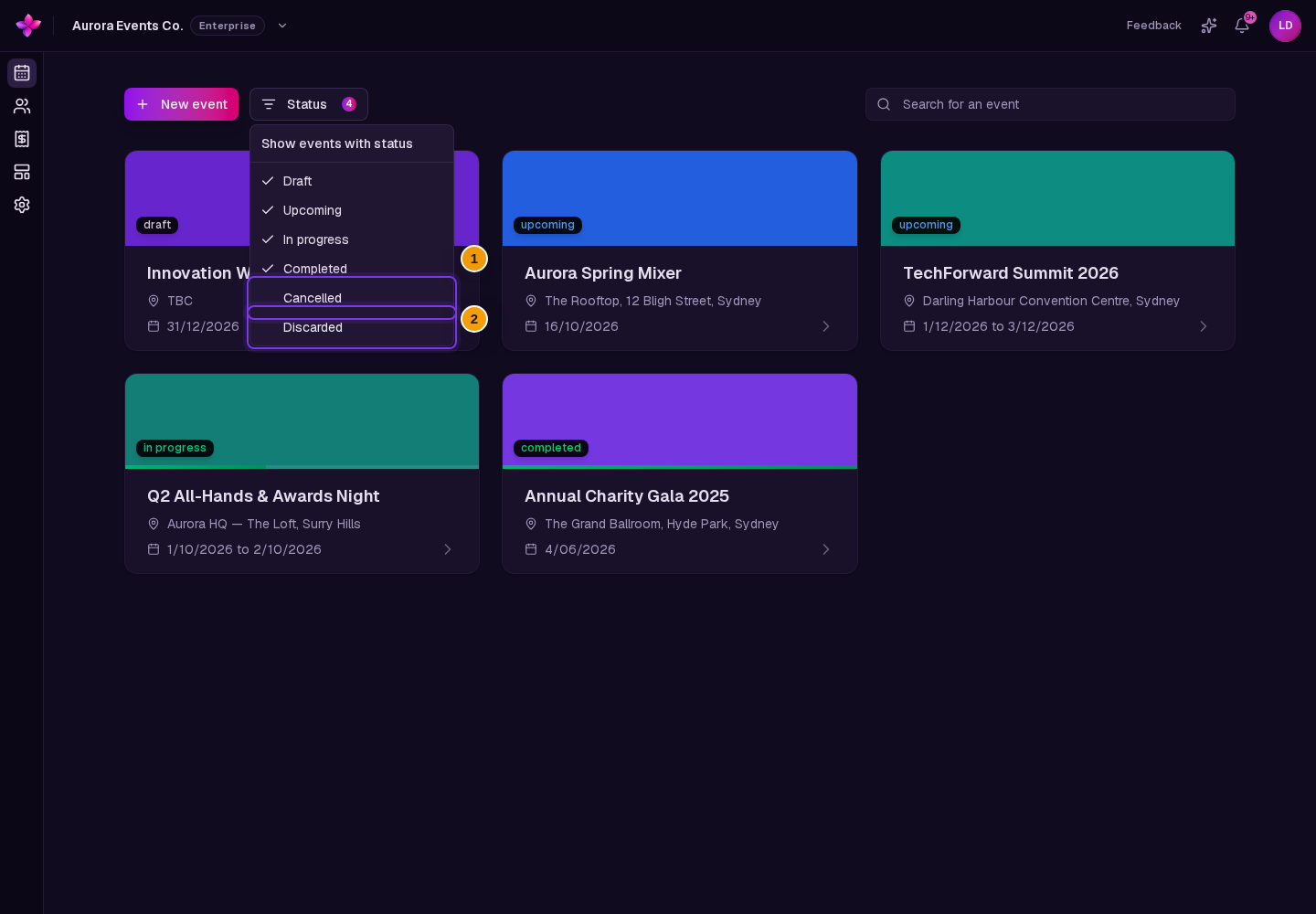
For an event you host, open the organisation's events dashboard. Choose Status and include Cancelled or Discarded if needed. Those statuses are hidden from the list by default.
For an event you attend, open Attending, then choose Invitations. Accept any pending invitation with the account that received it.
Check your role
If you can open the organisation or event but cannot complete a task, compare your access with User roles and permissions. Ask an owner or admin to change your role if appropriate.
What the access messages mean
You don't have access to that organisation or it was not found. Check the signed-in email and use Switch organisation. If the organisation is still missing, ask an owner or admin to confirm your membership.
That event was not found or you don't have access. Hosts should confirm the organisation and event status. Attendees should confirm that they accepted the invitation with the correct account.
You can open the event but cannot change something. Your role does not allow every organiser action. An owner or admin can confirm the required role.
If the access details look correct but the problem continues, choose Contact support and include the signed-in email plus the organisation or event name.
Next steps
- Review Event statuses if an event is missing from the main list.
- Follow Accept an invitation if you joined from an invite.