
Send Product Feedback to Lylac
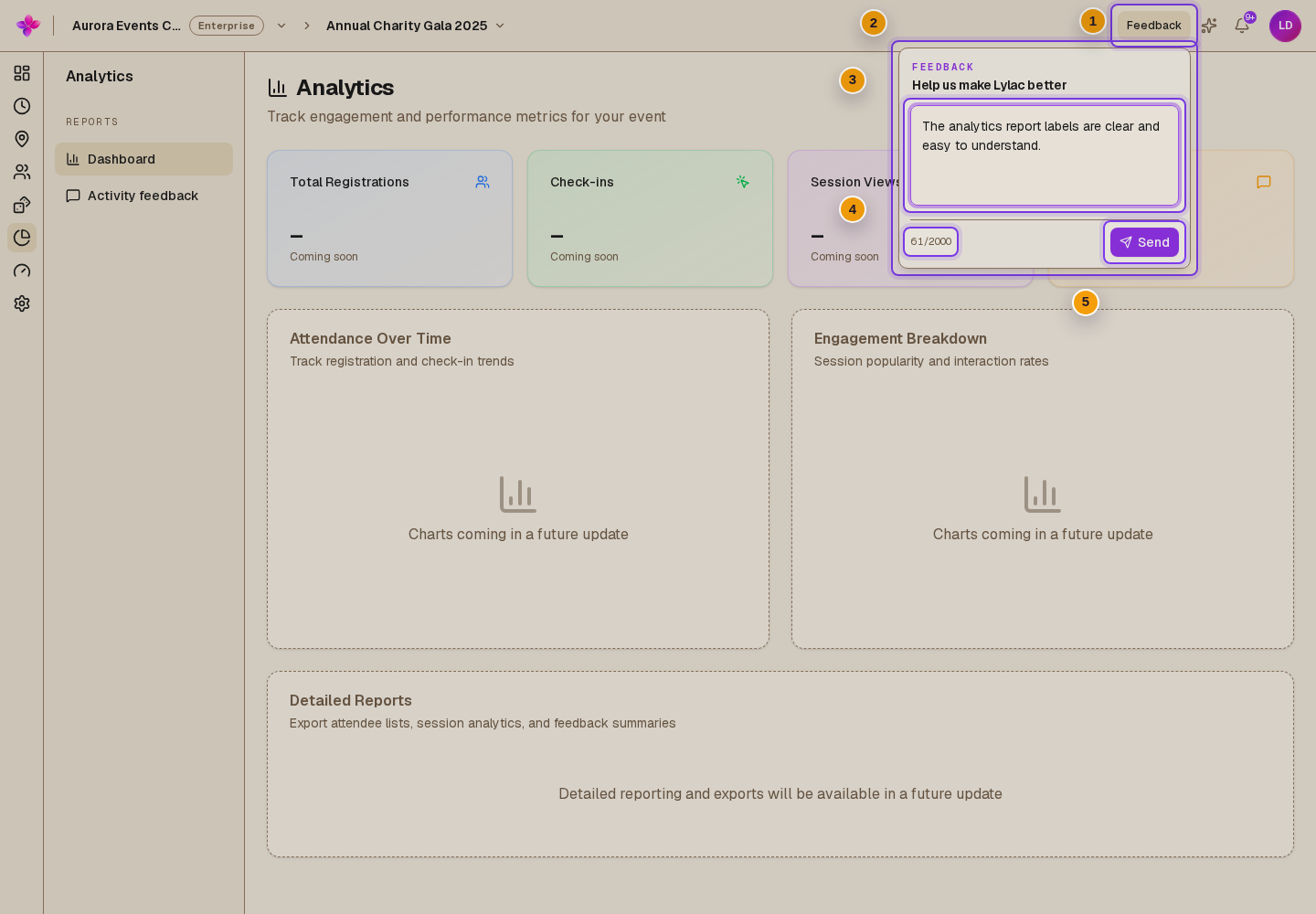
Use the app header to send a suggestion about Lylac. This form is for product feedback, not attendee activity feedback or an event survey.
Before you start
You need to be signed in to Lylac.
On a wider screen, the header control is labelled Feedback. On a smaller screen, it is a message icon labelled Send feedback for screen readers.
Send feedback
Open the feedback form
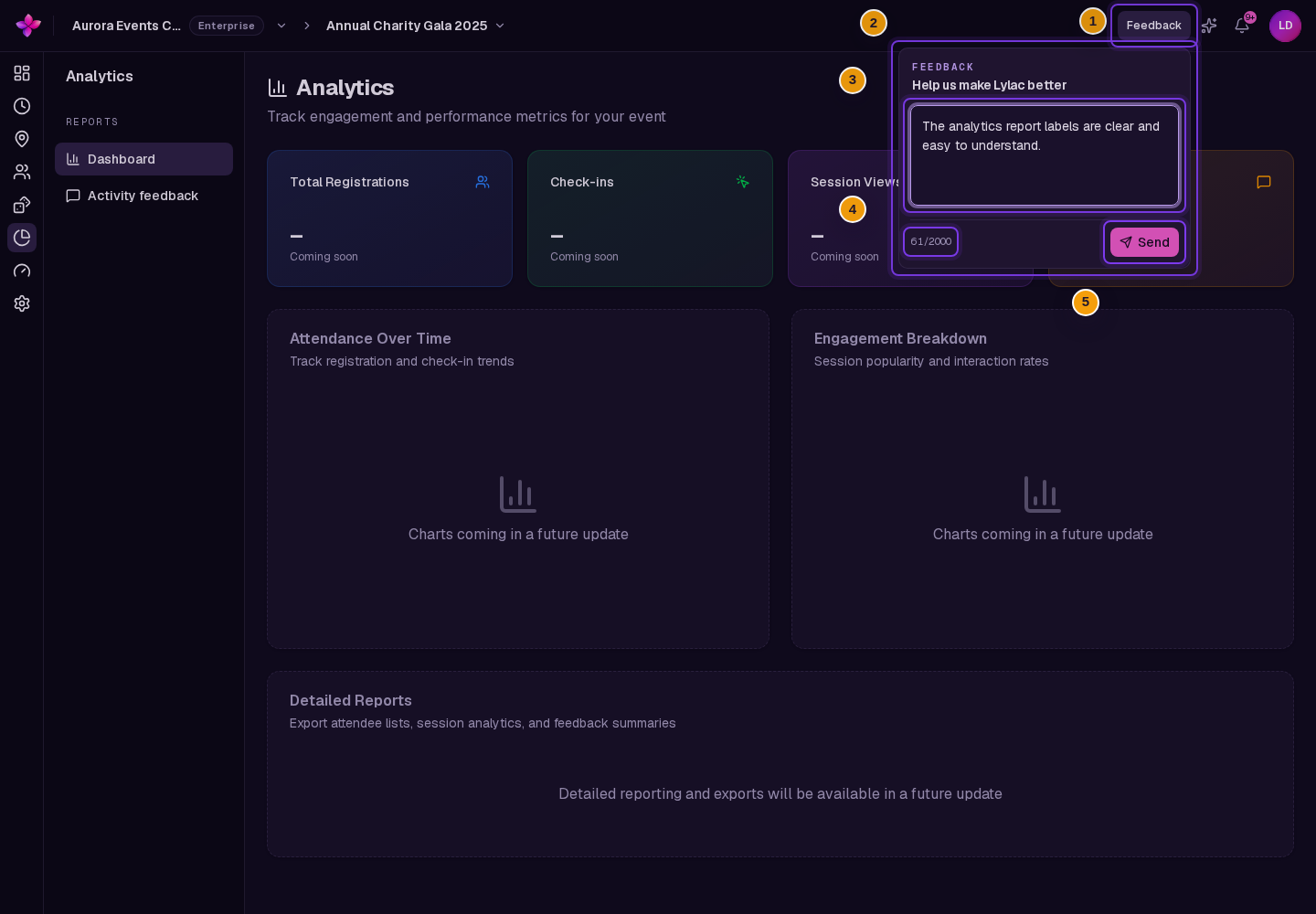
Choose Feedback in the app header. On a smaller screen, choose the message icon near the right side of the header.
Write your message
Under Help us make Lylac better, enter between 1 and 2,000 characters. The counter below the message shows how many characters you have used.
Send the feedback
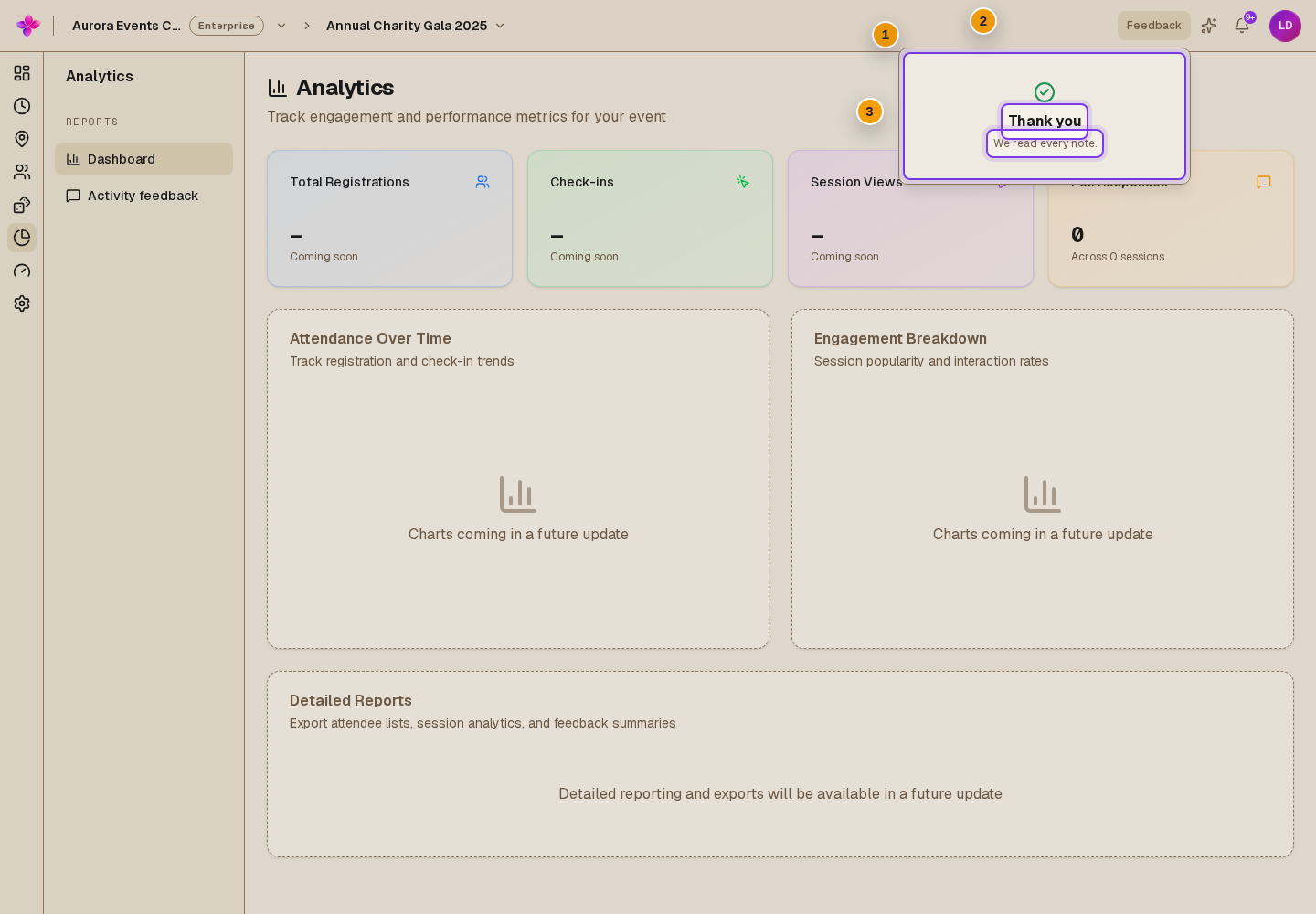
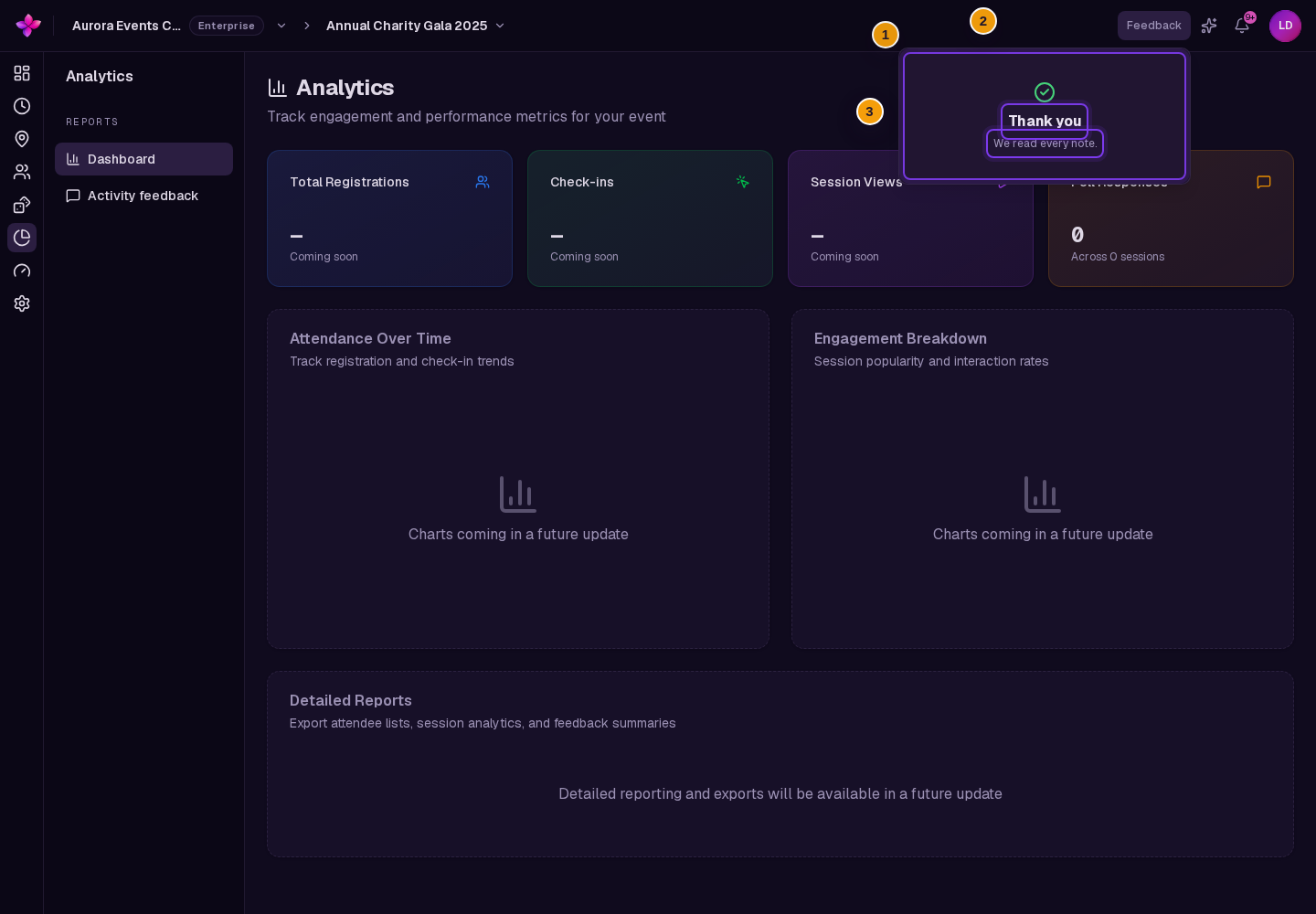
Choose Send. After Lylac accepts the message, the form shows Thank you and We read every note, then closes.
If something goes wrong
The form says Feedback is required. Enter a message before choosing Send.
The message is too long. Shorten it to 2,000 characters or fewer.
The feedback could not be sent. Check the message and try again. Refresh the page before trying again if the error continues.
The Feedback word is not shown. On smaller screens, choose the message icon in the header instead.