
Configure SSO and Review Audit Logs
Single sign-on lets people use their organisation identity provider to sign in. Lylac supports Microsoft Entra ID and other OpenID Connect providers on Team and Enterprise plans. SAML 2.0 and audit logs require Enterprise.
Owners and admins can change SSO settings. Editors and viewers can review most SSO settings, but cannot save changes. Audit logs are available to owners and admins.
Before you start
You need:
- a Team or Enterprise organisation;
- owner or admin access to change SSO settings;
- access to your domain's DNS settings;
- the configuration details supplied by your identity provider;
- an Enterprise organisation and owner or admin access to review audit logs.
Open single sign-on settings
Open Organisation Settings
Choose Org settings in the organisation navigation.
Open SSO
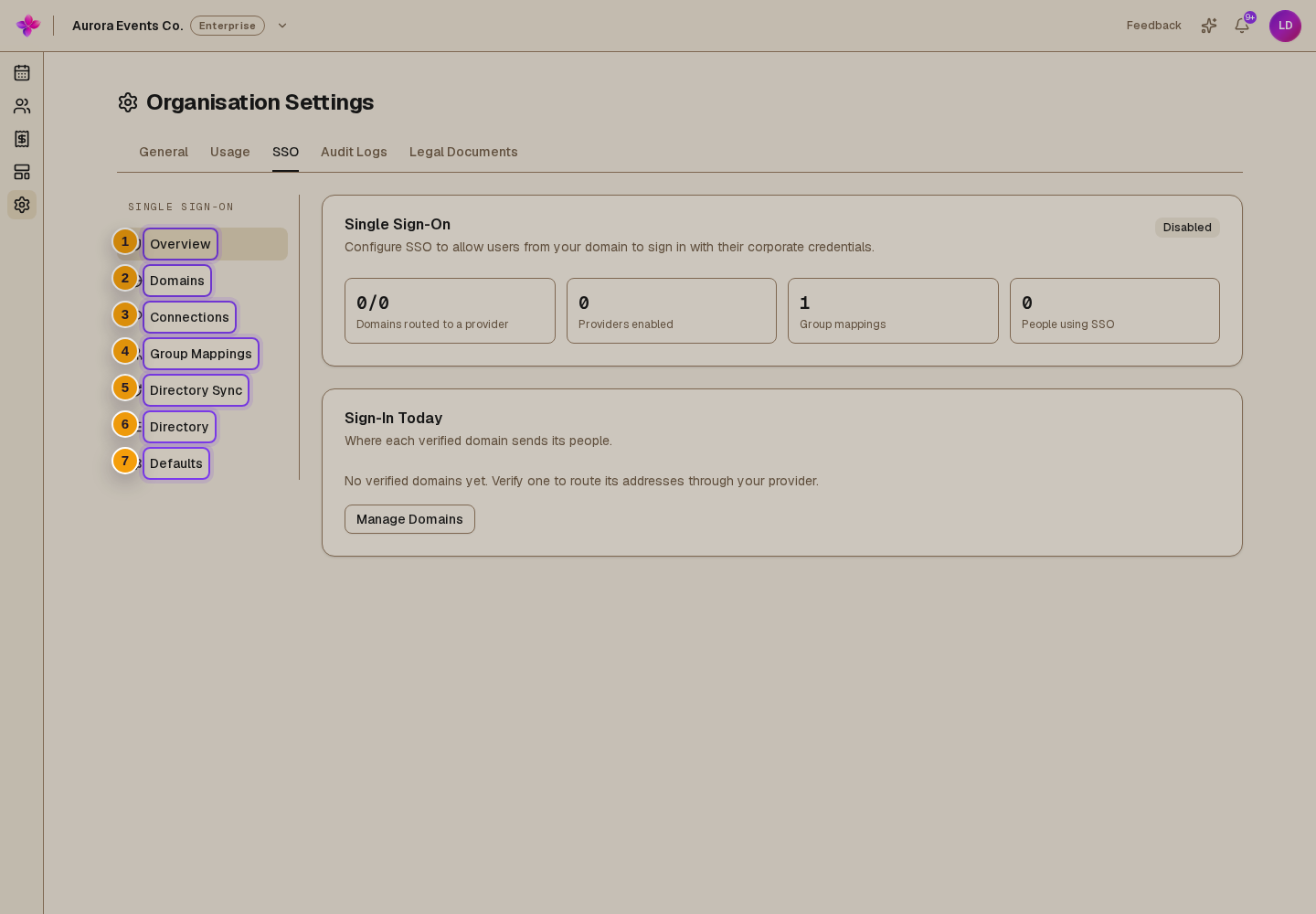
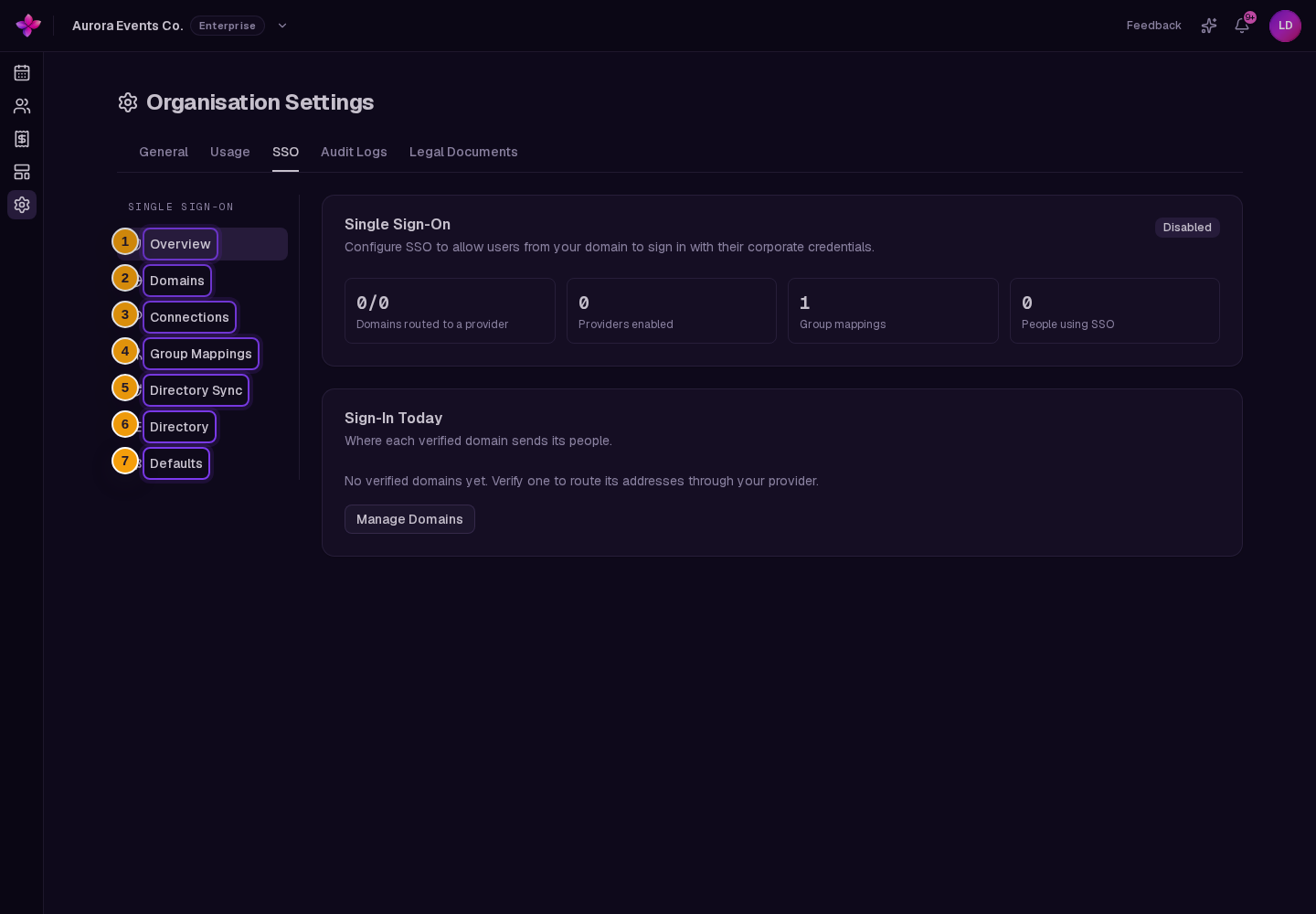
Choose the SSO tab. The Overview shows enabled providers, verified domains, group mappings, and people using SSO.
If the organisation is on Free, Lylac shows an upgrade message instead of the SSO settings.
Verify a sign-in domain
Open Domains
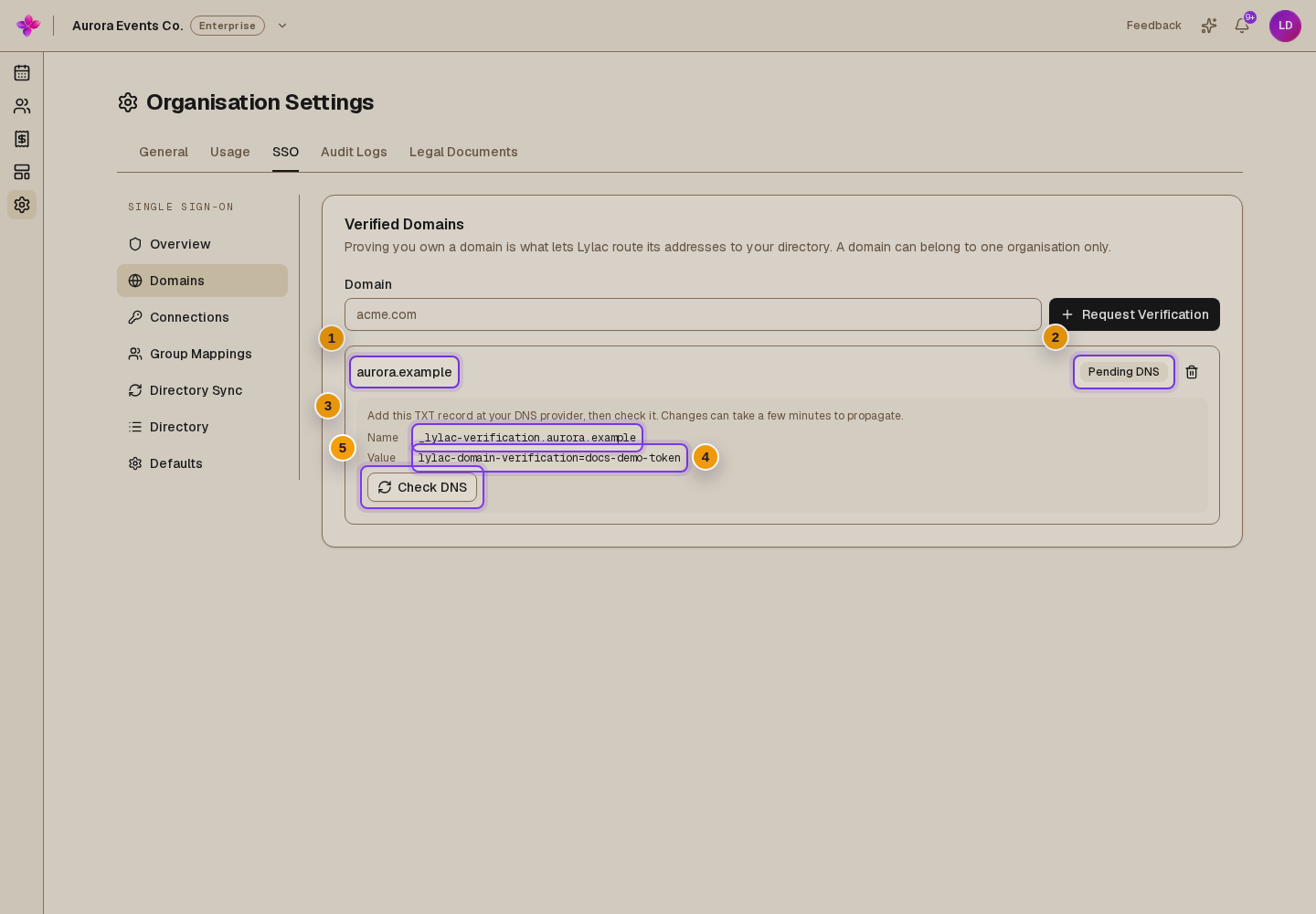
In the SSO section, choose Domains.
Request verification
Enter a domain such as
company.comin Domain, then choose Request Verification. A domain can be verified for only one organisation.Add the DNS record
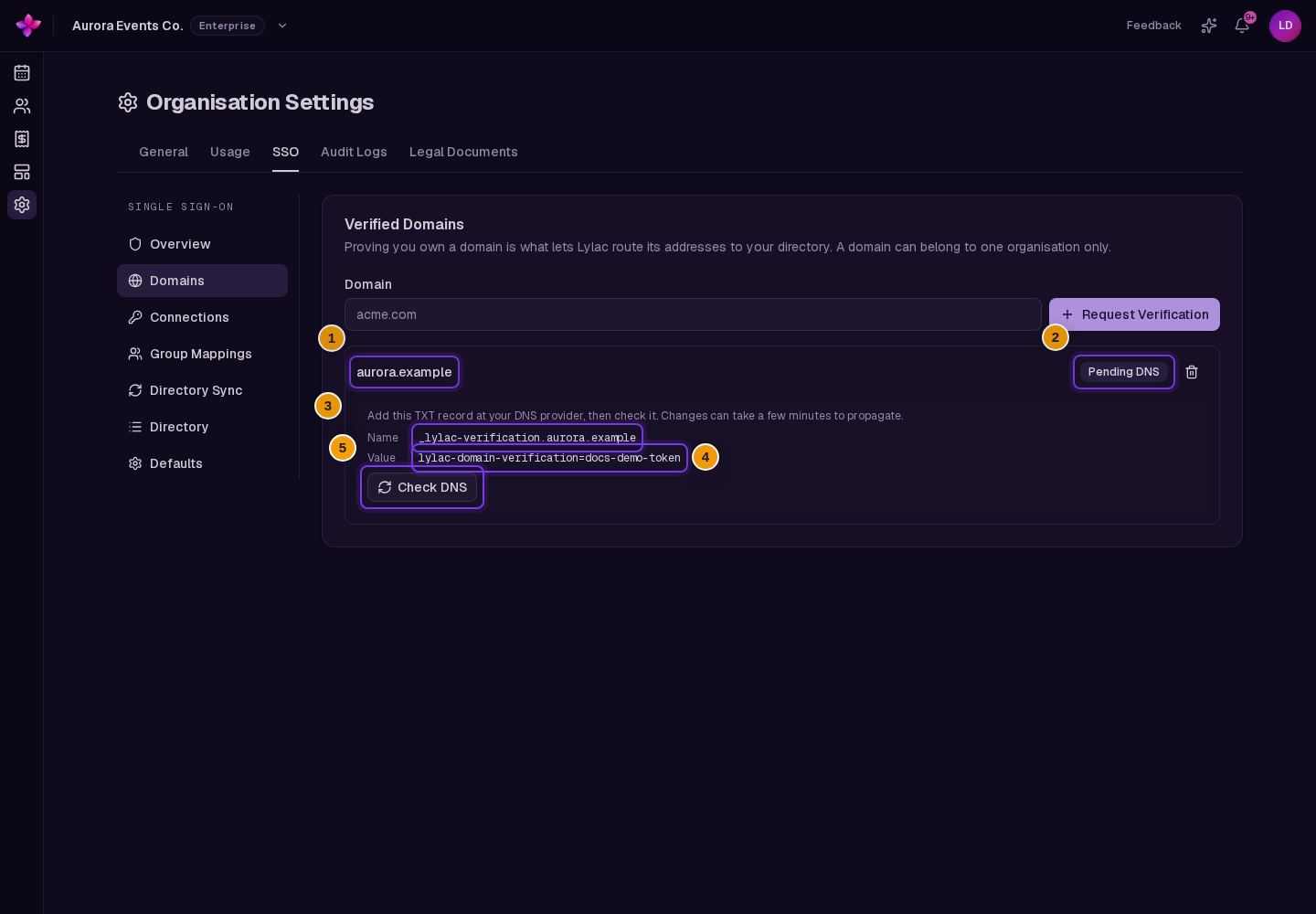
Copy the displayed TXT record name and value to your DNS provider. The domain remains Pending DNS until Lylac can find that record.
Check the record
Choose Check DNS. Lylac checks every minute for up to five minutes while the page remains open. DNS changes can take longer, so you can return and check again later.
Add and enable an identity provider
Open Connections
Choose Connections. If a provider already exists, choose Add provider to create another one.
Name the connection
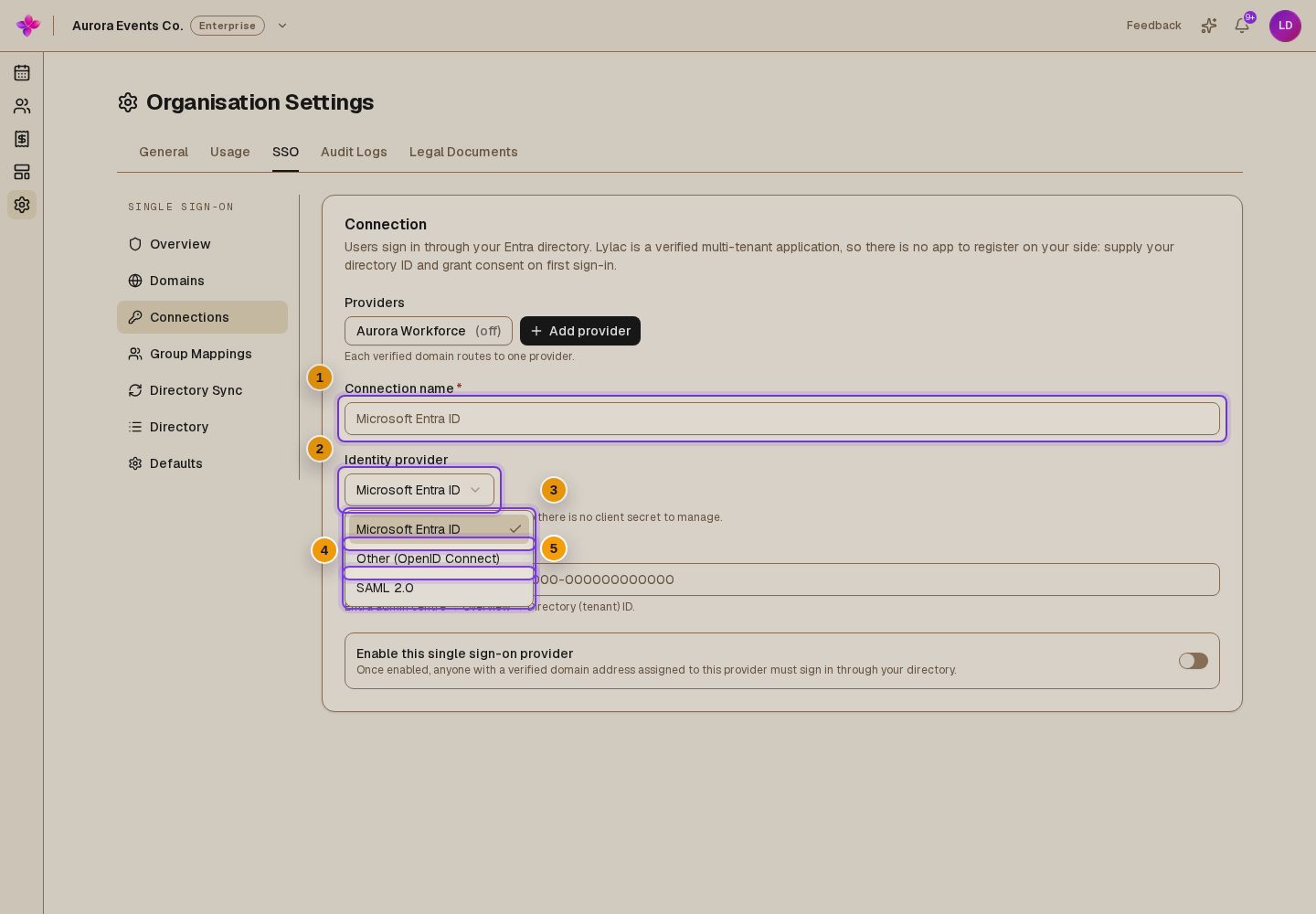
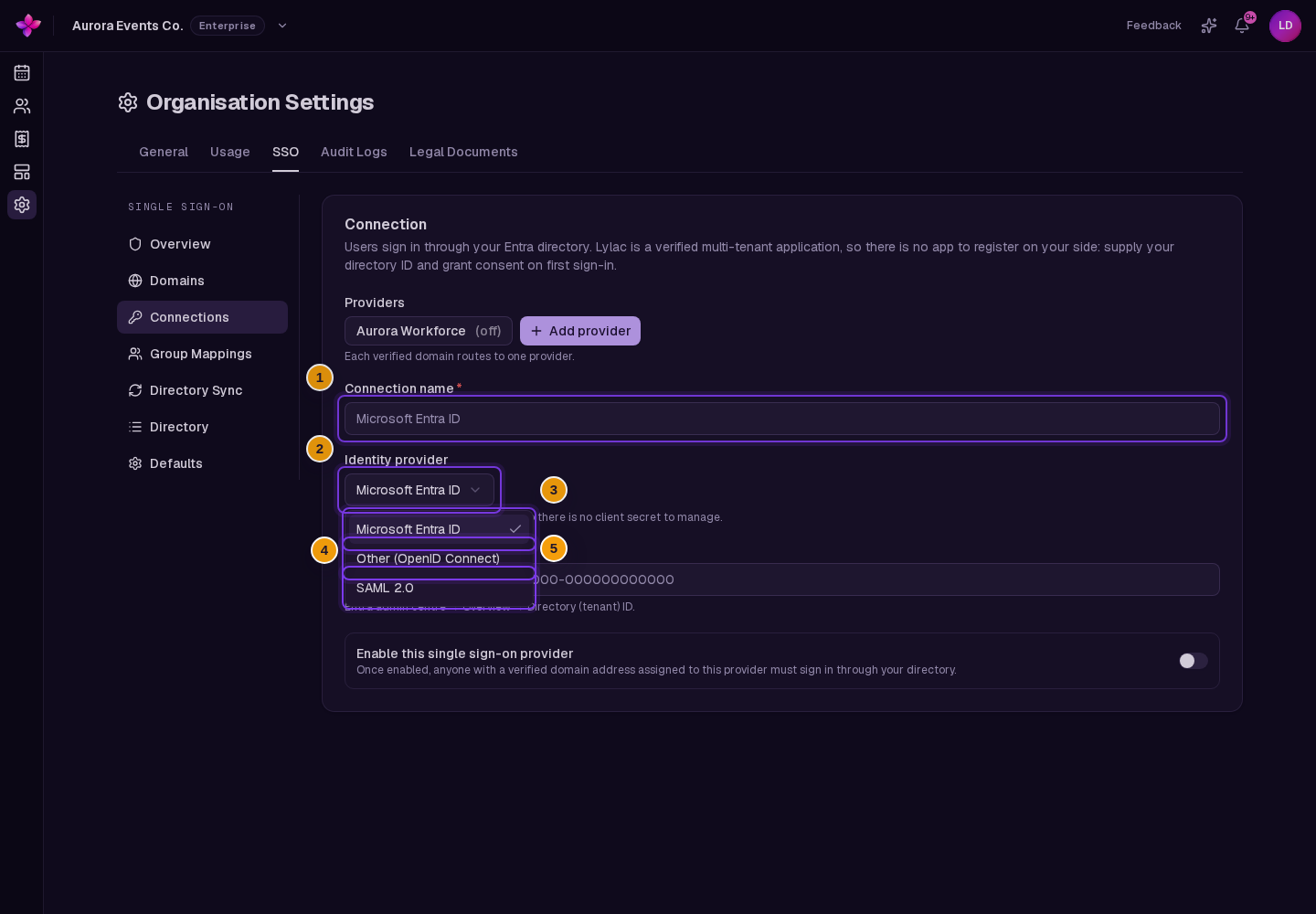
Enter a recognisable Connection name and choose an Identity provider:
- Microsoft Entra ID uses your Directory (tenant) ID;
- Other (OpenID Connect) uses an issuer URL, client ID, and client secret;
- SAML 2.0 uses identity-provider metadata and is available on Enterprise.
Enter the provider details
Complete the fields shown for the selected provider. For OpenID Connect, add the displayed redirect address to the provider's application. For SAML, add the displayed sign-on address and audience to the provider, then supply its metadata.
Enable and save the provider
Turn on Enable this single sign-on provider, then choose Save changes in the save bar.
Route the verified domain
Return to Domains. Use the provider selector beside the verified domain to choose the connection. People on that domain must use the enabled provider the next time they sign in.
Choose default access and profile controls
Use Defaults to choose the baseline for people governed by SSO.
- No access does not grant event or staff access by default.
- Attendee of every event adds people to live events and places them on the waitlist when an event is full.
- Staff member grants the selected Viewer, Editor, or Admin role.
- Profile switches can sync or lock names and avatars from the directory.
Choose Save changes after changing these organisation-wide settings.
Map identity-provider groups to roles
Group mappings can grant Viewer, Editor, or Admin. They cannot grant Owner.
Open Group Mappings
Choose Group Mappings. If the organisation has several providers, choose the provider you want to configure.
Enter the group identifier
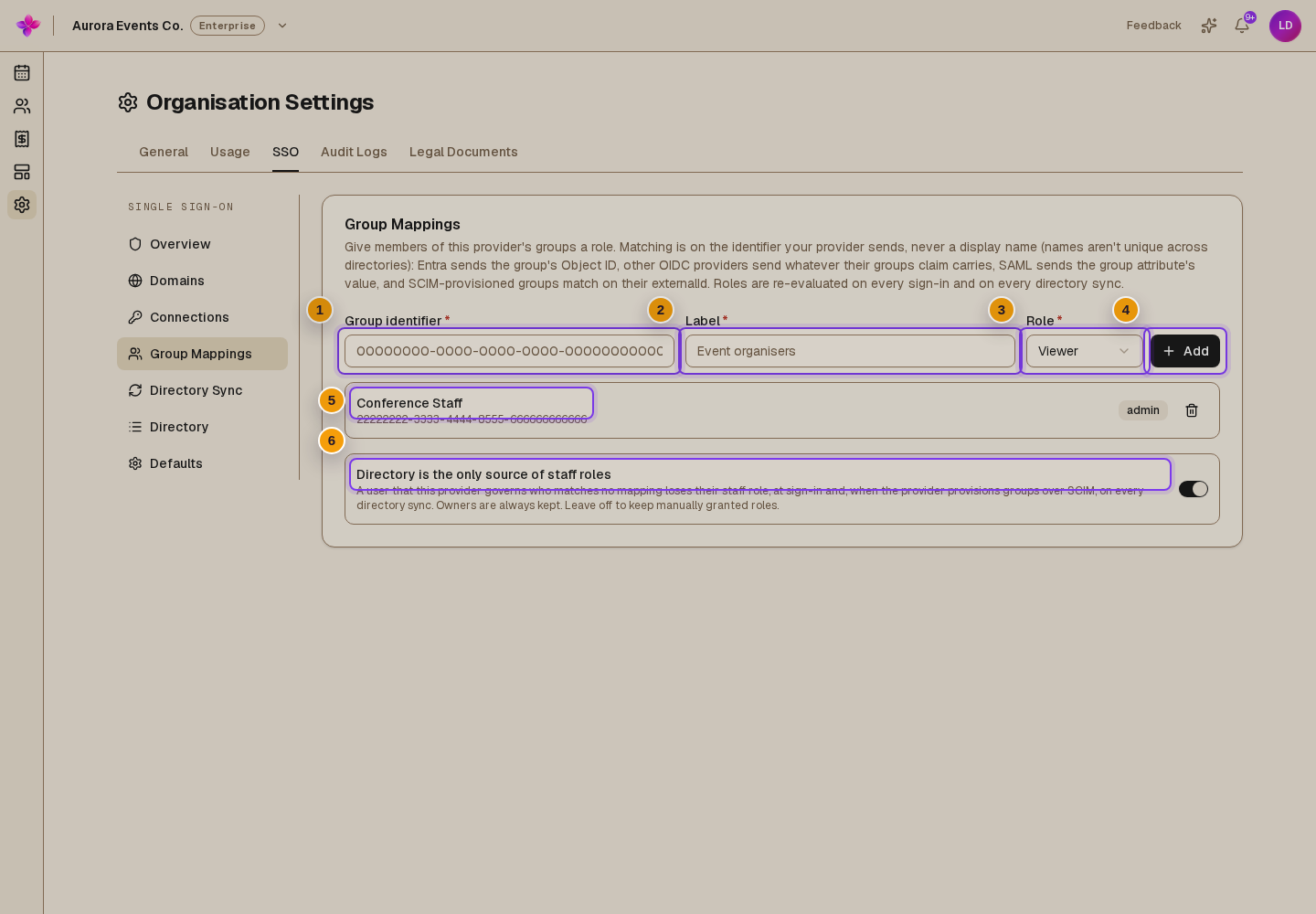
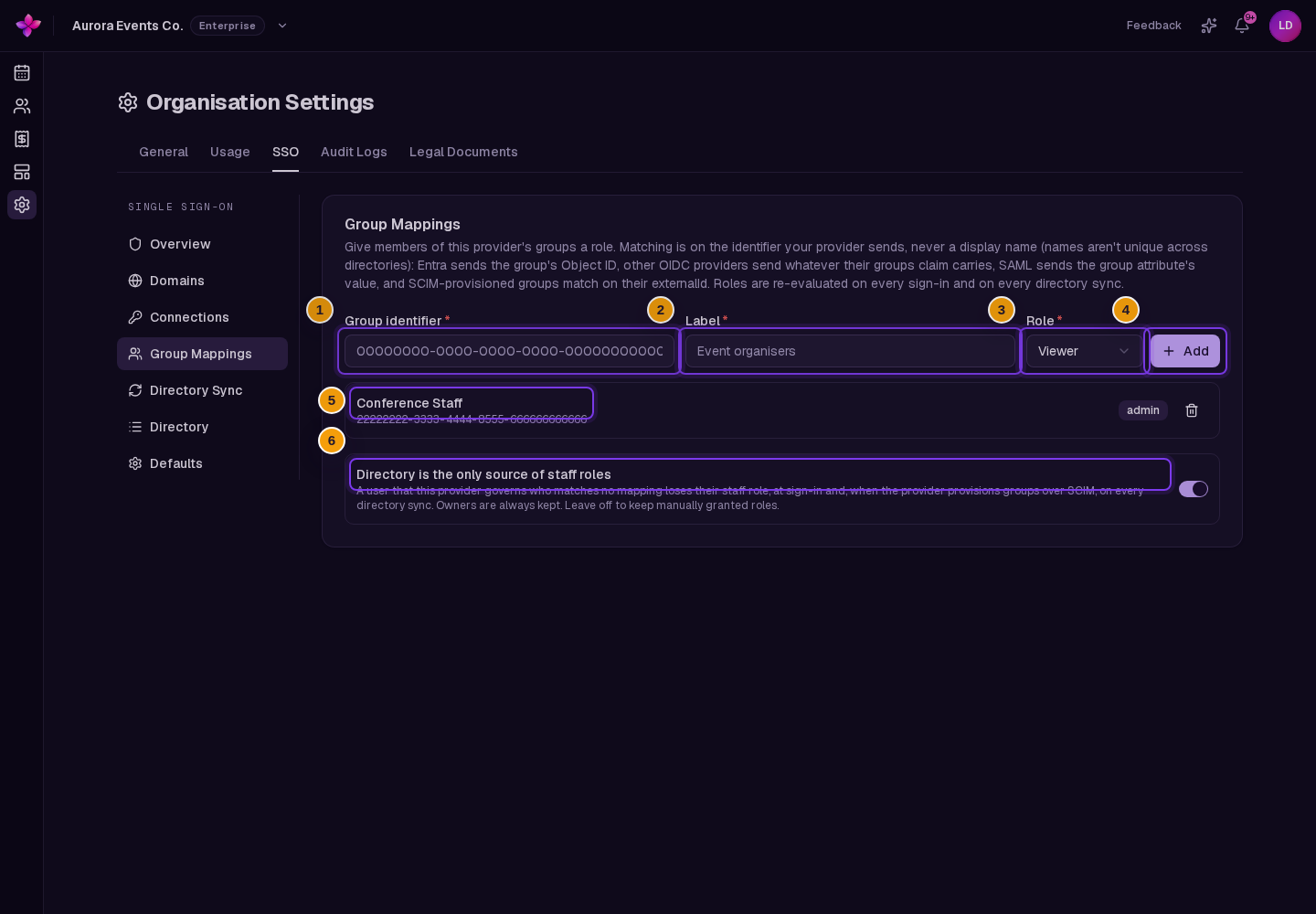
Enter the identifier sent by the provider in Group identifier. For Microsoft Entra ID, use the group's Object ID. Do not use only the display name.
Add a label and role
Enter a helpful Label, choose Viewer, Editor, or Admin from Role, then choose Add.
Review stricter role handling if needed
Turn on Directory is the only source of staff roles only when unmatched users should lose manually granted staff roles. Owners are always kept. This change requires confirmation and is applied at sign-in or directory sync.
Review audit logs
Audit logs require Enterprise and are available to owners and admins.
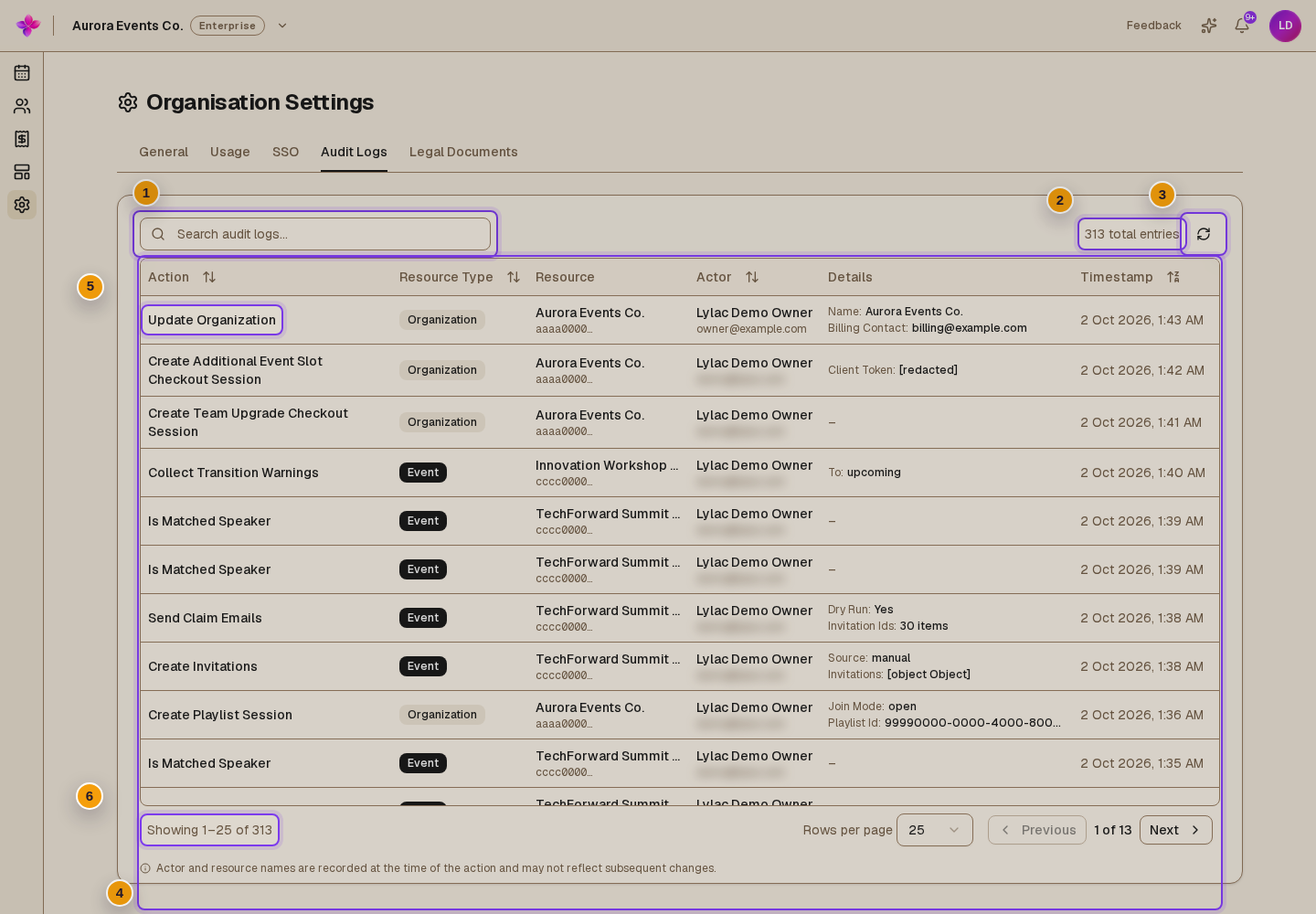
Open Audit Logs
Open Org settings, then choose Audit Logs.
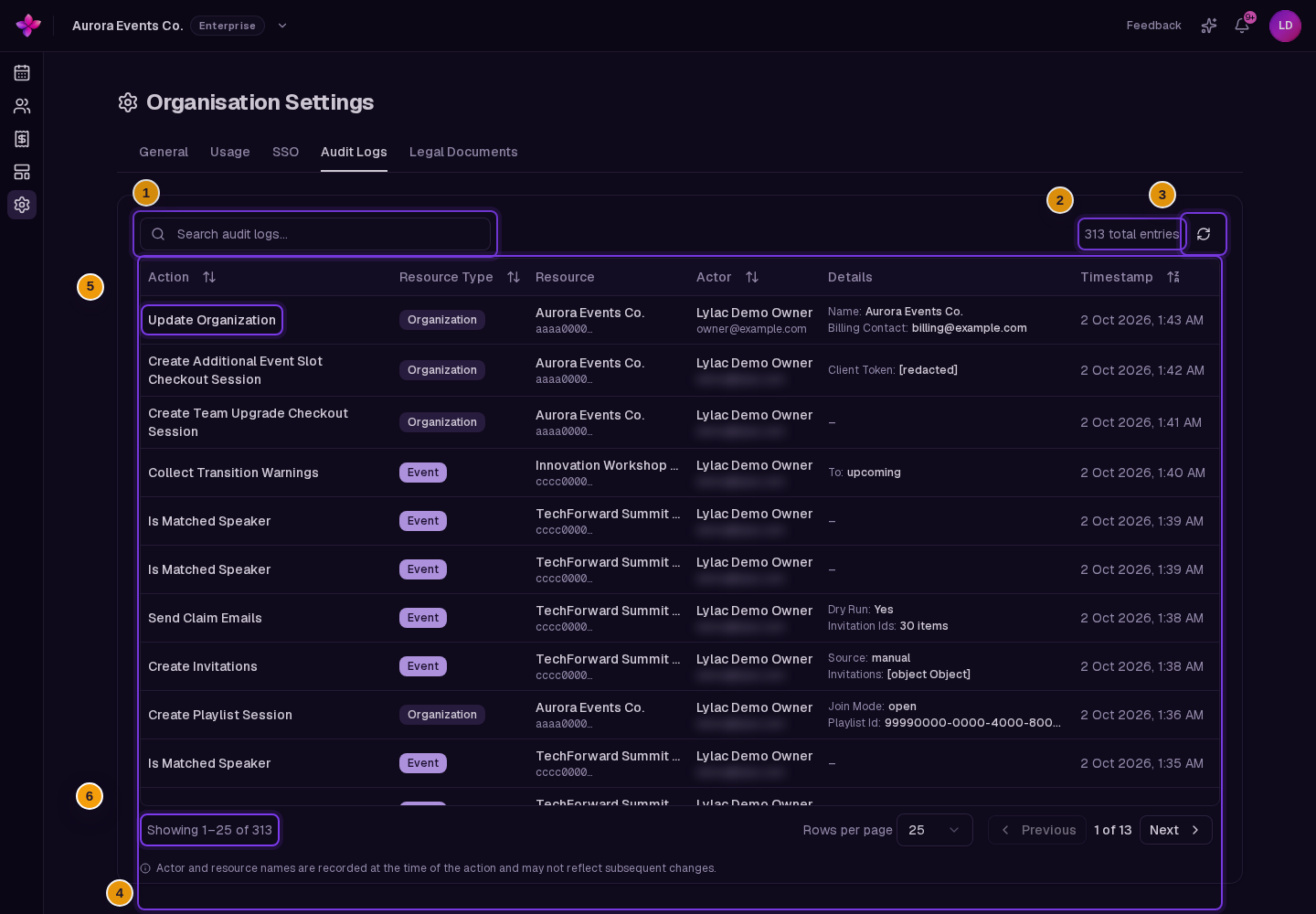
Search, sort, or refresh
Use Search audit logs to search the full history. Choose a sortable column heading to change the order, or use Refresh audit logs to reload the latest entries.
Review the table
The table shows Action, Resource Type, Resource, Actor, Details, and Timestamp. Use the page controls to change the number of rows shown.
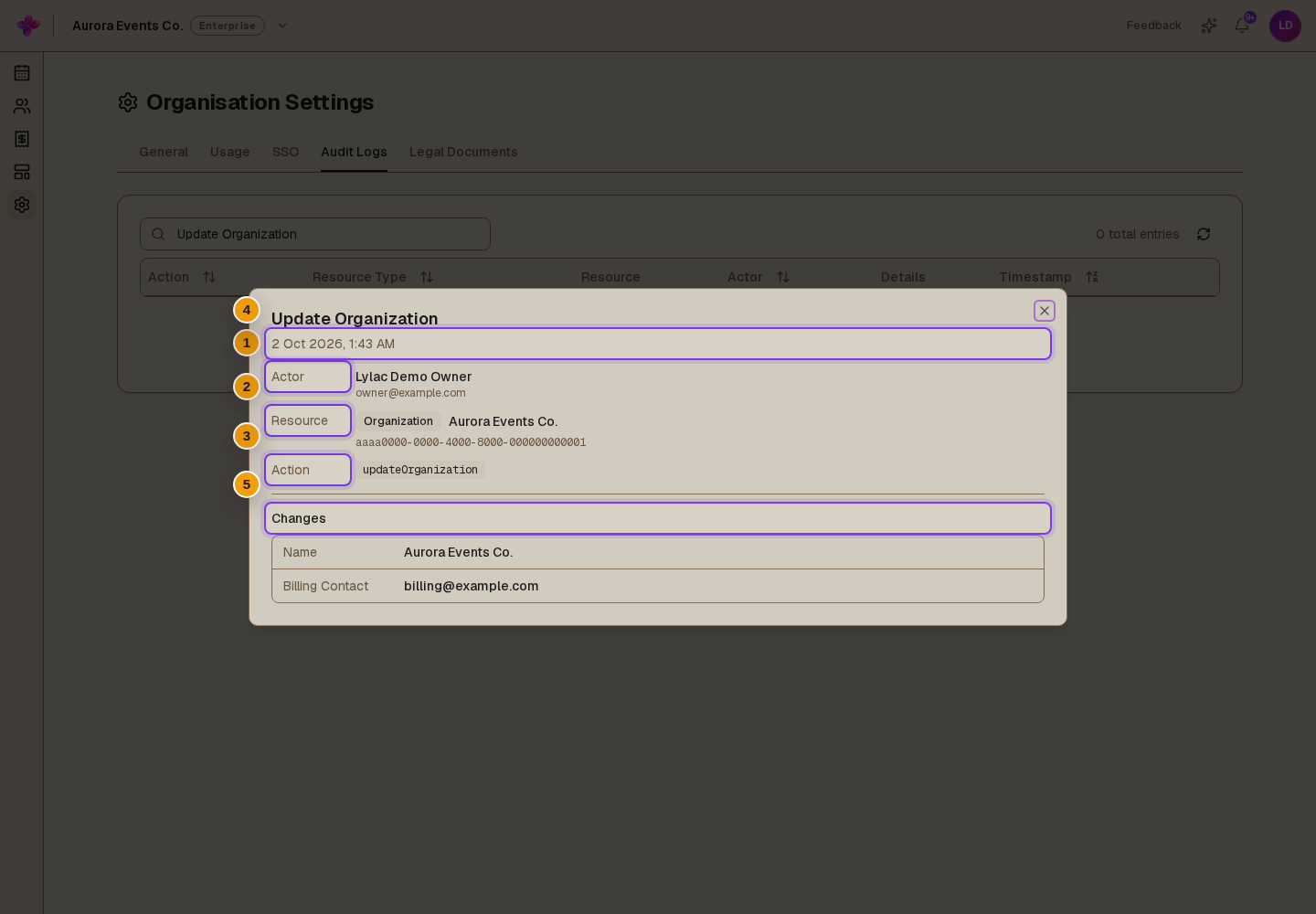
Open an entry
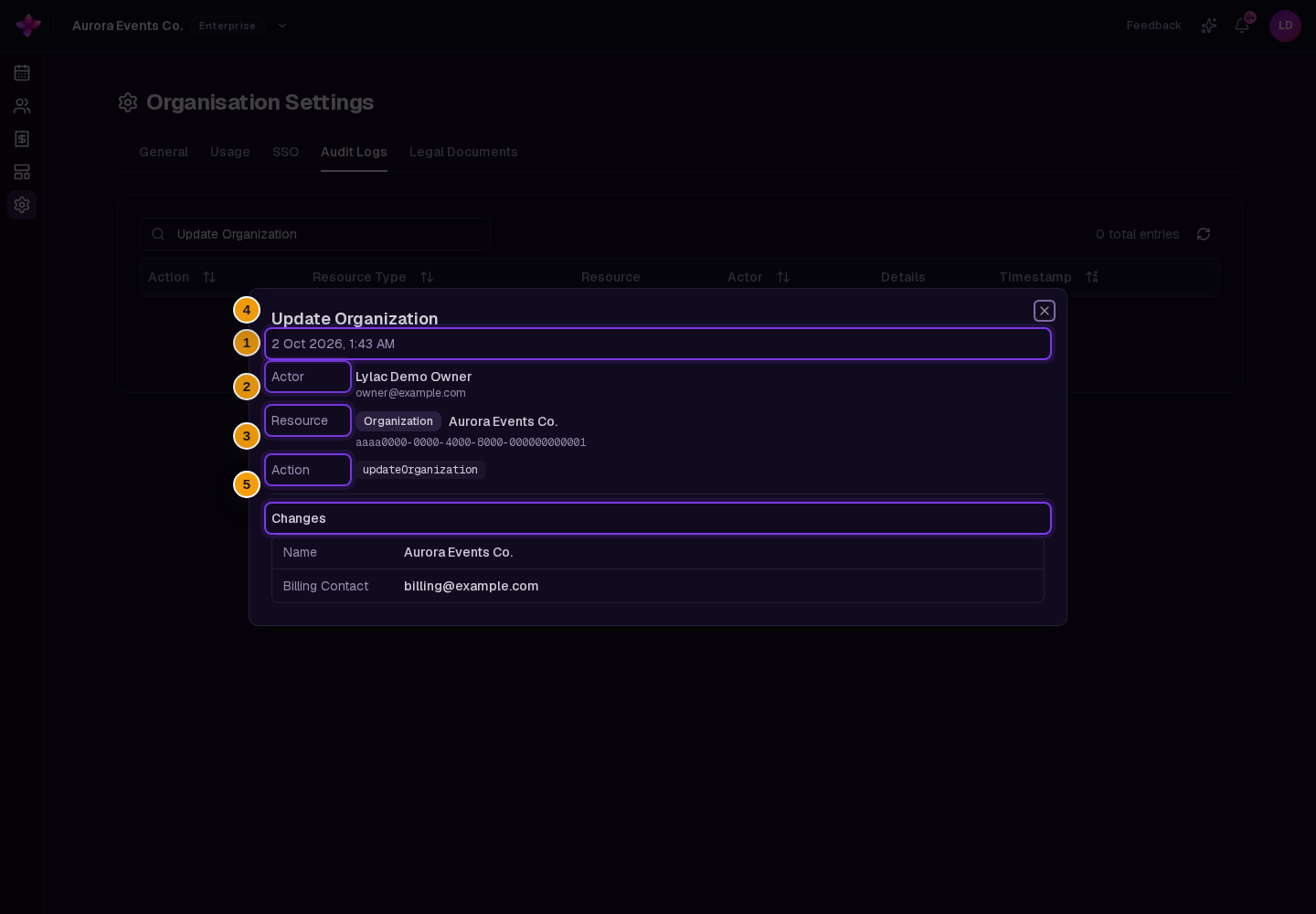
Choose a row to review the actor, resource, action, timestamp, and any recorded changes.
If something goes wrong
The SSO tab shows an upgrade message. OpenID Connect SSO requires Team or Enterprise. SAML requires Enterprise. See pricing to compare plans.
The domain stays on Pending DNS. Check that the TXT record name and value exactly match the values shown by Lylac. DNS changes can take time to appear.
People still use email links. Check that the domain is Verified, routed to the intended provider, and that the provider is enabled.
The provider cannot be enabled. Complete the required provider fields. Microsoft Entra ID requires a valid Directory (tenant) ID. Other OpenID Connect providers require an HTTPS issuer URL, client ID, and stored client secret.
Audit Logs shows an upgrade message. Audit logs require Enterprise. Owners and admins can review them after the organisation is upgraded.
If you still need help, choose Contact support.
Next steps
- Invite and manage team members.
- Manage notifications and email preferences.
- See pricing to compare Team and Enterprise features.