
Manage Notifications and Email Preferences
Lylac shows notifications in the app and sends event emails when a notification includes email delivery. Event email preferences and organisation broadcast pauses do not stop sign-in or account security emails.
Before you start
You need:
- a signed-in Lylac account to use the notification inbox or email preferences;
- access to an organisation to review a broadcast pause;
- owner access to resume organisation broadcast sending;
- a reviewed recipient list before resuming a paused organisation.
Use the notification inbox
Open Notifications
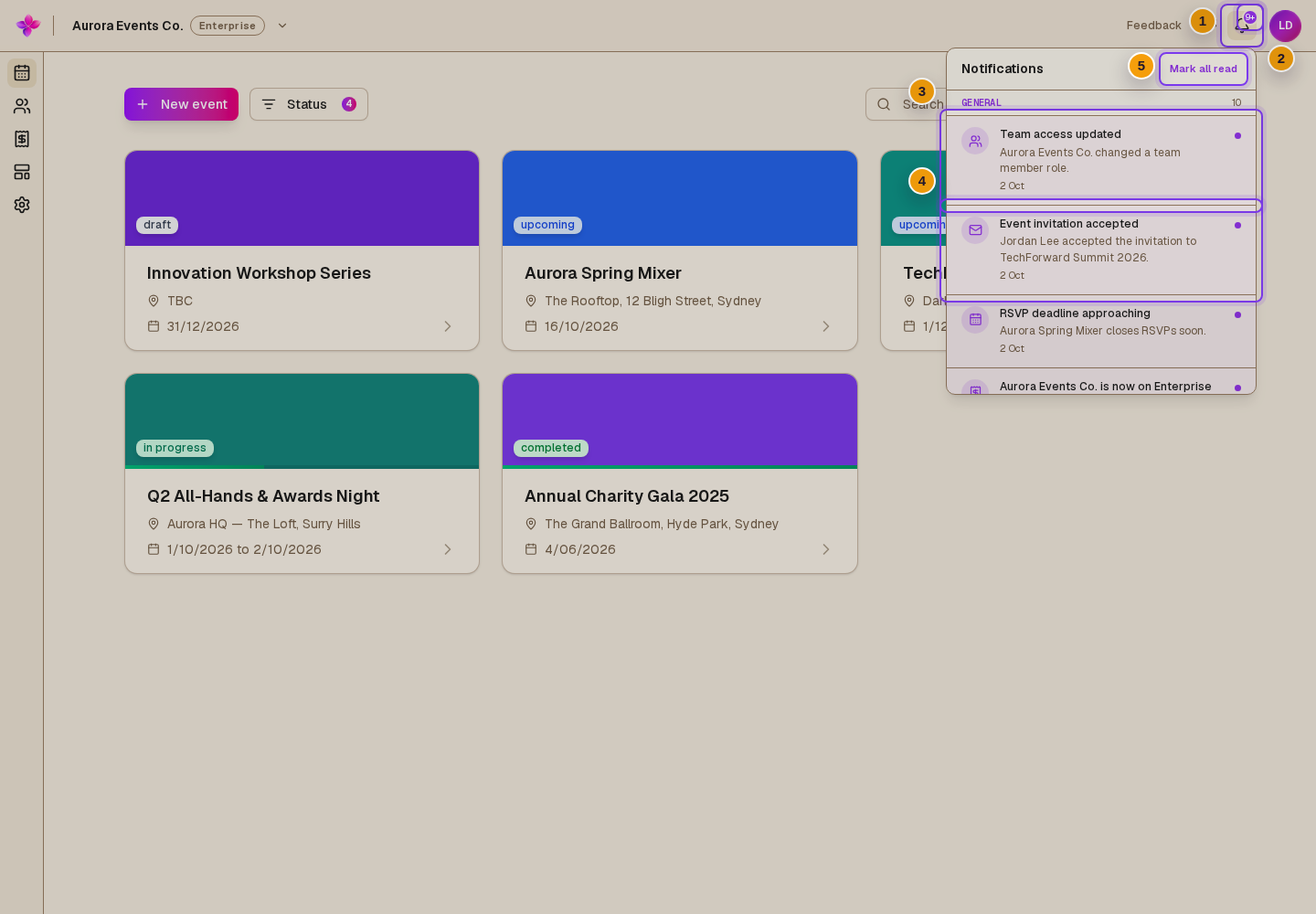
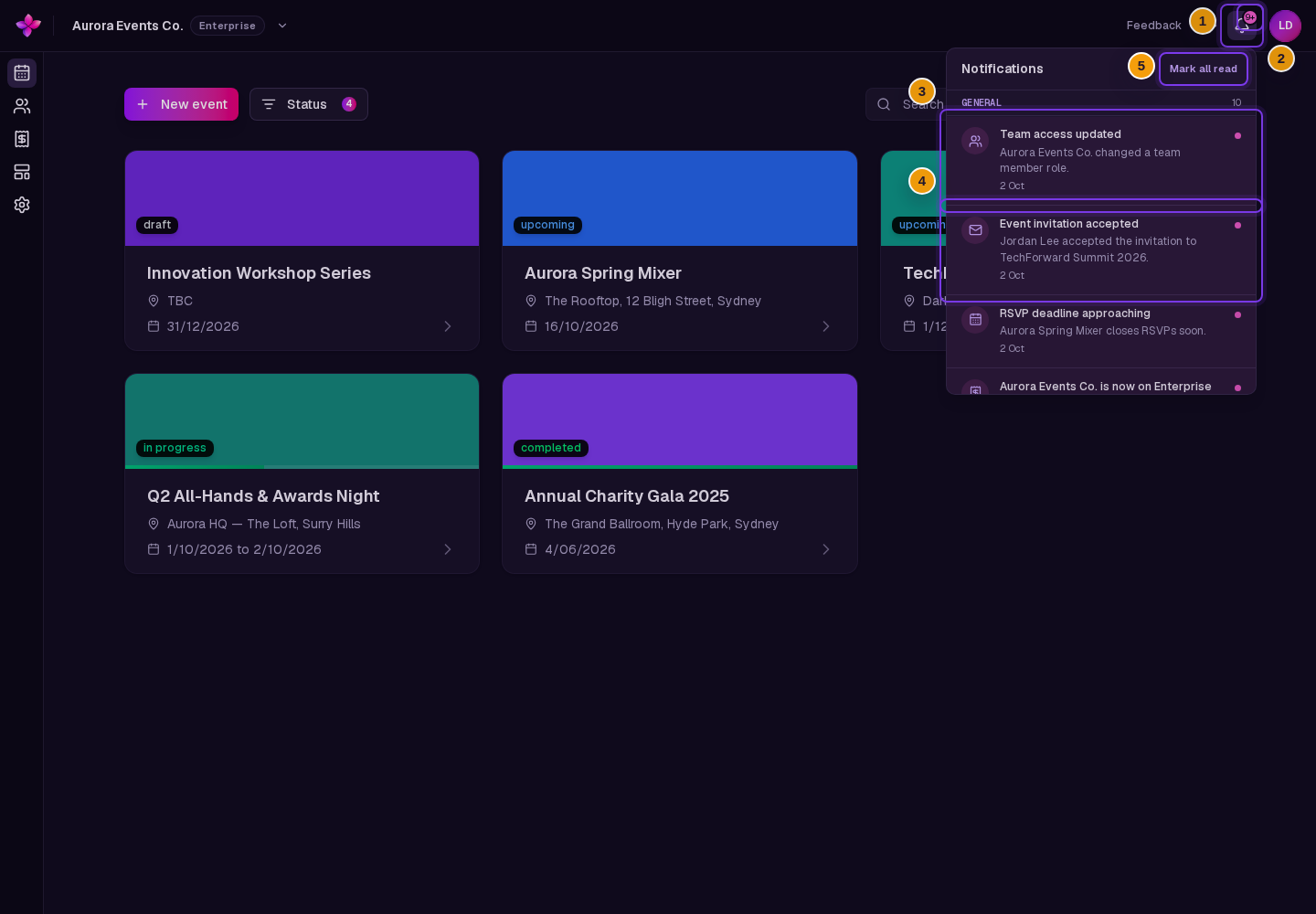
Choose the bell labelled Notifications in the app header. A badge shows when unread notifications are waiting.
Review recent notifications
Notifications are grouped by event. Organisation-level notifications appear under General. Each row shows its title, optional details, and date.
Open a notification
Choose a row. Lylac marks it as read and opens its linked page when it has one.
Clear the unread state
Choose Mark all read when unread notifications remain.
Manage your event email preferences
Open your account
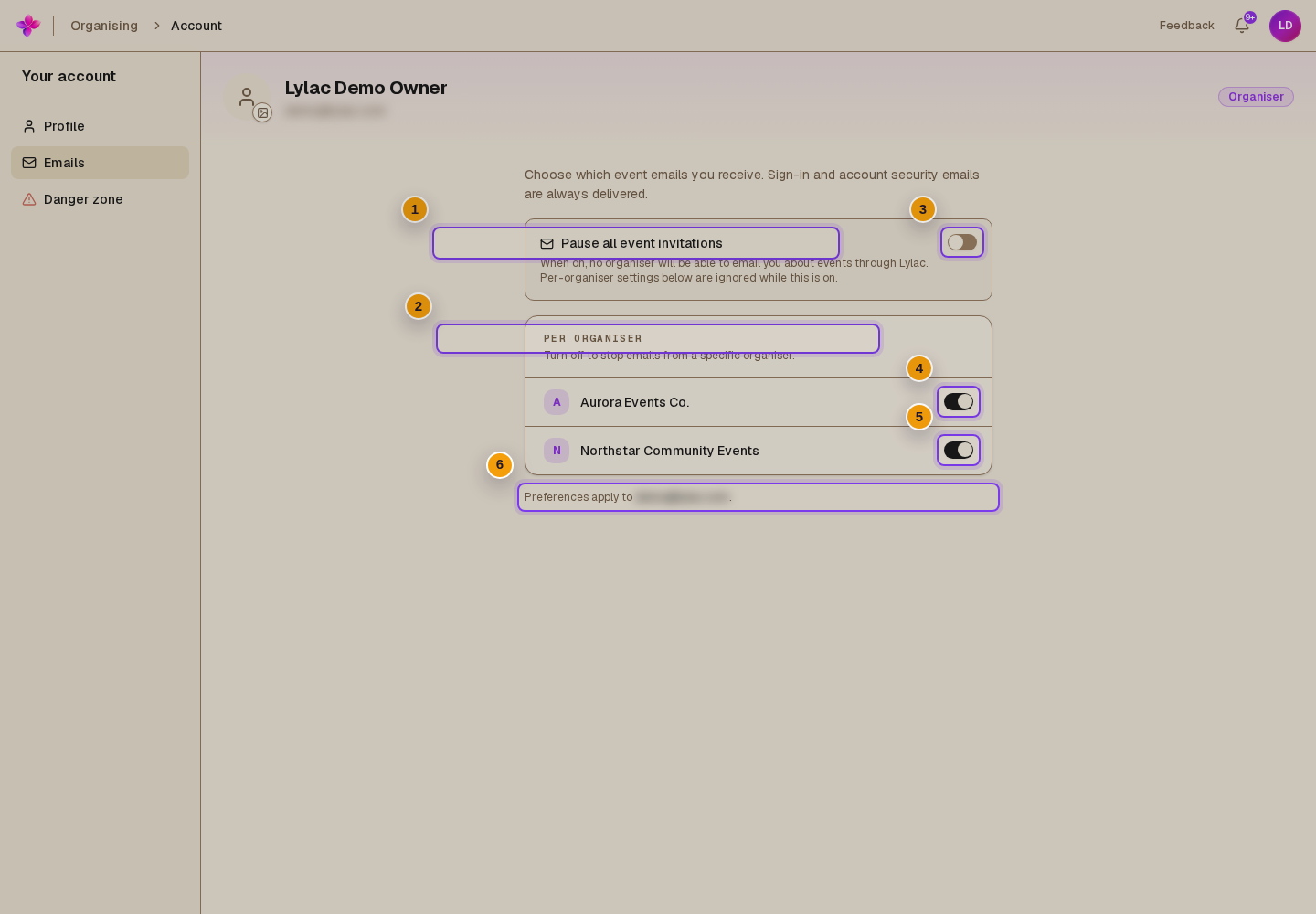
Open the avatar or initials menu and choose Account, then choose the Emails tab.
Check the address
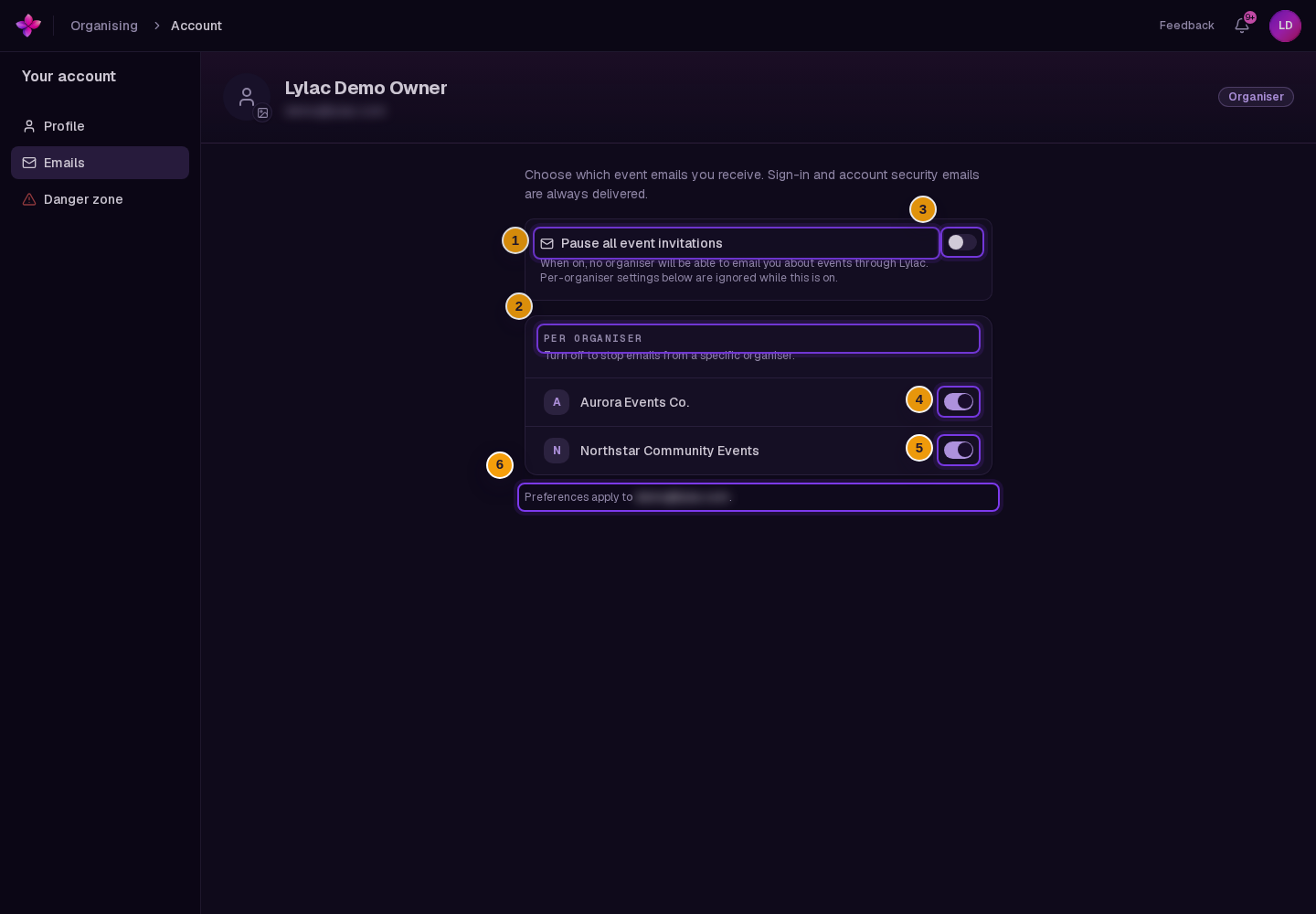
Read Preferences apply to at the bottom of the page and confirm that it shows the address you want to manage.
Pause all event invitations if needed
Turn on Pause all event invitations to stop event emails from every organiser. The individual organiser switches are disabled while the pause is on.
Manage individual organisers
With the global pause off, use the switches under Per organiser. Turn a switch off to stop event emails from that organiser, or on to resume them. Changes save automatically.
Broadcast event emails also include an unsubscribe link. Opening the link does not change the preference. The recipient must choose Unsubscribe, which prevents email security scanners from changing preferences just by checking the link. See Unsubscribe from event emails for the complete flow.
Recover paused organisation broadcast sending
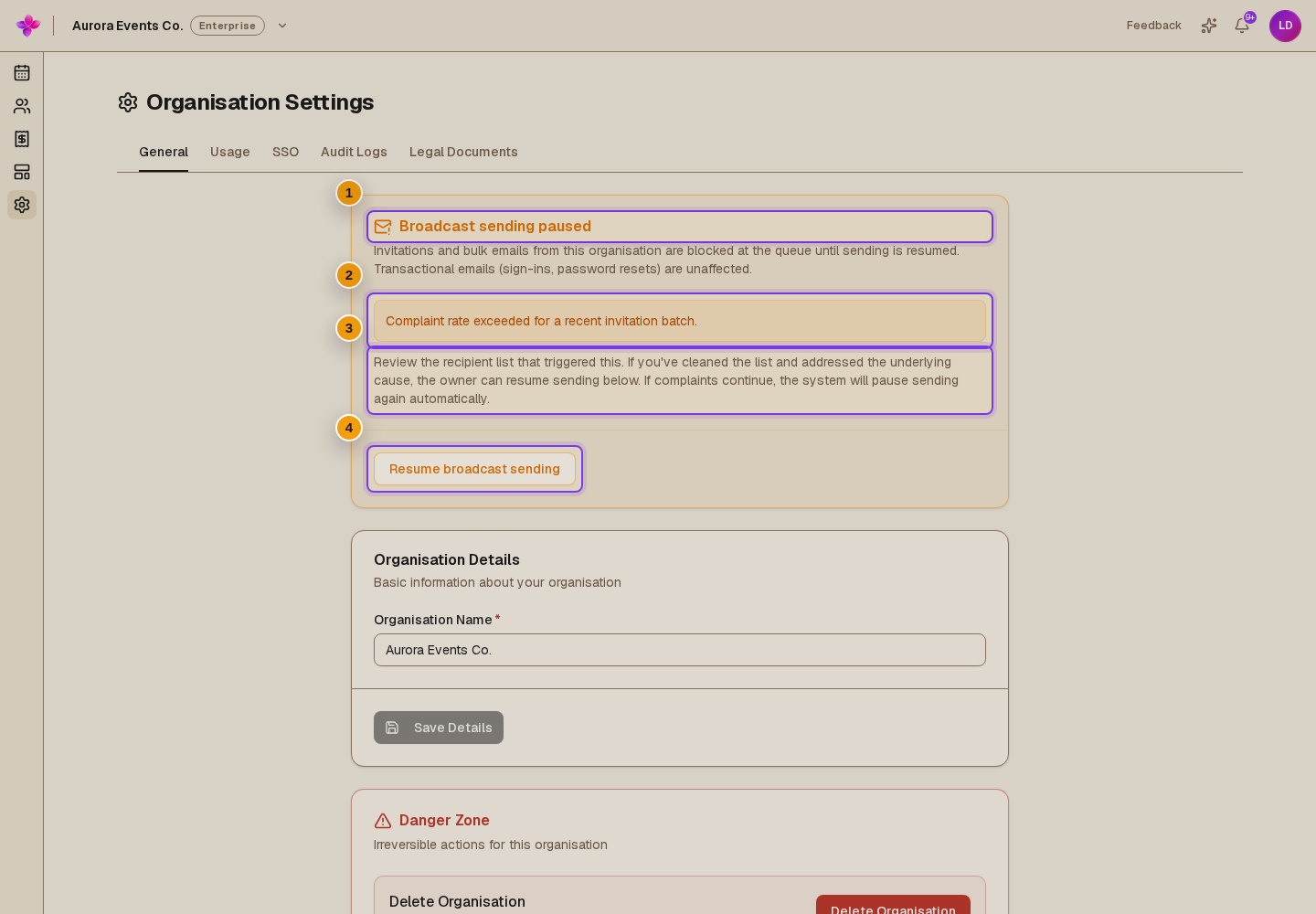
Lylac can automatically pause an organisation when recent broadcast mail has too many spam complaints or permanent delivery failures. New invitations and bulk emails from that organisation are blocked until the pause is cleared. Sign-in and account security emails continue.
Open General organisation settings
Choose Org settings and open the General tab.
Read the warning
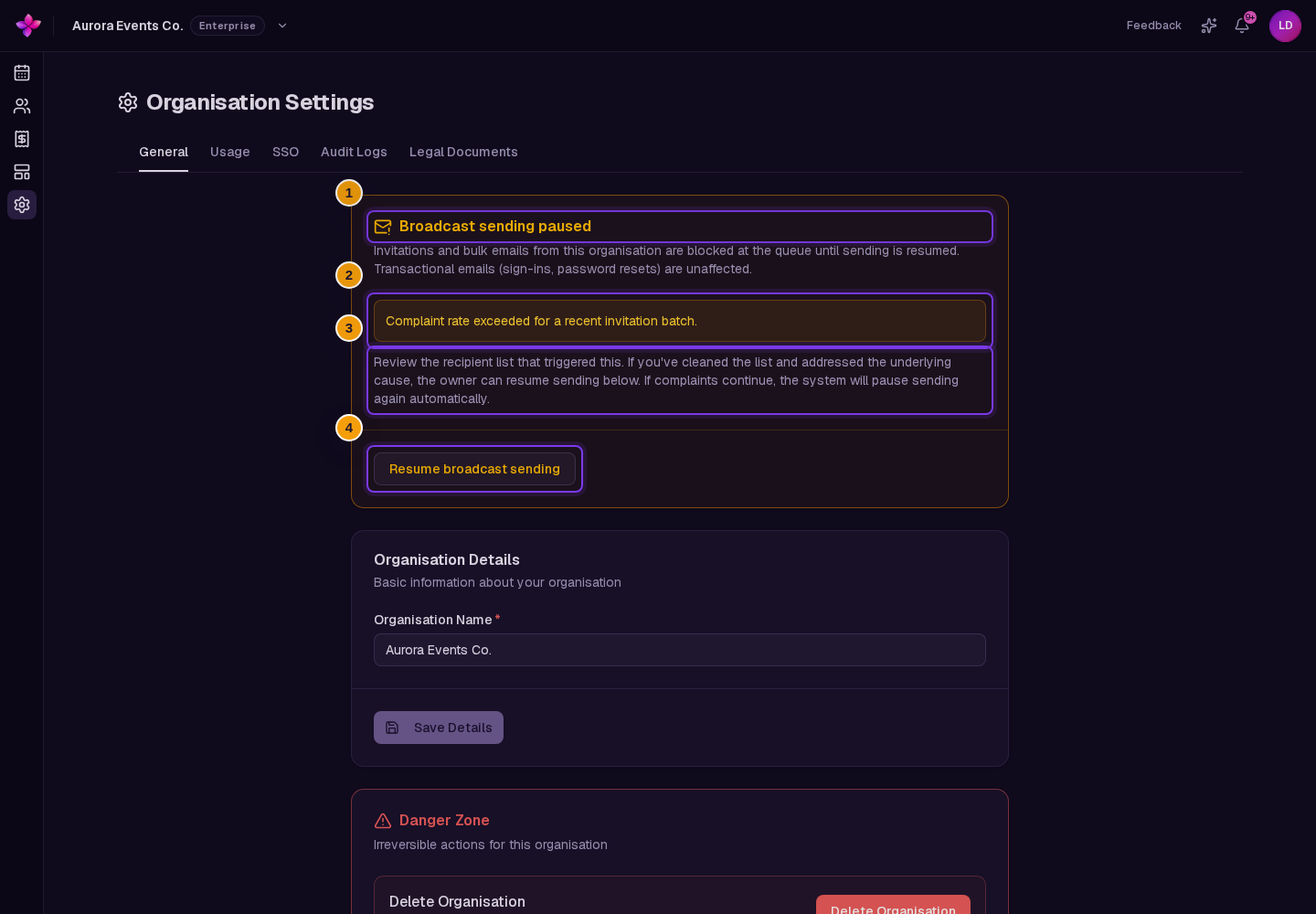
The Broadcast sending paused card explains that sending is blocked and shows the recorded reason when one is available.
Review the recipient list
Remove or correct addresses that caused complaints or permanent delivery failures. Lylac can pause the organisation again if the problem continues.
Resume sending as the owner
If self-service resume is available, the organisation owner can choose Resume broadcast sending. Other organisation roles can read the warning but cannot clear it.
Contact support when required
After repeated automatic pauses in the recent review window, Lylac replaces the resume control with Contact support.
If something goes wrong
The notification list does not appear. Close and reopen the bell. Refresh the app if it still does not load.
Mark all read is missing. The control appears only while at least one notification is unread.
An organiser switch is disabled. Turn off Pause all event invitations first. Switches are also temporarily disabled while a change saves.
An unsubscribe link is no longer valid. Use a link from a newer event email, contact the organiser, or sign in and manage email preferences.
Resume broadcast sending is unavailable. Only the organisation owner can resume sending. If the warning requires support review, choose Contact support.
Next steps
- Manage email preferences for the full account flow.
- Unsubscribe from event emails without signing in.
- Create and manage your organisation.