
RSVP and Email Statuses
RSVP availability describes whether invitees can respond and view event details. Invitation status describes either the invitee's response or how Lylac reached someone who has not responded.
Organisers see a single Status badge on the event's Invitations page. Accepted and Declined take priority. For an unanswered invitation, the badge shows the latest delivery status instead.
Before you start
You need:
- the RSVP badge beside the Invitations heading;
- the invitation row you want to check;
- the correct recipient email address if delivery needs attention.
Check an invitation
Check RSVP availability
Open the event's Invitations page and read the RSVP badge beside the heading.
Read the Status badge
Find the invitee in All Invitations. The badge shows Accepted or Declined after a response. Otherwise, it shows the delivery status.
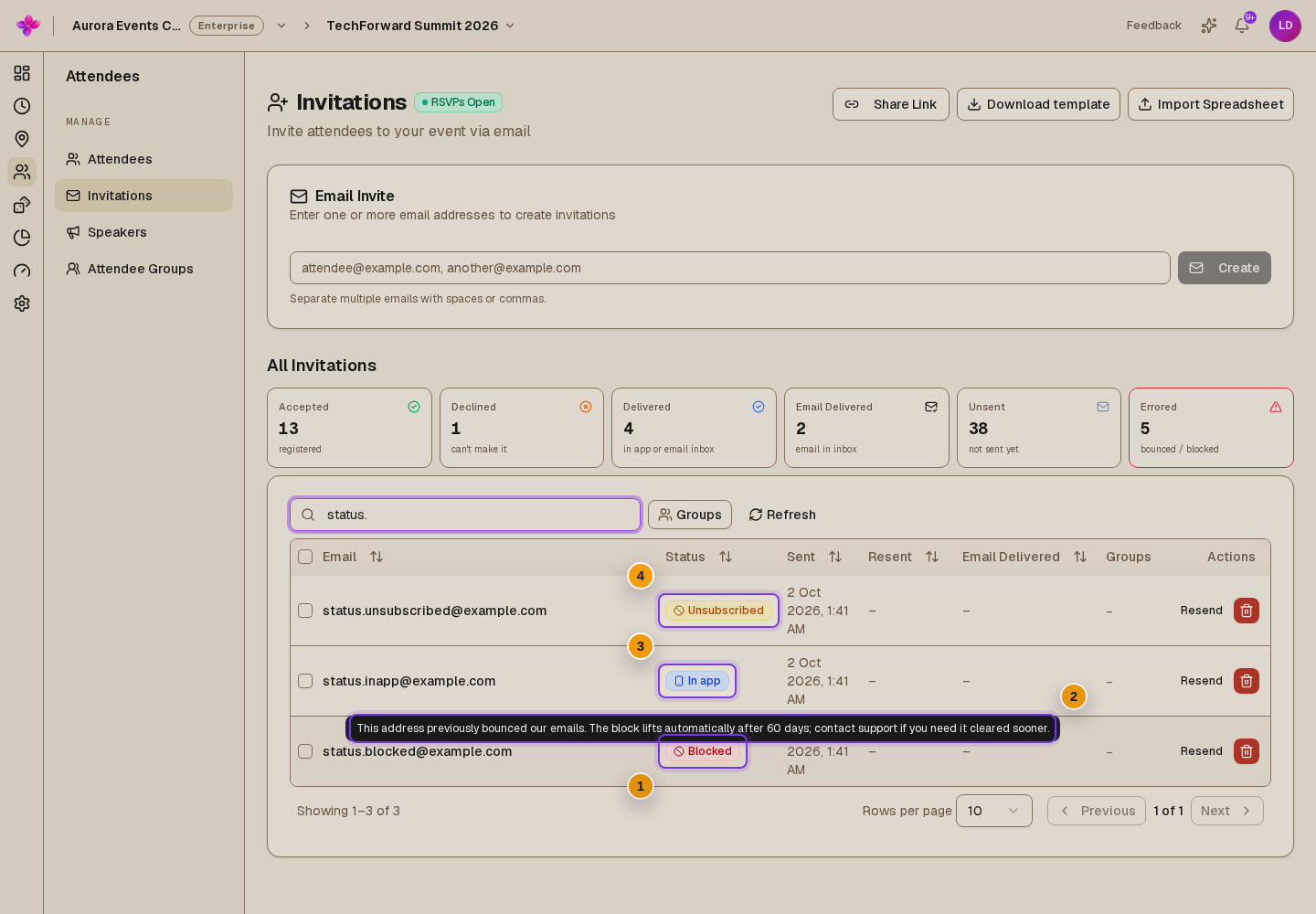
Point to the badge for details
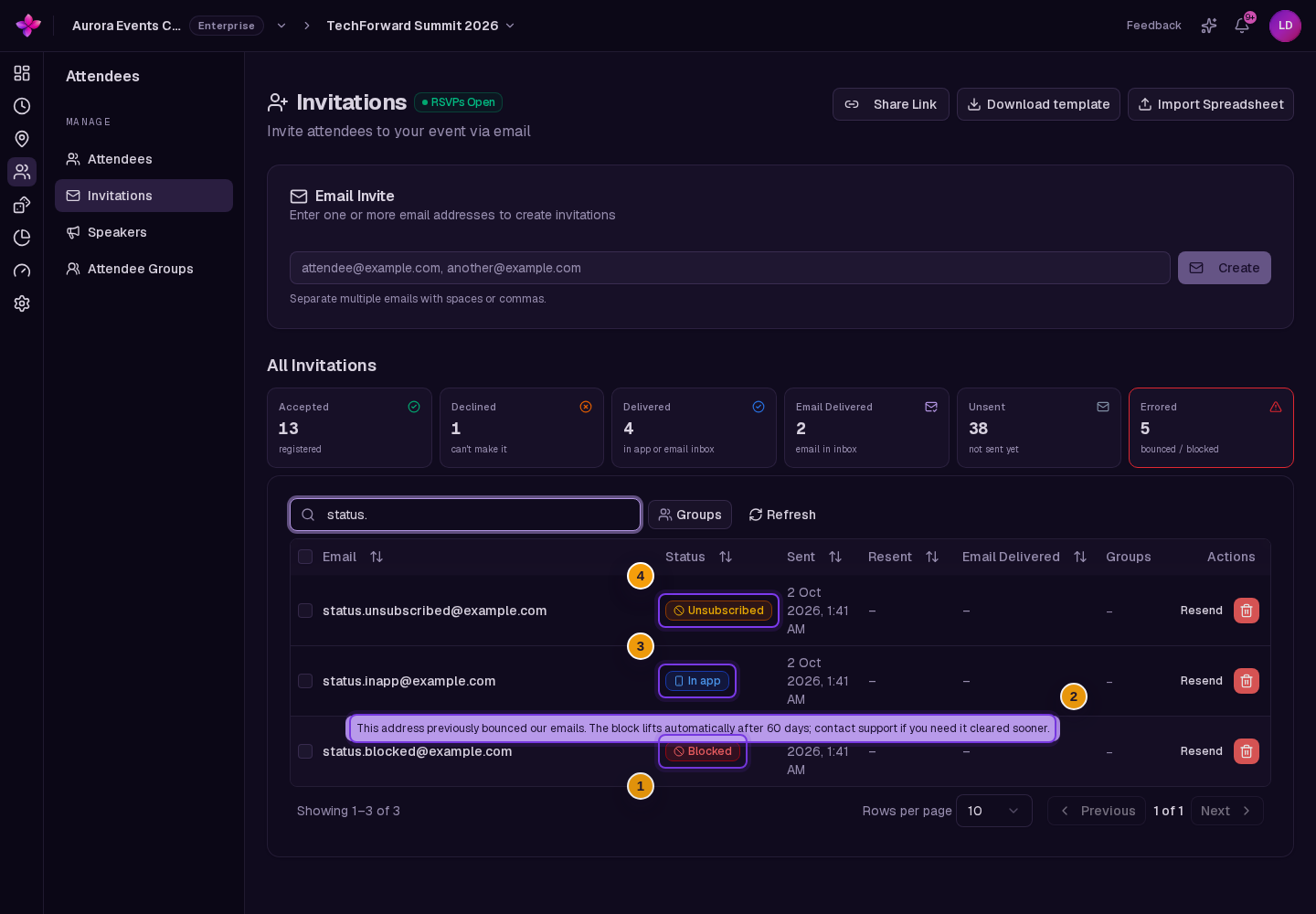
The tooltip explains what the status means. For a blocked address, it also distinguishes a previous bounce from a spam complaint.
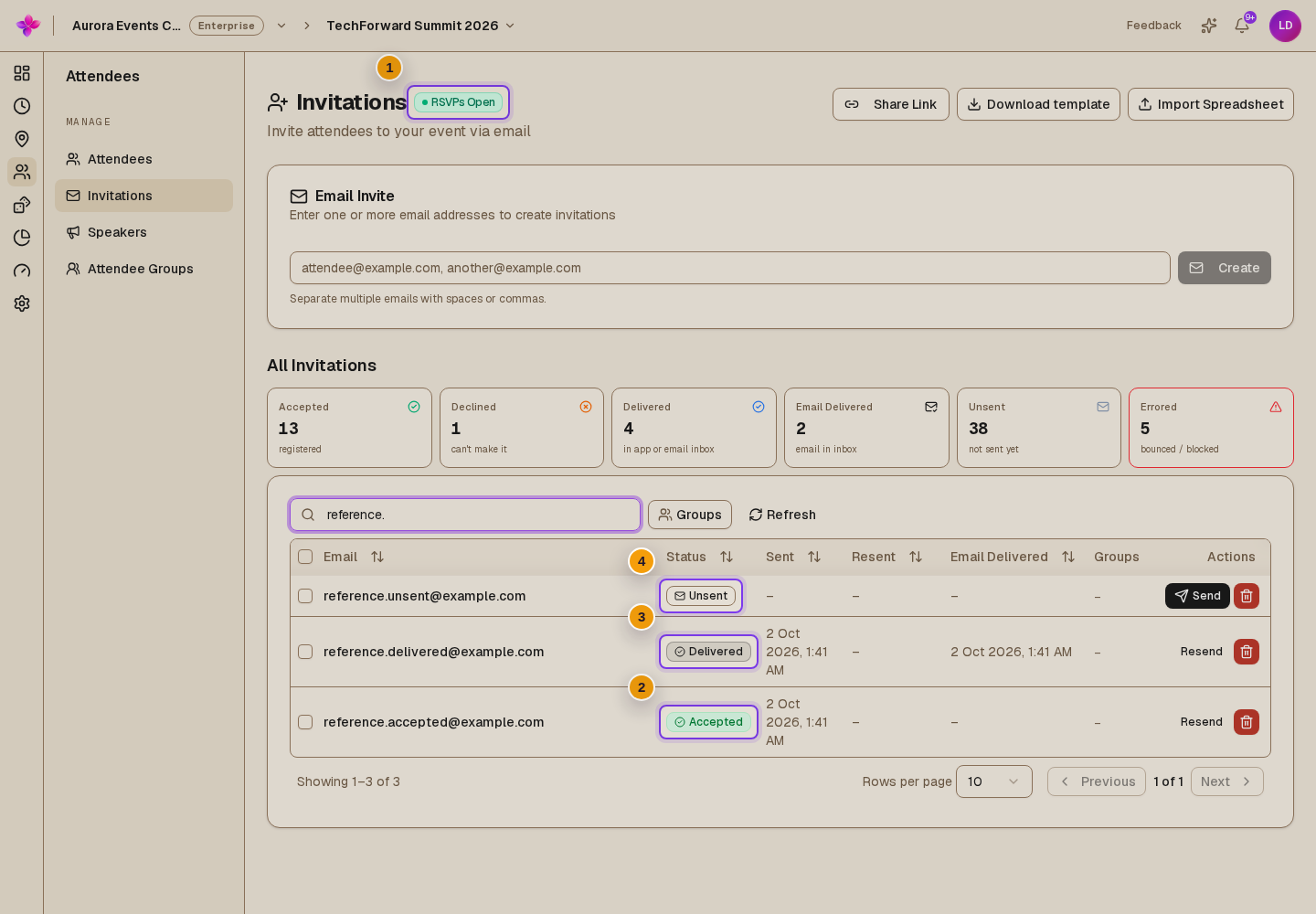
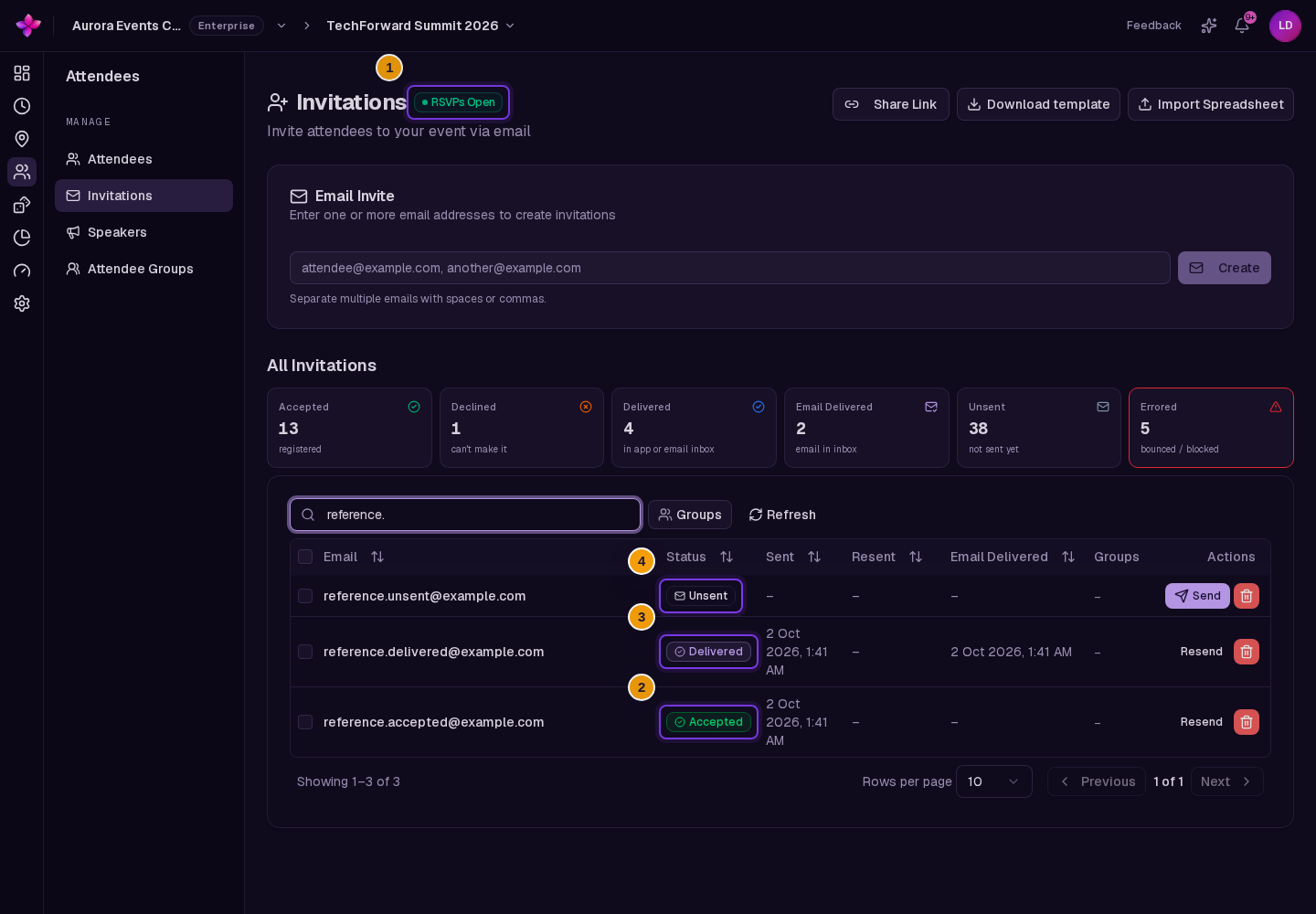
RSVP availability
| Status shown | What it means | Invitee effect |
|---|---|---|
| RSVPs Open | The event is accepting responses. | Invitees can accept or decline and can see published event details. |
| RSVPs Not Open Yet | The event has not opened RSVP access. | Invitees can accept and sign in, but cannot see the event details until RSVPs open. |
| RSVPs Closed | The RSVP window has closed. | Invitees cannot respond unless the organiser reopens RSVPs. |
Invitation response statuses
| Status | Where it appears | Meaning |
|---|---|---|
| Accepted | Organiser invitation list | The invitee accepted the invitation. |
| Declined | Organiser and attendee invitation lists | The invitee declined the invitation. |
| Pending | Attendee invitation list | The invitee has not responded. |
| Attending | Attendee invitation list | The invitee accepted an event that has not finished. |
| Attended | Attendee invitation list | The invitee accepted an event that is completed. |
| RSVPs closed | Attendee invitation list | The invitee did not respond before the RSVP window closed. |
| Event cancelled | Attendee invitation list | The event was cancelled. |
Email delivery statuses
These statuses appear in the organiser's Status column when the invitation has not been accepted or declined.
| Status | Meaning | What to do |
|---|---|---|
| Unsent | No invitation email has been sent. | Choose Send when you are ready. |
| Sending... | Lylac is processing the email or waiting for delivery confirmation. | Wait and refresh later. |
| Delivered | Lylac confirmed that the recipient's mail system accepted the email. | Ask the recipient to check their inbox, spam folder or mail quarantine. |
| In app | The email did not get through, but the invitee has a Lylac account and can see the invitation in the app. | Contact the invitee directly if they still need help. |
| Failed | Email delivery failed. | Check the email address, then resend. |
| Blocked | The address previously bounced or reported an email as spam. | Point to the badge for the reason. A bounce block lifts after 60 days. For a spam complaint, contact support if you believe it is a mistake. |
| Unsubscribed | The recipient opted out of the organisation's event emails or paused all Lylac event invitations. | Contact the recipient outside Lylac. They must resume emails before Lylac can deliver another invitation. |
If something looks wrong
A responded invitation still has email dates. The Sent, Resent and Email Delivered columns record email activity. The Status badge still shows Accepted or Declined.
An invitee says the email never arrived. Check the badge first. Delivered means the recipient's mail system accepted it, not that it reached the inbox. In app means the invitation is available in Lylac even though the email failed.
A pending invitee cannot respond. Check whether the attendee view says RSVPs closed. The organiser must reopen RSVPs before the invitee can respond.
Next steps
- Follow Send and monitor invitation emails to send or resend invitations.
- Follow Manage the invitation list to find and update invitation rows.
- Follow Set the RSVP deadline to change when responses close.
- See Manage your invitations for the attendee view.