
Share and React to Moments
Moments is the event's shared feed for updates, prompt answers, photos, and reactions. You can heart visible moments and share your own while posting is available to you.
Before you start
You need:
- attendee access to the event;
- an upcoming or in-progress event if you want to post;
- posting enabled by the organisers;
- permission to post moments for your attendee record.
Read and react to moments
Open Moments
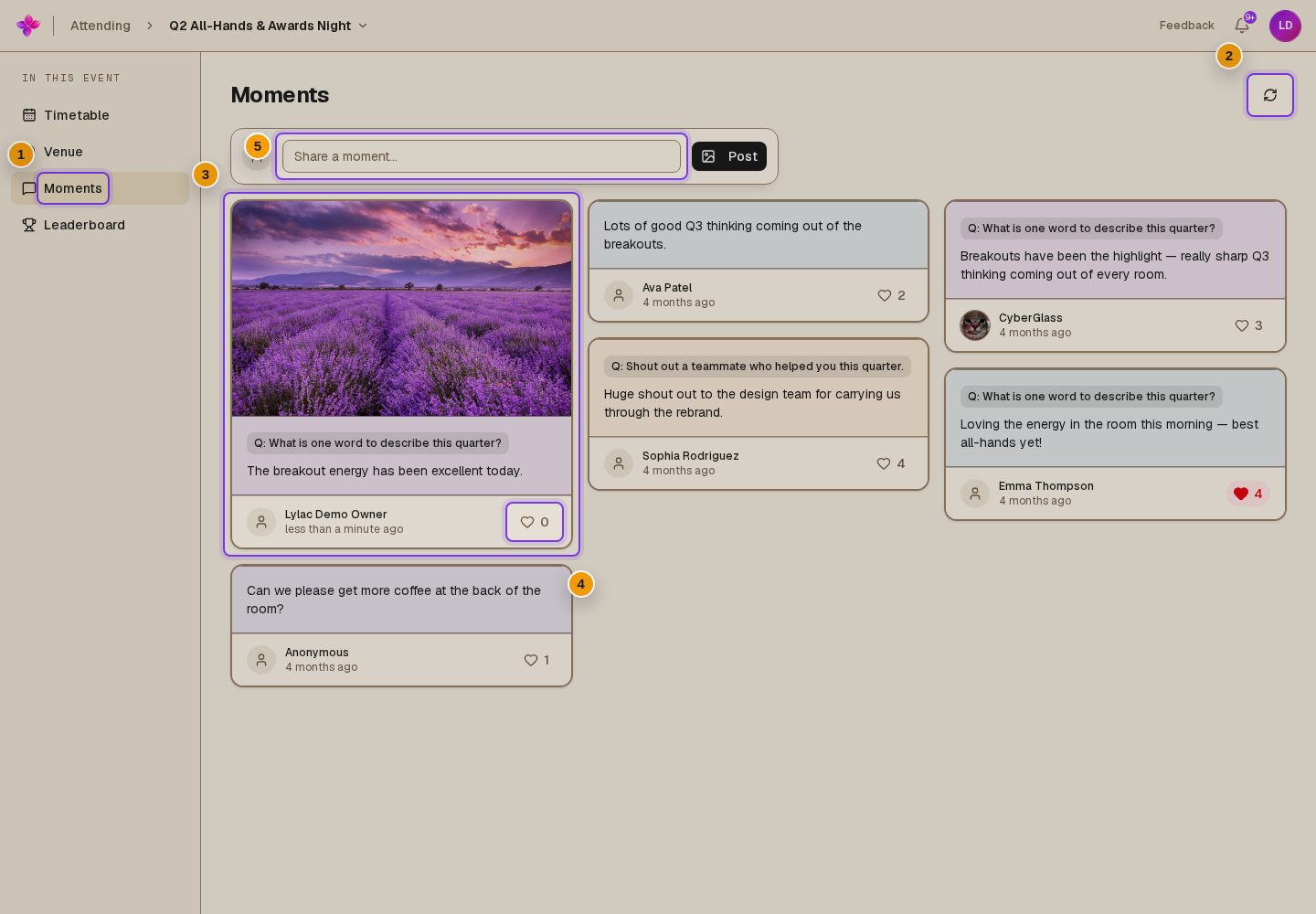
Open the event, then choose Moments from the event navigation. The newest visible moments appear first.
Read the feed
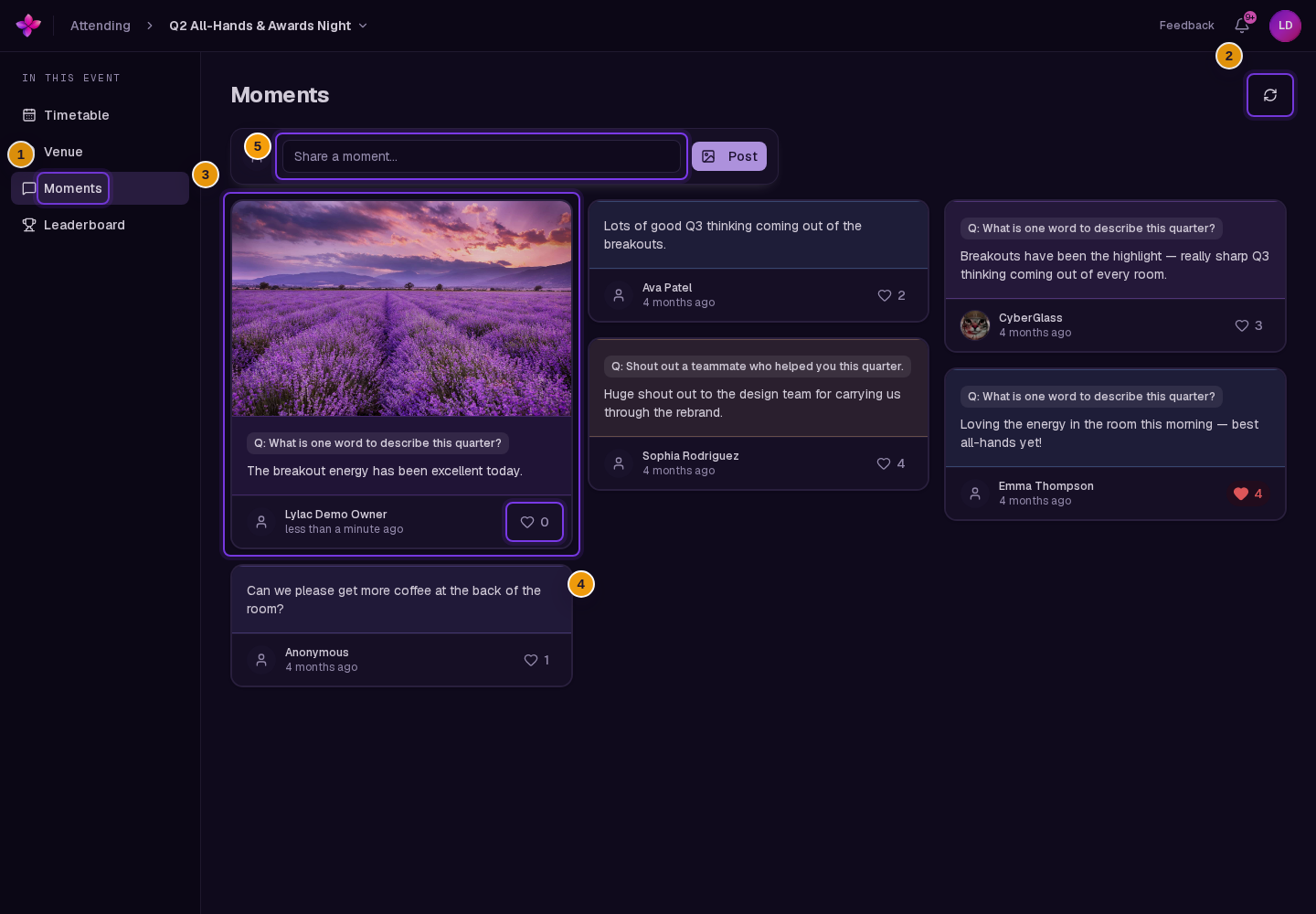
A moment can include an image, prompt, text, author name or Anonymous, posting time, and heart count.
Add or remove a heart
Choose the heart on a moment to add your reaction. Choose it again to remove your heart.
Refresh the feed
Use Refresh moments to reload the feed from the top. Visible moments, hearts, and removals can also update while you stay on the page.
Share a moment
Open Share a moment
On a larger screen, choose Share a moment… or Post. On a phone, choose the Share a moment button near the bottom of the screen.
Choose a prompt if you want one
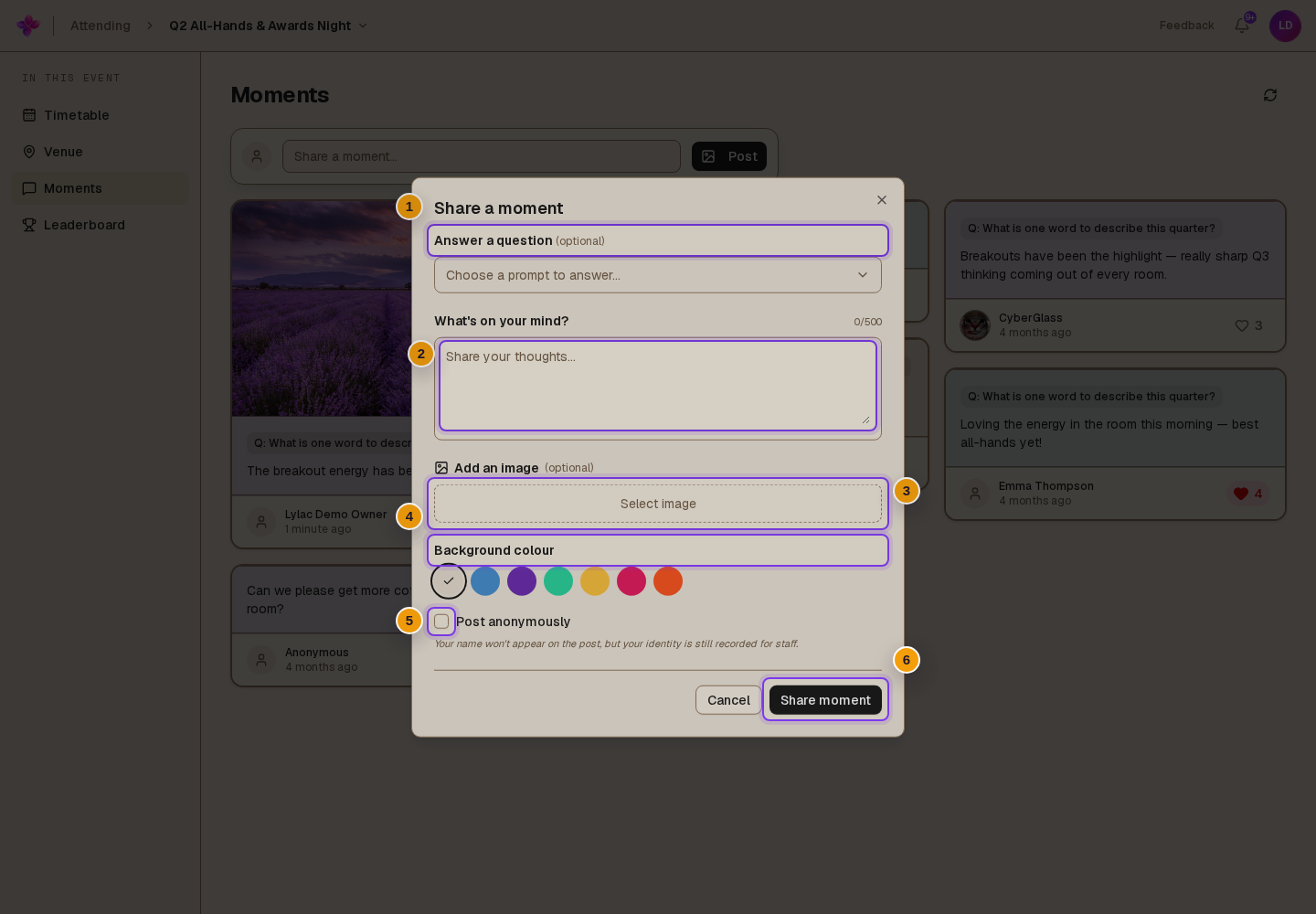
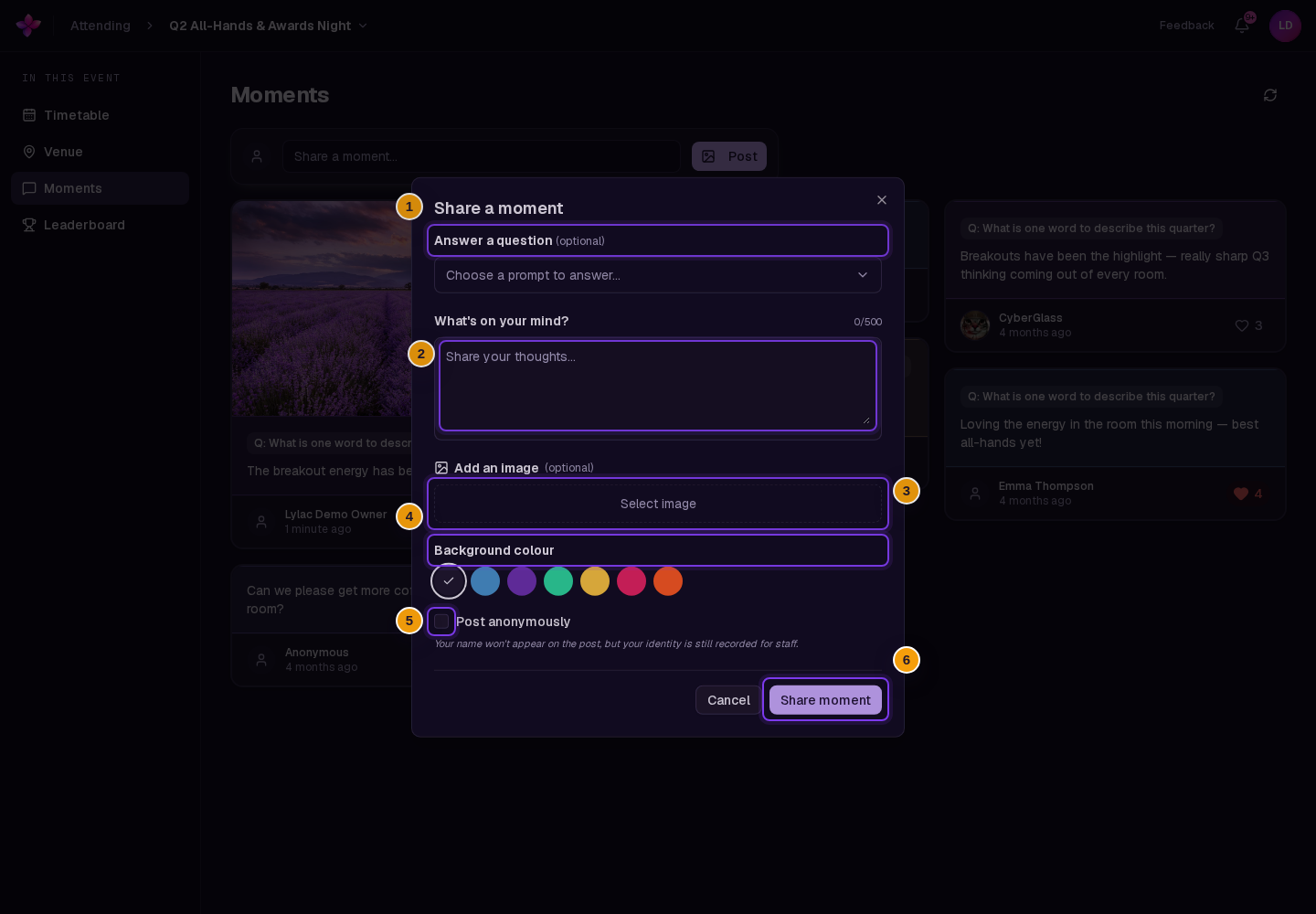
If the organisers added active prompts, choose Choose a prompt to answer… and select one. A prompt is optional.
Add text, an image, or both
Enter up to 500 characters under What's on your mind?. Choose Select image to add a photo. You must add text, an image, or both.
Choose a background colour
Choose a colour for the text area, or leave No colour selected to use the standard background.
Choose whether to post anonymously
Turn on Post anonymously to hide your name from the feed. Your identity is still recorded for event staff.
Share the moment
Choose Share moment. After it is saved, the dialog closes and the feed refreshes.
If something goes wrong
The posting controls are missing. Posting may be closed for the event, disabled by the organisers, or unavailable for your attendee record.
The page says Posting moments is currently disabled. The organisers have turned posting off. You can still read and heart visible moments.
Share moment shows a message asking for content. Add text, an image, or both, then try again.
An image is rejected. Follow the error shown by Lylac and choose another image if needed.