
View Event Analytics
Use Analytics to review reporting for an event. The dashboard contains event summary cards and future report areas. Activity feedback contains attendee ratings and comments for activities.
Before you start
You need:
- access to the event in its organisation;
- owner, admin, editor or viewer access to view host reports.
Open analytics
Open the event
Choose the event from your organisation workspace.
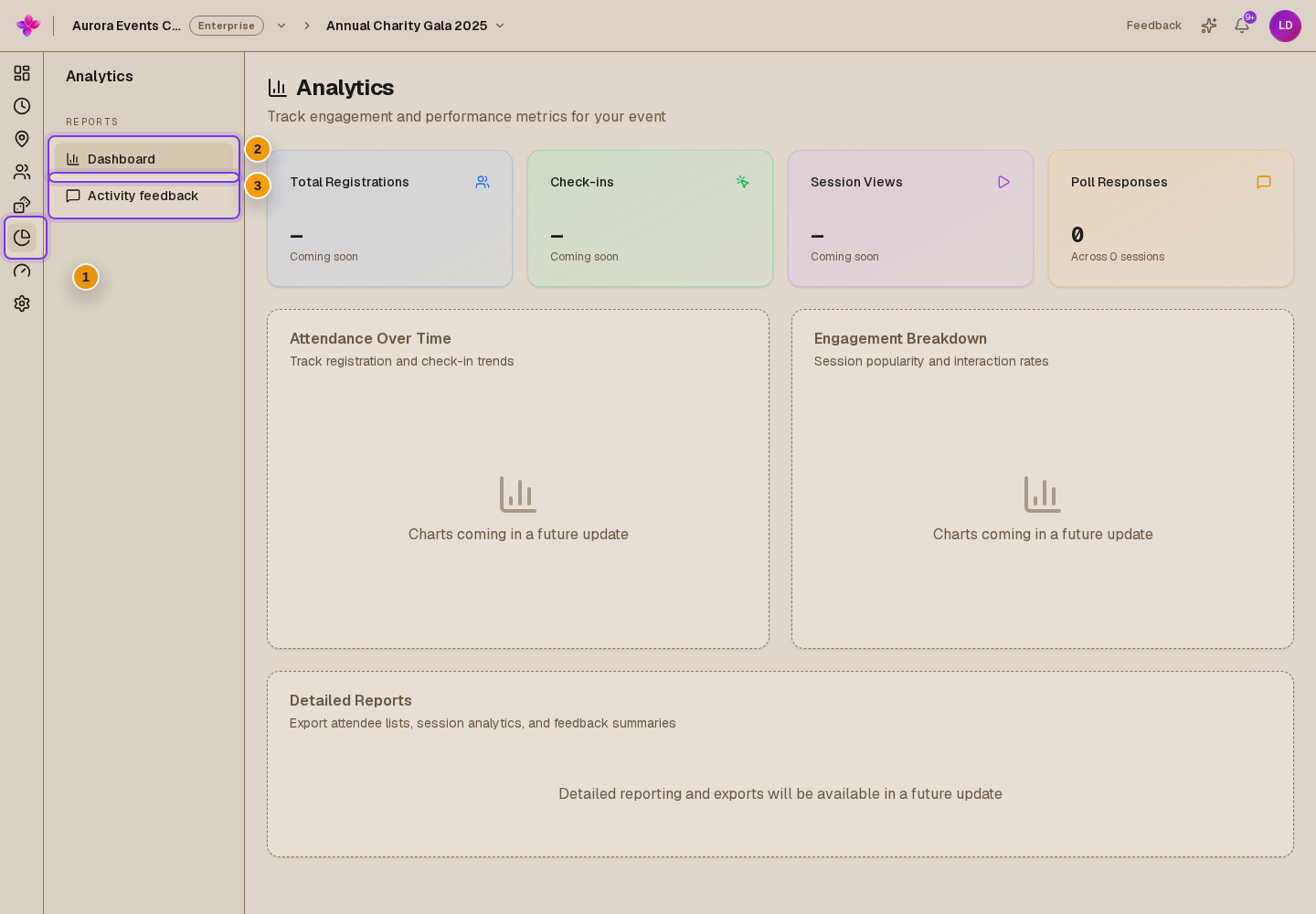
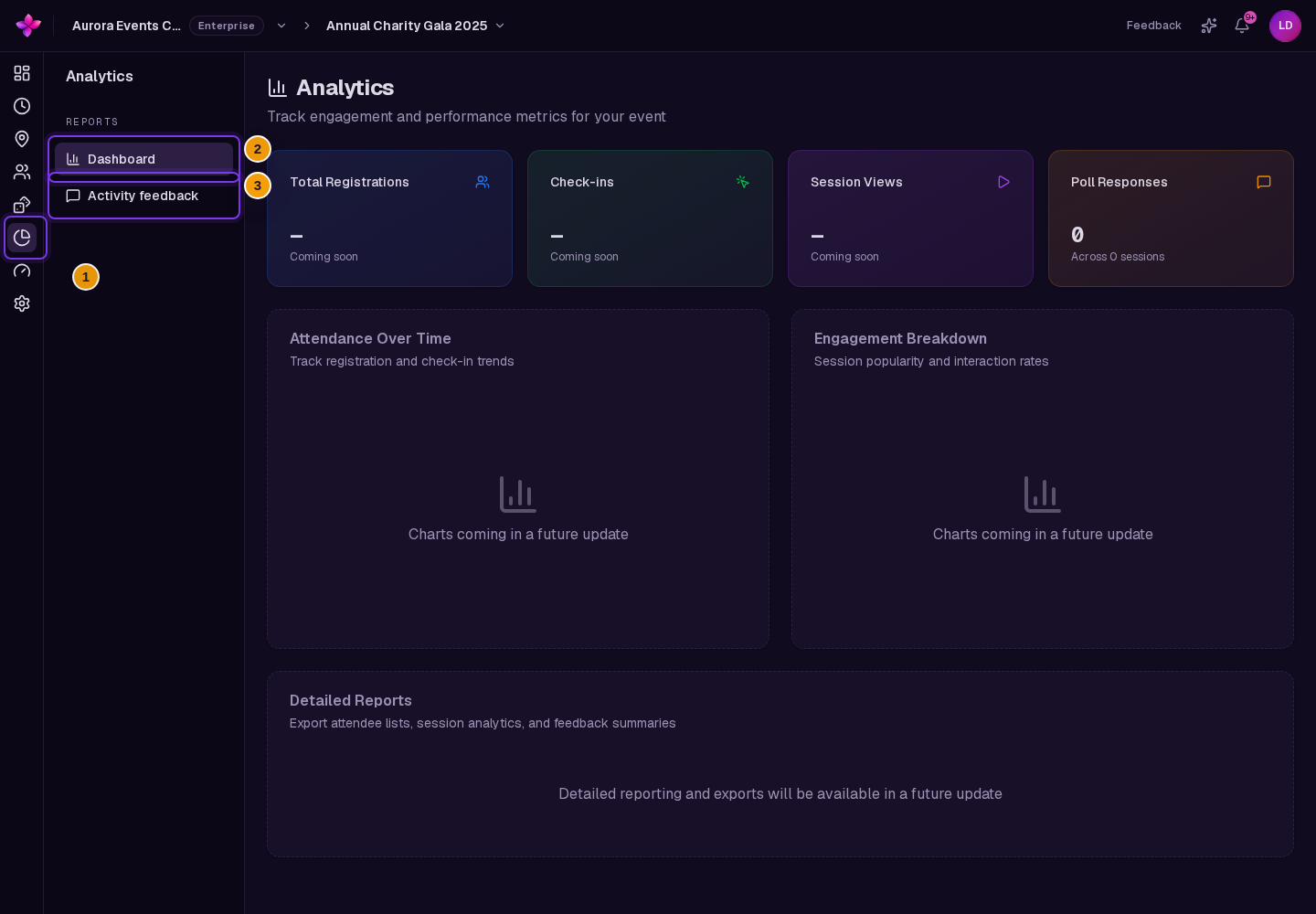
Choose Analytics
On a wider screen, choose Analytics in the left event navigation. On a smaller screen, choose More, then Analytics.
Choose a report
On a wider screen, use the report links in the left panel. On a smaller screen, use the report links below the header. Choose Dashboard or Activity feedback.
Understand the dashboard
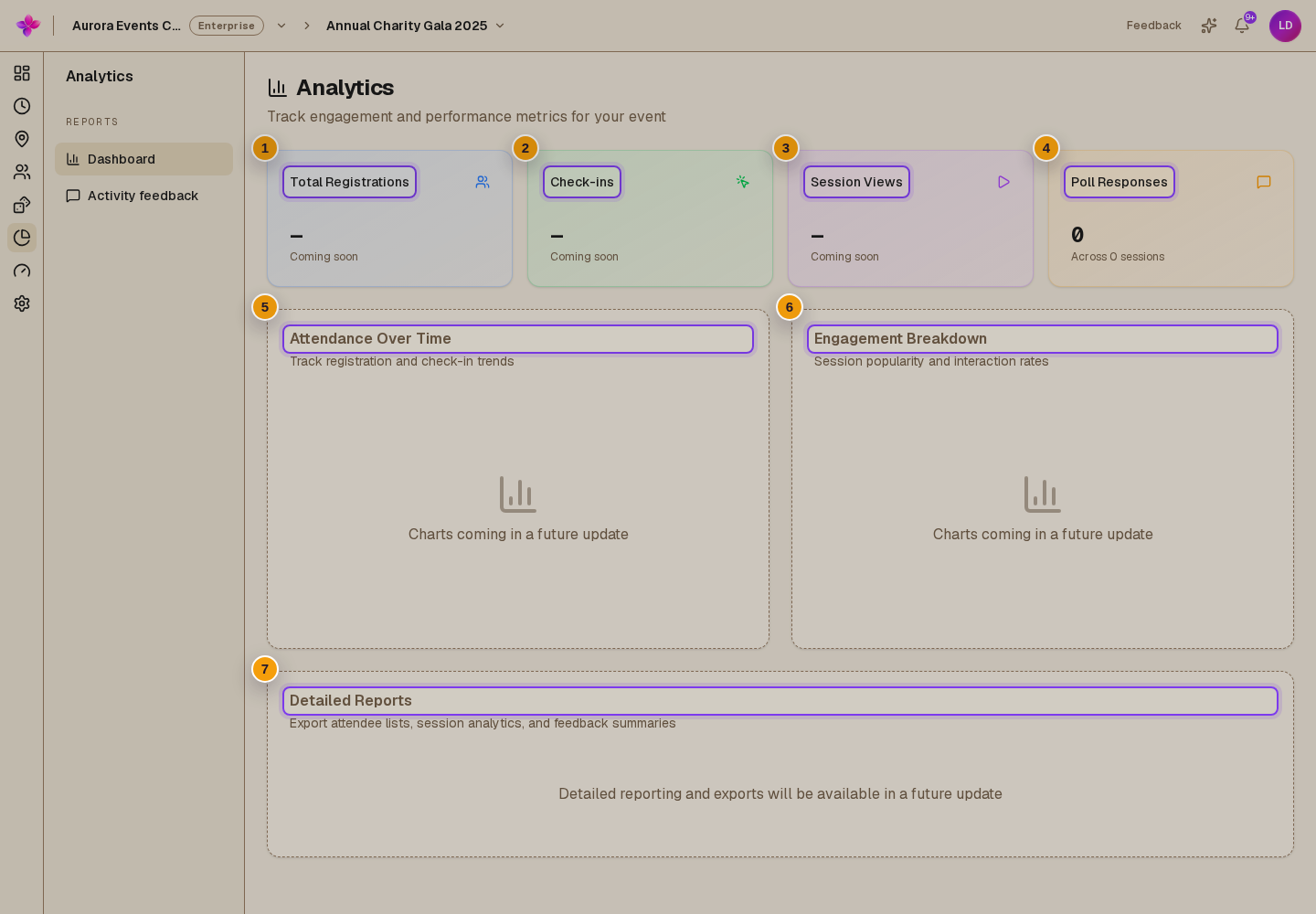
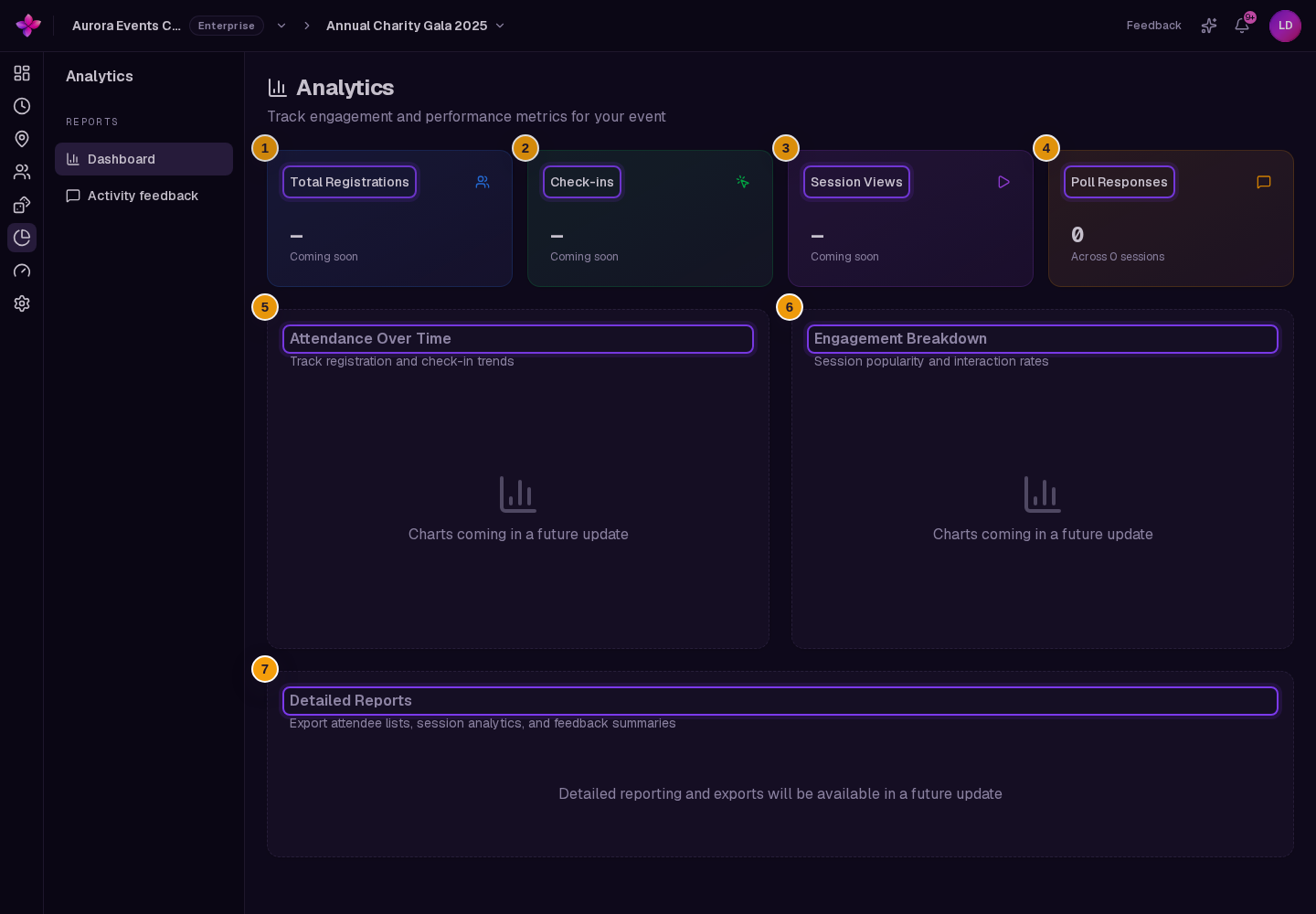
The dashboard always shows these cards with a dash and Coming soon:
- Total Registrations;
- Check-ins;
- Session Views.
When polls are available, Poll Responses shows the number of submitted answers and the number of poll sessions they came from.
The following report areas are marked for a future update:
- Attendance Over Time, for registration and check-in trends;
- Engagement Breakdown, for session popularity and interaction rates;
- Detailed Reports, for attendee lists, session analytics and feedback summaries.
Open activity feedback
Choose Activity feedback to review attendee ratings and comments for individual activities. This report has its own summary, charts, searchable table and CSV export.
If something goes wrong
The page says Event not found. Return to the organisation workspace and open the event again. Ask an organisation owner or admin to confirm your access if it remains unavailable.
A dashboard card shows a dash. Total Registrations, Check-ins and Session Views are not available yet. Use Activity feedback for submitted activity ratings and comments.
Poll Responses is not shown. The card only appears when polls are available.
Next steps
- Review activity feedback.
- Send product feedback to Lylac if you have a suggestion about analytics.