
Publish an Event
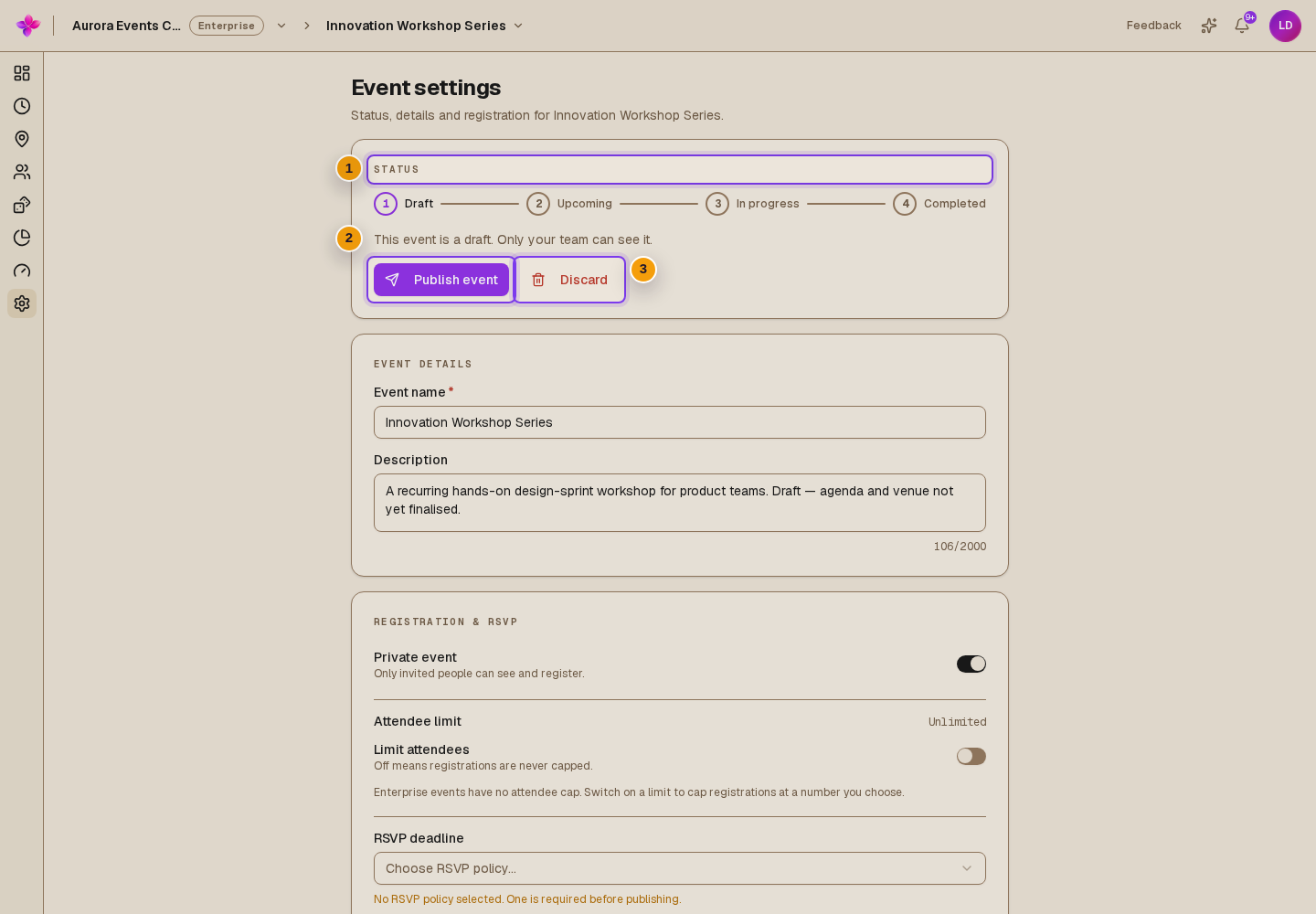
Publish a draft when its saved details are ready. A future event becomes Upcoming. If its start time has already passed, Lylac advances it to In progress.
Before you start
You need owner or admin access to the organisation. The event must have saved start and end times, an end time in the future and an RSVP deadline that has not passed. Your plan must also allow the event to be published.
Publish the draft
Save your settings
Save any changes to the event details and RSVP deadline before continuing.
Open Publish event
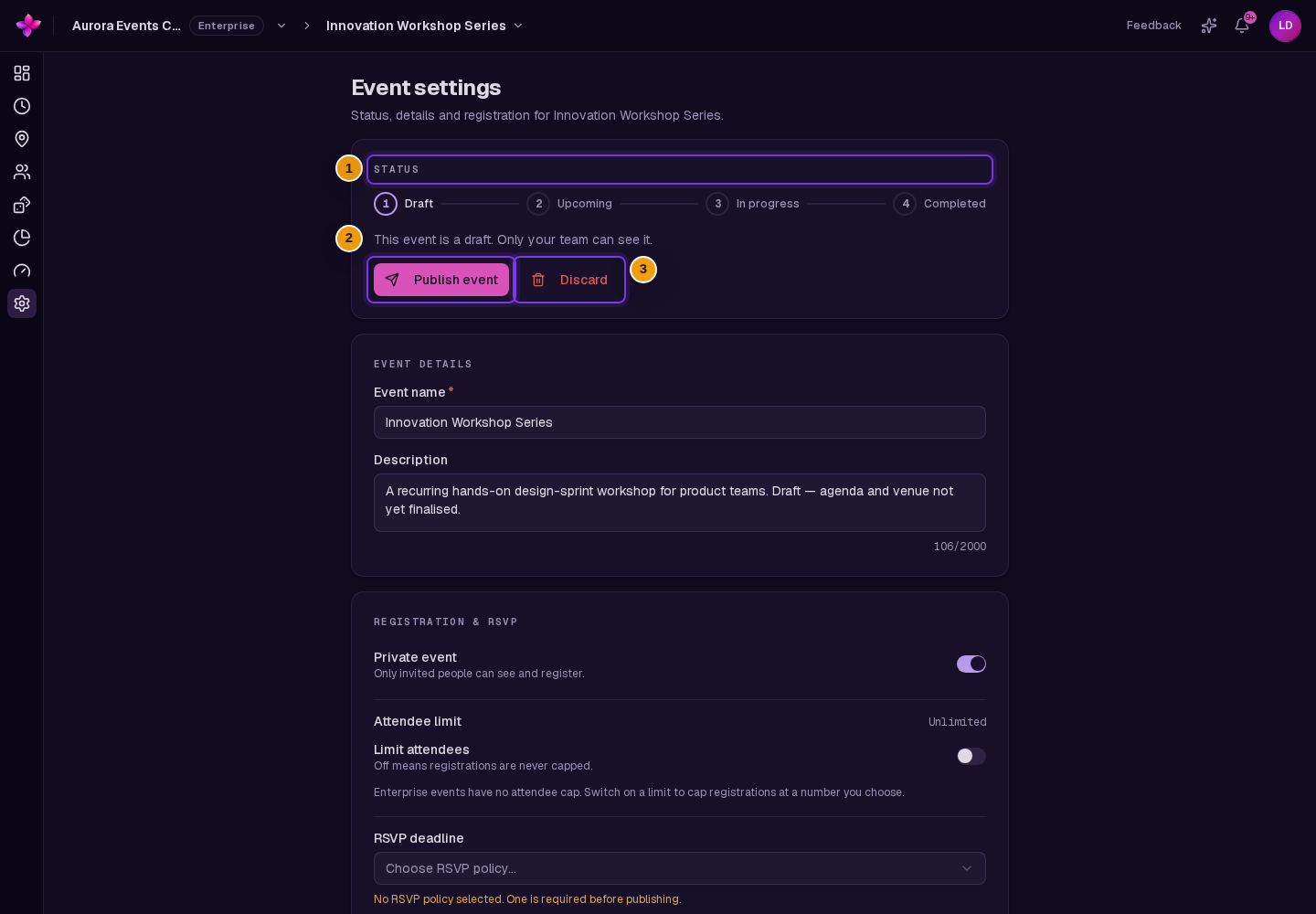
In Event settings, find Status and choose Publish event.
Resolve blockers
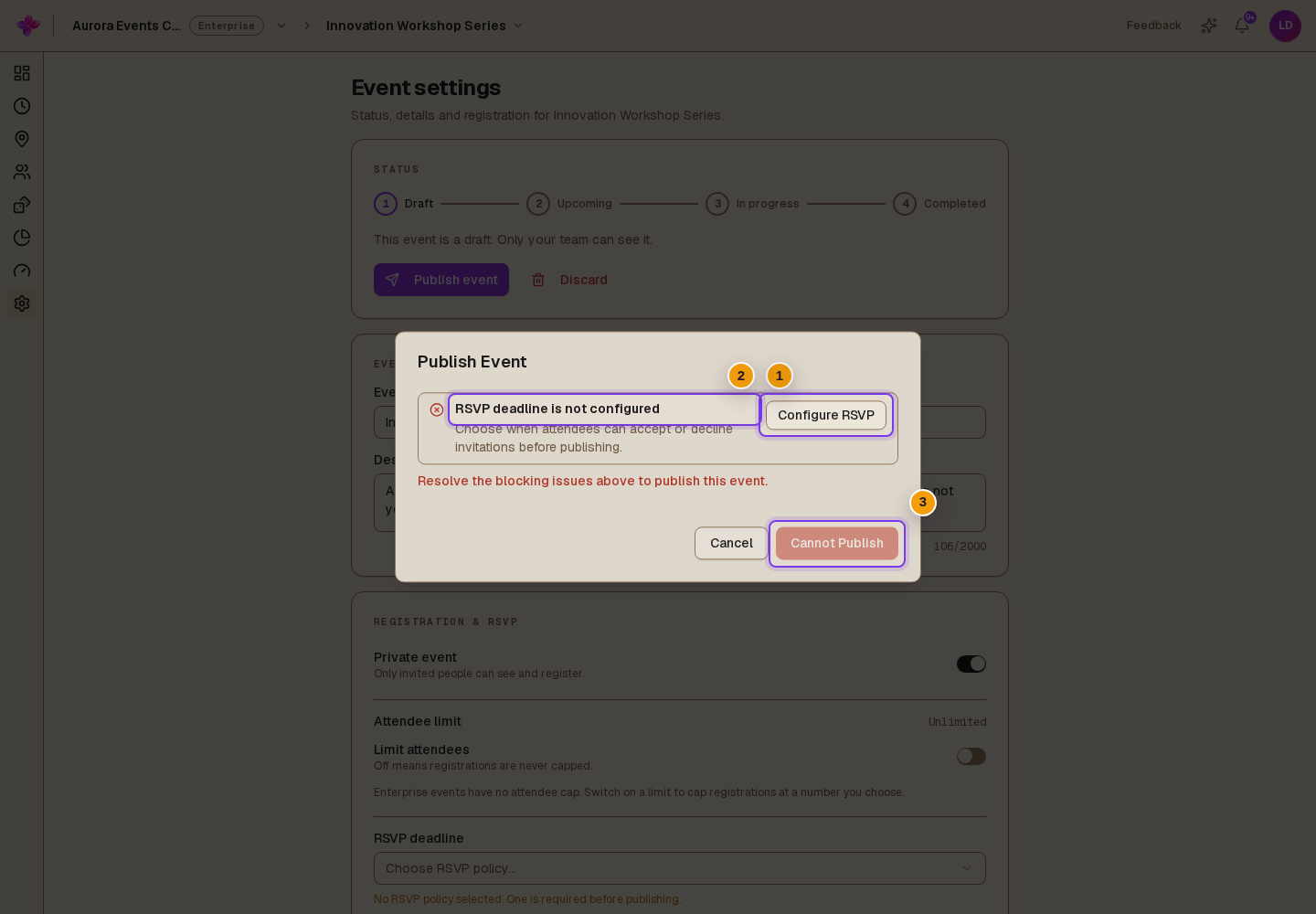
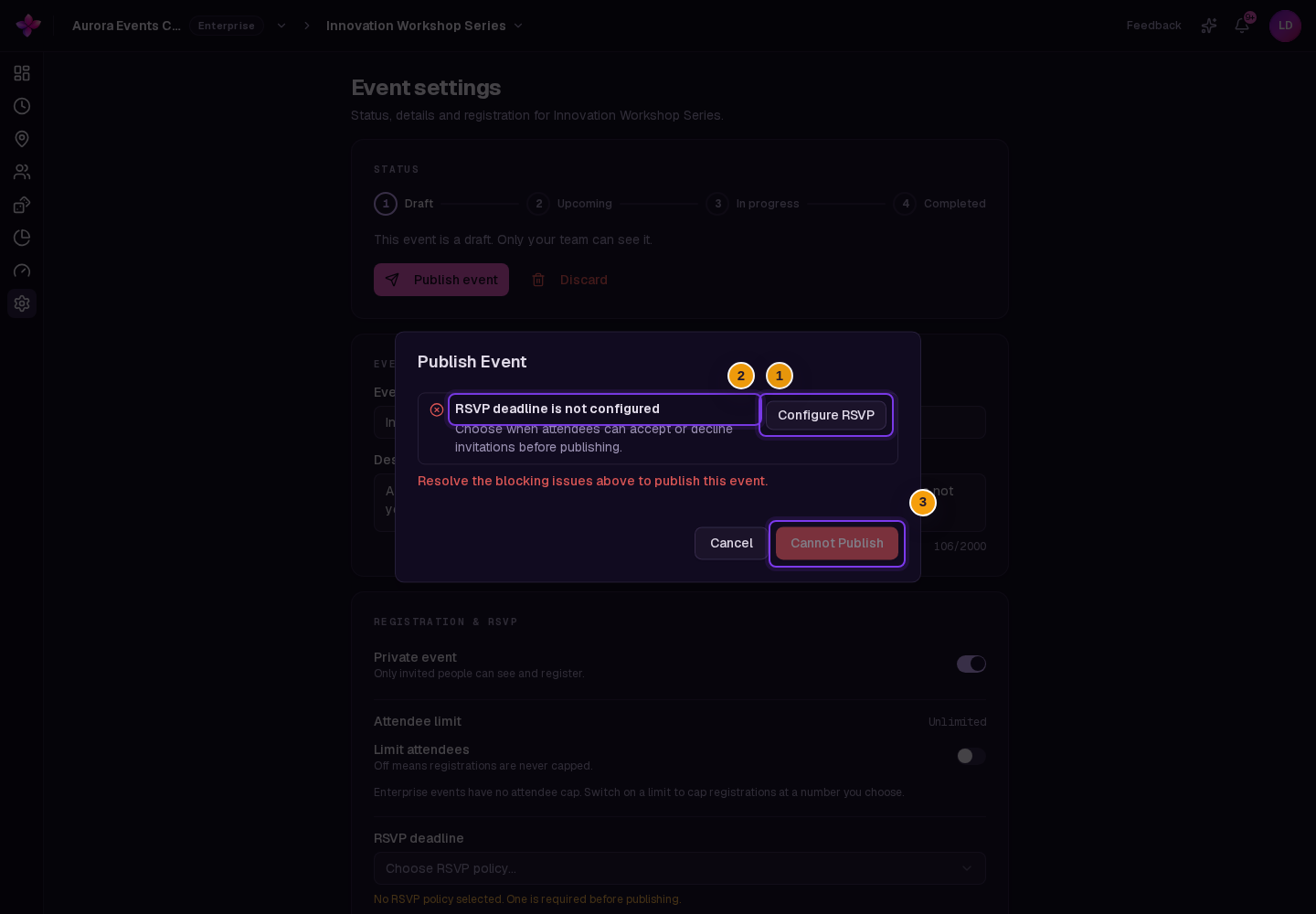
Read the readiness dialog. Cannot Publish means a blocking issue remains. Follow the suggested fix, save the change and reopen the dialog.
Confirm publishing
When there are no blockers, read any remaining warnings. Choose Publish or Publish Anyway, depending on the message. Check the event status after the confirmation.
If the event allowance is used
For a Free organisation, the dialog may offer Add Boost, or you can wait until the other active free event finishes. For a Team organisation, it may offer Buy event slot. Return to the draft and publish again after the allowance is available.
If something goes wrong
The RSVP deadline is missing or has passed. Set and save a future deadline in Event settings. Clearing the deadline does not satisfy the publishing requirement.
The event has already ended. Set a future end time in Schedule before publishing.
Publishing is not allowed. Check that the event is a draft and that you have owner or admin access.