
Payment or Checkout Problems
Lylac uses Stripe checkout for Team upgrades, Boost purchases and additional Team event slots. Organisation owners and admins can start these purchases.
Before you start
You need:
- owner or admin access to the organisation;
- the organisation and event involved in the purchase;
- the approximate time of any payment that may already have completed.
Retry the correct checkout
Return to the purchase entry point
For a Team upgrade, open Billing and Ticketing and choose Upgrade on the Team plan. For Boost, use Purchase Boost event while creating an event or Add Boost in the publishing check. For an extra Team event, choose Buy event slot in the publishing check.
Reload a checkout that does not connect
If the window remains on Connecting to Stripe…, reload the page and open the purchase again.
Follow the message in the payment form
Check the payment details and use any correction requested by Stripe. If Stripe declines the payment, contact the cardholder or try another payment method.
Wait for Lylac to update
After Payment completed successfully! appears, choose Close. The plan, Boost or additional event slot can take a few moments to appear in Lylac.
Check the result
Team upgrades appear as the Current Plan on Billing and Ticketing. Paid invoices appear in Invoices. A Boost belongs to the event you purchased it for. An additional event slot increases the Team event allowance.
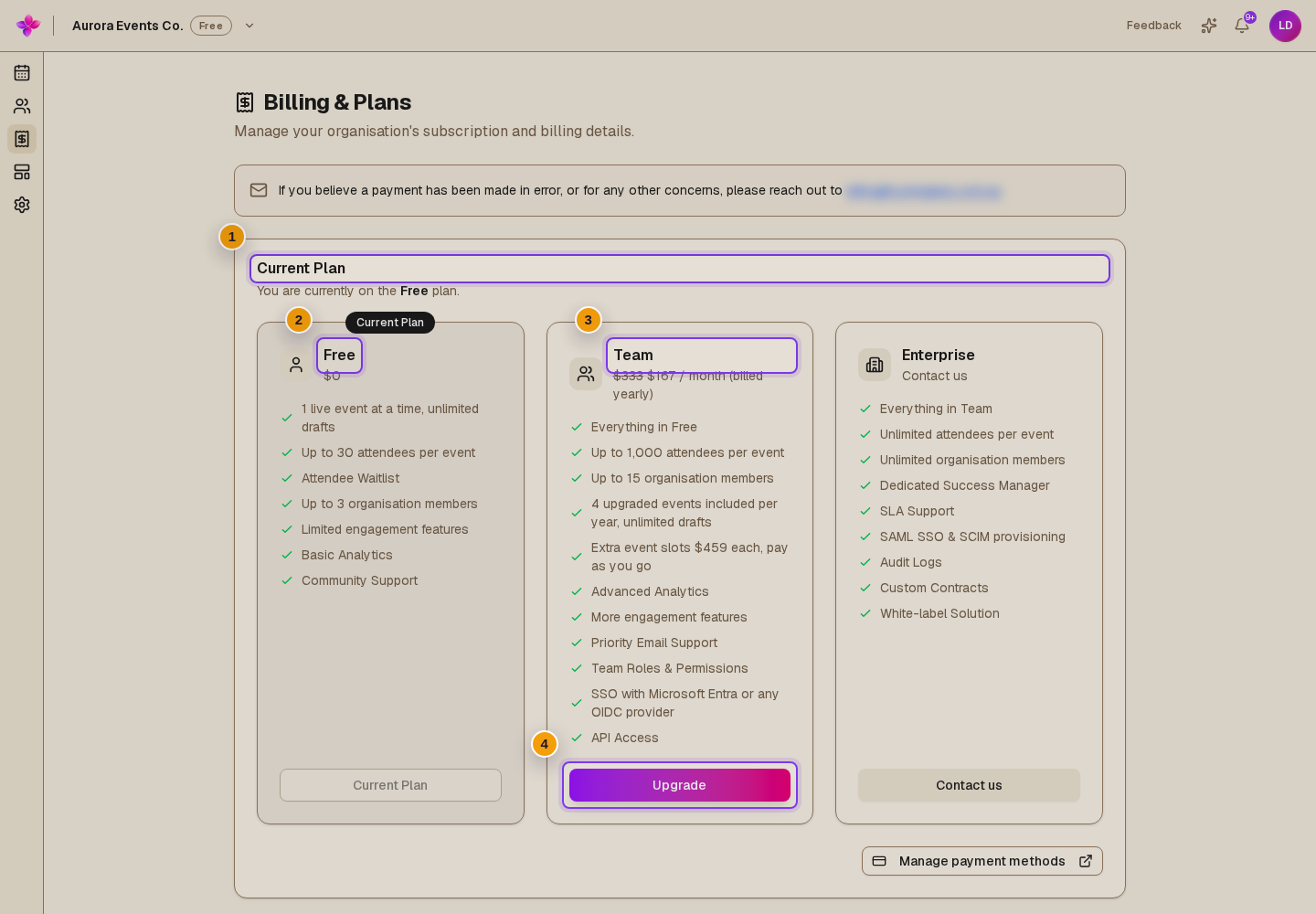
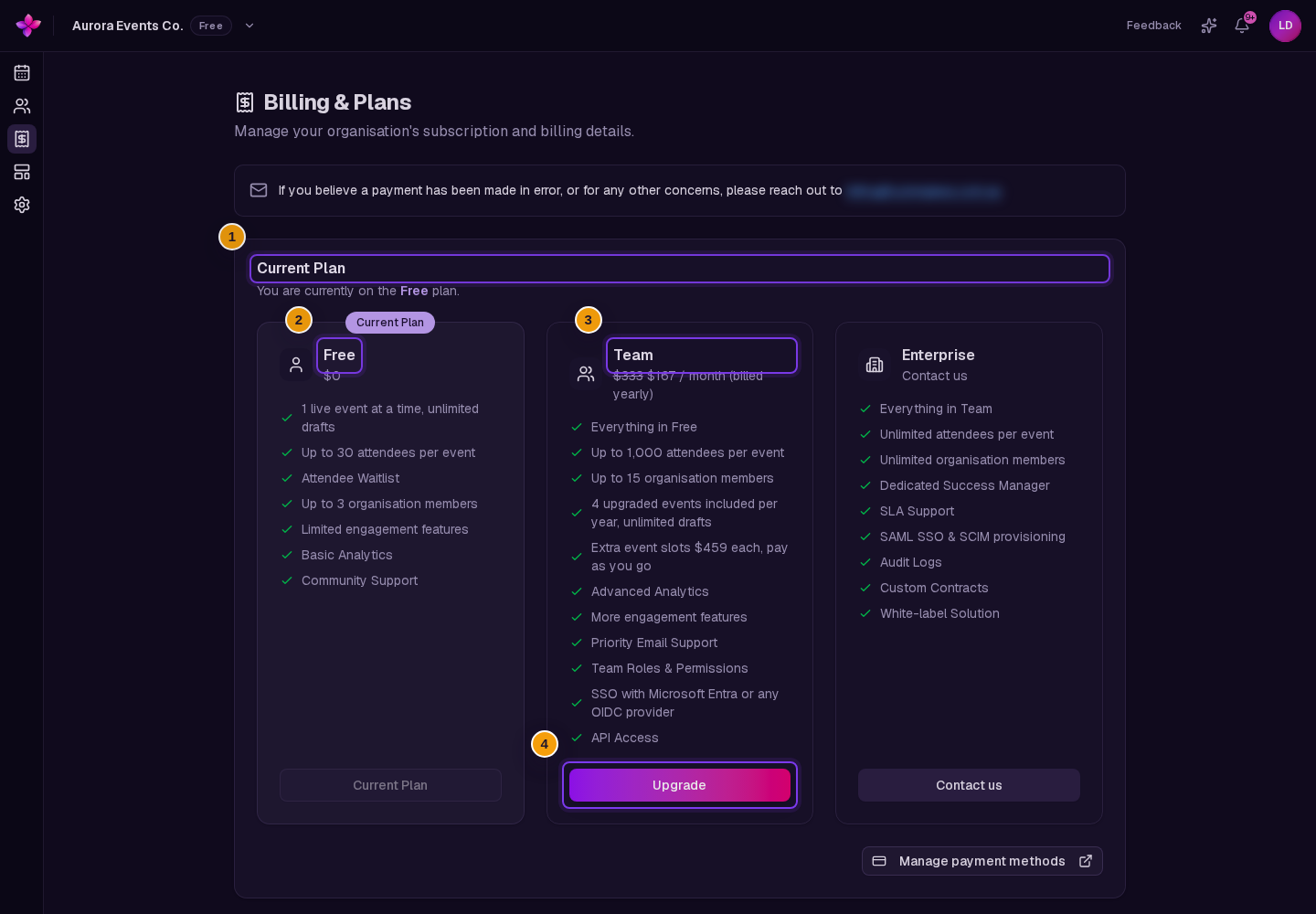
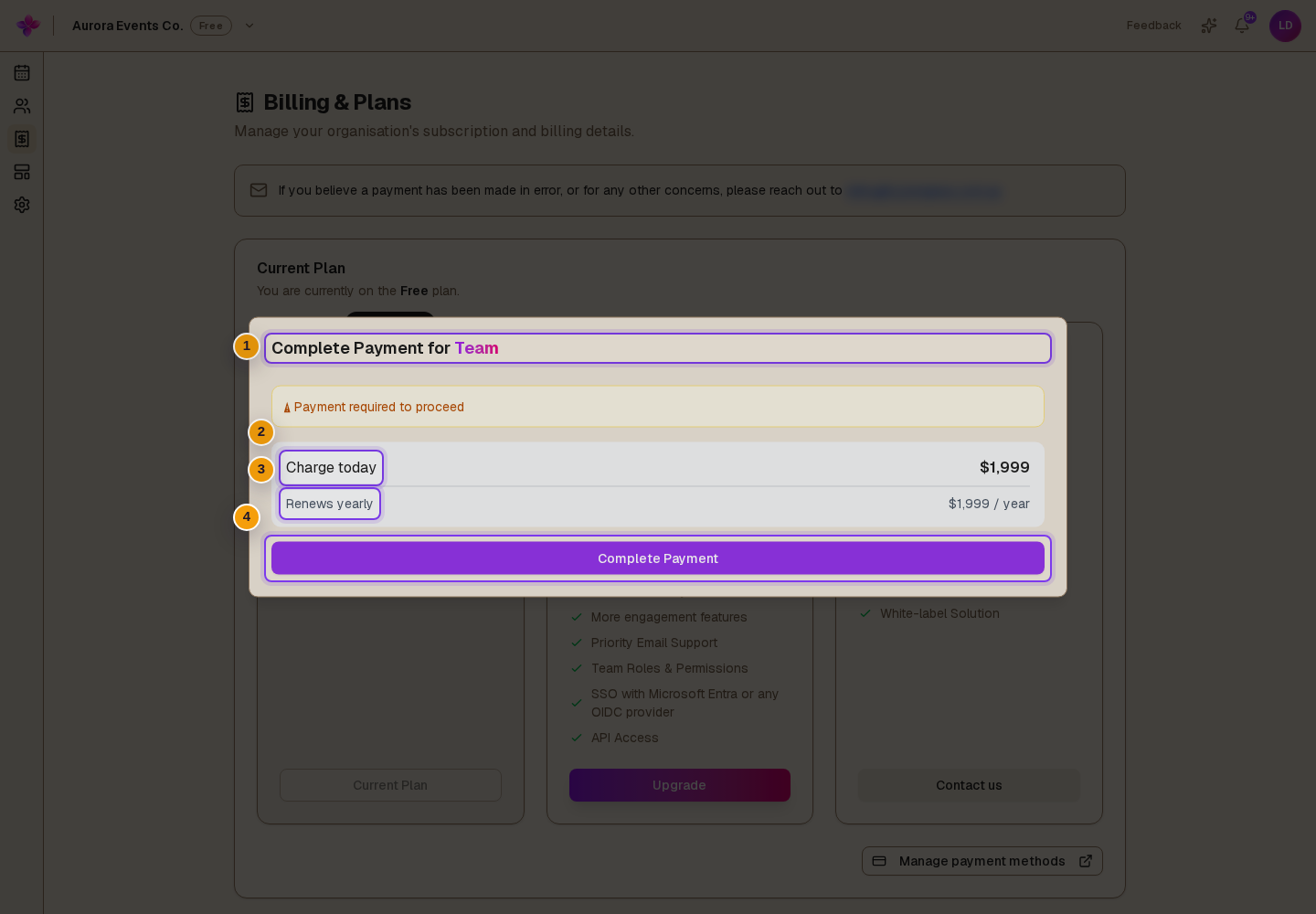
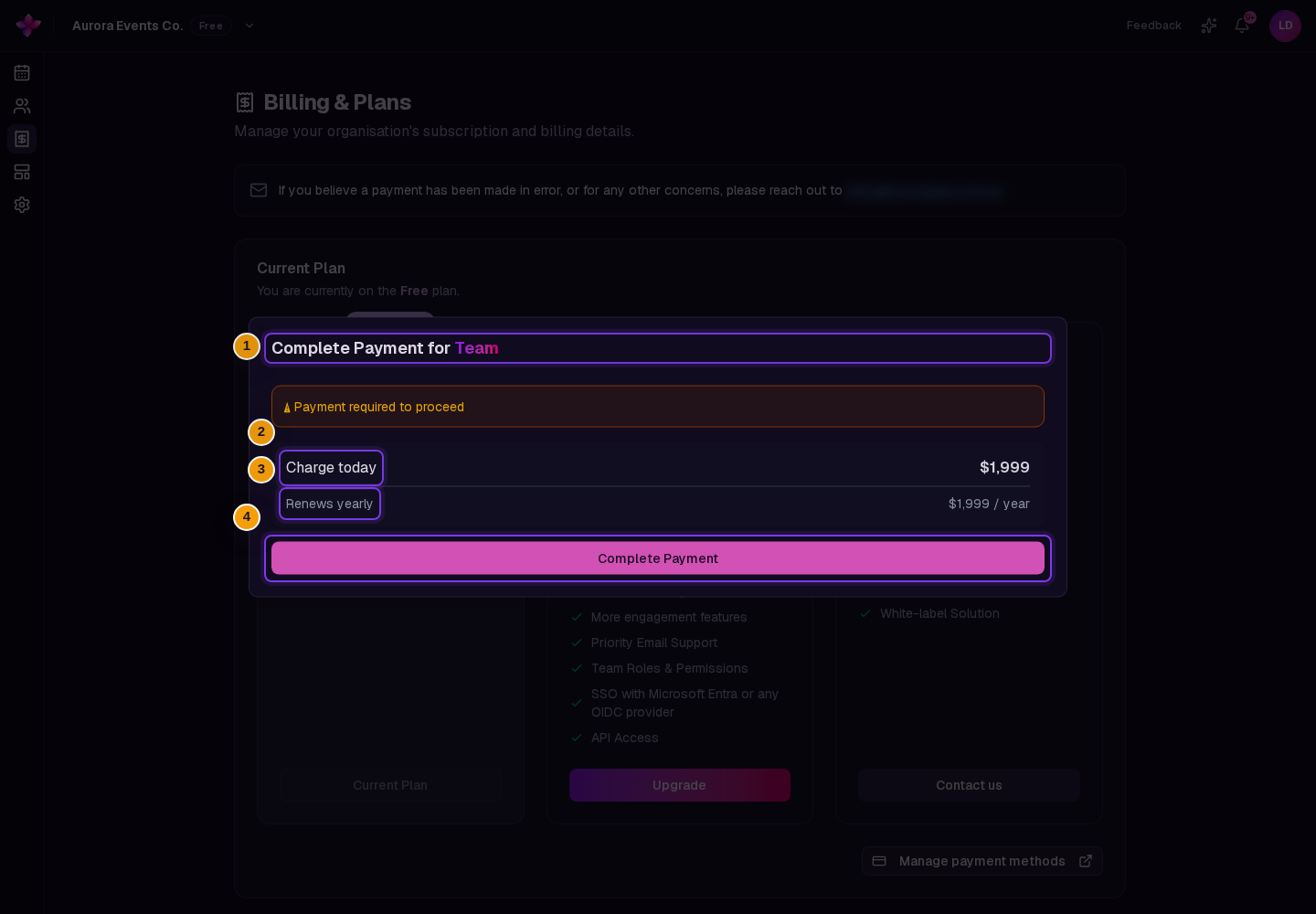
Payment and checkout problems
The payment form does not appear. If the window remains on Connecting to Stripe…, reload the page and start again. If an error message appears, keep its exact wording for Support.
Stripe declines the payment. Follow the reason shown in the Stripe form. Check the details with the cardholder or try another payment method.
Payment completed but the plan or event did not update. Wait a few moments and refresh. Do not immediately repeat the purchase. If it still has not updated, contact Support with the organisation, event if applicable, payment time and purchase type.
Manage payment methods does not open. Refresh Billing and Ticketing and choose Manage payment methods again. Only organisation owners and admins can open the billing portal.
No invoice appears. Refresh Billing and Ticketing and check Invoices again. A new paid invoice may take a few moments to appear.
You need to report an incorrect payment. Contact the billing team from the notice at the top of Billing and Ticketing. Include the organisation, amount, payment time and purchase type.
Next steps
- Use Plan gate or upgrade prompt if a publishing blocker led to the purchase.
- Compare plan features in Plans and inclusions.
- Review Buy event capacity and understand plan gates for the full purchase workflows.