
Configure Moments
Moments are short posts that attendees share on an event's social wall. You can control whether attendees can post, review their posts, and manage the questions they can answer.
Before you start
You need:
- an existing event;
- owner, admin, or editor access to change posting settings, moderate posts, or manage questions;
- an upcoming or in-progress event if you want to enable attendee posting.
Viewers can open the Moments area, but they cannot change its settings or content.
Control posting and moderate moments
Open Moments
Open the event dashboard. Under Engagement, choose Moments. The Moments tab opens first.
Set attendee posting
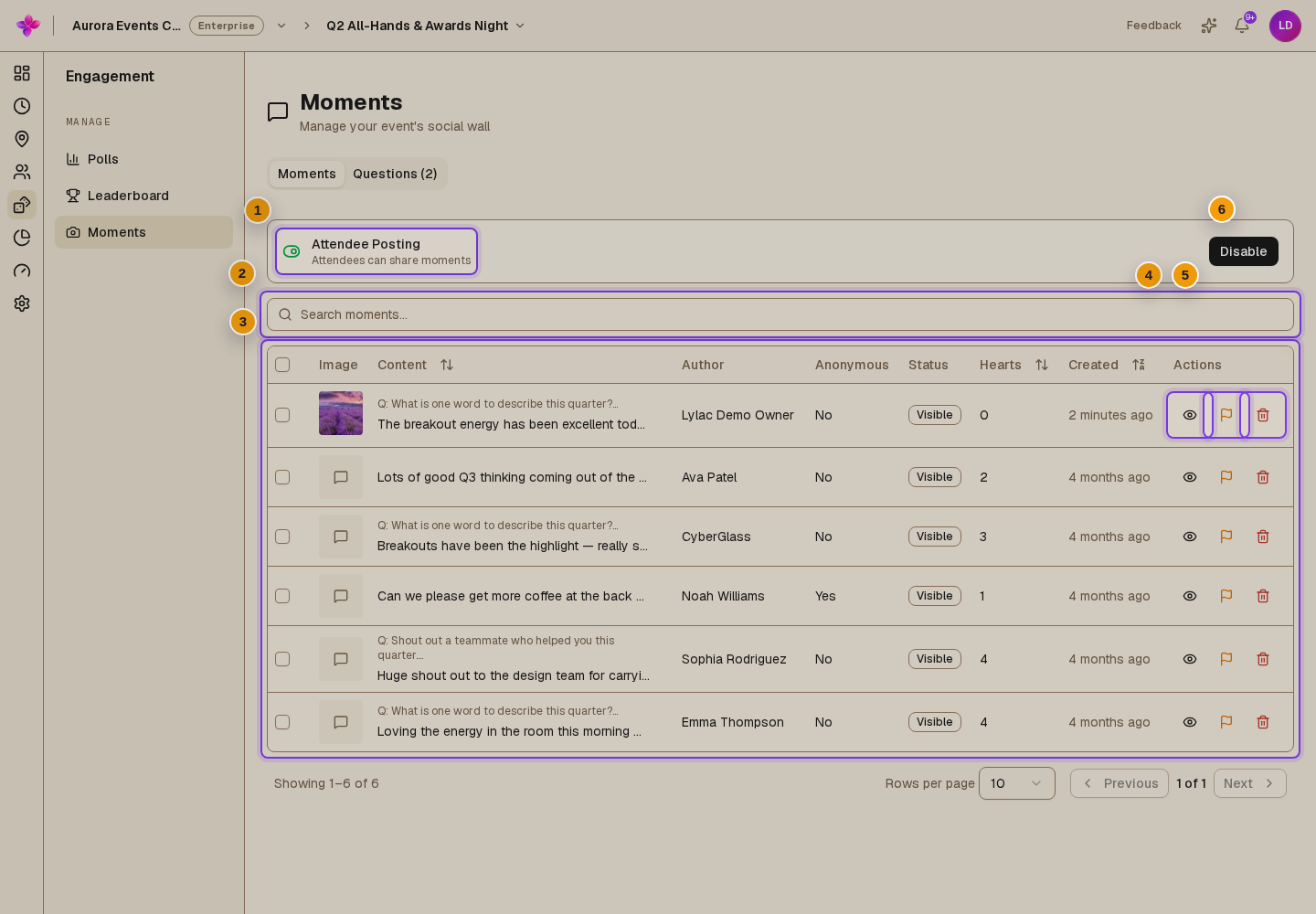
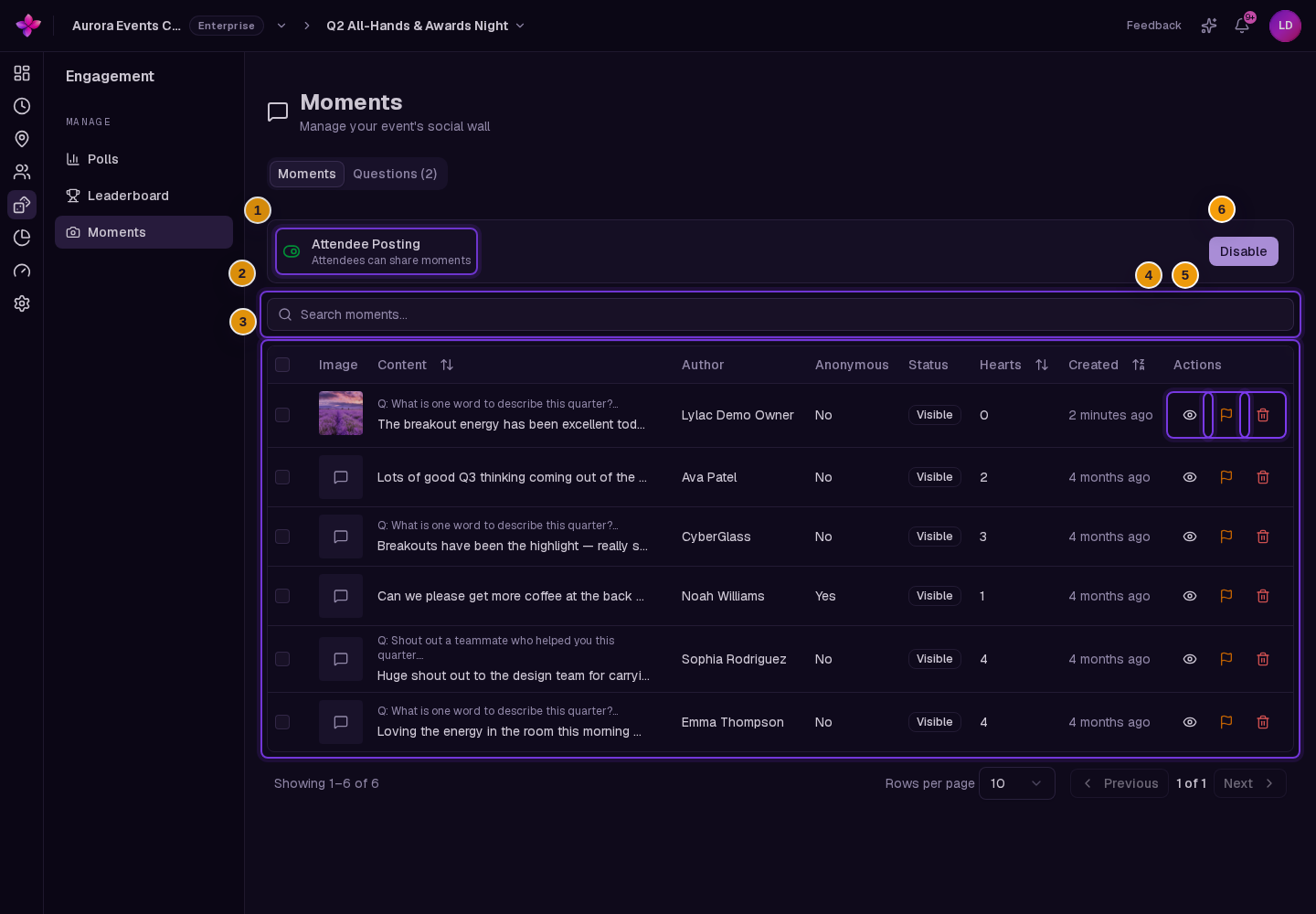
In Attendee Posting, choose Enable or Disable. Posting can only be enabled while the event is upcoming or in progress.
Find a moment
Use Search moments... to narrow the list. The table shows the image, content, author, whether the post is anonymous, its status, heart count, creation time, and available actions.
Review the details
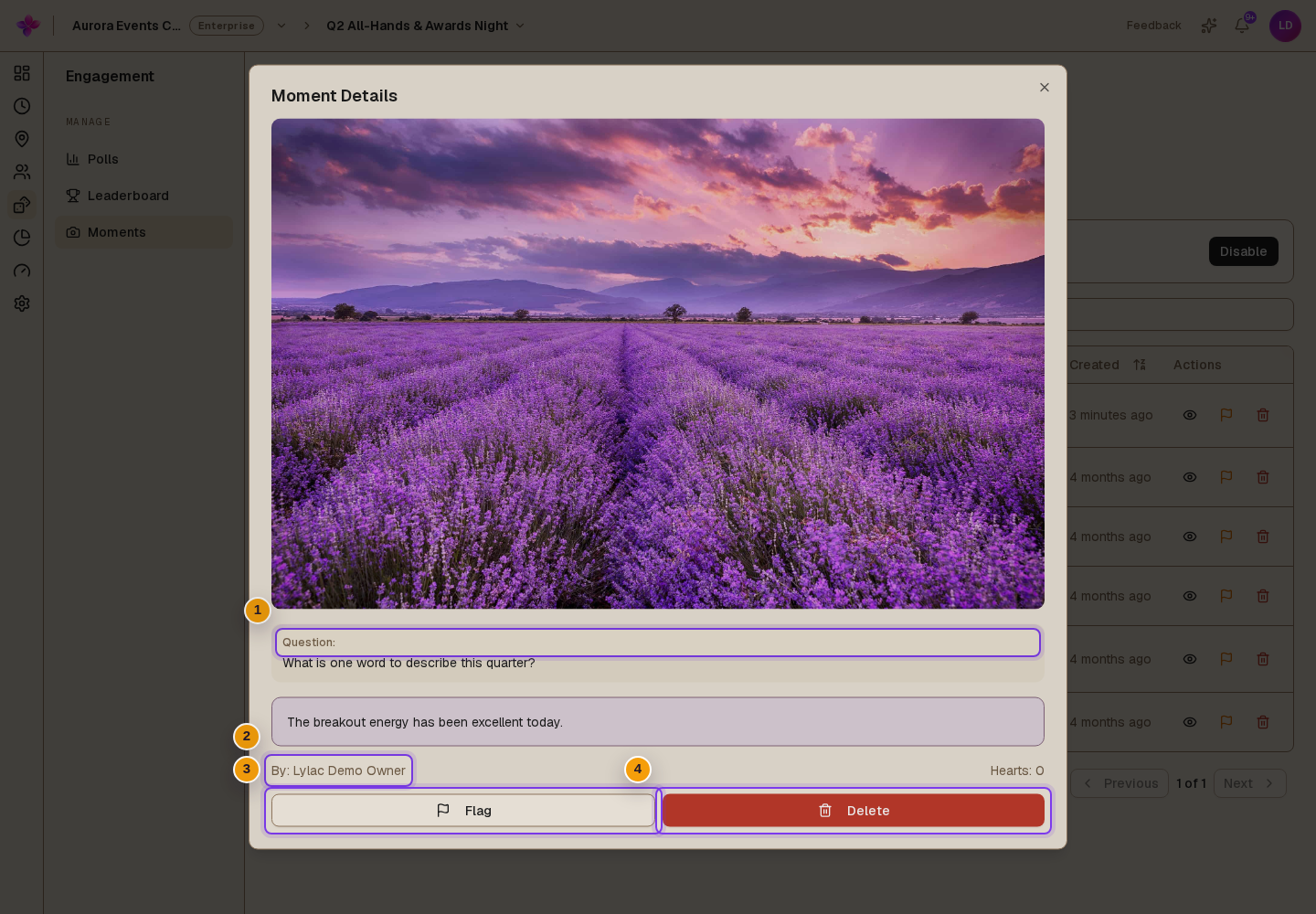
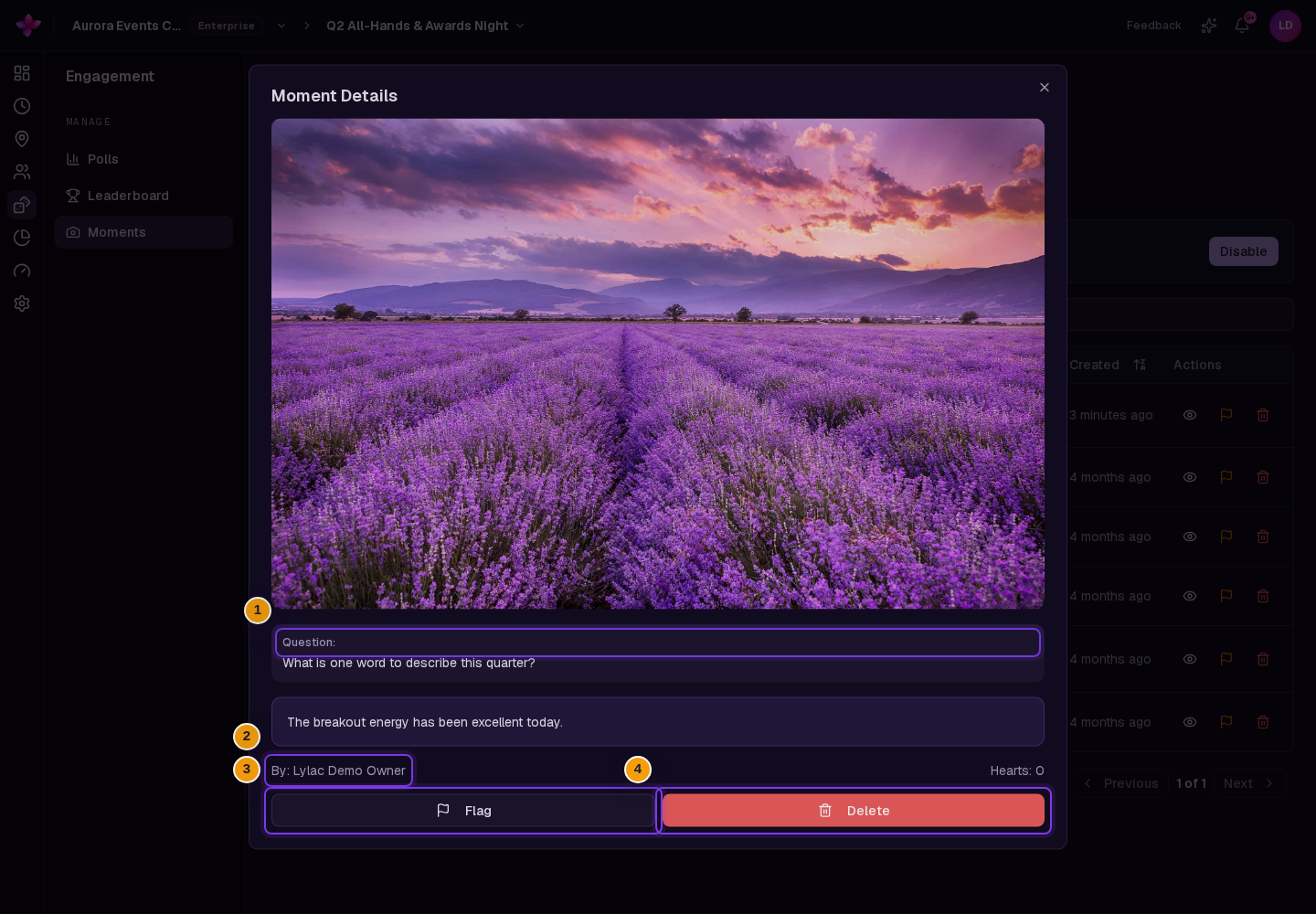
Choose View moment. Moment Details shows the image, answered question, content, displayed author, heart count, and moderation actions.
Moderate moments
Use Flag, Unflag, or Delete for one moment. To act on several moments, select their rows and use the bulk buttons. Deleting a moment cannot be undone.
Manage moment questions
Open Questions
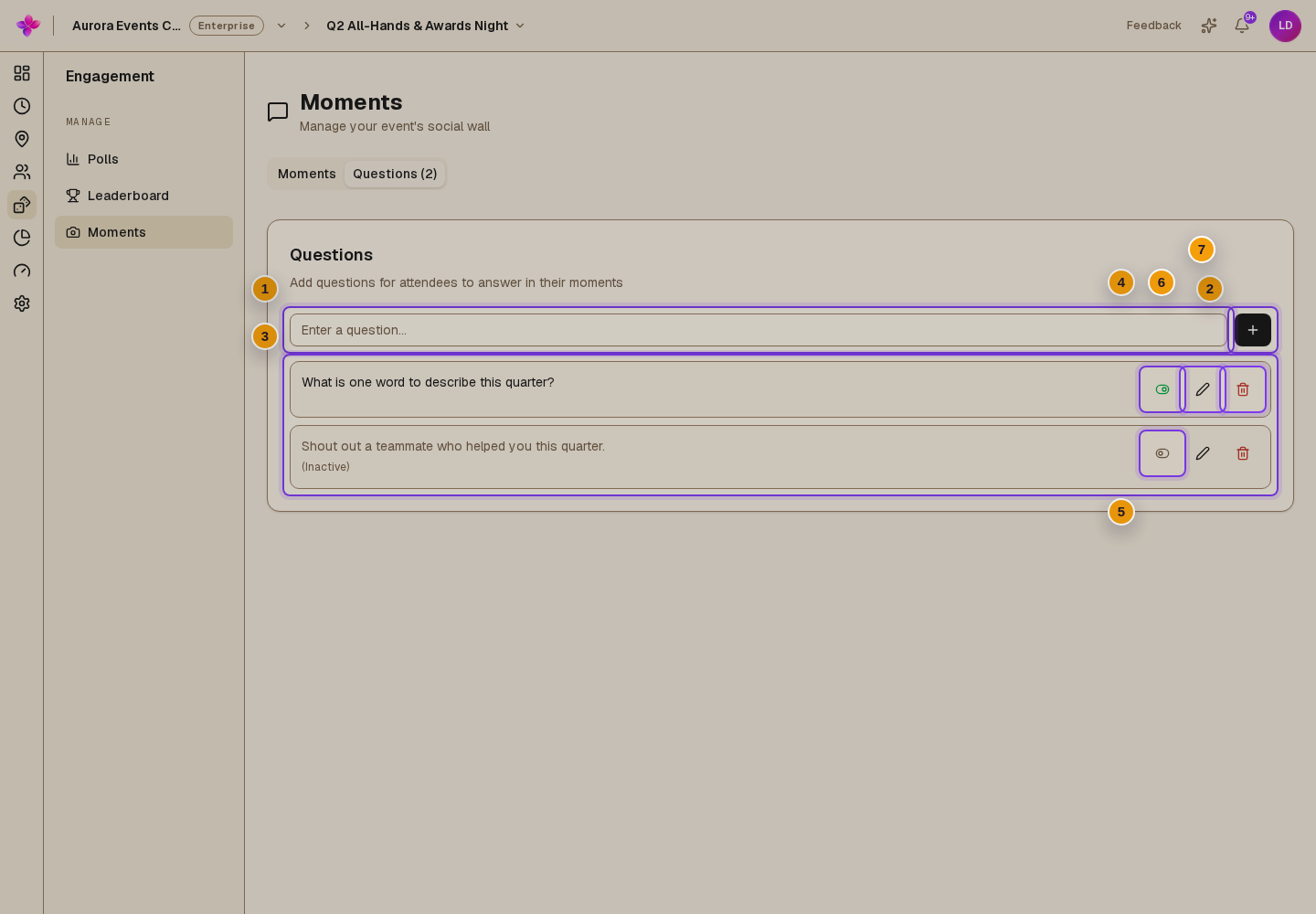
Choose the Questions tab. The number beside the tab includes every question for the event.
Add a question
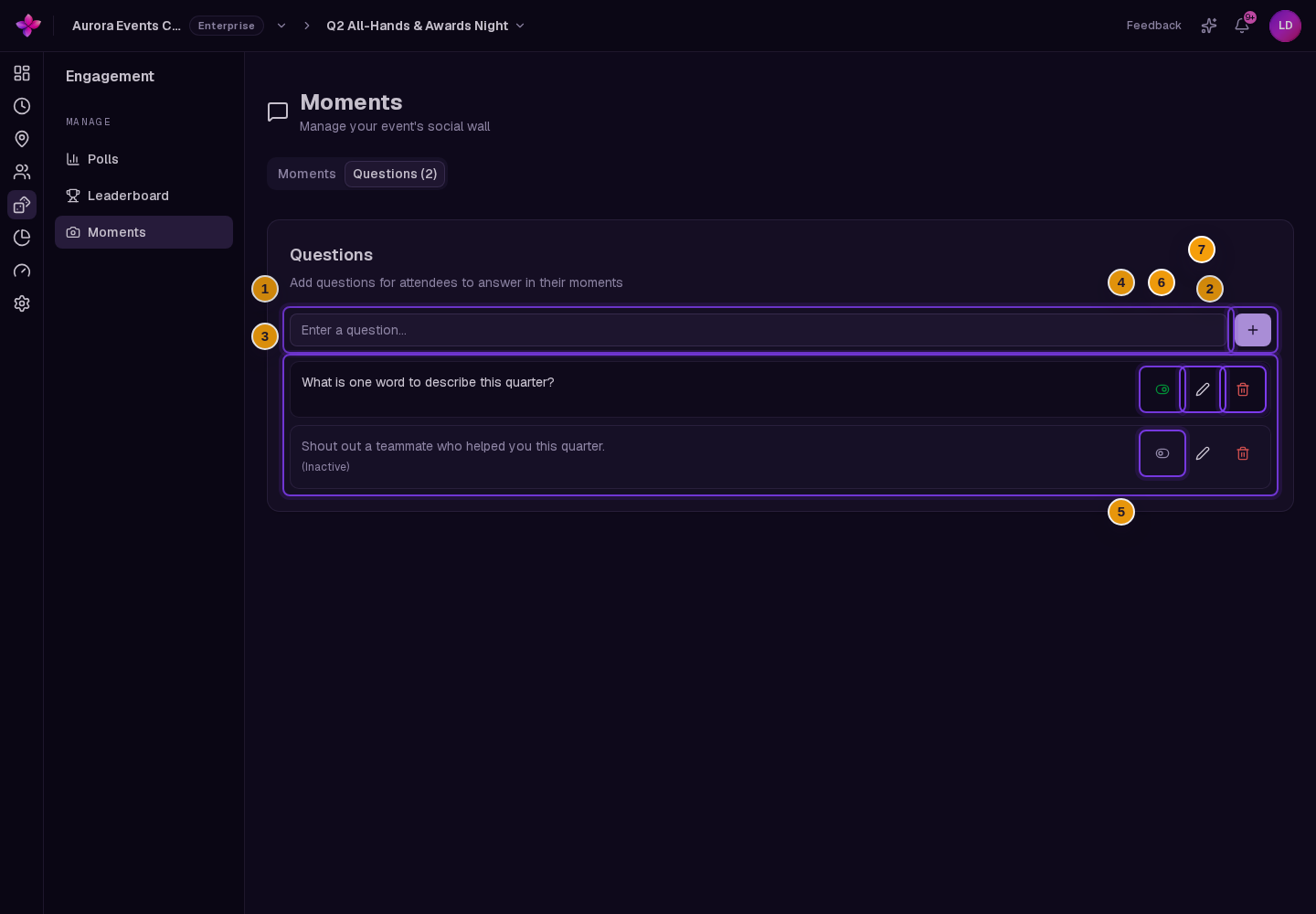
Enter a prompt in Enter a question.... Choose Add question or press Enter. A question is required and can contain up to 200 characters.
Deactivate or activate a question
Use Deactivate question to stop offering a question to attendees. It stays in the list and is marked (Inactive). Use Activate question to offer it again.
Edit or delete a question
Choose Edit question to change the text. Choose Delete question, then confirm Delete to remove it. Deleting a question cannot be undone.
If something goes wrong
Enable is unavailable. Attendee posting can only be switched on while the event is upcoming or in progress.
A question cannot be saved. Enter at least one character and keep the question to 200 characters or fewer.
No moments appear. Clear Search moments... and check whether attendees have posted. Enabling posting only allows new moments. It does not create any posts.