
Create and Manage Activities
Activities are the sessions, breaks, workshops and other items in an event schedule. You can manage them on the visual timeline or in a searchable list.
Before you start
You need owner, admin or editor access to the organisation. The event must have start and end times.
For each activity, prepare its type, title, date and time, and location. A description, floor plan and assigned speakers are optional.
Add or edit an activity
Open the activity form
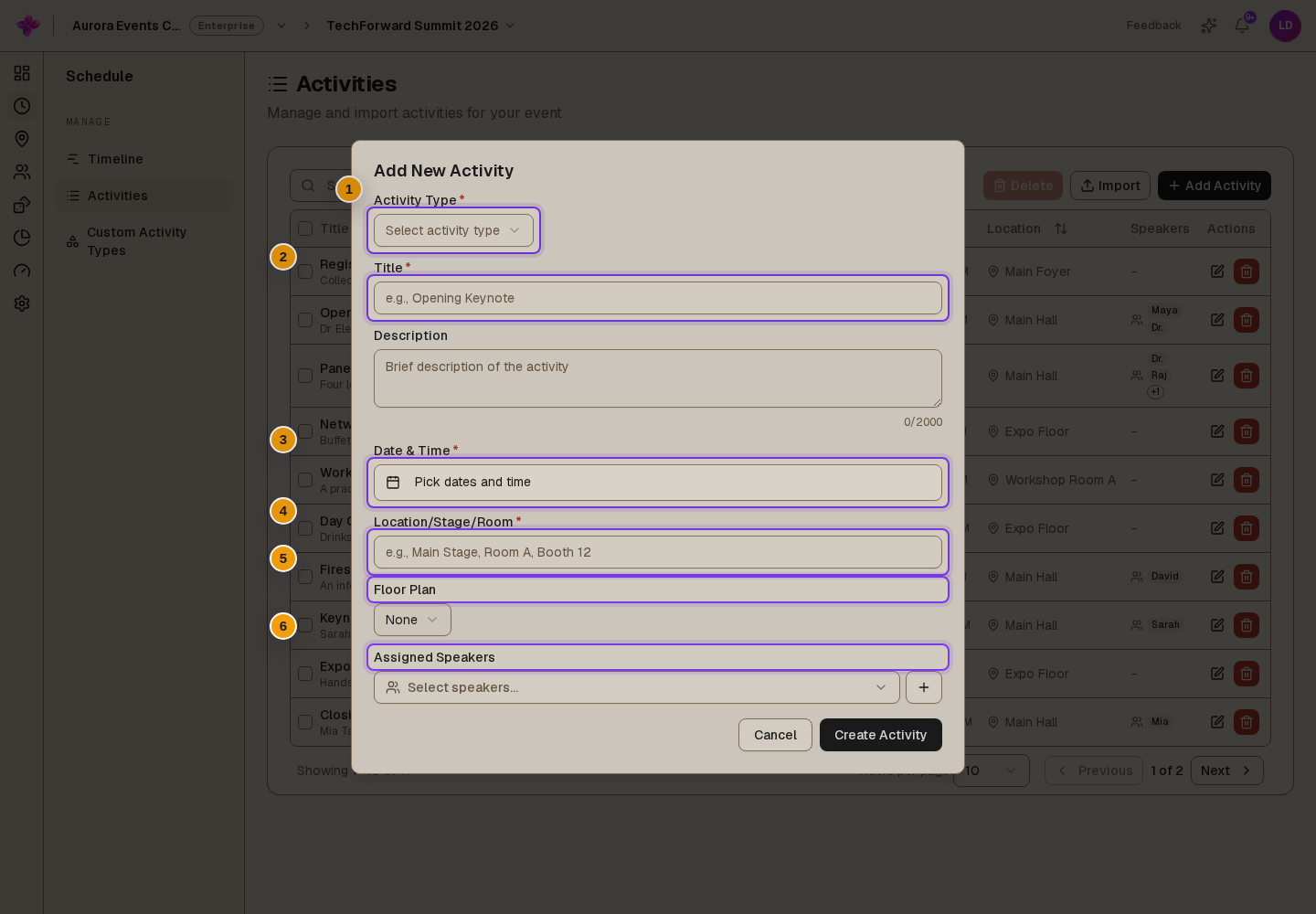
From Schedule, open Timeline or Activities, then choose Add Activity. To edit an activity, choose its timeline block or the Edit activity action in the list.
Choose the activity type
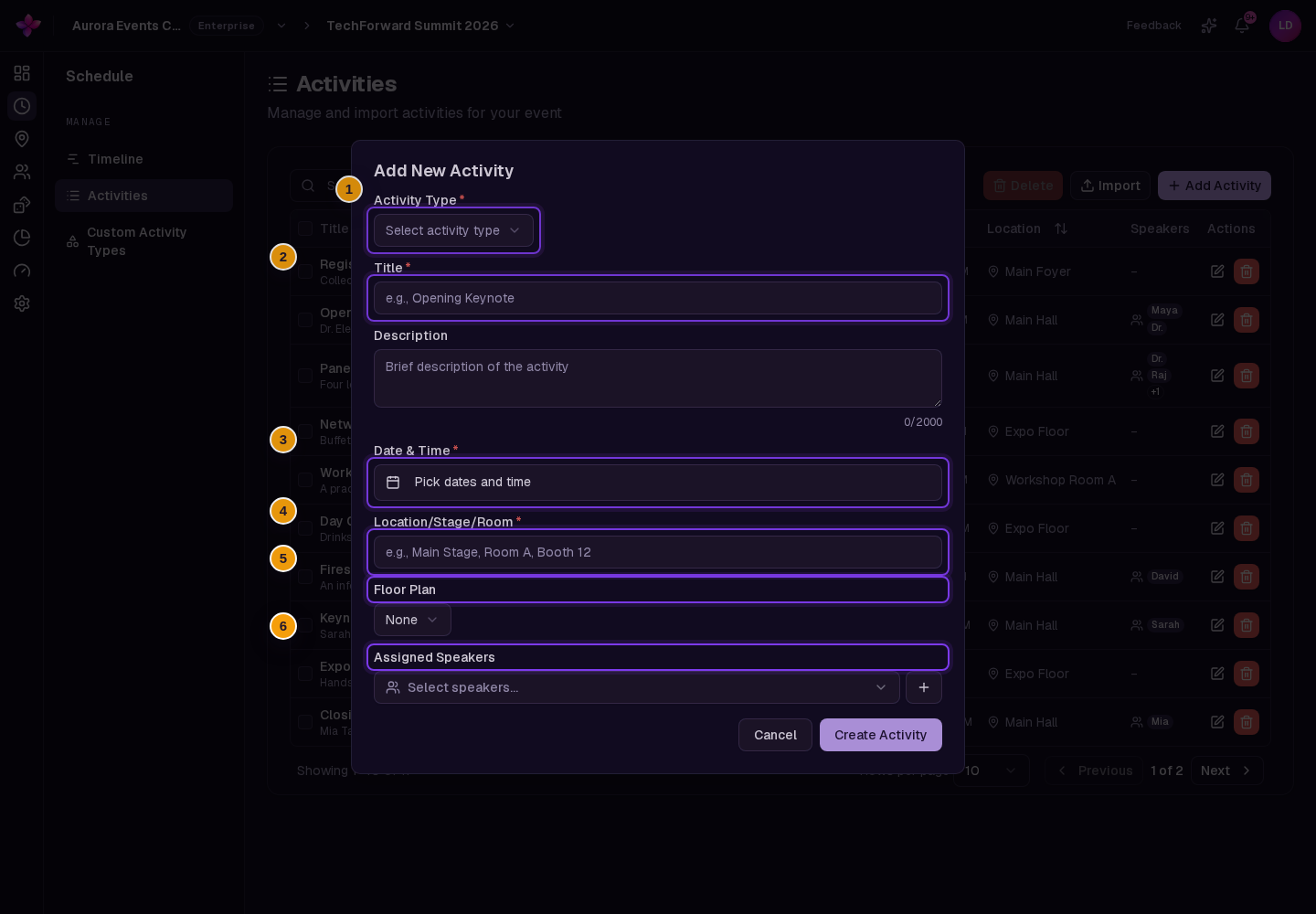
In Add New Activity, choose an Activity Type. Custom types and Lylac's stock types appear in separate groups.
Enter the activity details
Complete Title, Date & Time and Location/Stage/Room. Activity times use the event timezone and must stay within the event window.
Add a Description, Floor Plan or Assigned Speakers if needed.
Complete any extra fields
Some stock types show extra fields. These can include Vendor Name, Prize Details, Capacity or Materials Required.
Save the activity
Choose Create Activity for a new activity or Update Activity for an existing one.
Manage activities in the list
Open Activities
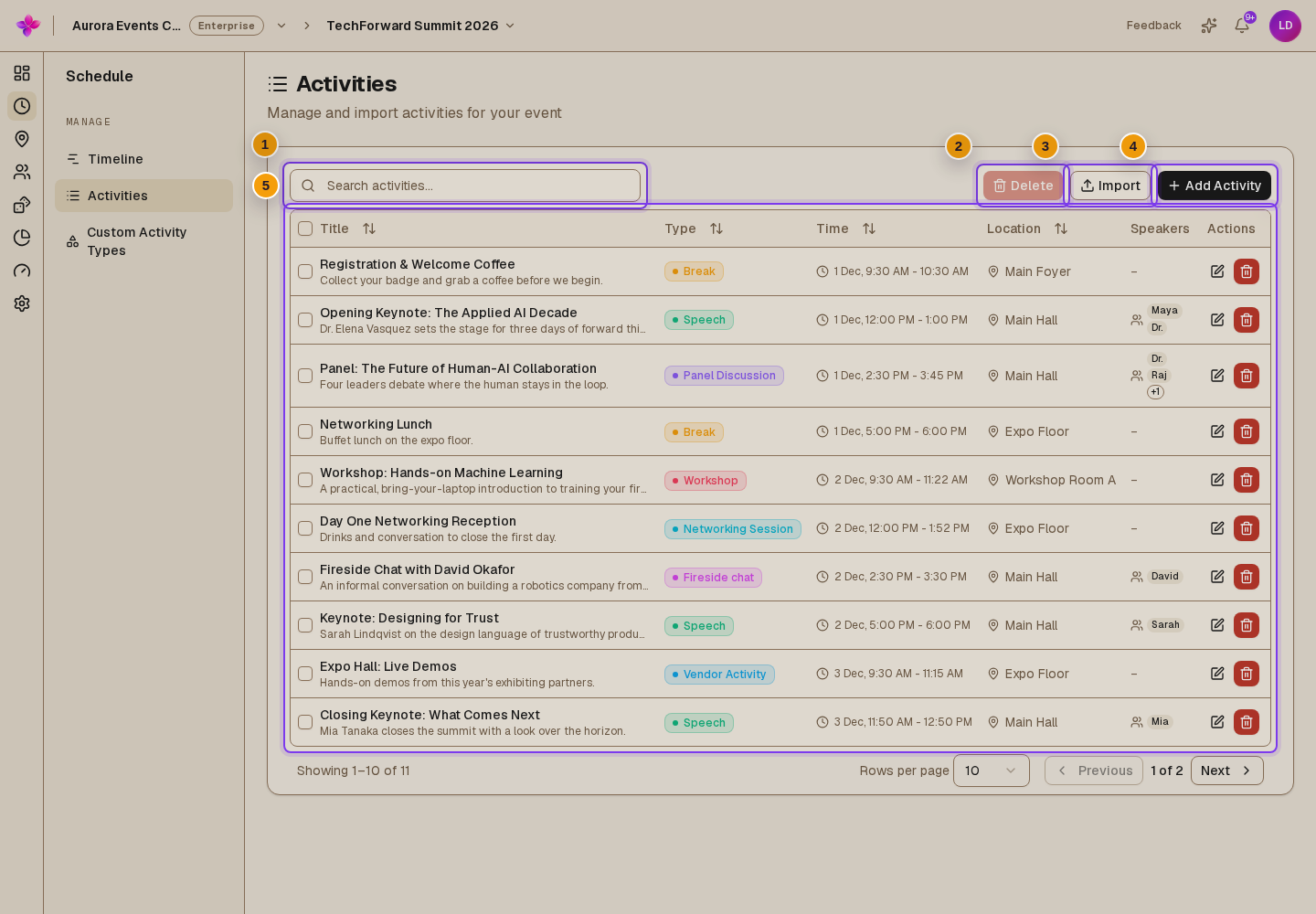
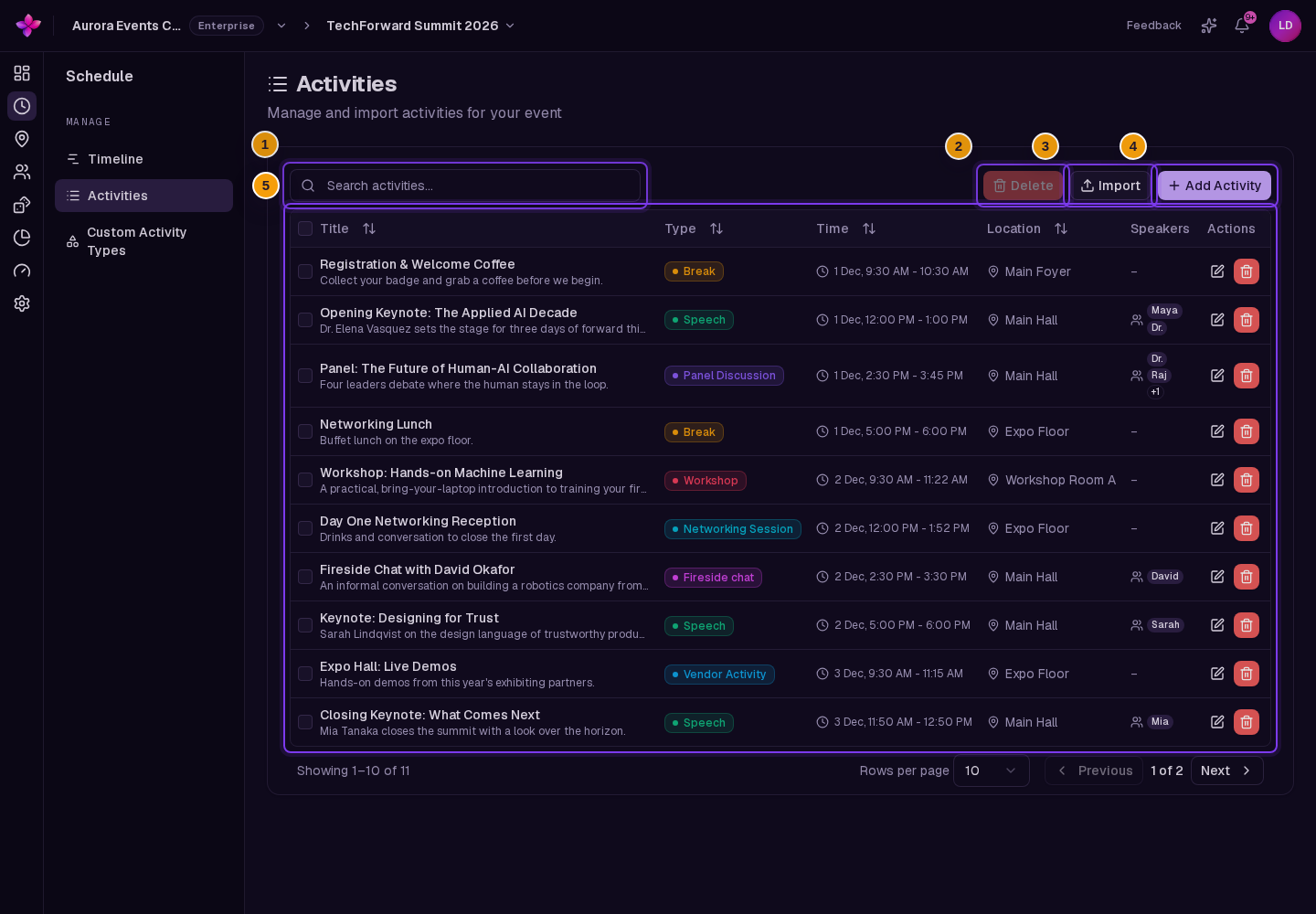
From Schedule, choose Activities. The table shows Title, Type, Time, Location, Speakers and row actions.
Find an activity
Use Search activities or sort a supported column.
Edit or delete one activity
Use Edit activity to open the form. Use Delete activity, then confirm Delete, to remove it permanently.
Delete several activities
Select the activity rows, choose Delete, then confirm the number of activities to remove.
Import activities from a spreadsheet
Start the import
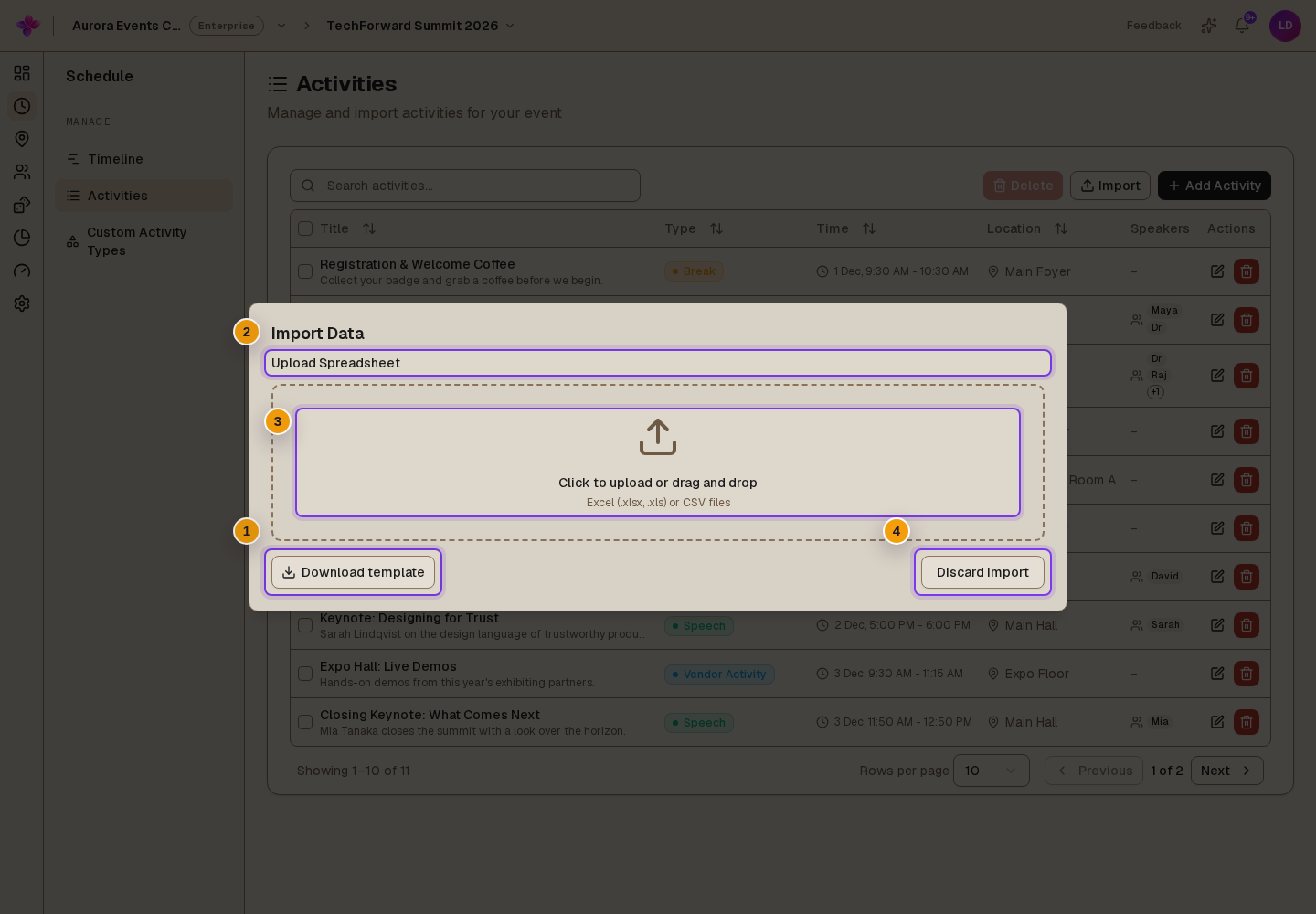
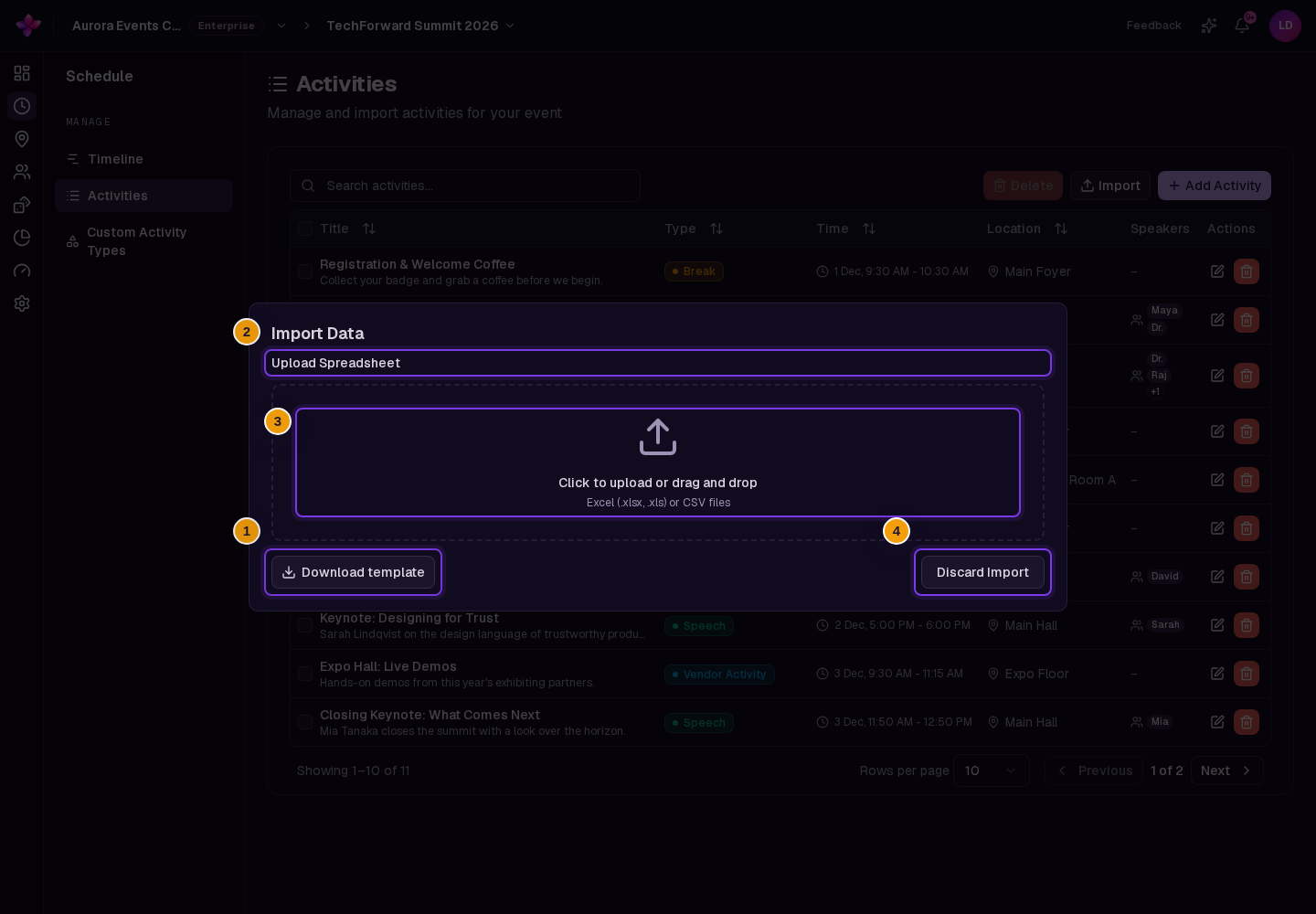
Choose Import from Timeline or Activities. In Import Data, choose Download template if you need an example workbook.
Upload the file
Select or drag in an Excel or CSV file. If Select Sheet appears, choose the sheet that contains the activities.
Review the mapping and rows
On Review Mapping, check how the spreadsheet columns match the activity fields. Required fields are Title, Activity Type, Date, Start Time, End Time and Location.
Correct the mapping and row errors. You can also choose Export to Excel to save the reviewed data.
Confirm the import
Choose the Import button showing the row count, then choose Confirm Import. Activity type names must match a type available for the event.
If something goes wrong
The activity does not save. Complete the activity type, title, date and time, and location. The activity must last at least five minutes and stay within the event start and end.
An imported activity type is not recognised. Use the exact name of a stock or custom activity type available for the event.
The import button is unavailable. Review every suggested mapping and fix all row errors.
The file cannot be read. Use a valid Excel or CSV file. For a text-encoding error, save it as UTF-8 CSV and try again.