
Create Custom Activity Types
Custom activity types add event-specific labels and colours alongside Lylac's stock activity types. They are available in activity forms and spreadsheet imports for that event.
Before you start
You need owner or admin access to the organisation. Prepare a unique type name and, if needed, a colour.
Create a custom type
Open Custom Activity Types
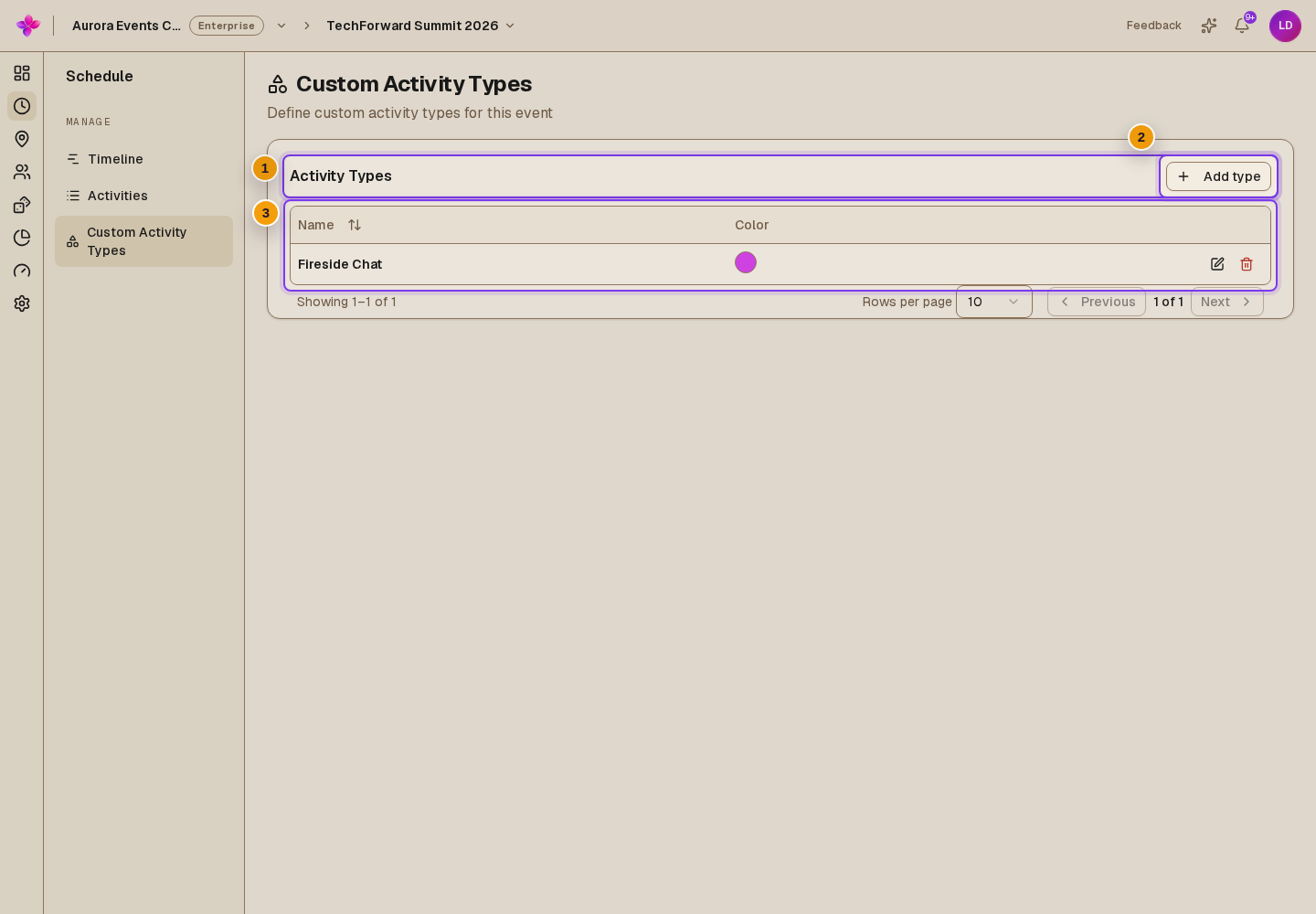
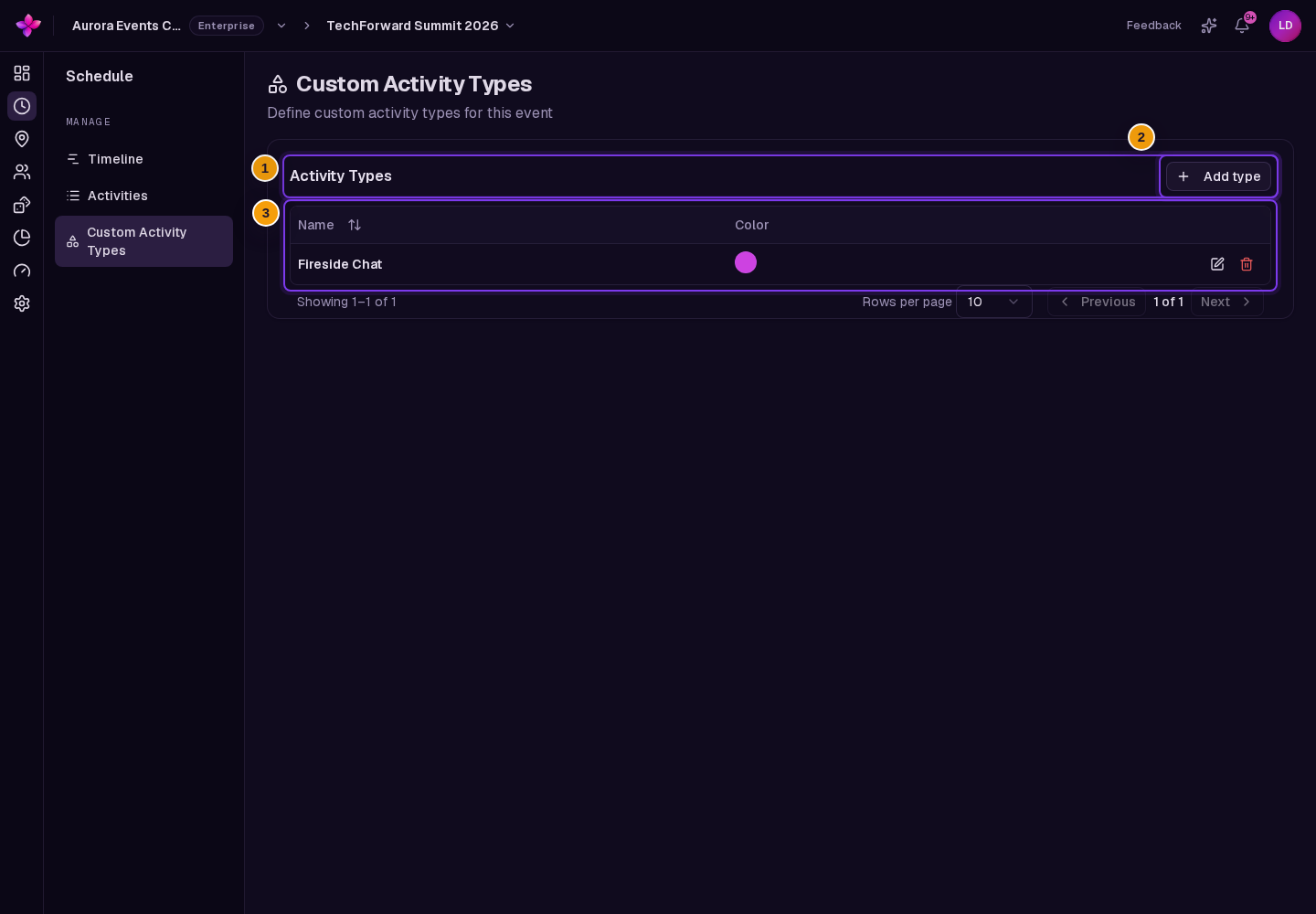
Open the event, choose Schedule, then Custom Activity Types.
Add a row
In Activity Types, choose Add type.
Enter the name and colour
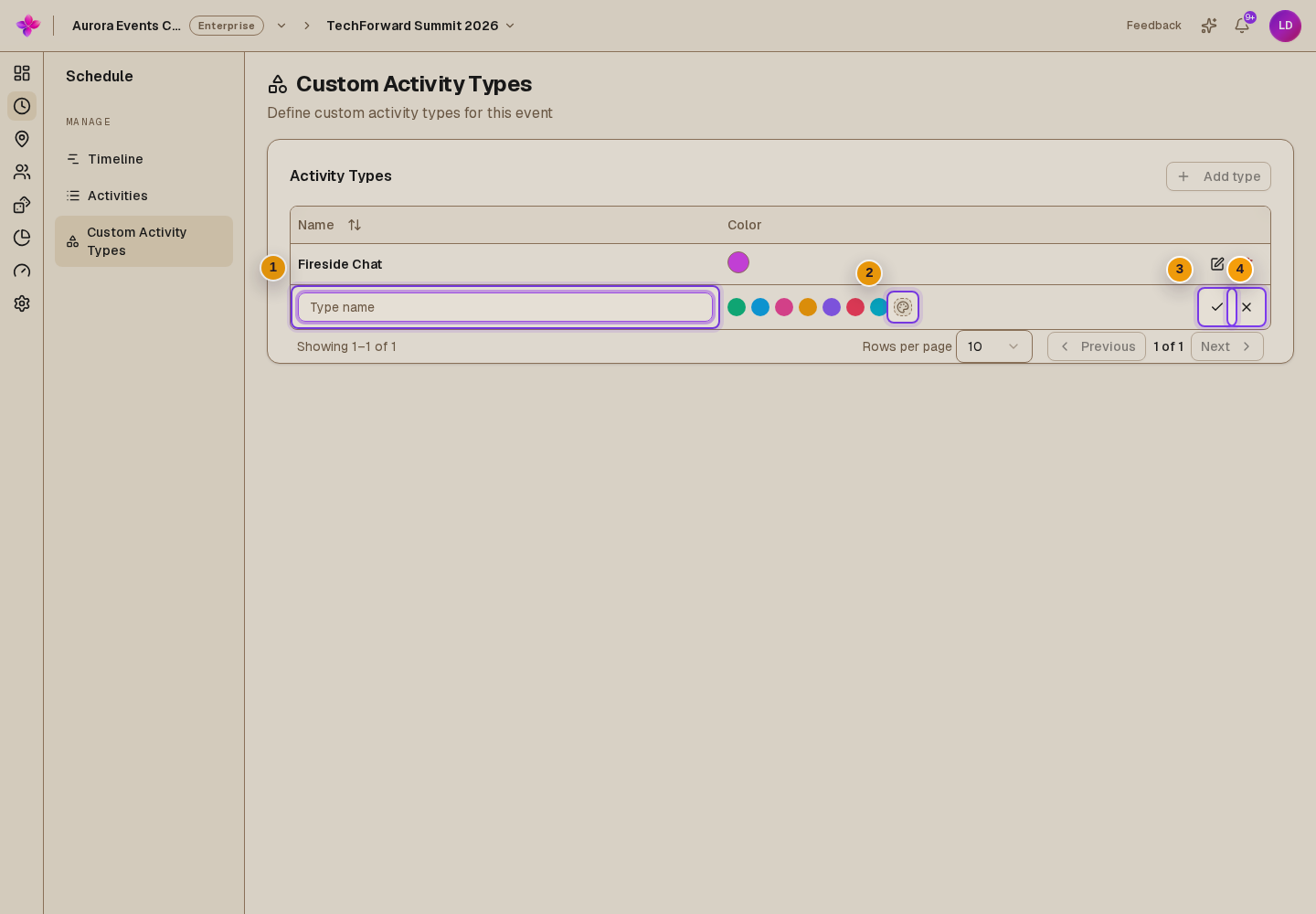
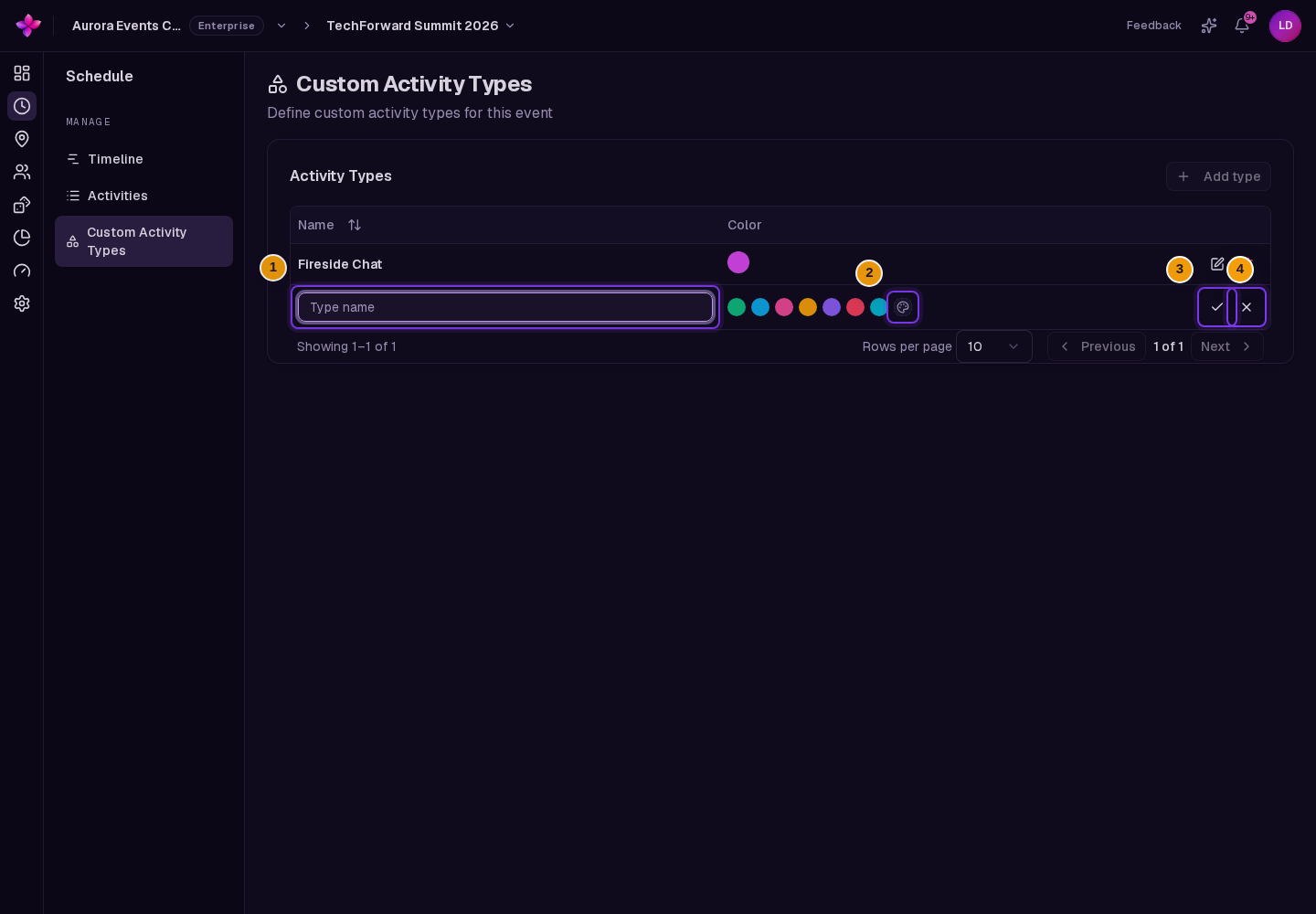
Enter the Type name. Choose a preset swatch or open the custom colour picker. A typed custom colour must be a six-digit hex value such as
#10b981.Save the type
Choose the Save checkmark. The type becomes available in activity forms and activity imports for this event.
Edit or delete a type
Edit a type
Choose the type name, colour dot or Edit type action. Change the name or colour, then choose Save. Choose Cancel to discard the edit.
Start a deletion
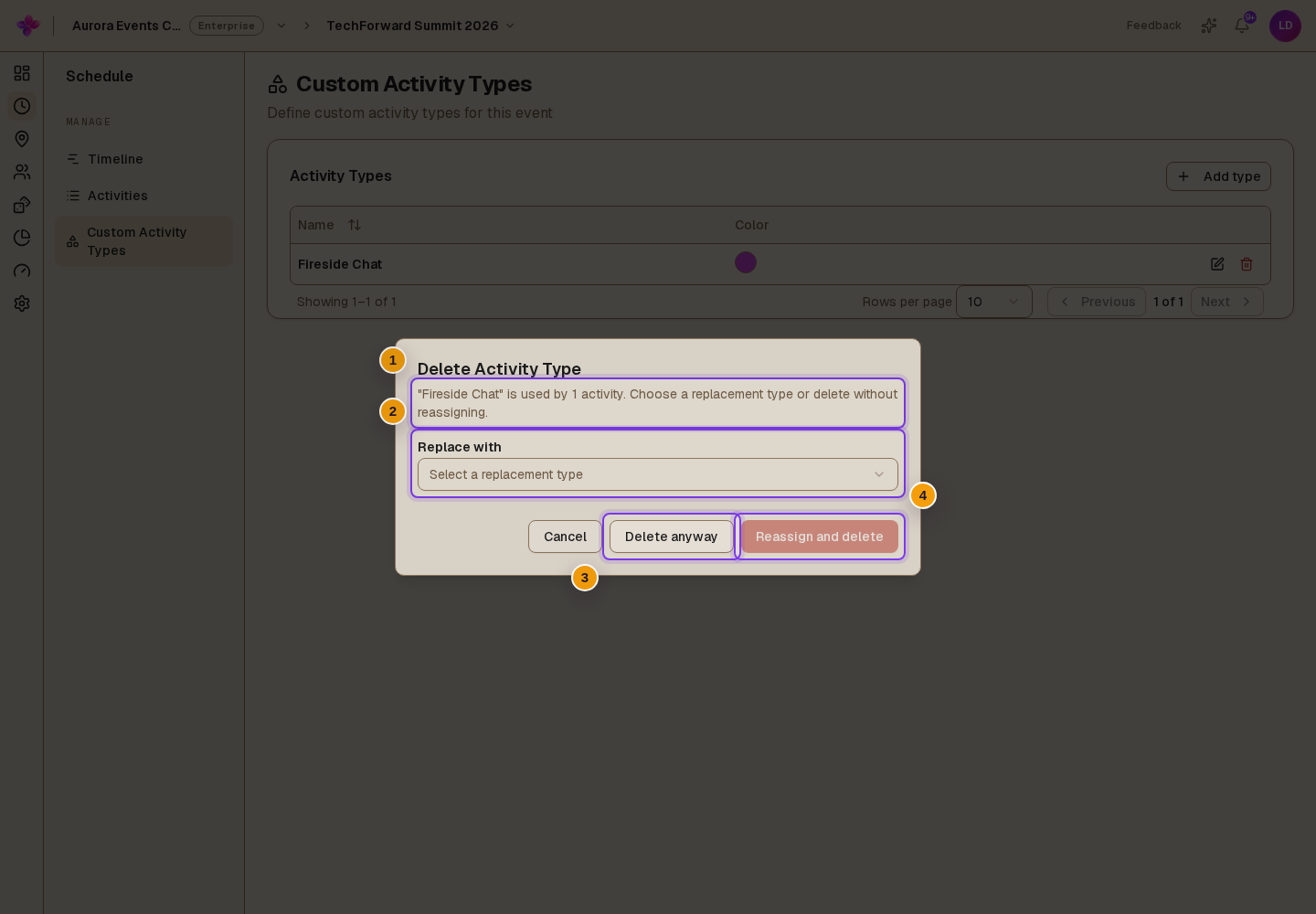
Choose Delete type. If the type is not used by an activity, confirm Delete.
Handle activities that use the type
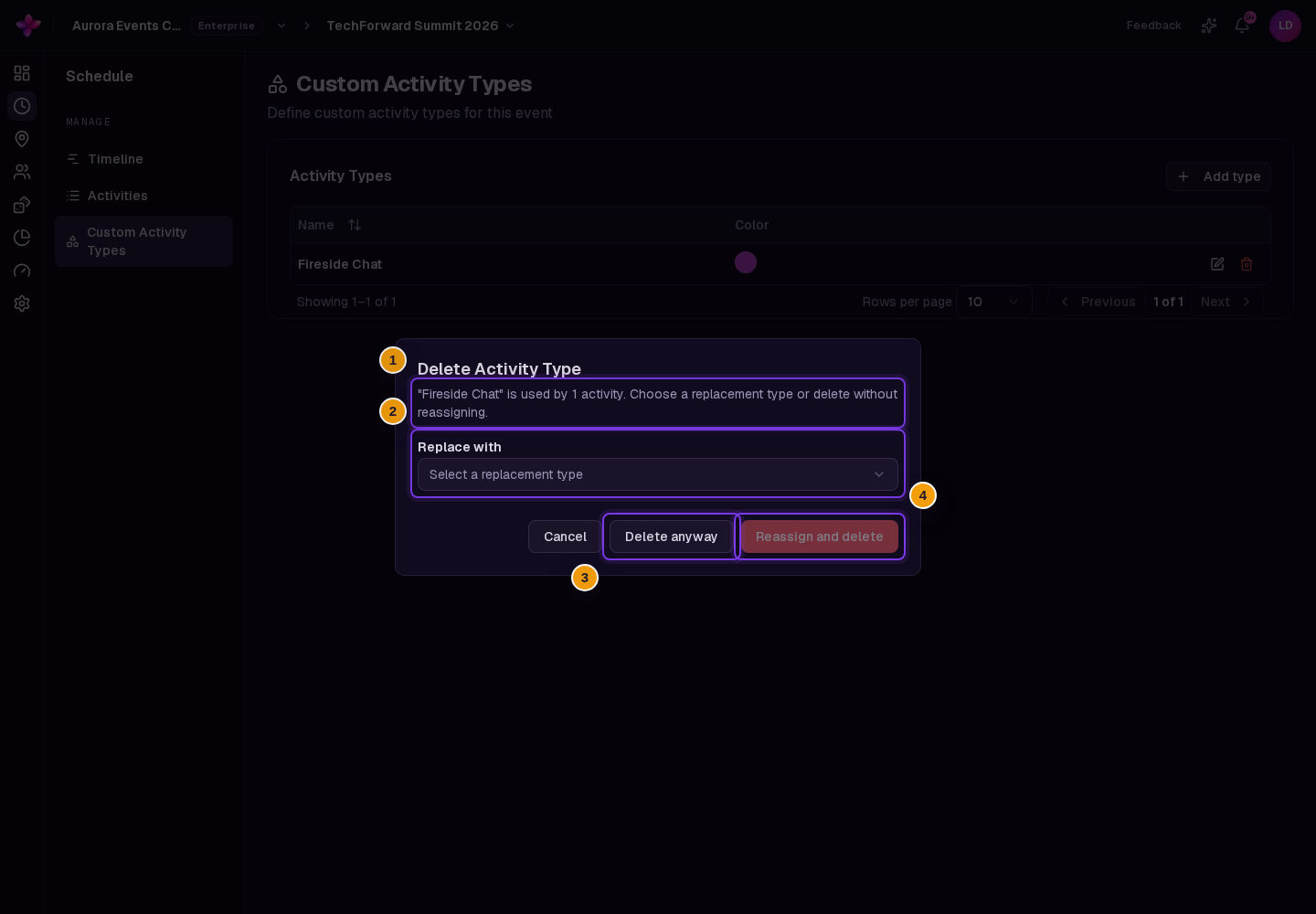
If activities use the type, choose a value under Replace with, then choose Reassign and delete. To leave those activities without a recognised type, choose Delete anyway. They will show Unknown type until you assign another type.
If something goes wrong
The custom type will not save. Enter a name of 60 characters or fewer. If you use a custom colour, enter a six-digit hex value.
The name is rejected. Each custom type name must be unique within the event. Edit the existing type or choose another name.
Custom Activity Types is missing from Schedule. Only organisation owners and admins see this navigation item.