
Send and Monitor Invitation Emails
After invitations exist, send them from All Invitations. Sending makes an invitation available to the recipient and attempts email delivery. An email delivery problem does not always prevent an existing Lylac user from seeing the invitation in the app.
Before you start
You need owner, admin or editor access to the organisation. Review the recipient list and the RSVP badge. Make sure you have permission to contact the recipients about the event.
Send or resend one invitation
Find the invitation
Open Attendees, then Invitations, and find the person in All Invitations.
Choose Send or Resend
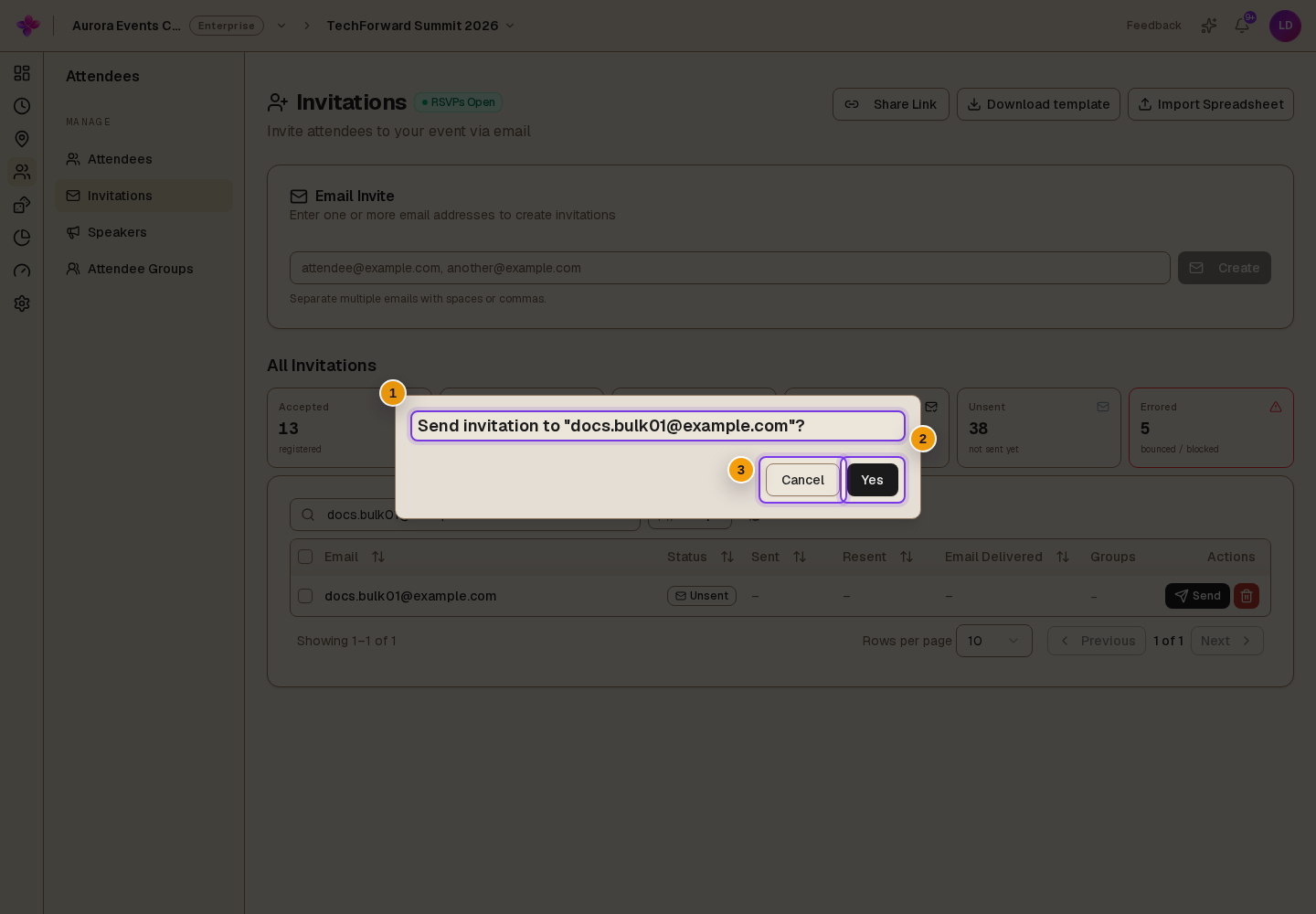
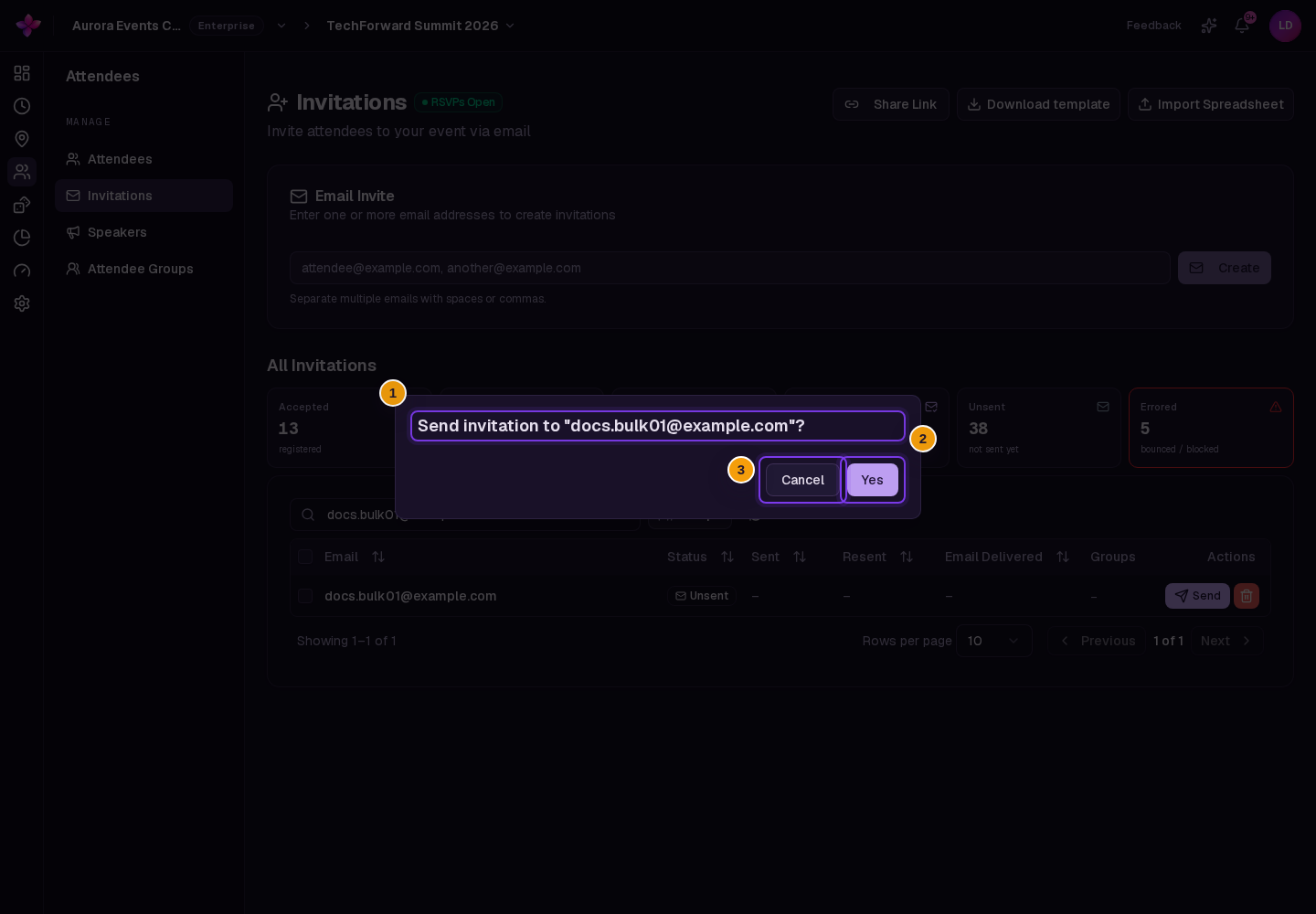
The row shows Send until the organiser first sends it, then Resend. Read the recipient confirmation and continue.
Read any RSVP warning
If RSVPs are not open yet, invitees can accept early but cannot see the event details until RSVPs open. If RSVPs have closed, sending does not reopen them and invitees cannot respond until they reopen.
Check delivery
Choose Refresh later and check Email Delivered. Sent and Resent record organiser actions, not confirmed delivery.
Send several invitations
Select pending invitations
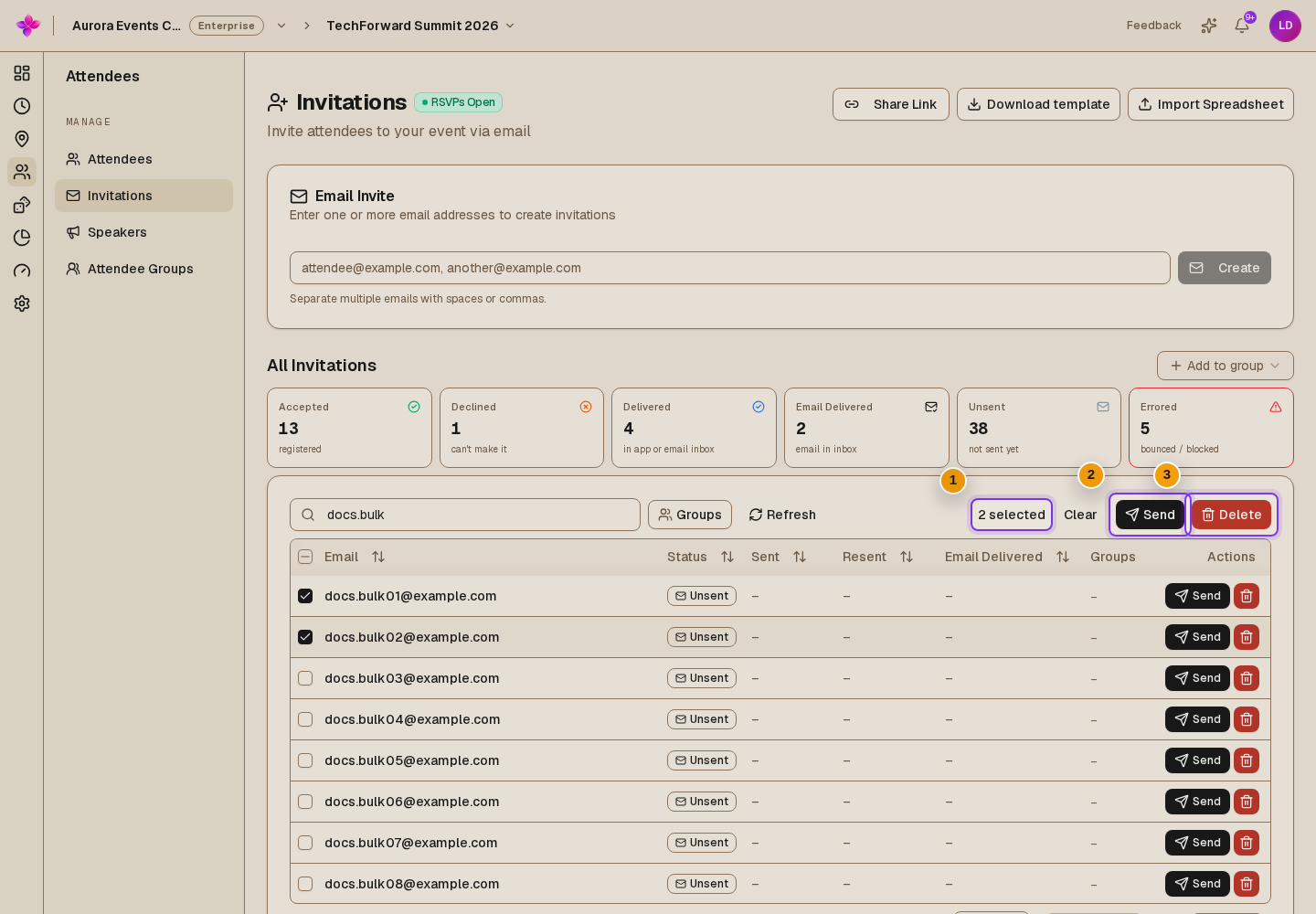
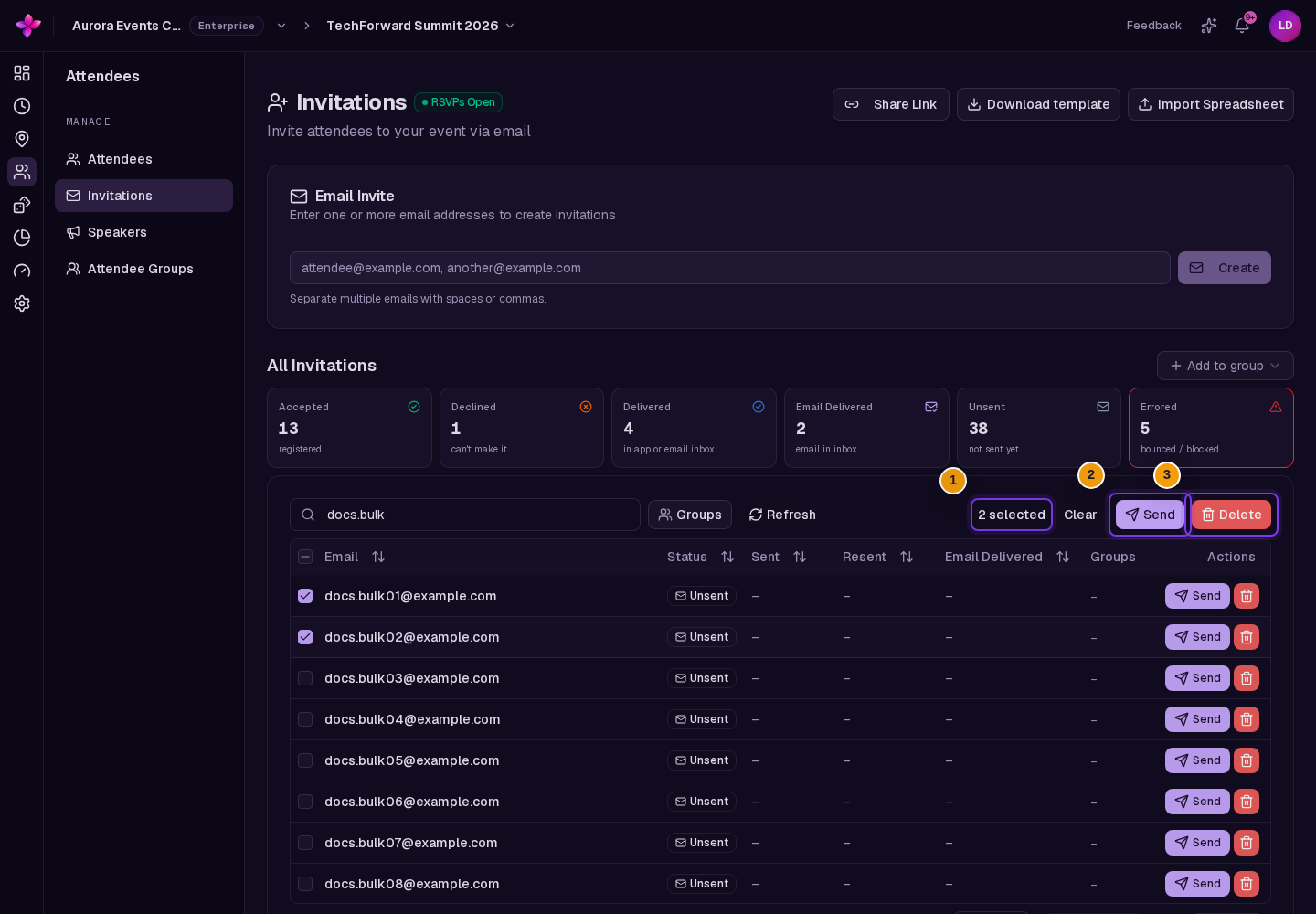
Select rows with the checkboxes, then choose Send with the eligible invitation count. This bulk action skips accepted and declined invitations, blocked addresses and unsubscribed recipients.
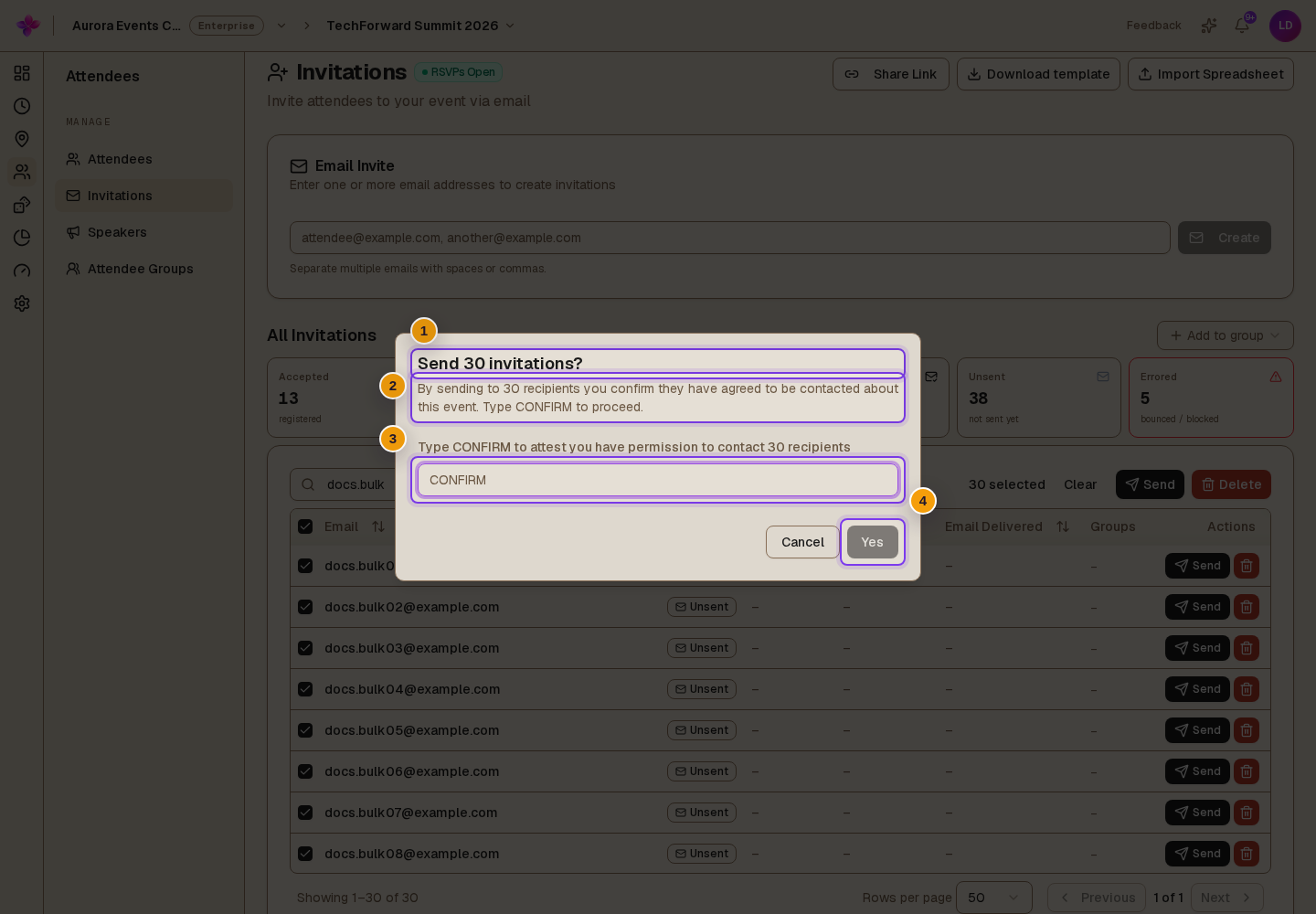
Review the confirmation
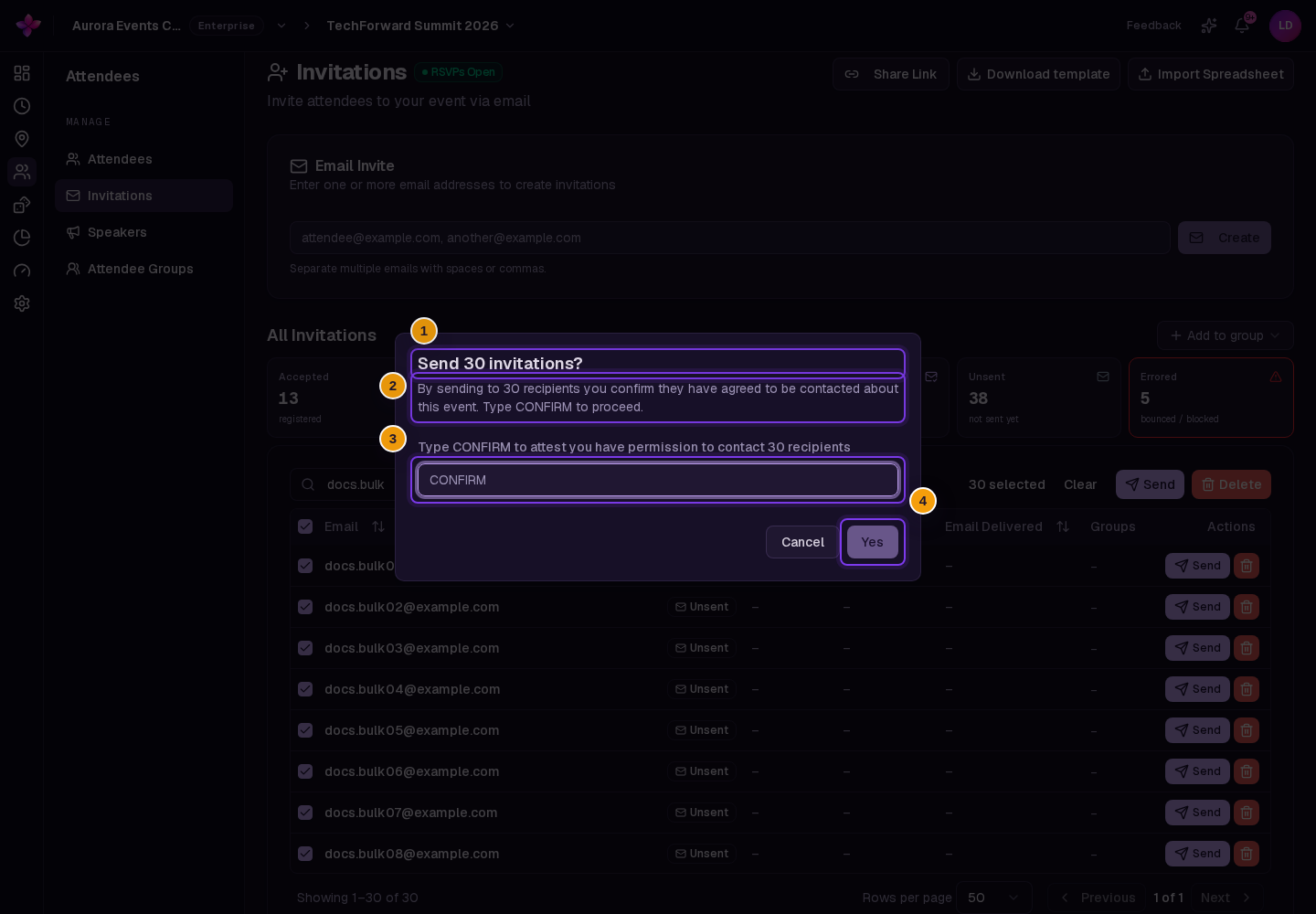
Read any sending-limit message. For 25 or more recipients, type CONFIRM when asked to confirm permission to contact them.
Review the result
Complete any RSVP warning and read the result message. A sending limit can mean only part of the selection is emailed. Refresh the table to review delivery.
Send to a group
Choose one or more groups in Groups, then use Send to with the group name or group count. This targets the combined group membership, including people hidden by a search or summary filter. To control the recipients individually, select the rows and use the selection Send action.
Understand delivery states
| Status | Meaning |
|---|---|
| Unsent | No email delivery attempt is recorded for the invitation. Check Sent as well. |
| Sending... | Email delivery is still processing. |
| Delivered | Email delivery has been confirmed. |
| In app | The email did not get through, but the person has a Lylac account and can see the invitation there. |
| Failed | Email delivery failed. Check the address before resending. |
| Blocked | A previous bounce or spam complaint prevents email delivery. |
| Unsubscribed | The recipient opted out of organisation emails or paused Lylac emails. |
Accepted and Declined take priority over delivery badges. Use the Email Delivered column to check delivery after a response.
If something goes wrong
An address is blocked or unsubscribed. Resending does not bypass the restriction. Contact the person directly if needed. Use Contact support if you believe a block is incorrect.
A sending limit is reached. Read the result message to see what was sent. Retry the remaining invitations when allowance is available.
A group send asks for contact permission. Use the group filter, select the intended pending rows and choose Send so you can complete the bulk confirmation.
A large send still fails after the RSVP warning. If RSVPs are not open, send fewer than 25 invitations at a time, or open RSVPs before sending a larger selection.