
Use the Speaking Page
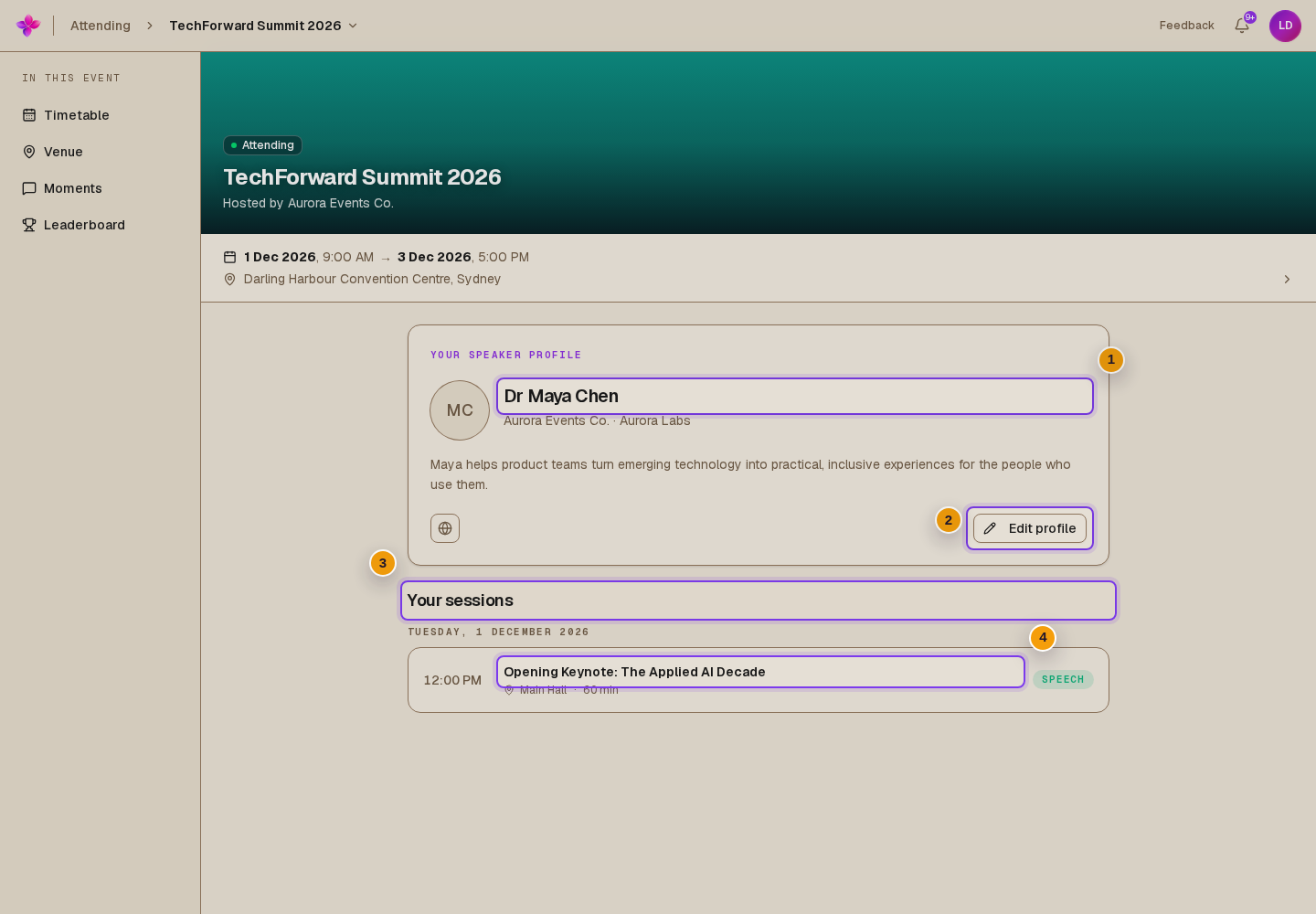
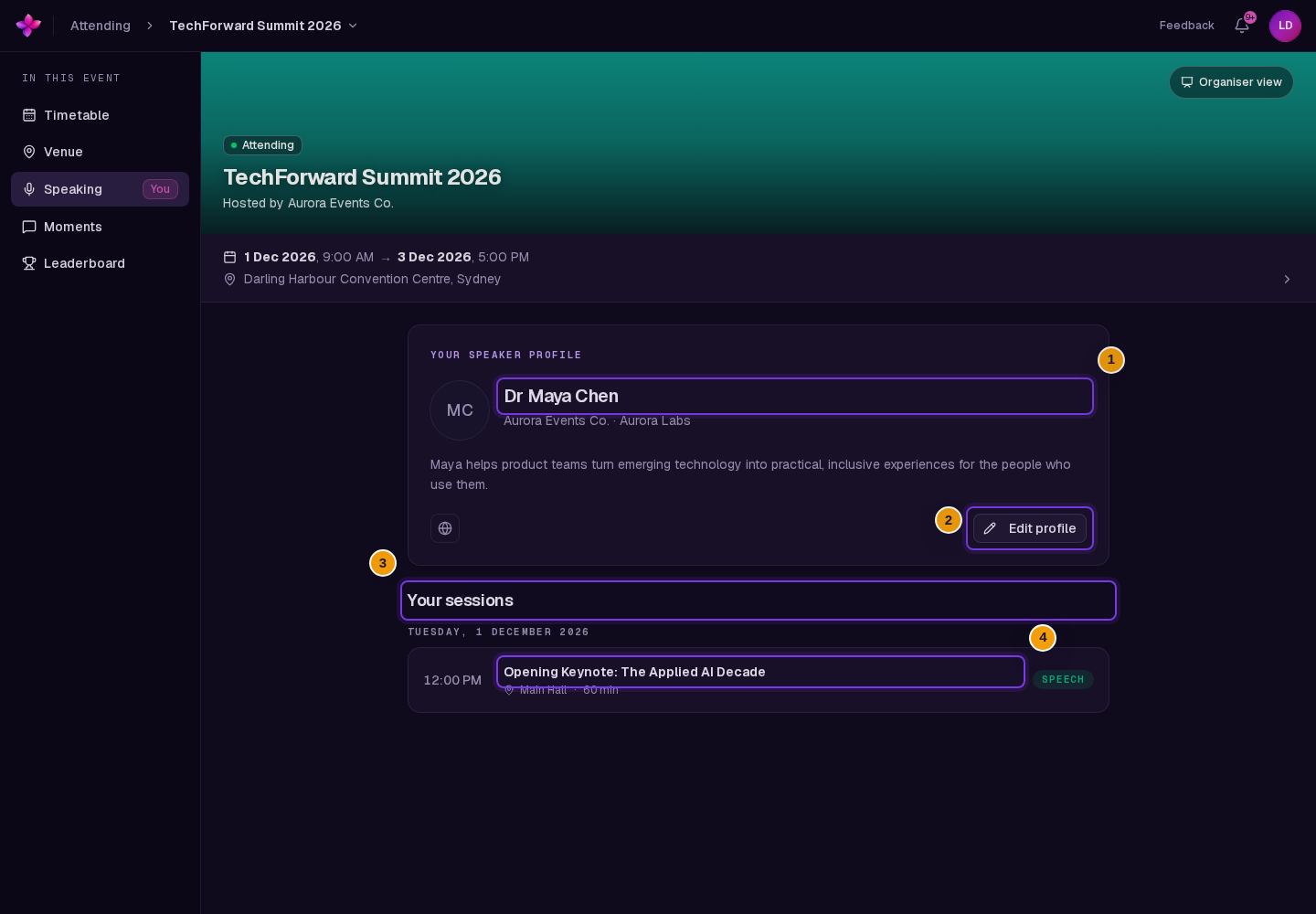
Speaking appears in the event navigation when your signed-in account is matched to a speaker profile and you have a place at the event. Use the page to review your event speaker profile, open your scheduled sessions and update your details.
Before you start
You need:
- a Lylac account that matches the email on your speaker profile;
- an accepted place at the event. An invitation or waitlist place is not enough;
- the profile details you want attendees to see.
Review your speaking page
Open Speaking
Open the event as an attendee, then choose Speaking in the event navigation. The item has a You badge.
Check your speaker profile
Review your picture or initials, display name, title, organisation, company, biography and social links under Your speaker profile.
Review your sessions
Scheduled sessions appear under Your sessions, grouped by day and ordered by start time. Each item can show its time, location, duration and activity type.
Open a session
Choose a session to open its details.
Update your speaker profile
Choose Edit profile
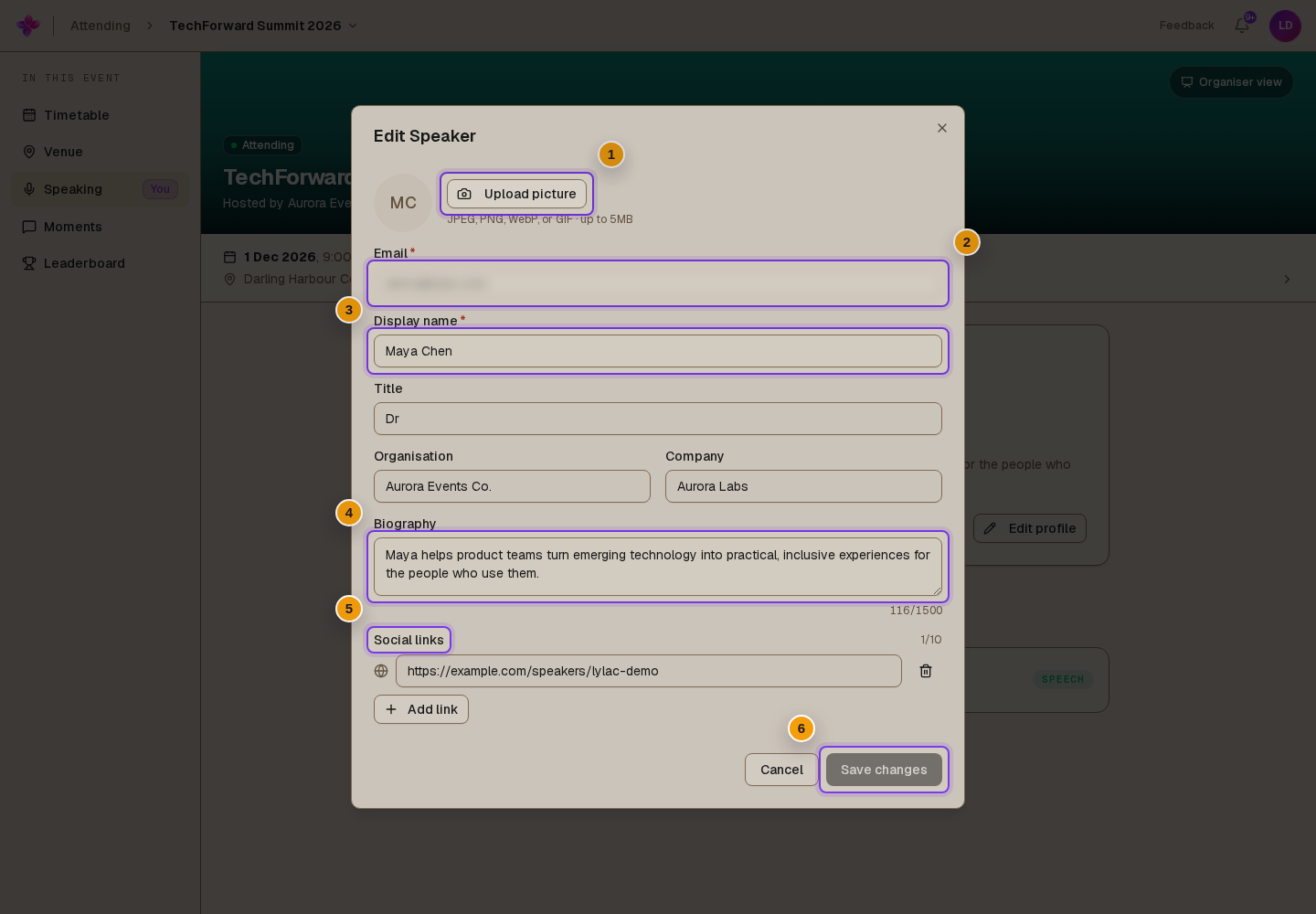
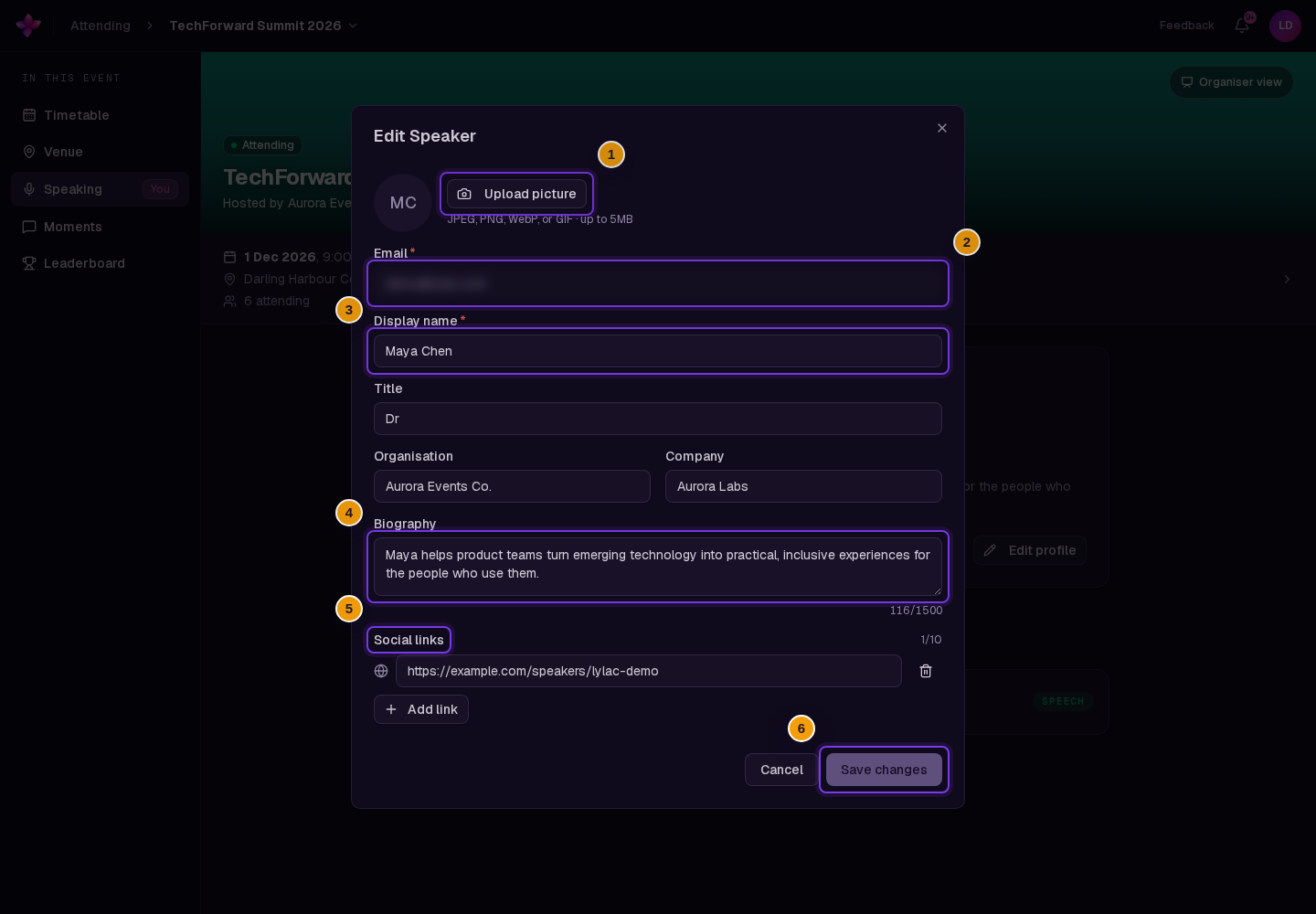
Choose Edit profile on Your speaker profile. Lylac opens Edit Speaker.
Update your details
You can edit Display name, Title, Organisation, Company, Biography and Social links. Email is locked because it connects your account to the speaker profile.
Choose a picture if needed
Choose Upload picture or Change picture, then select a JPEG, PNG, WebP or GIF image. The new picture is saved with the rest of your changes.
Save your changes
Choose Save changes. The button becomes available after you change a field or choose a new picture. Your display name cannot be empty.
If something goes wrong
Speaking is missing. Ask the event organiser to check that the speaker profile uses the email address on your Lylac account. You must also have an accepted place at the event, rather than being invited or waitlisted.
Your sessions are missing. The organiser may not have assigned your speaker profile to a scheduled session yet. If your sessions have no scheduled time, Lylac shows a message instead of a session list.
Save changes is disabled. Change a field or choose a new picture. Make sure Display name is not empty.
Your picture is rejected. Choose a JPEG, PNG, WebP or GIF image and try again with a smaller file.