
Create Your First Event
Create a draft event to start planning. Saving the draft opens its overview so you can continue setting up the event.
Before you start
You need:
- to be signed in and using the host view;
- access to an organisation as an owner, admin or editor;
- the event name, location, dates, start and end times, and timezone.
Create the event
Open your organisation dashboard
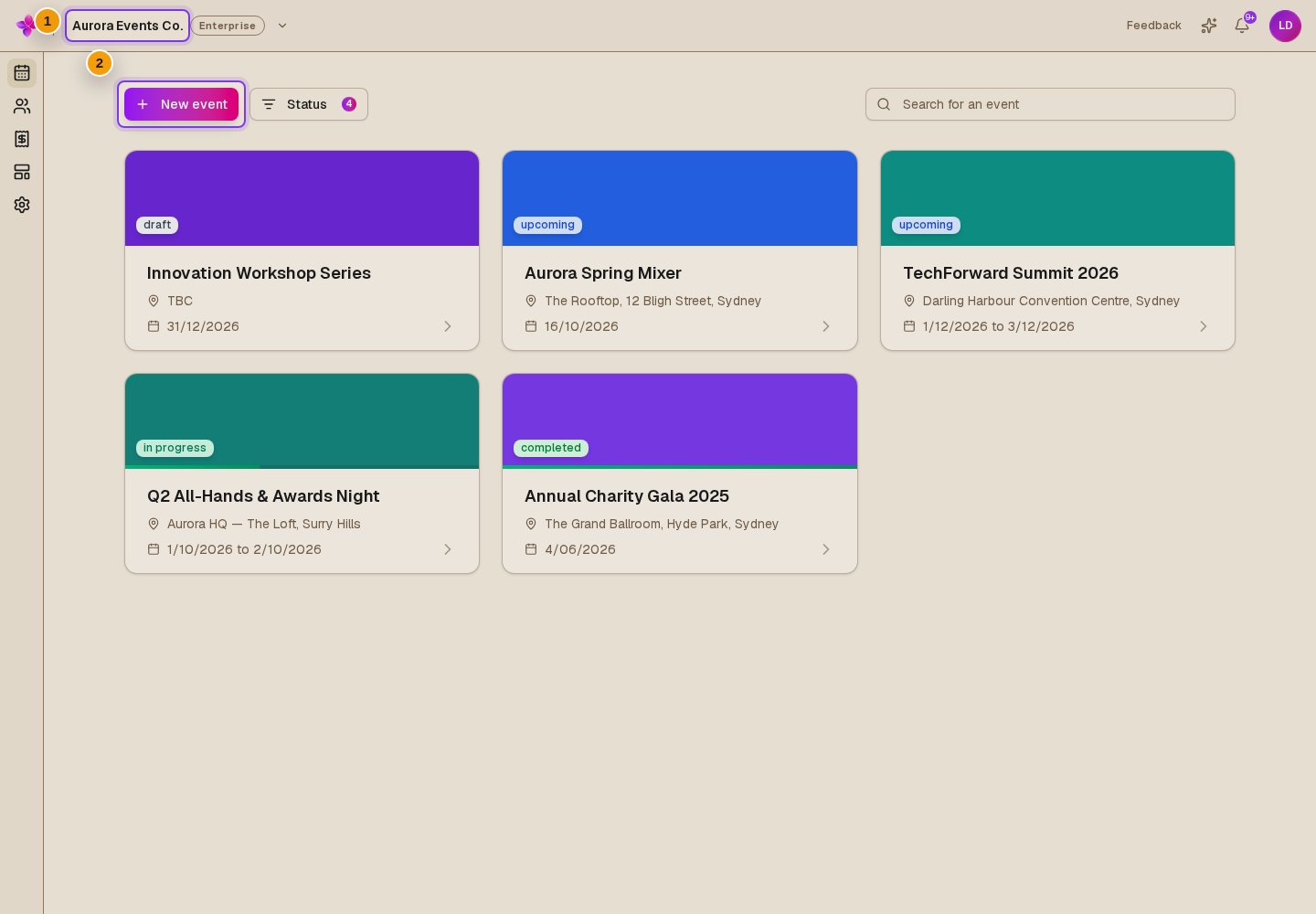
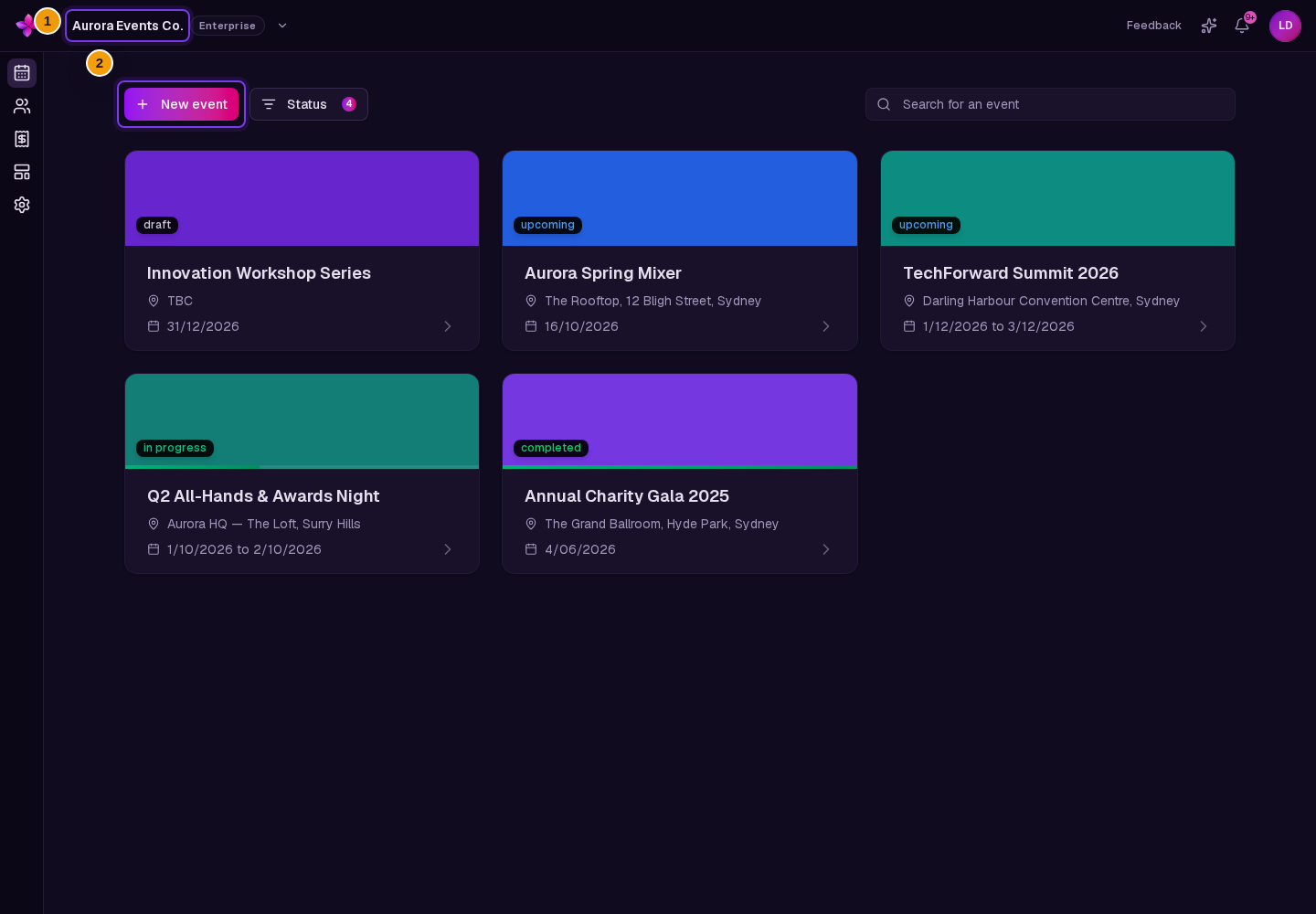
Use Switch organisation beside the organisation name to choose the organisation you want. Select its name to open the event list, then choose New event.
Add the required details
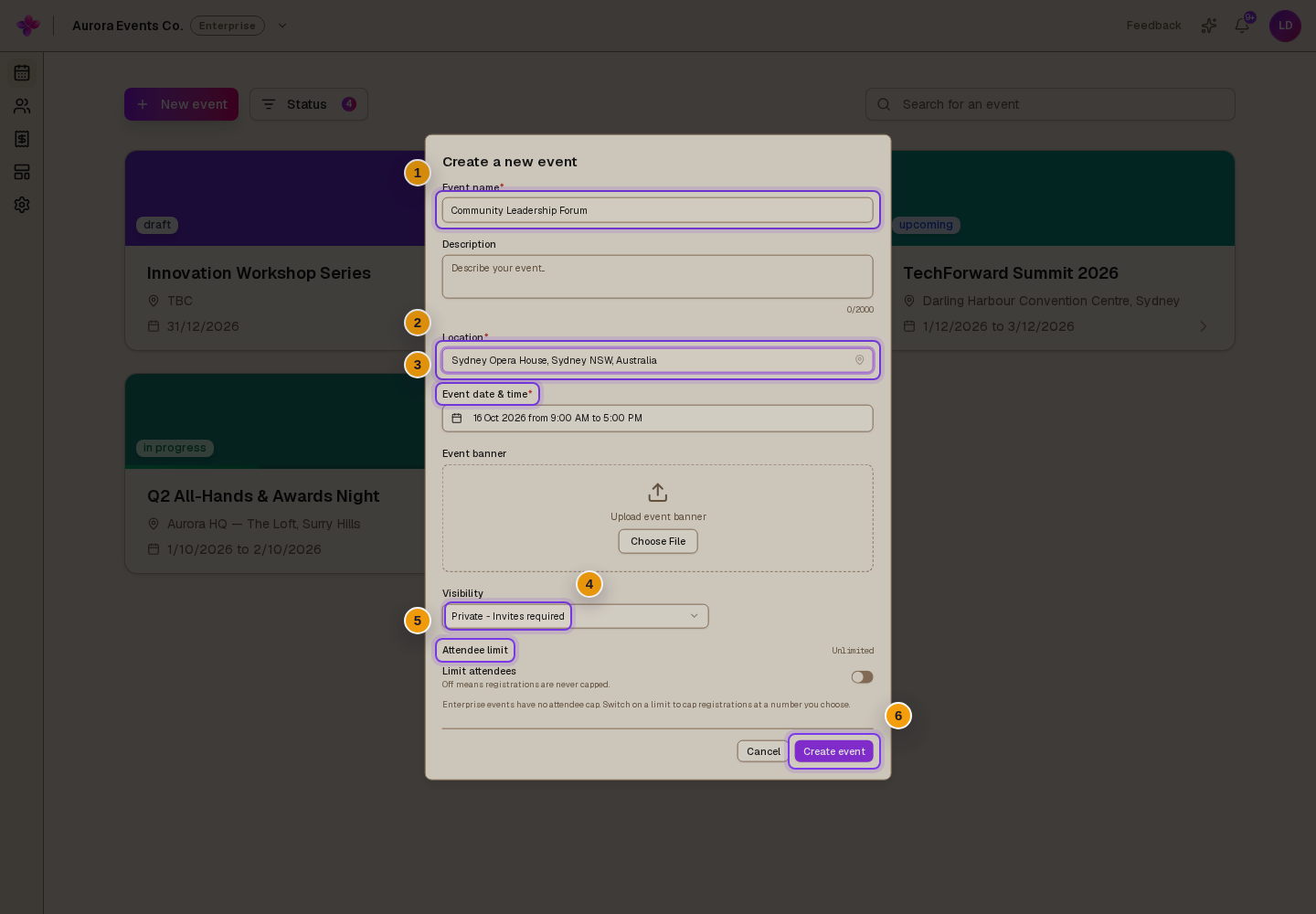
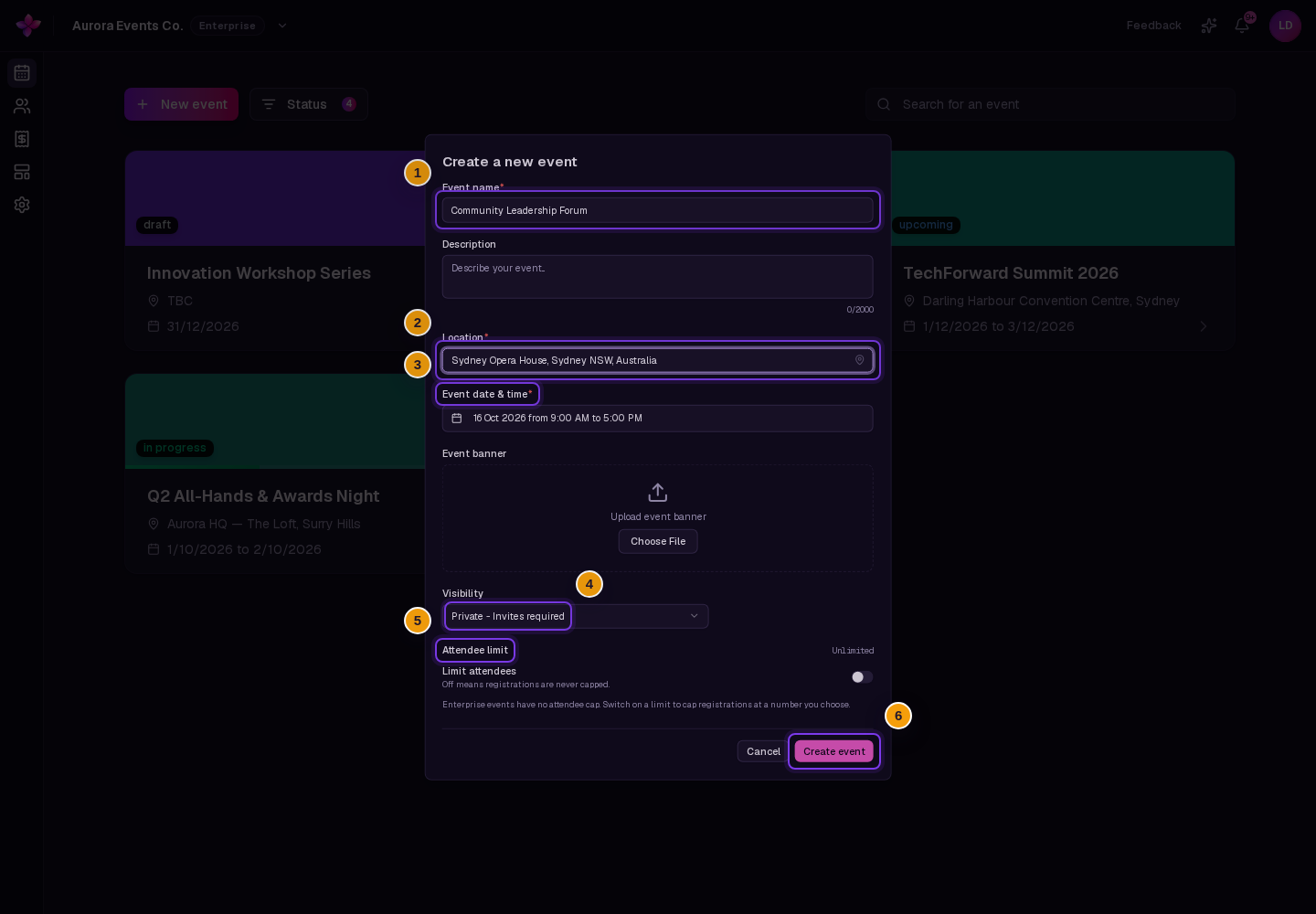
In Create a new event, fill in Event name and Location. Use Event date & time to choose the dates, start and end times, and timezone. Events must run for at least 30 minutes and no more than 30 days.
You can also add a Description and Event banner.
Review visibility and capacity
Under Visibility, new events start as Private - Invites required. Choose Public - Anyone can come if you want a public event.
Review Attendee limit. You can set a lower limit within the allowance shown for the event.
Save the draft
Choose Create free event on a Free organisation, or Create event on a paid organisation. If the organisation has reached its event allowance, the button says Save as draft.
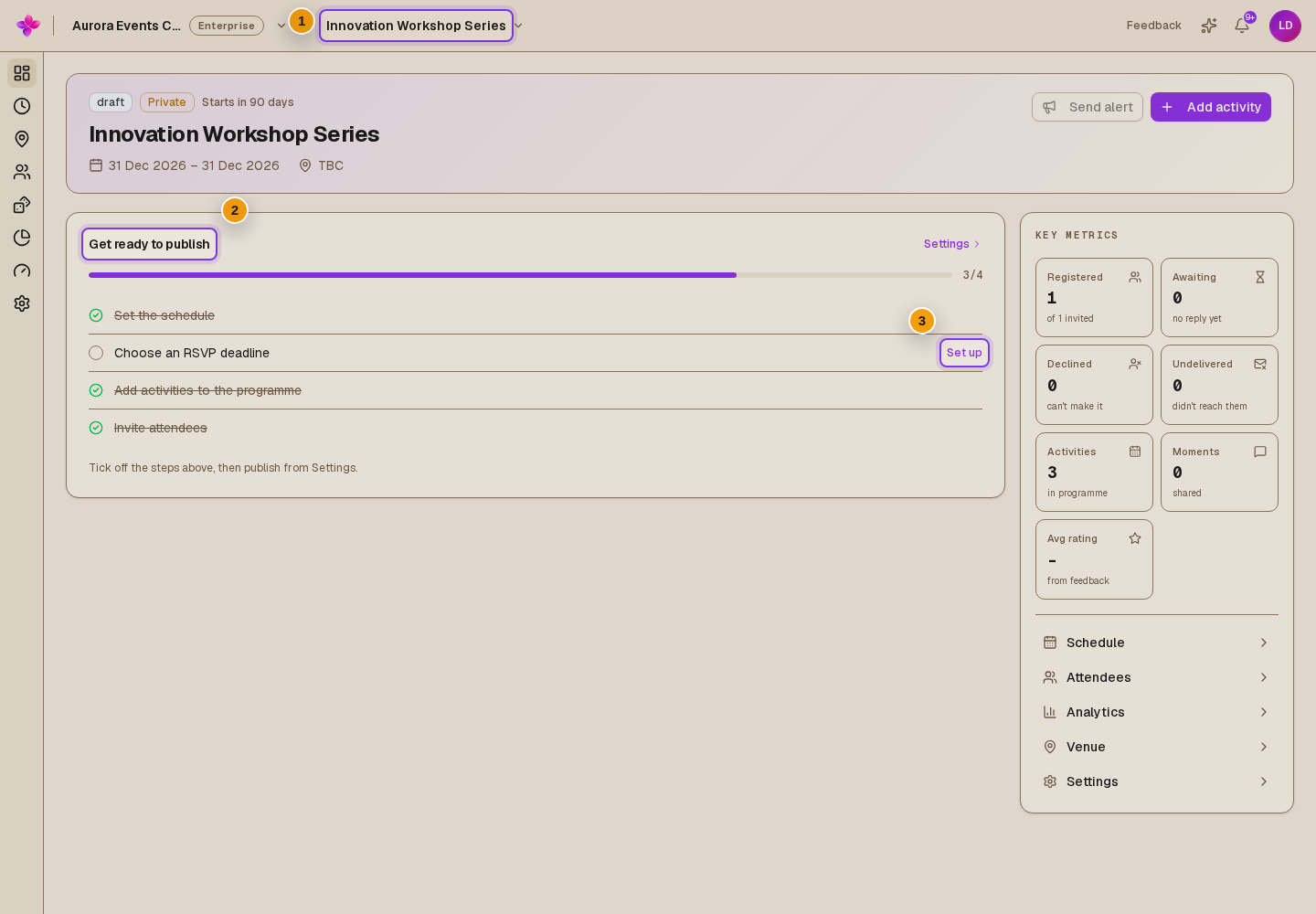
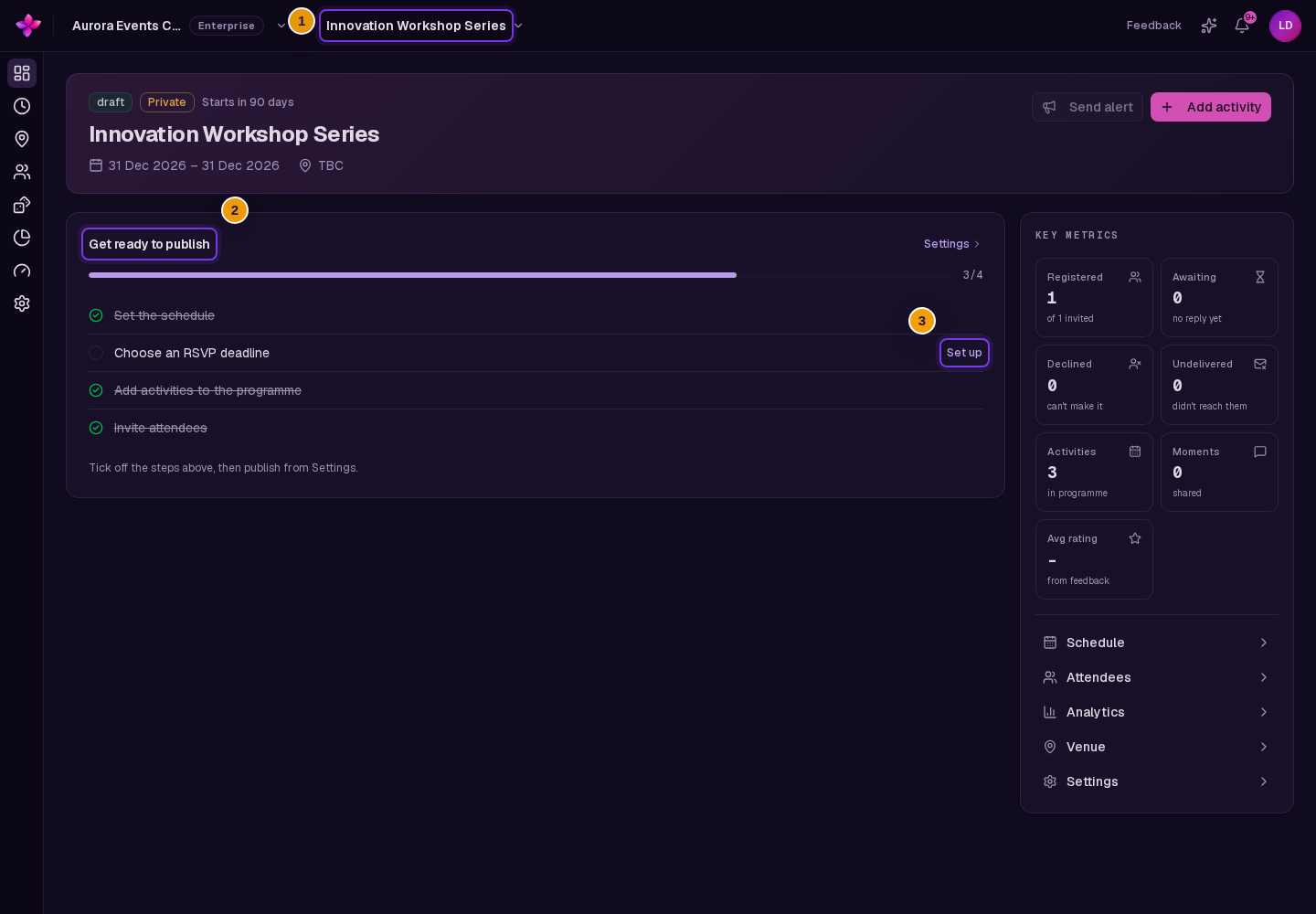
The event opens in its overview. It is still a draft and needs to be published separately.
Check the event overview
The draft overview includes Get ready to publish. Follow its Set up links to complete the missing details. Publishing requires an organisation owner or admin.
Event allowances
Drafts do not use the organisation's published event allowance. You can save a draft even when that allowance is full. Publishing may require a Boost purchase or an additional event slot.
If something goes wrong
The event does not save. Submit the form and check the messages beside the fields. Complete the name, location, dates, times and timezone.
The times are not accepted. The end must be after the start. Check the 30-minute minimum and 30-day maximum.
You cannot create an event. Ask an organisation owner or admin to check that your role is owner, admin or editor. Event allowances do not prevent saving drafts.
If you still need help, choose Contact support.
Next steps
- Use Schedule and Venue to continue setting up the event.
- Read event statuses before publishing.