
View the Venue and Floor Plans
Use Venue to check the event location and view floor plans or maps supplied by the organiser.
Before you start
You need:
- attendee access to the event;
- a location set by the organiser if you expect to see an address and map;
- floor plans uploaded by the organiser if you expect to see Floor plans & maps.
Open the venue information
Open Venue
Open the event, then choose Venue from the event navigation.
Check the location
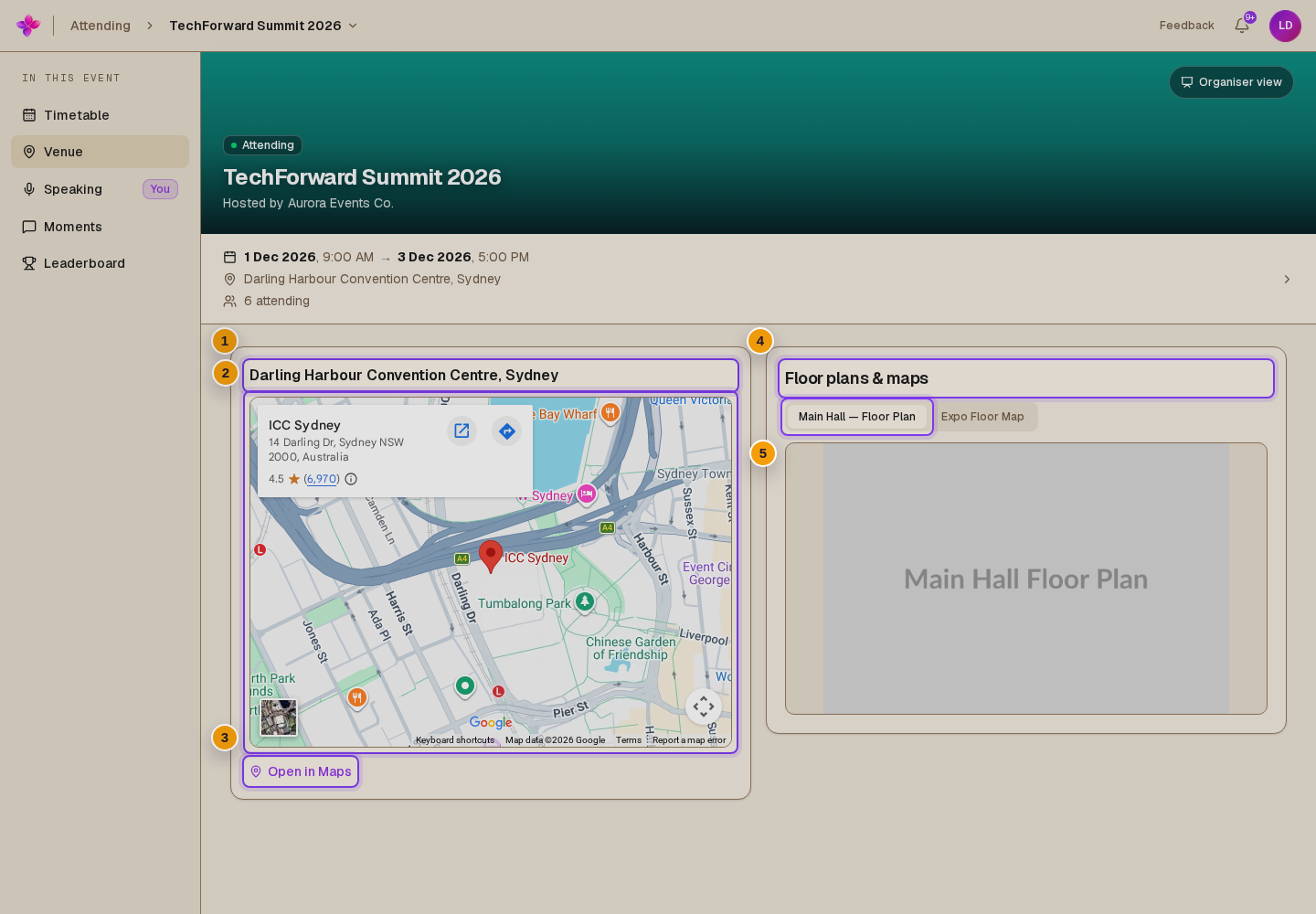
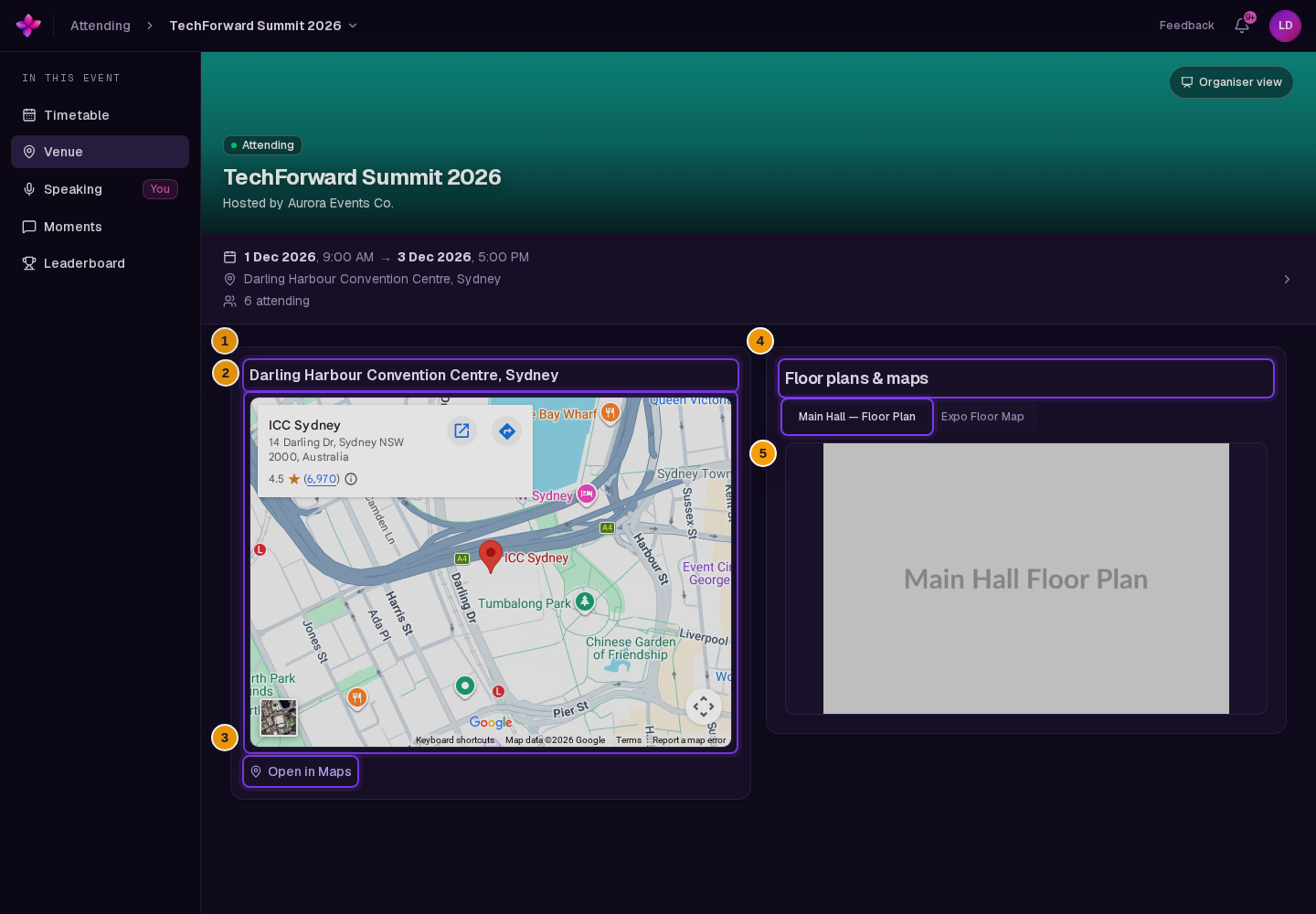
The location card shows the saved location and an embedded map. Choose Open in Maps to open the location in a new browser tab.
If the organiser has not set a location, the card shows Location to be confirmed and No location set yet.
Choose a floor plan
If the organiser uploaded floor plans or maps, they appear in Floor plans & maps. When there is more than one image, choose its named tab to switch images.
Expand the image
Choose the floor-plan image to open a larger view. Choose outside the image or close the dialog when you are finished.
If something goes wrong
Floor plans & maps does not appear. The organiser has not uploaded a floor plan or map for this event.
The location is not available. The organiser has not set it yet. Check the event details or contact the organiser.
A floor-plan image does not load. Refresh the page. If it still does not load, ask the organiser to check the uploaded image.
Next steps
- View the timetable and event details to return to the event schedule.
- Open an event you are attending to find another event.