
Review Activity Feedback
Use Activity feedback to understand how attendees rated event activities and what they wrote in their comments. You can review the summary, narrow the table, open an activity's reviews and export the matching feedback.
Before you start
You need:
- access to the event in its organisation;
- owner, admin, editor or viewer access;
- attendee ratings or comments submitted from activity details.
If no activity feedback has been submitted, Lylac shows No feedback yet.
Review feedback
Open Activity feedback
Open the event, choose Analytics, then choose Activity feedback from the report links.
Review the summary
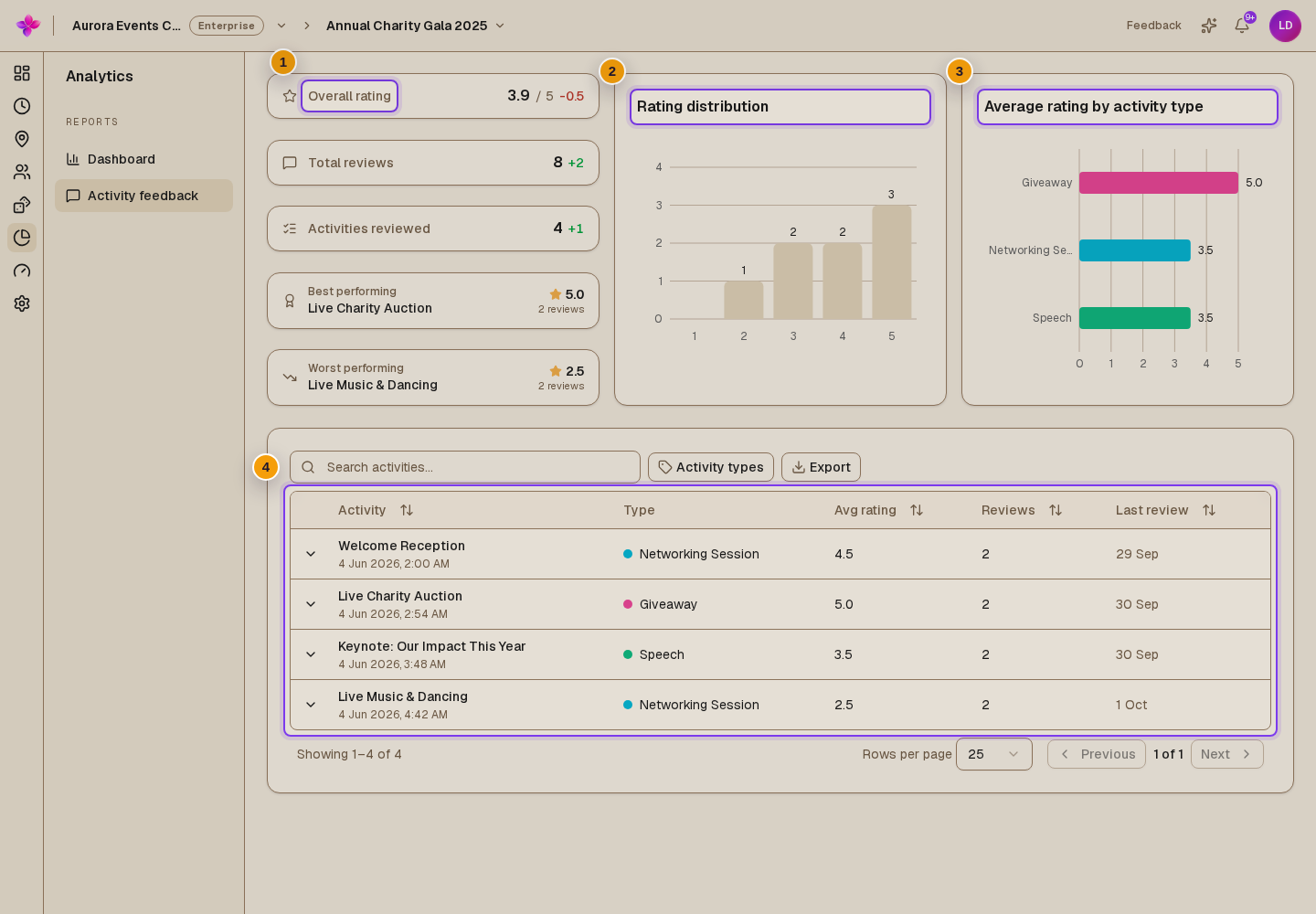
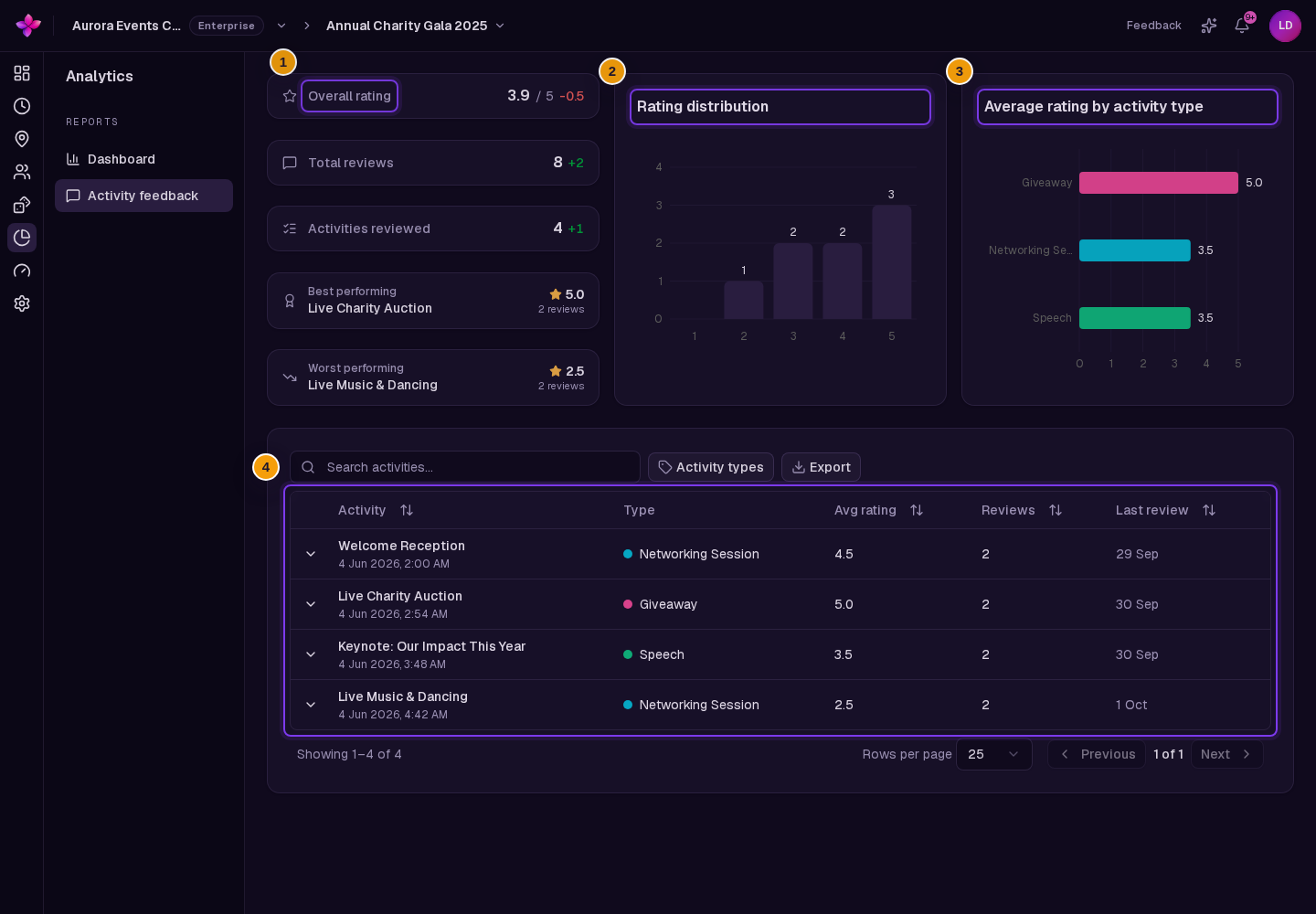
Check the rating summary and charts before narrowing the activity table.
Find an activity
Use Search activities…, the Activity types filter, sortable column headings and the paging controls.
Read the reviews
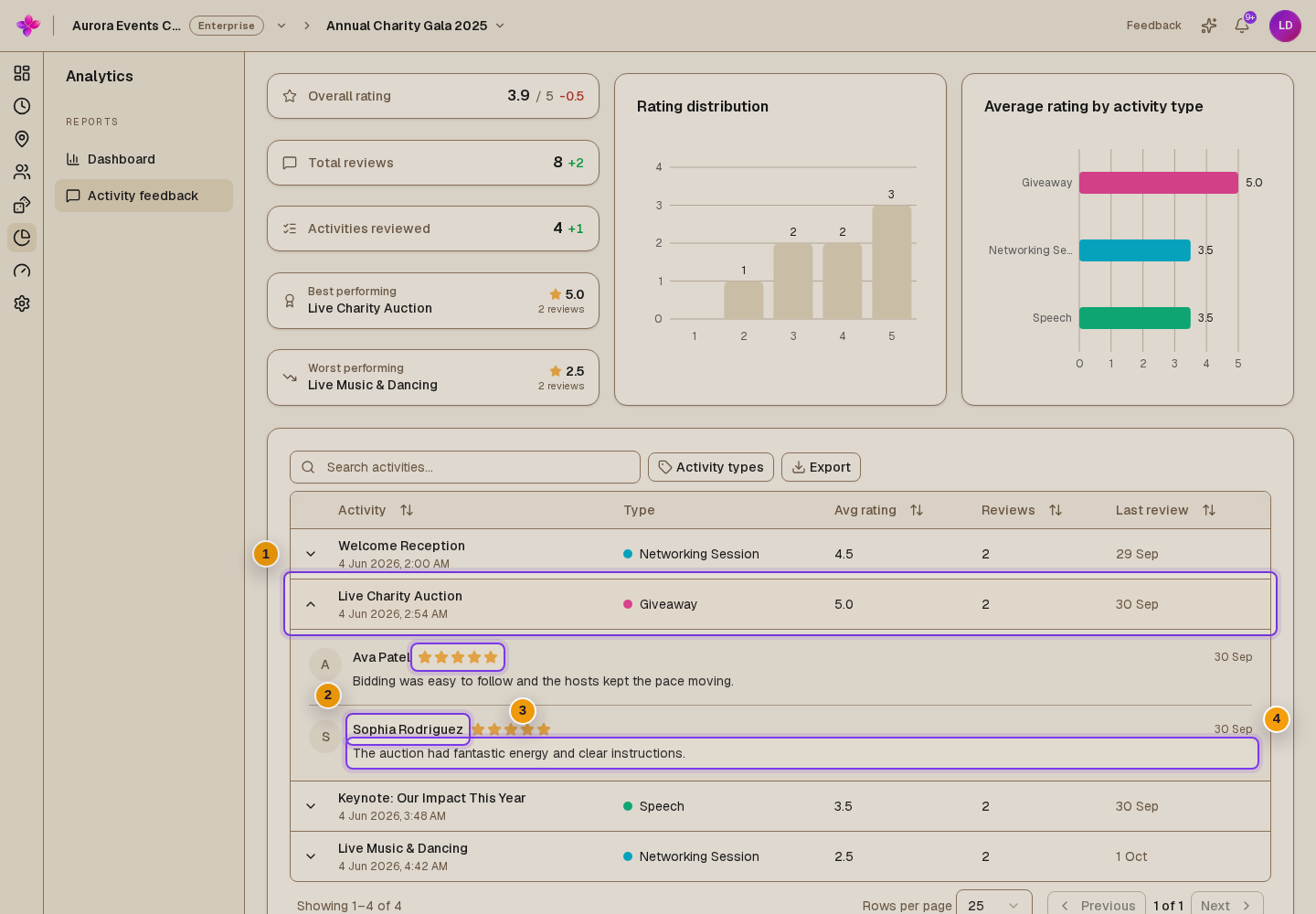
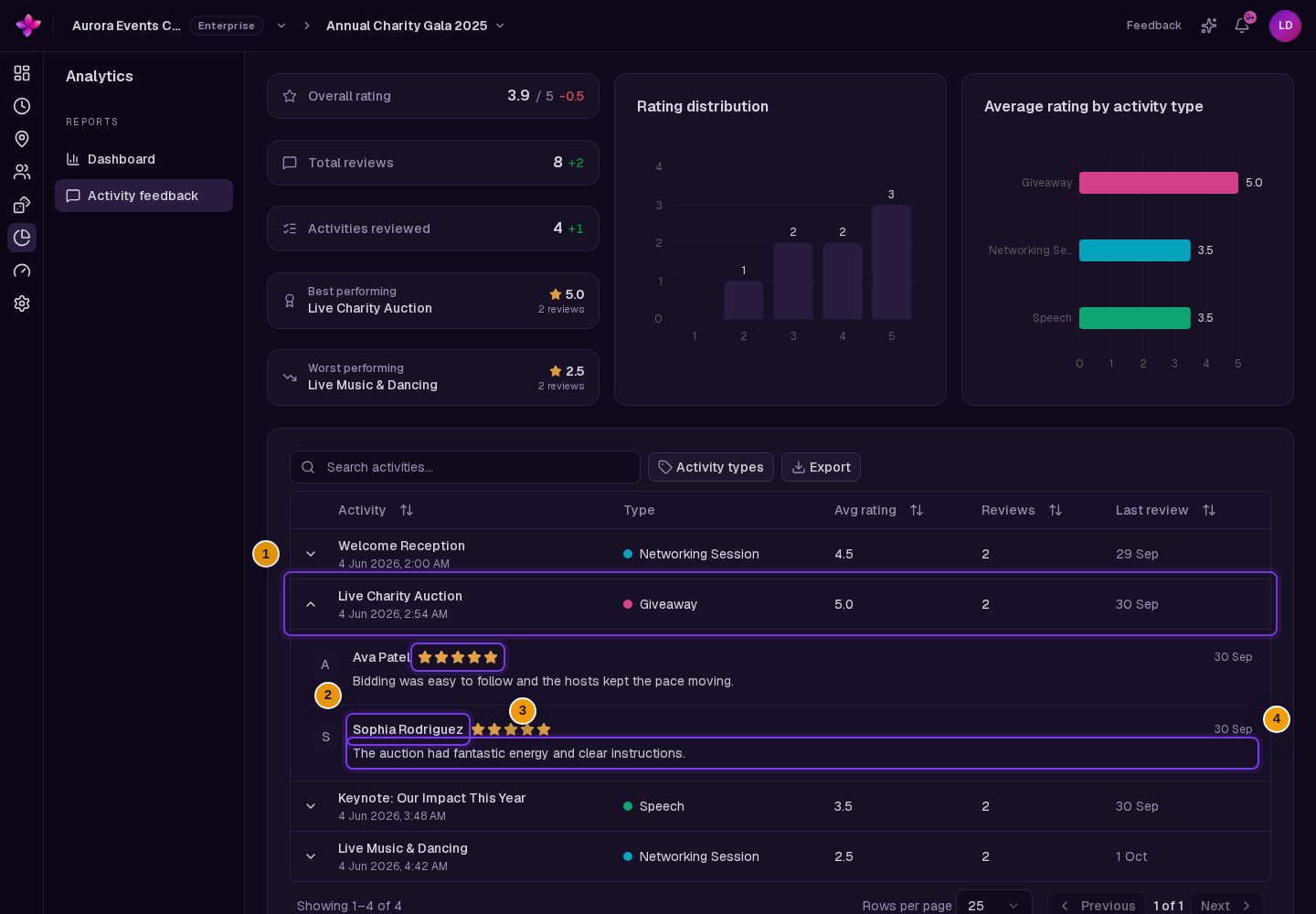
Choose an activity row or its expand control to see the reviewer, rating, latest review date and comment.
Export the matching feedback
Choose Export to download a CSV containing the current searched, filtered and sorted result set.
Understand the summary
The summary can include:
- Overall rating, which shows the average out of 5;
- Total reviews, which counts submitted reviews;
- Activities reviewed, which counts activities with feedback;
- Best performing and Worst performing, when there is enough rated activity data to compare;
- Rating distribution, which groups reviews from 1 to 5;
- Average rating by activity type, including custom activity types.
Changes since yesterday can appear beside Overall rating, Total reviews and Activities reviewed.
Search, filter and sort
The table contains these columns:
- Activity, with the title and scheduled time;
- Type, or a dash when no type is available;
- Avg rating;
- Reviews;
- Last review.
You can:
- search using Search activities…;
- filter by one or more choices under Activity types;
- sort by Activity, Avg rating, Reviews or Last review;
- use Previous and Next to change pages;
- change Rows per page to 5, 10, 25, 50 or 100 on wider screens.
The table starts with 25 rows per page.
Read individual reviews
Expand an activity to see each review. Lylac shows the reviewer's name, a rating from 1 to 5, the latest review date and the comment when one was submitted.
The activity feedback report is read-only. It does not provide controls to edit, delete, reply to or hide a review.
Export feedback
Choose Export to download all reviews in the current searched, filtered and sorted result set, not only the current page. The button is unavailable when no activities match.
The CSV contains one row per review with these columns: Activity, Activity start, Activity type, Reviewer, Rating, Comment, Created at and Updated at.
If something goes wrong
The page says No feedback yet. Attendees must submit a rating or comment from an activity's detail screen before results appear.
No activities match your search. Clear Search activities… or remove choices from Activity types.
Export is unavailable. Clear the current search or filters. Export becomes available when at least one activity matches.
Feedback could not be loaded. Refresh the page. Ask an organisation owner or admin to confirm your event access if the message remains.
Next steps
- View event analytics.
- Send product feedback to Lylac if you have a suggestion about feedback reporting.