
Build the Event Schedule
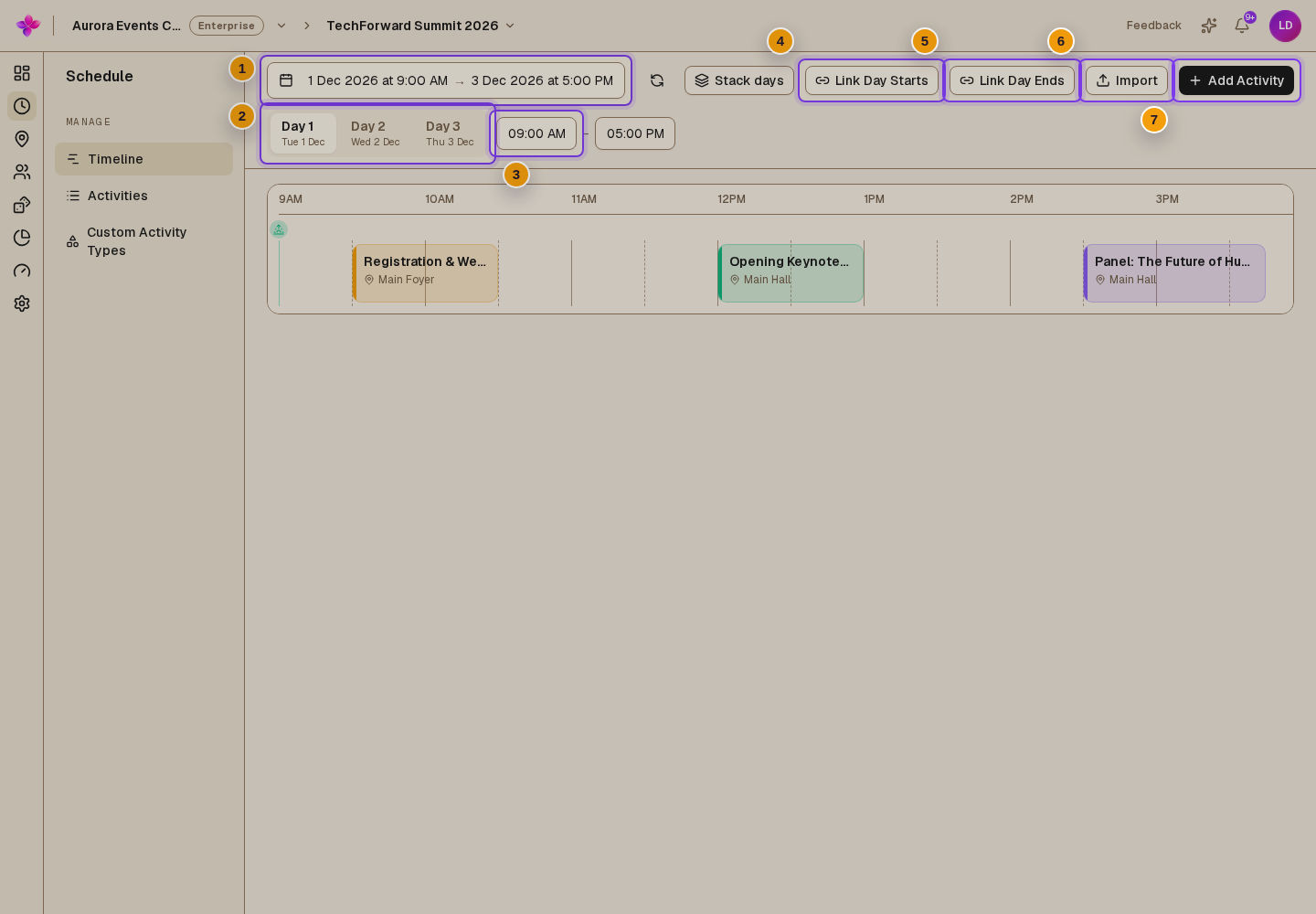
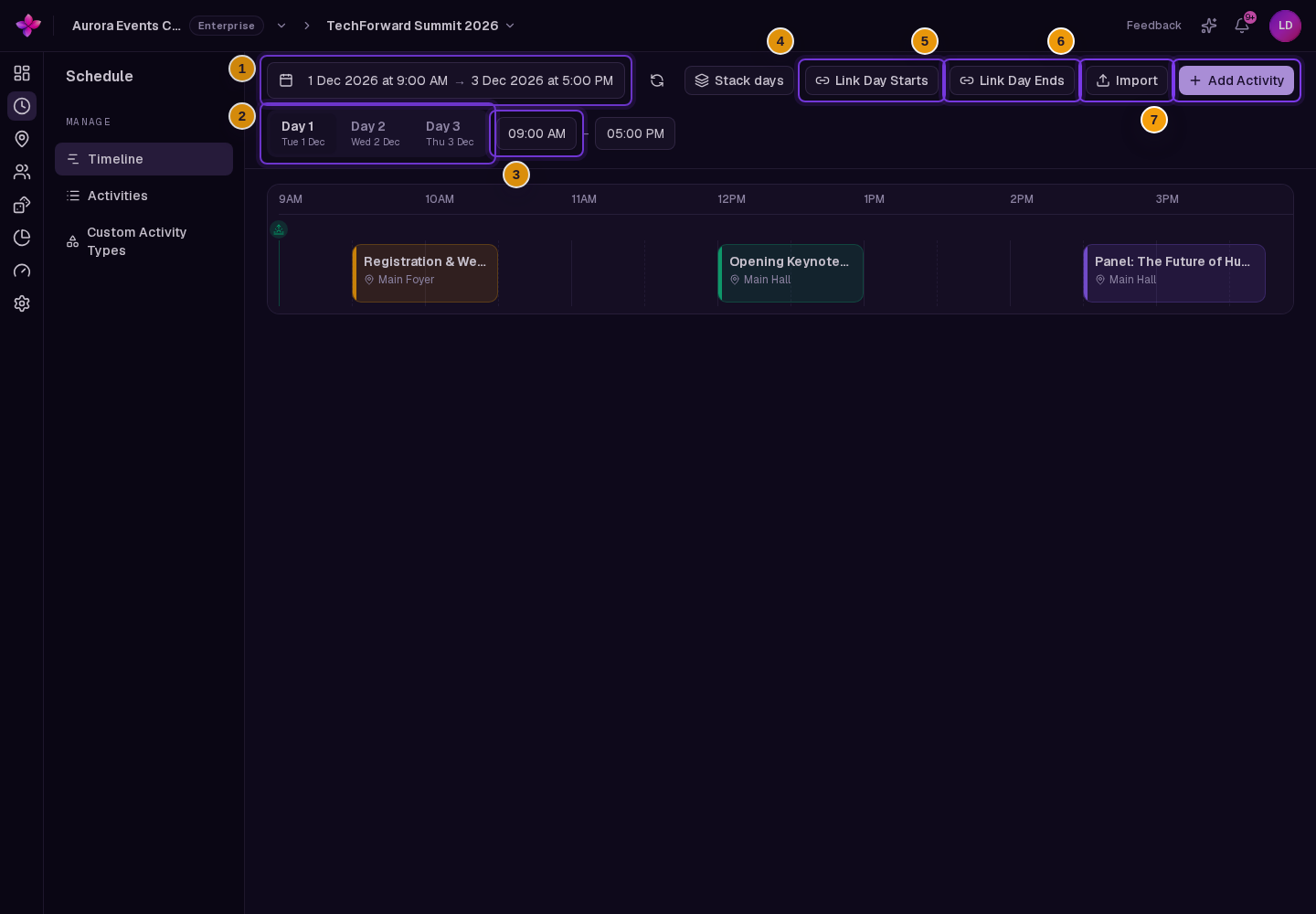
Use the schedule timeline to set the event dates and times, adjust the hours shown for each day, and arrange activities.
Before you start
You need owner, admin or editor access to the organisation. Have the event date range, start time, end time and timezone ready.
Set up the timeline
Open Timeline
Open the event, choose Schedule, then Timeline.
Set the event window
Choose Pick event dates and time. Set the date range, start time, end time and timezone. An event must last at least 30 minutes and no more than 30 days.
Adjust each day's hours
For a multi-day event, choose a day and set the start and end shown for that day. Use Link Day Starts or Link Day Ends when those times should match across the event.
The first day cannot start before the event start time. The last day cannot end after the event end time.
Arrange activities
On desktop, drag an activity to another time or day. Drag an activity's edge to change its duration. A purple outline marks an activity with an unsaved change.
On a smaller screen, choose an activity card and edit its date and time in Edit Activity.
Save or cancel the changes
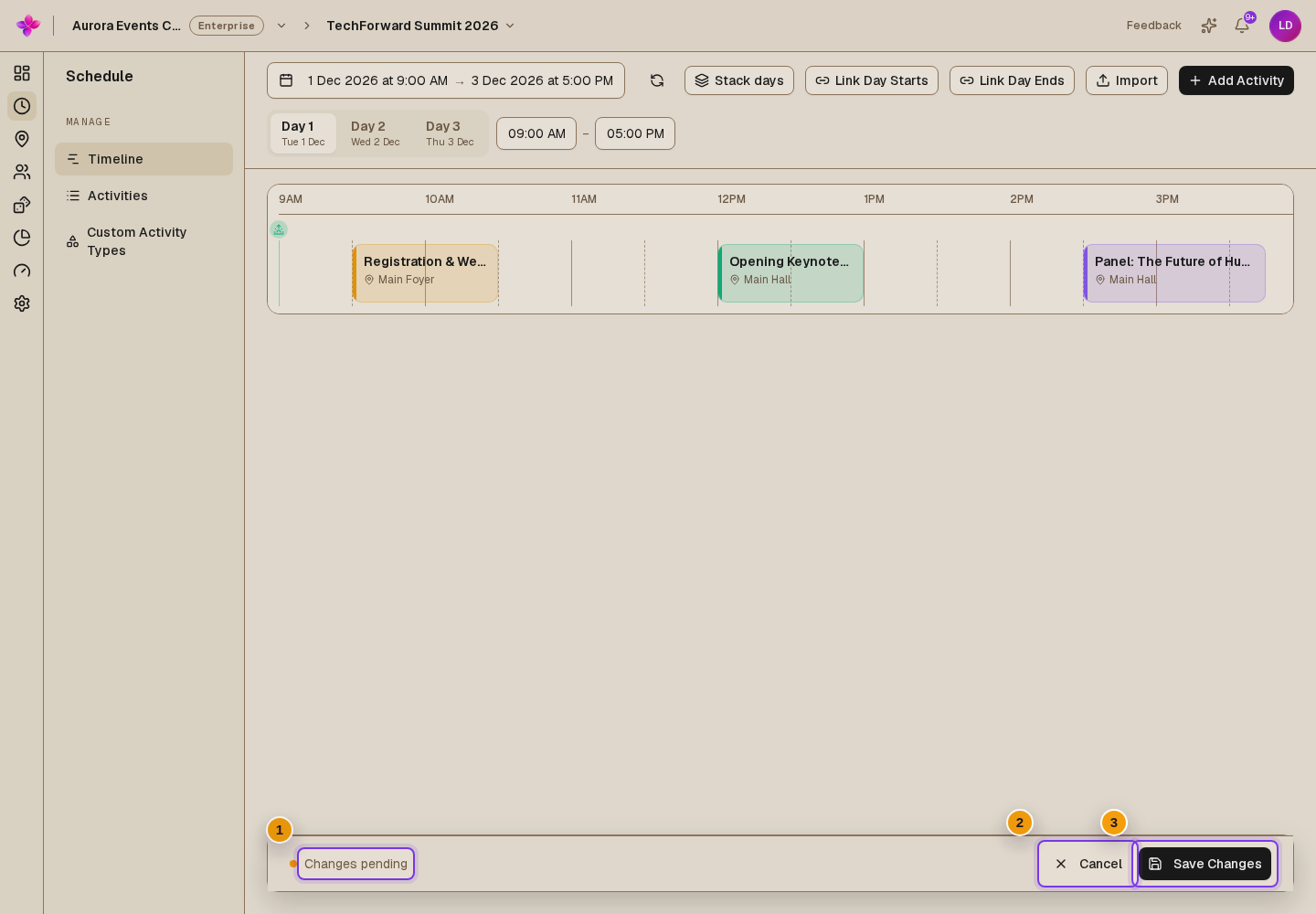
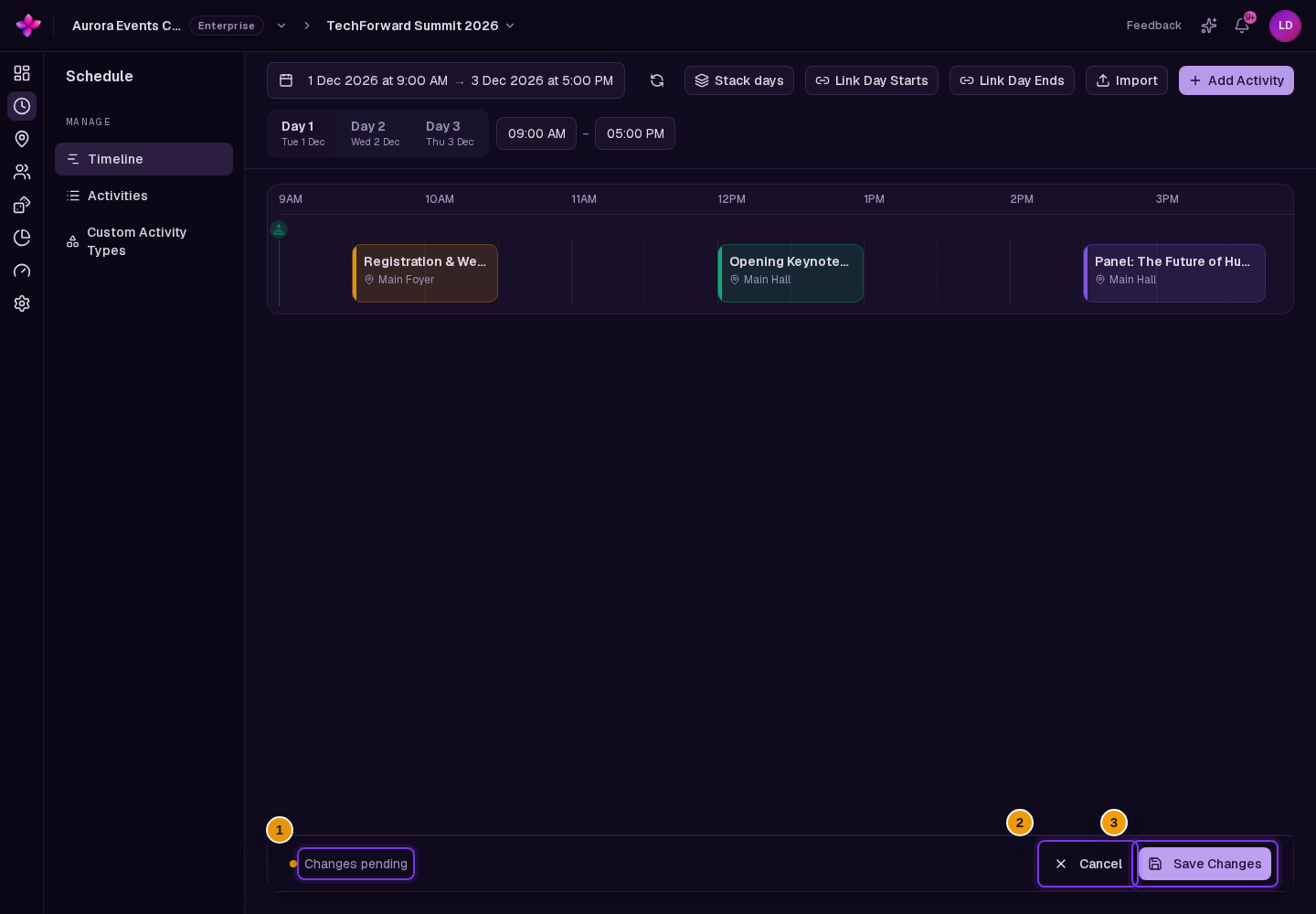
Choose Save Changes to save activity moves, day hours and event-window changes. Choose Cancel to return to the last saved schedule.
If a new event window affects activities or day hours, review Confirm date change before saving it.
Refresh the timeline
Use the refresh button to load the latest saved schedule. If you have unsaved changes, Refresh from database? warns that refreshing will discard them.
If something goes wrong
The timeline asks for event dates and times. Set the event start and end before arranging activities.
A schedule change will not save. Check that the event end is after the start, the event lasts from 30 minutes to 30 days, and each day's start is before its end.
An activity cannot be made shorter. Activities must last at least five minutes and stay within the event start and end.
An active event date cannot be moved far enough. After an event leaves draft status, each end of the event window can move by up to seven days. Contact support for a larger change.