
Save Favourite Sessions and Link Your Calendar
Save sessions you do not want to miss, then filter the timetable or add the schedule to your calendar.
Before you start
You need:
- attendee access to an event;
- at least one scheduled session if you want to save a favourite;
- a calendar app if you want to add or download the schedule.
Save favourite sessions
Open the timetable
Open the event from Attending. The event opens on Timetable.
Save a session
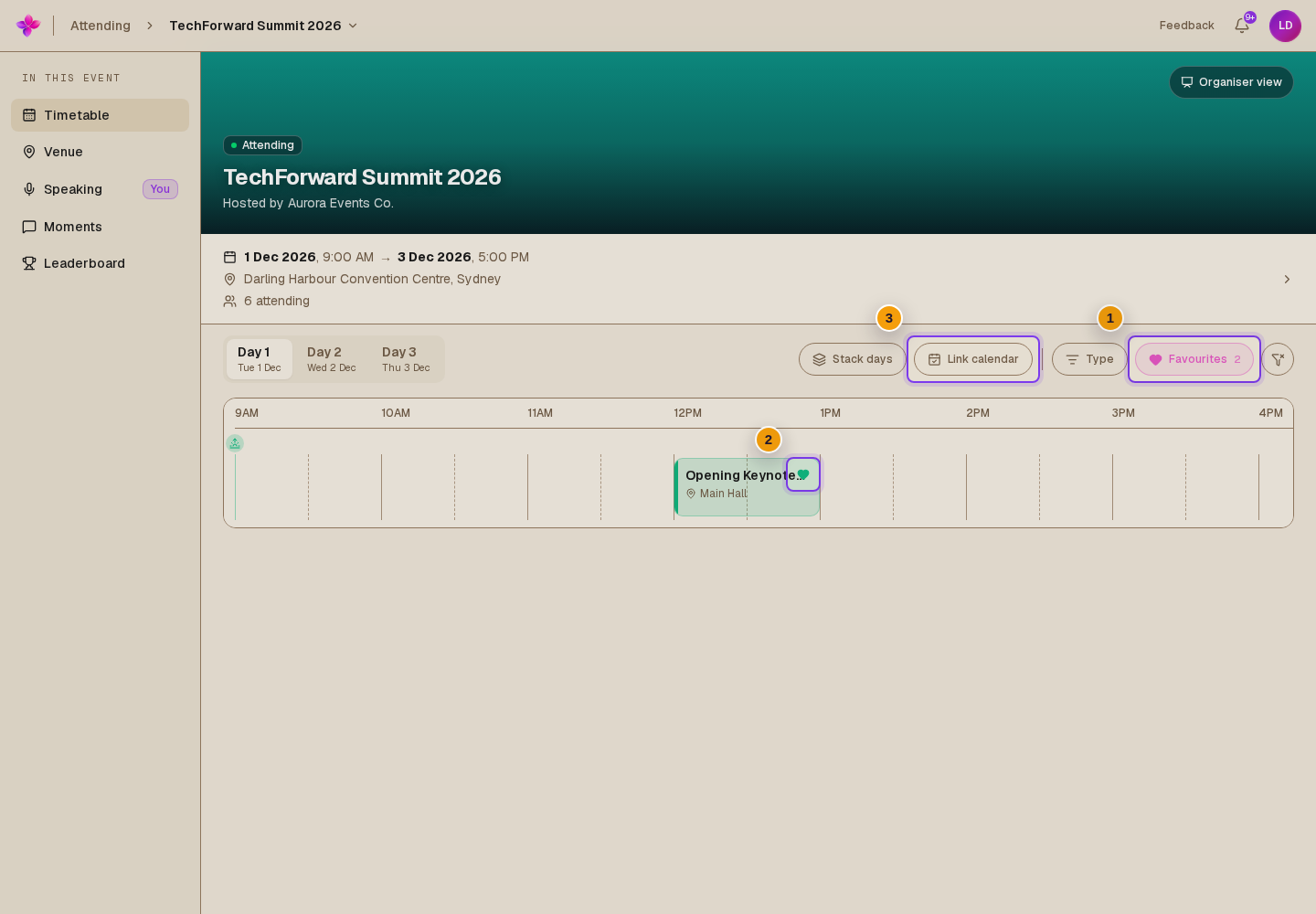
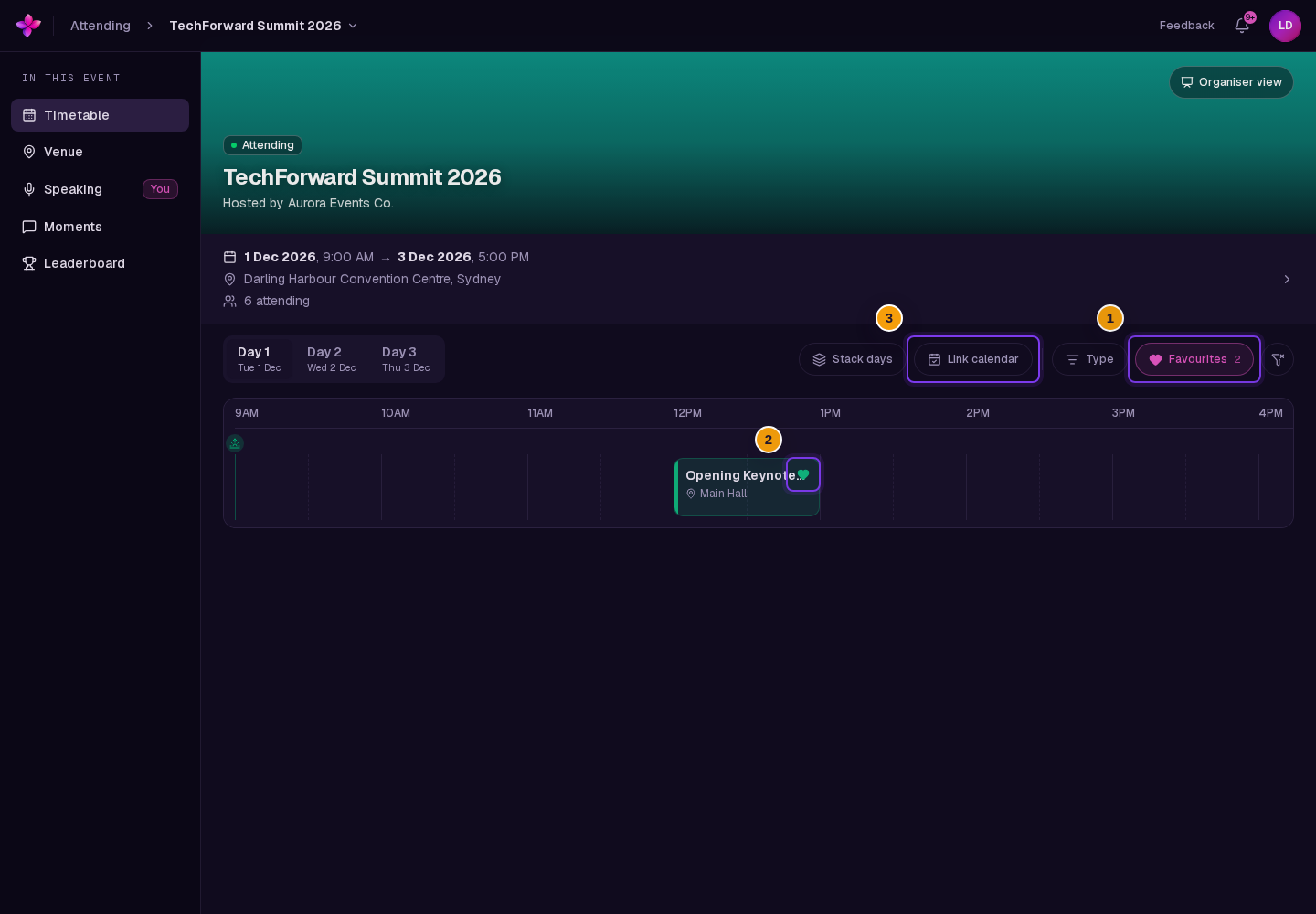
Choose the heart on a session to add it to your favourites. Choose it again to remove the session.
Show only your favourites
Choose Favourites in the timetable toolbar. The button shows how many sessions you have saved. Choose it again, or choose Clear filters, to show the full timetable.
Link your calendar
Open the calendar options
Choose Link calendar in the timetable toolbar.
Choose which sessions to include
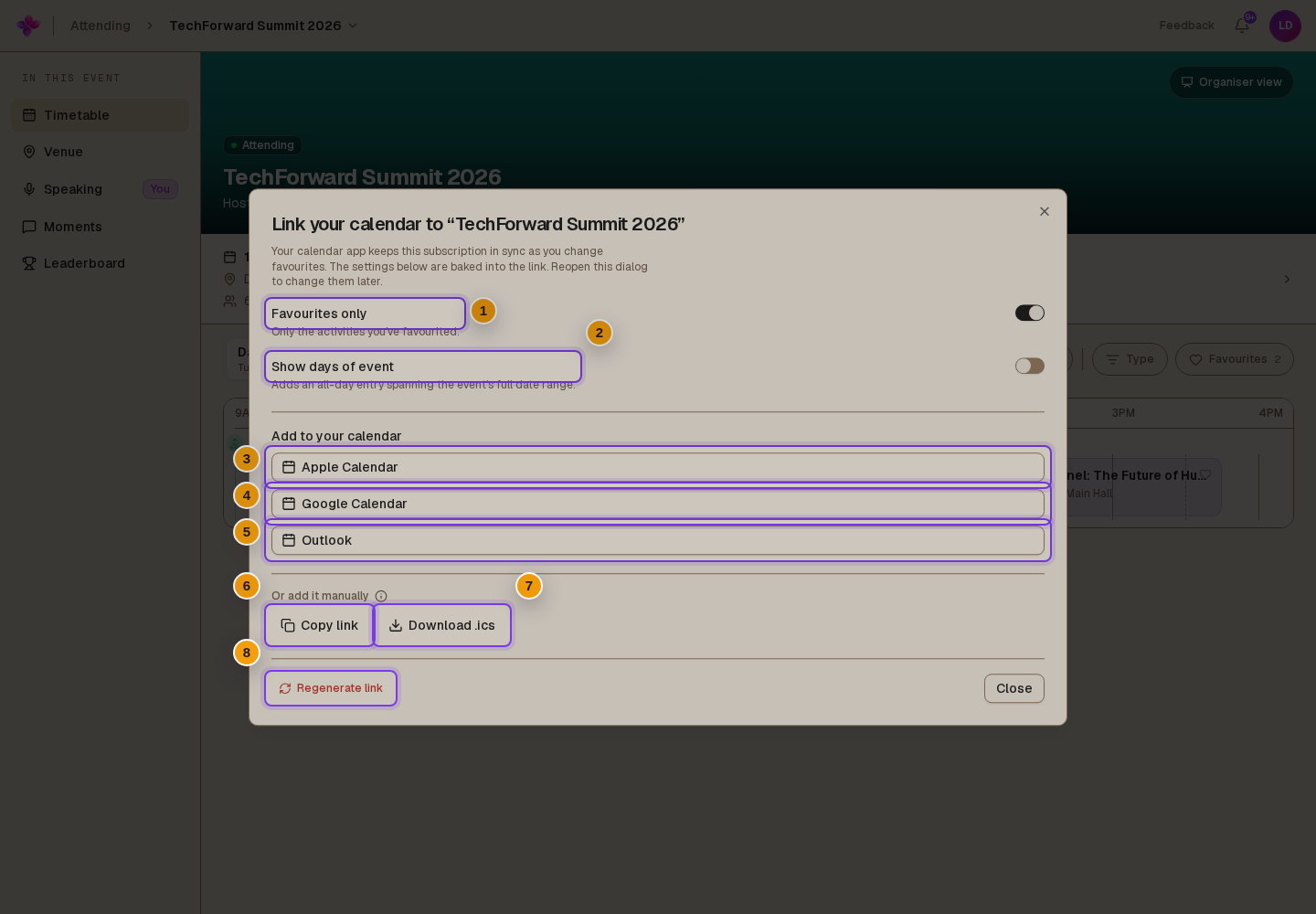
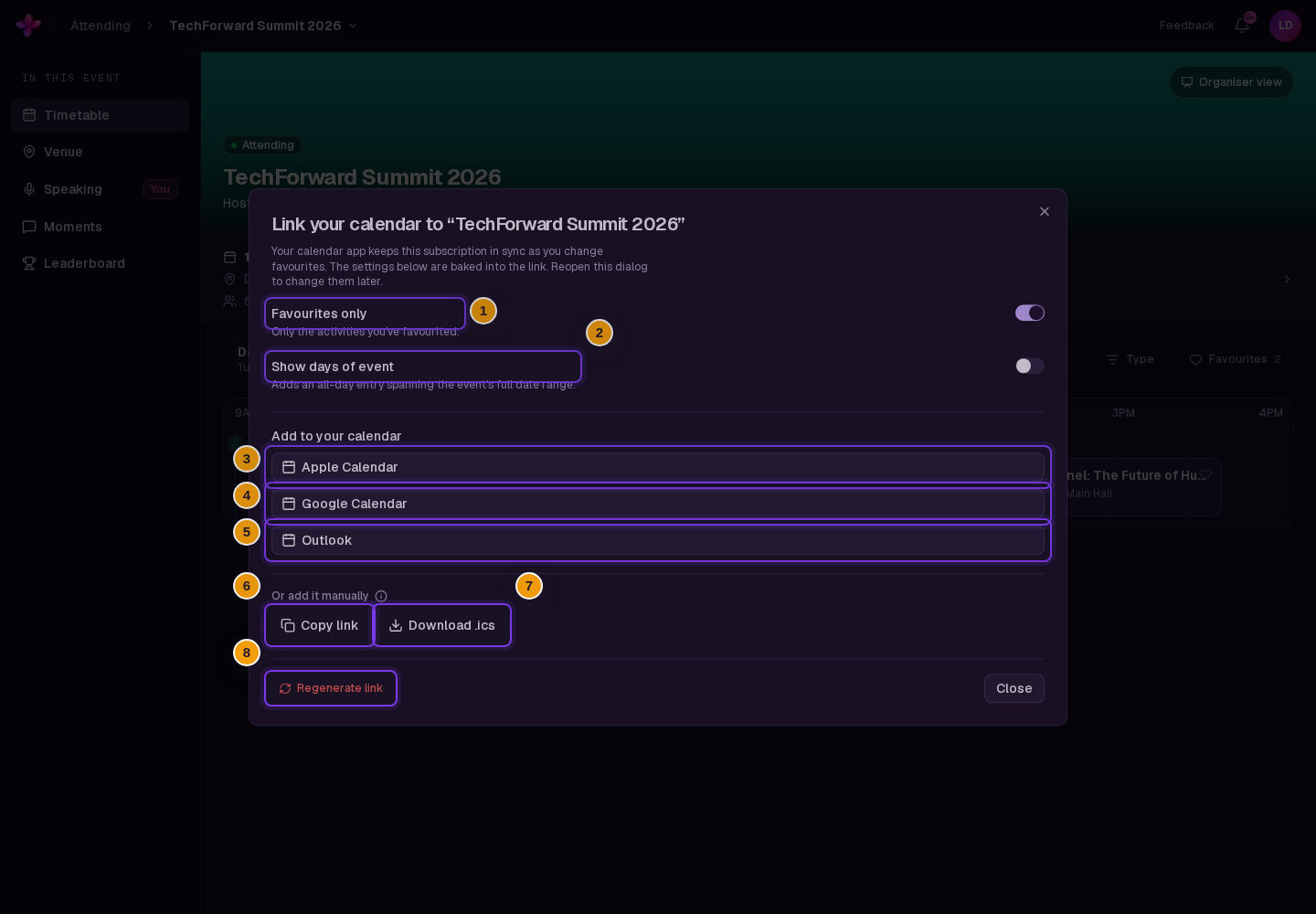
Leave Favourites only on to include only sessions you have saved. Turn it off to include every activity in the event.
Turn on Show days of event to add an all-day entry for the full event date range.
Choose a calendar
Choose Apple Calendar, Google Calendar, or Outlook to add a calendar subscription. The subscription stays in sync when your favourites change.
Use a manual option if needed
Choose Copy link to add the live subscription through your calendar app's add-by-URL option. Choose Download .ics for a one-time snapshot that does not sync later changes.
If something goes wrong
The favourites view is empty. Turn off Favourites or save a session with its heart first.
Your favourites calendar is empty. Save at least one session, or turn off Favourites only before adding the calendar.
Your calendar app does not open. Choose Copy link and add it through your calendar app's add-by-URL option. You can also choose Download .ics for a one-time file.
An old calendar link stopped syncing. If you chose Regenerate link, add the new link to each device again. Existing subscriptions for this event stop syncing, while subscriptions to your other events are unchanged.
Next steps
- View the timetable and event details to browse sessions and open their details.
- View the venue and floor plans to find the event location.