
Import Attendees from a Spreadsheet
Use Import Spreadsheet on Invitations to create invitations from a CSV or Excel file. Importing here creates invitations; send them separately when you are ready.
Before you start
You need owner, admin or editor access to the organisation. Prepare one row per invitee, with a required Email column and an optional Name column.
Upload the spreadsheet
Open Invitations
From the event, choose Attendees, then Invitations. Choose Download template if you need an example file.
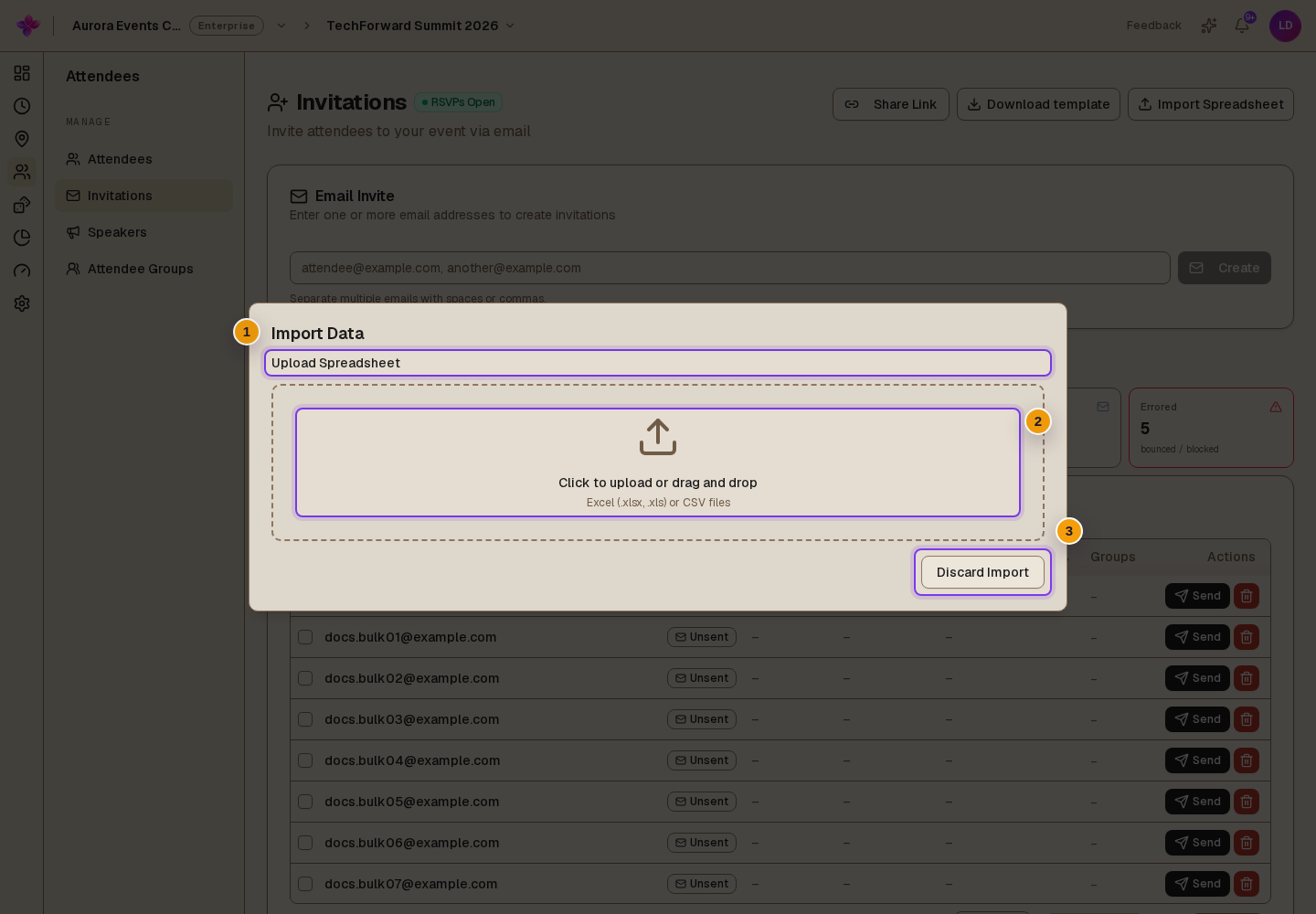
Choose Import Spreadsheet
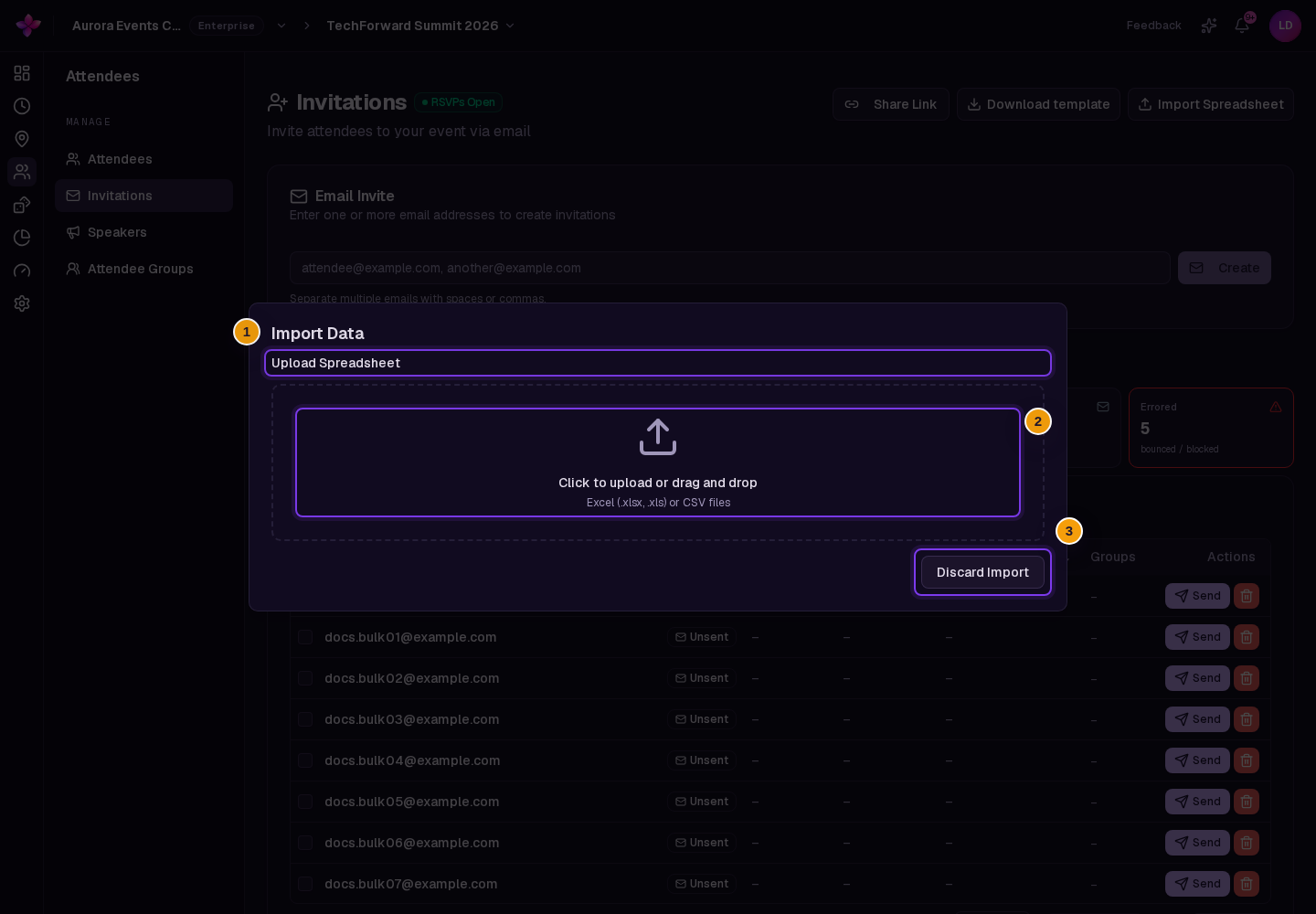
In Import Data, select or drag in your CSV or Excel file.
Choose a sheet if asked
If Select Sheet appears, choose the sheet containing the invitees. Wait while Lylac analyses the file.
Review and import
Check the column mapping
On Review Mapping, check that your email column maps to Email and the name column maps to Name. Review any mapping that needs confirmation and correct the choices if needed.
Correct row errors
Use Errors only to focus on rows with problems. Edit the affected cells in the preview. Required fields must be mapped and all rows must pass validation before you can continue.
Confirm the import
Choose the Import button showing the row count, then Confirm Import. Read the result message and review the new invitations. Existing invitations and duplicate addresses may be skipped.
If something goes wrong
The file cannot be read. Check that it is a valid CSV or Excel file. For a text-encoding error, save it as UTF-8 CSV and try again.
Import is unavailable. Map Email, review the suggested mappings and fix every row error.
The suggested mapping is wrong. Change the mapping controls. You can also choose Let Data Buddy try again when that option is available.