
Let Speakers Update Their Own Profile
A speaker can edit their event profile without an organiser role. Their signed-in account must match the speaker profile, and they must have a place at the event. Being invited or waitlisted alone is not enough.
Before you start
Create the speaker profile with the email address the person uses to sign in. You need owner, admin or editor access to create or correct that profile and send invitations.
Help the speaker get access
Create the speaker profile
Add or import the speaker from Attendees, then Speakers. Check the email address.
Send the invitation and check attendance
Send the invitation from Invitations. Ask the speaker to accept using the matching account. If the event is full, they may be waitlisted and cannot use speaker self-editing until they have a place.
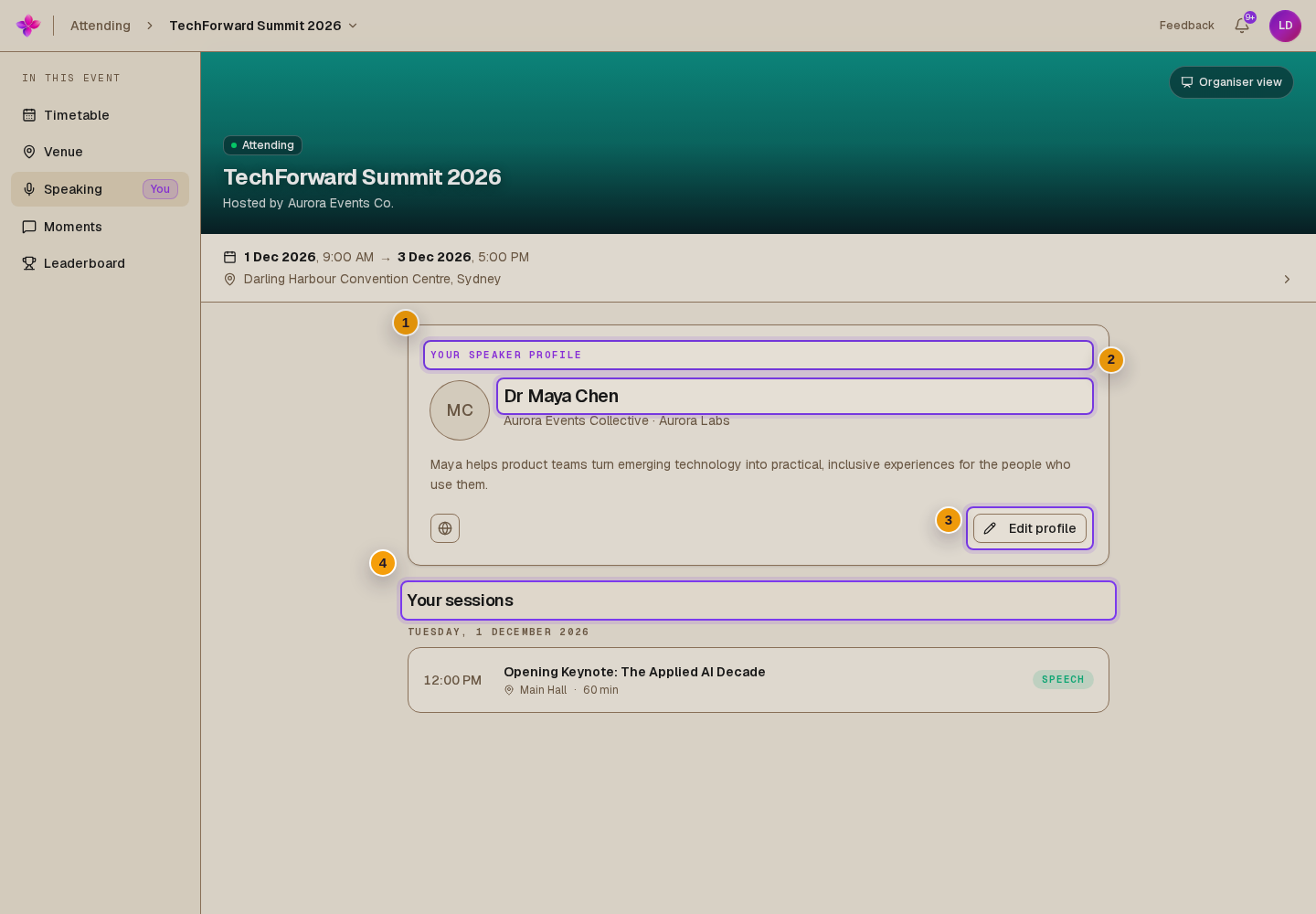
Open Speaking
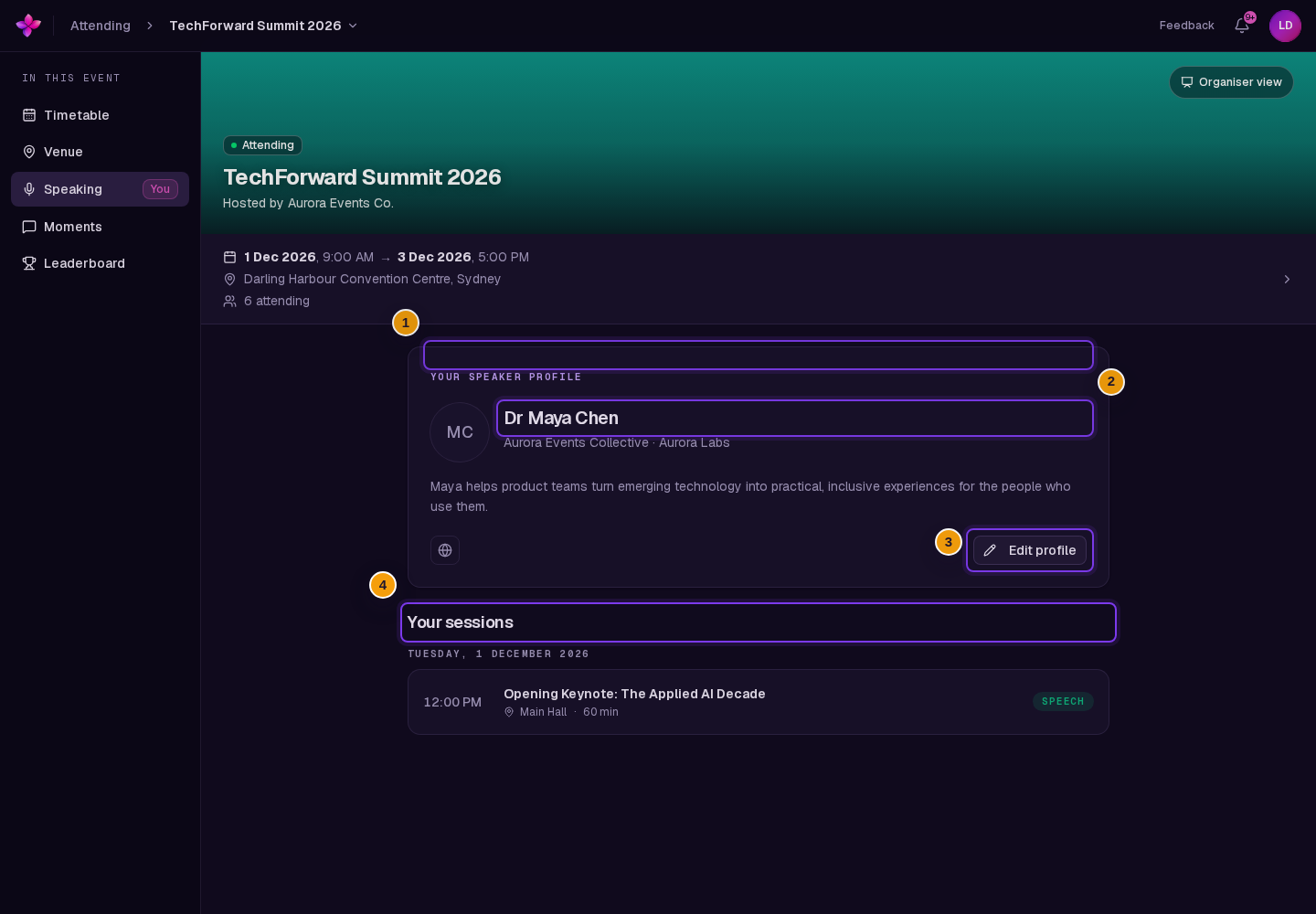
Once they can access the attendee event, ask them to choose Speaking, then Edit profile under Your speaker profile.
Save the changes
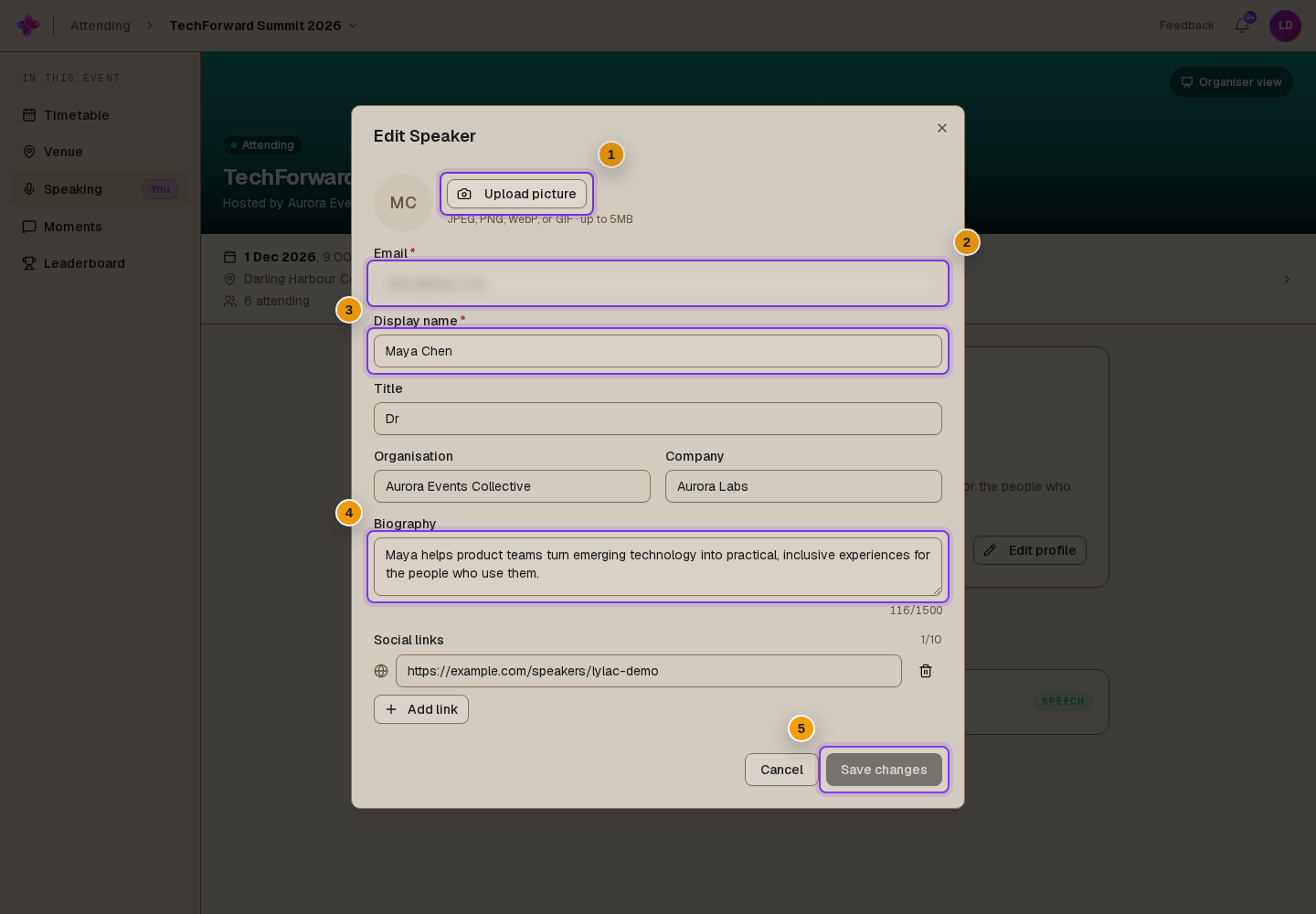
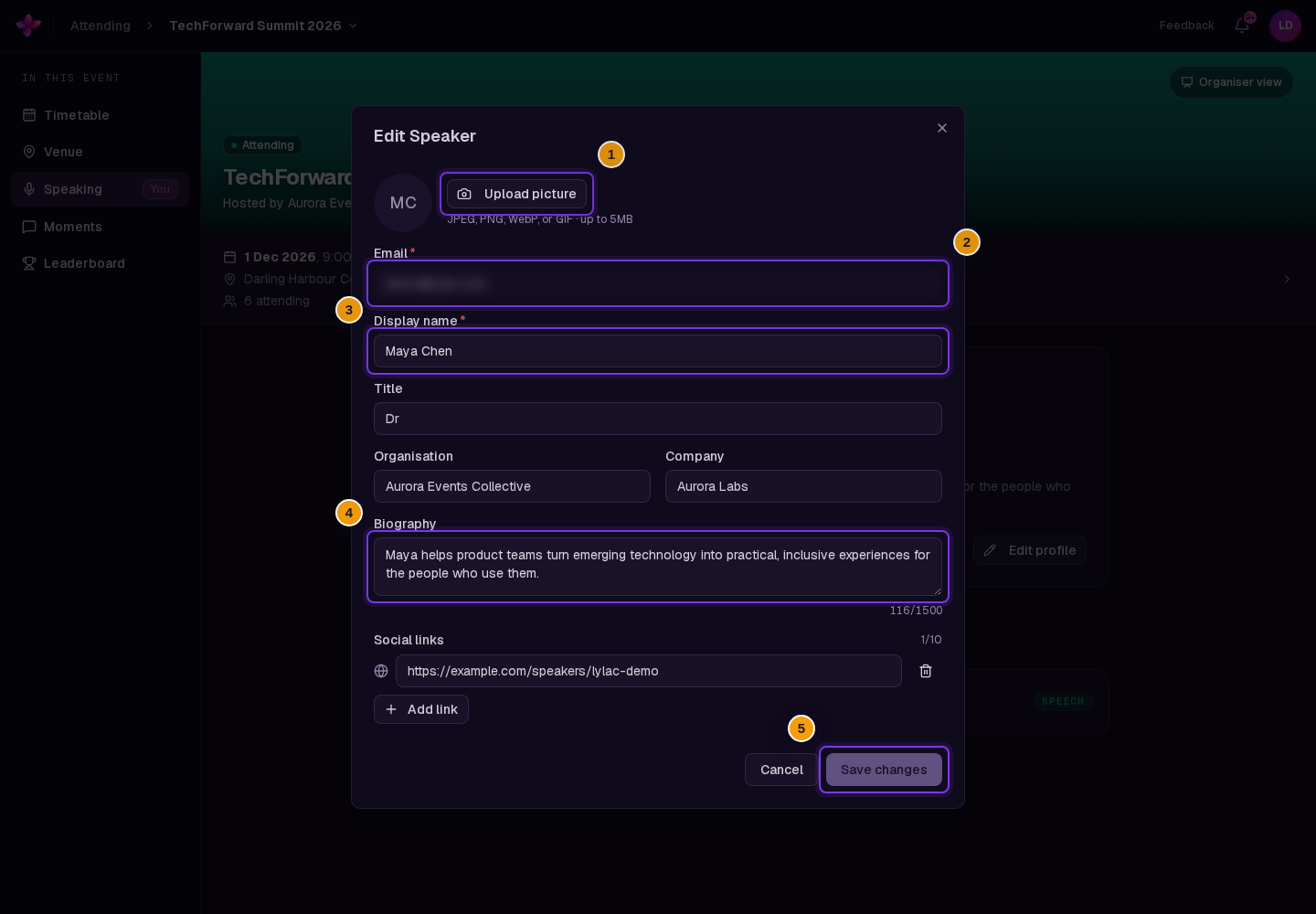
The speaker can edit display name, title, organisation, company, biography and social links. They can choose Upload picture or Change picture, then Save changes. The Email field stays locked.
If something goes wrong
Speaking or Edit profile is missing. Check that the signed-in email matches the speaker profile and that the person is attending, rather than still invited or waitlisted.
The email address is wrong. An organiser with edit access must correct it on Speakers. Check Invitations separately for the correct address before sending again.
Save changes is disabled. Edit a field or choose a new picture first.
A picture is rejected. Use JPEG, PNG, WebP or GIF. Try a smaller image if the upload fails.