
Create and Configure an Event
New events are saved as drafts. You can prepare a draft even when your organisation has used its published event allowance.
For a shorter walkthrough, see Create your first event.
Before you start
You need owner, admin or editor access to the organisation. Have the event name, location, dates, times and timezone ready. A description and banner are optional.
Create a draft
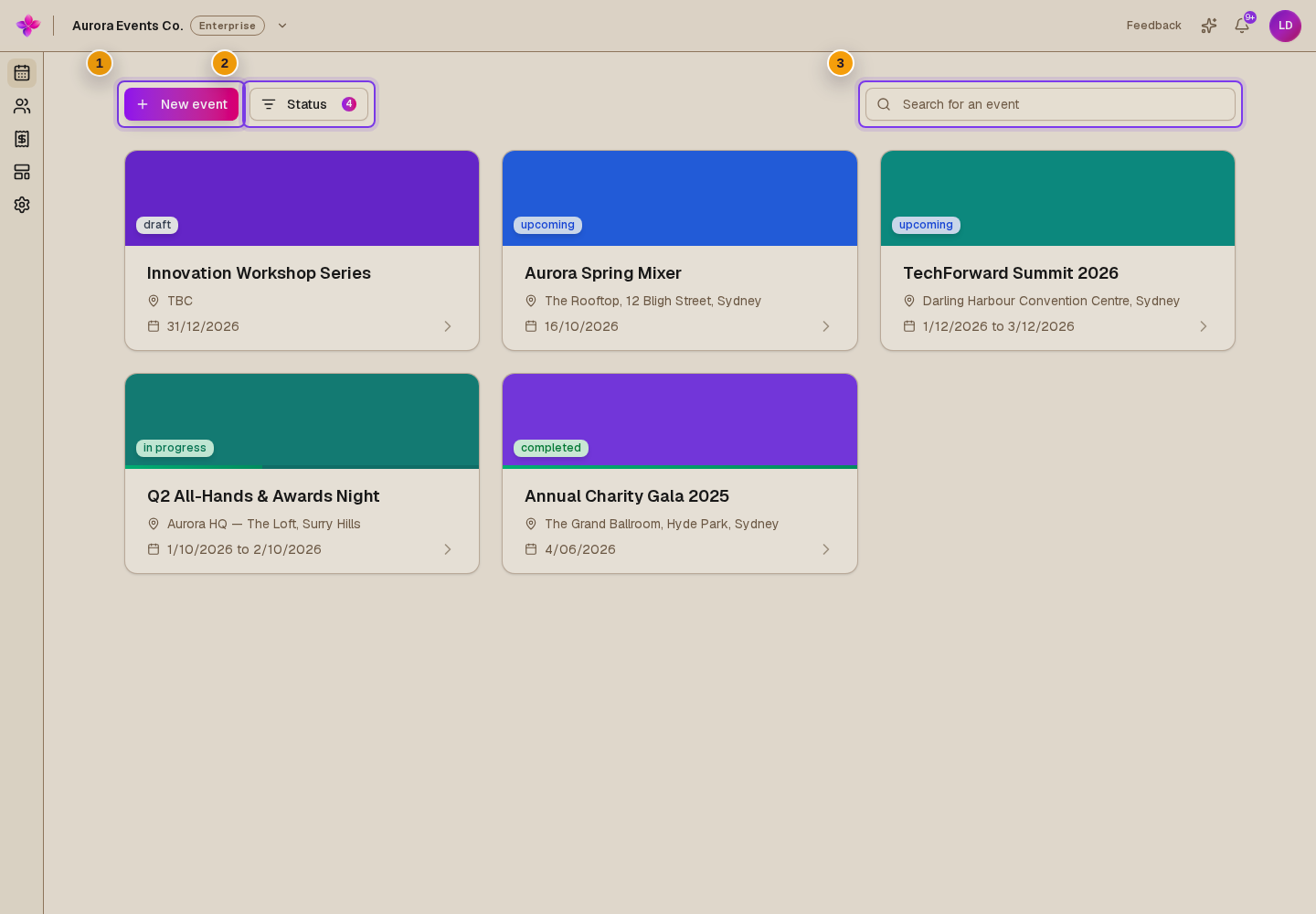
Open the organisation events dashboard
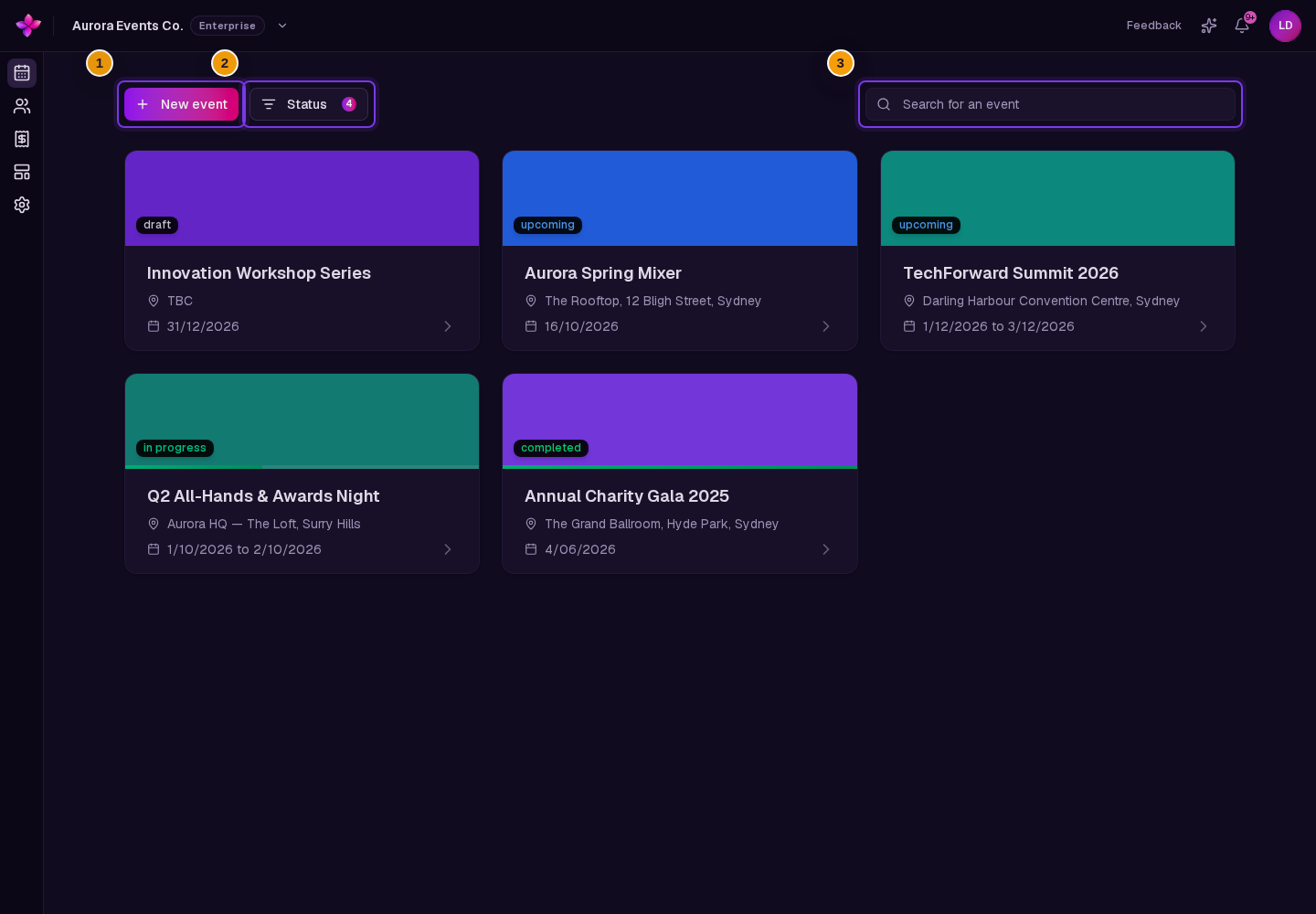
Check existing events with Search for an event and the Status filter. Choose New event.
Enter the event details
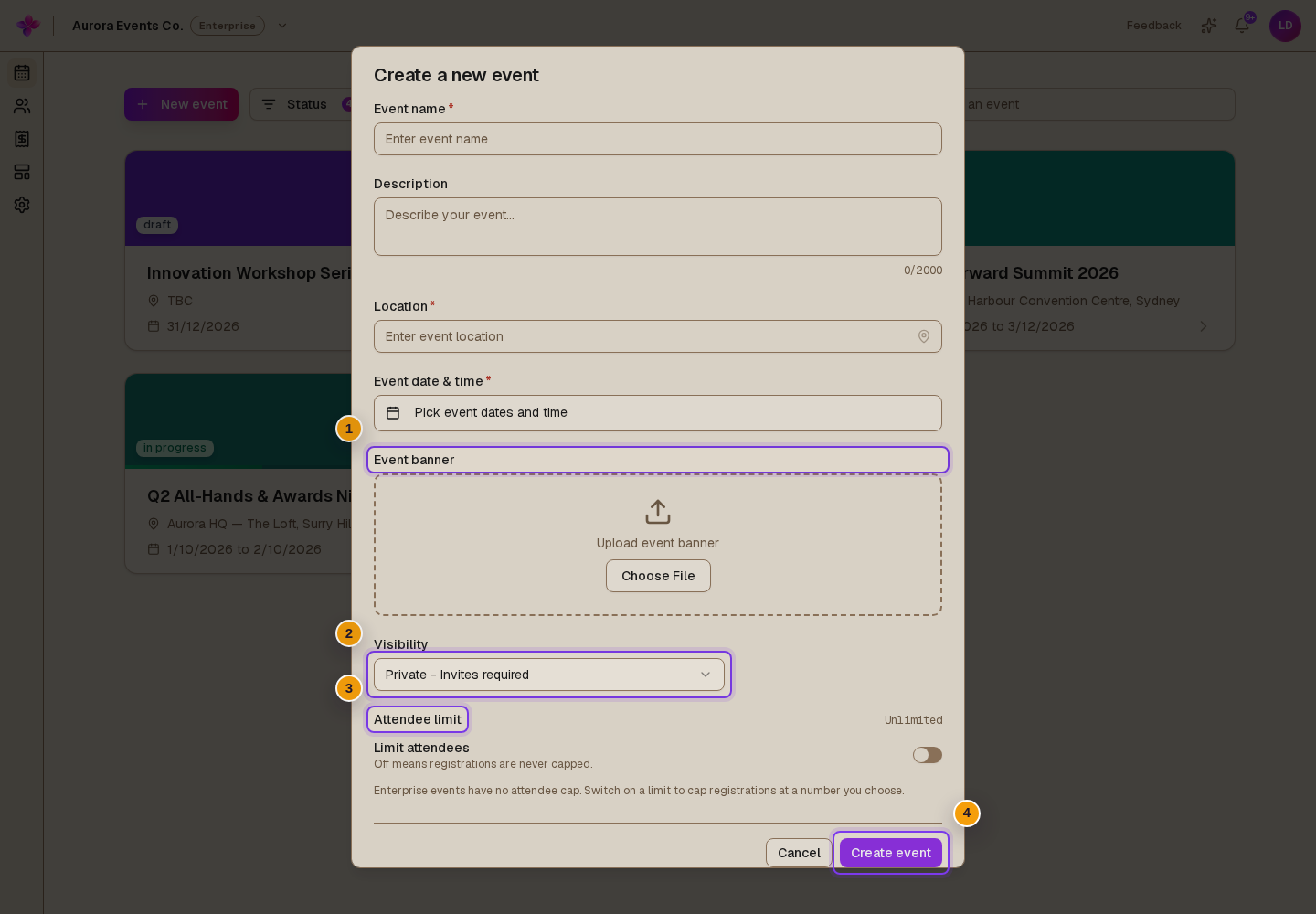
Fill in Event name, Location and Event date & time. Check the start time, end time and timezone. Add a Description if needed.
Choose the event settings
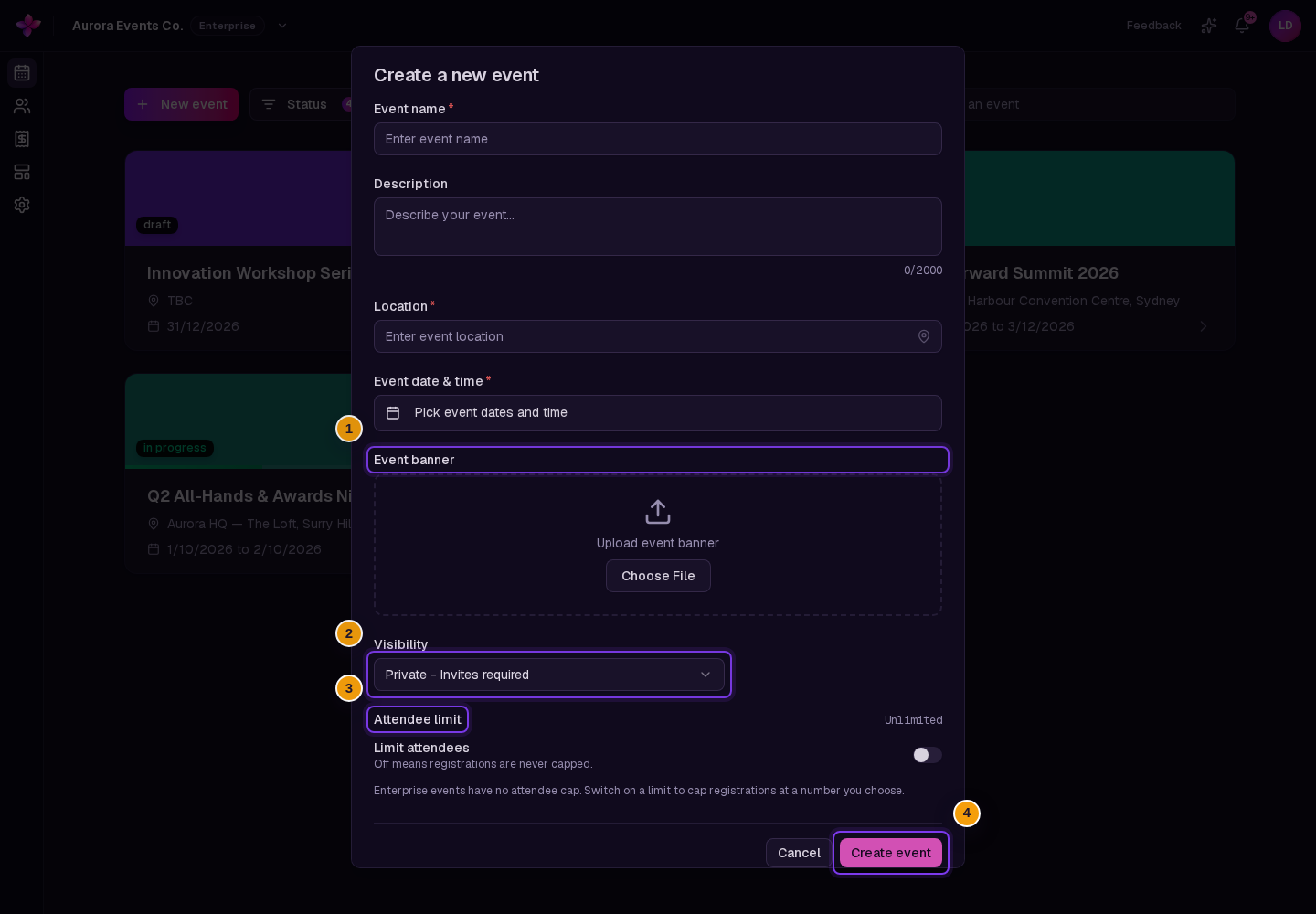
Under Visibility, choose the private or public option. Private events require invitations. Set an Attendee limit if you want fewer people than the plan allows. You can also choose an Event banner.
Save the draft
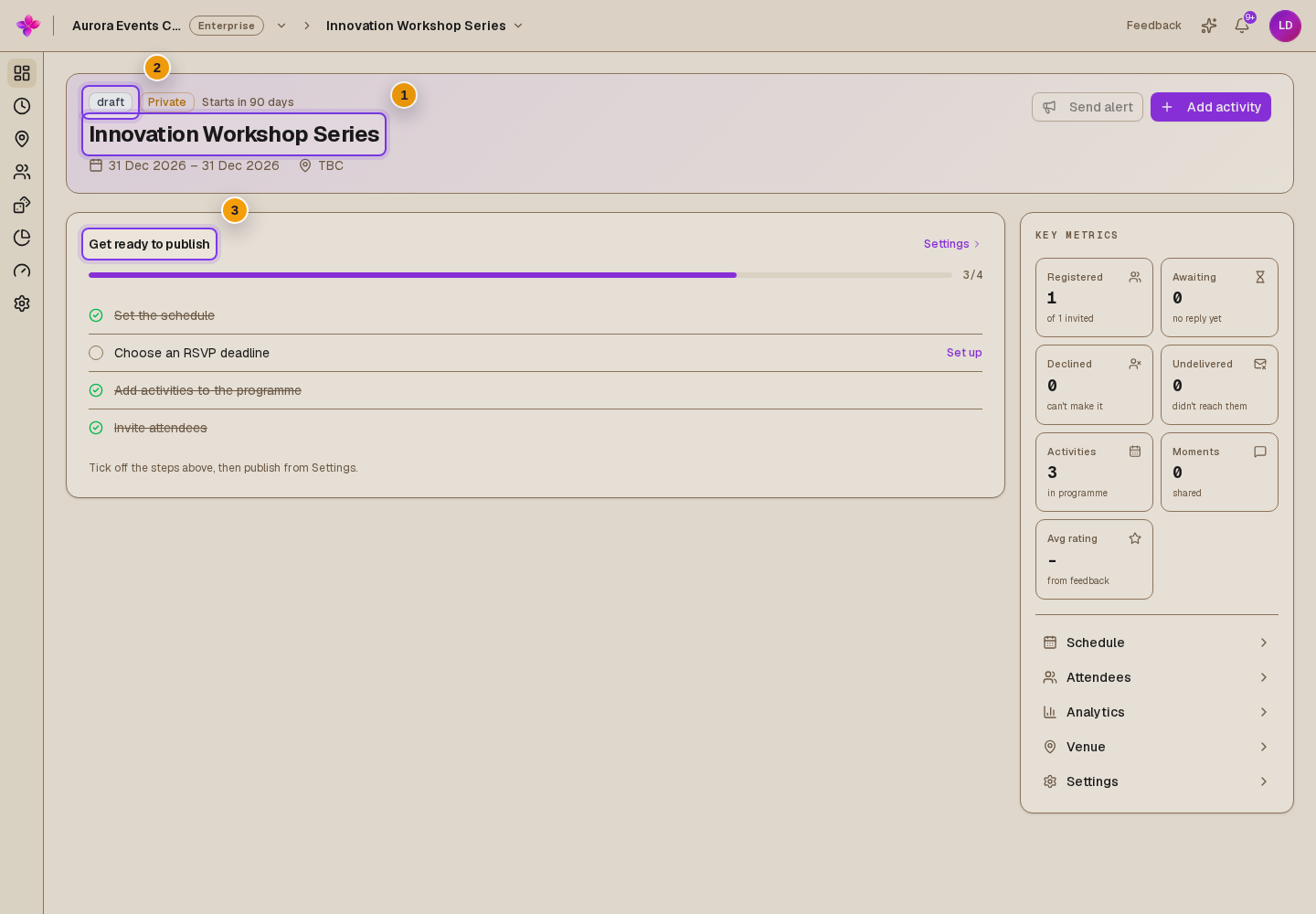
Choose Create free event, Create event or Save as draft, depending on your plan and event allowance. Lylac opens the event overview. Publishing is a separate step.
Finish the setup
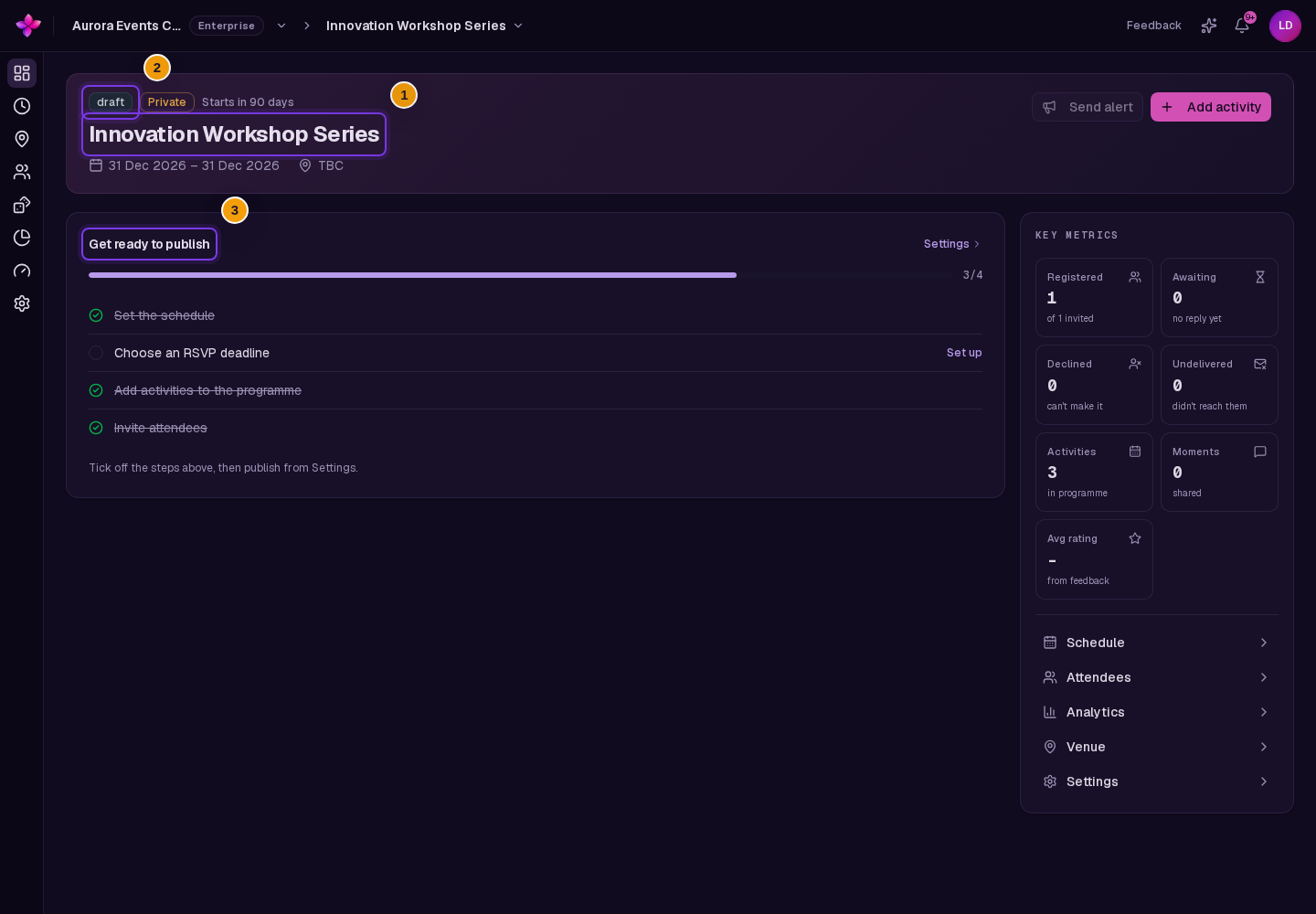
From the event navigation, use Schedule for dates and activities, Venue for the location and floor plans, and Event settings for details, registration, branding and publishing. The draft overview also shows Get ready to publish.
If something goes wrong
The form does not create the event. Check the field messages after submitting. Events must last at least 30 minutes and no more than 30 days.
Your event allowance is used up. You can still save a draft. Review the publishing message when you are ready to make it live.
The banner is rejected. Use JPEG, PNG, GIF or WebP. Try a smaller image, or add the banner after creating the event.