
Cannot Publish an Event
Publishing moves an event out of Draft. Lylac checks its schedule, RSVP deadline and the organisation's event allowance before the change is saved.
Before you start
You need:
- owner or admin access to the organisation;
- an event with Draft status;
- a start time and an end time, with the end time still in the future;
- an RSVP deadline policy saved in Event settings.
Review and clear publishing problems
Open Event settings
Open the draft event, then open Event settings. Find the Status card.
Open the publishing check
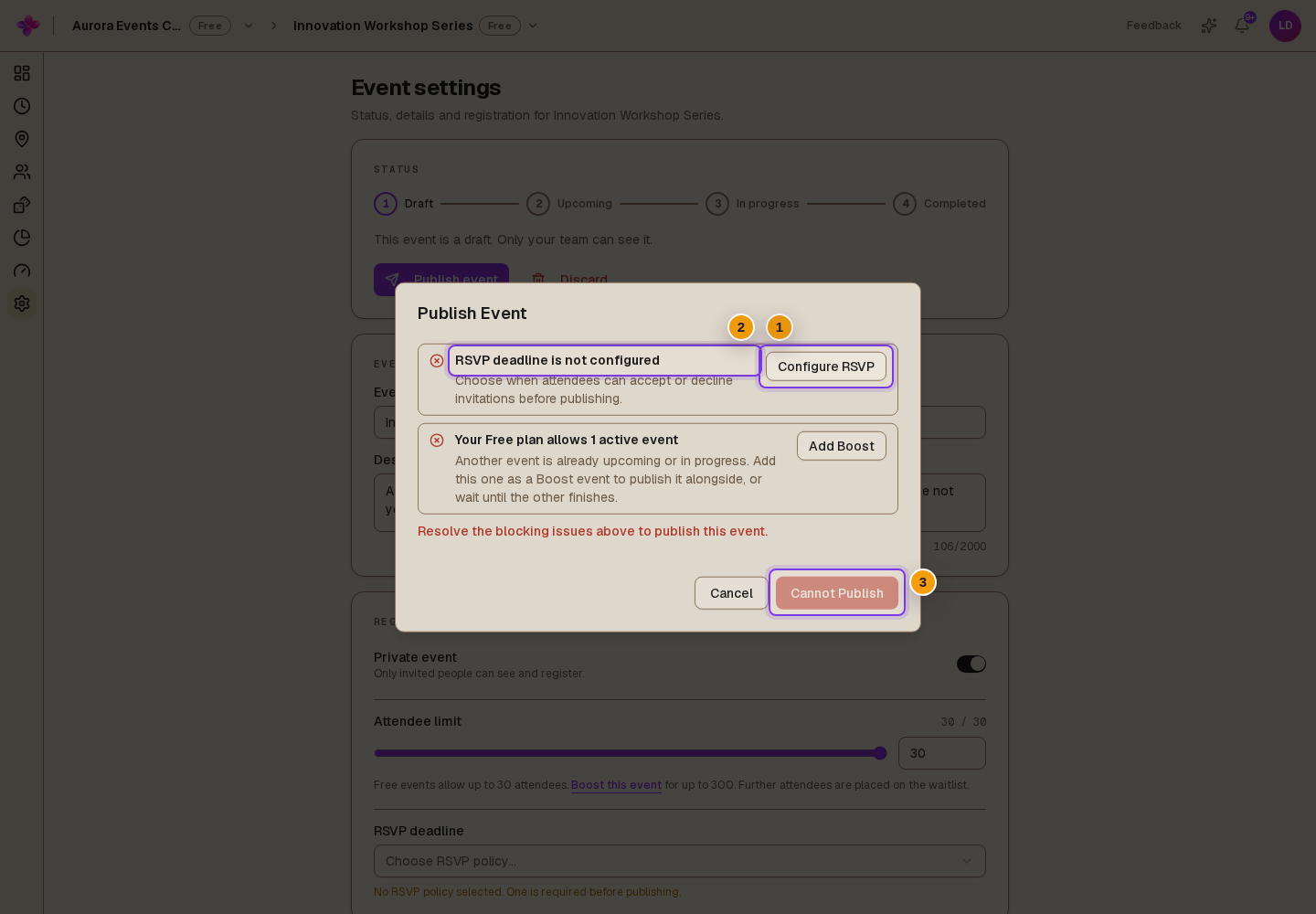
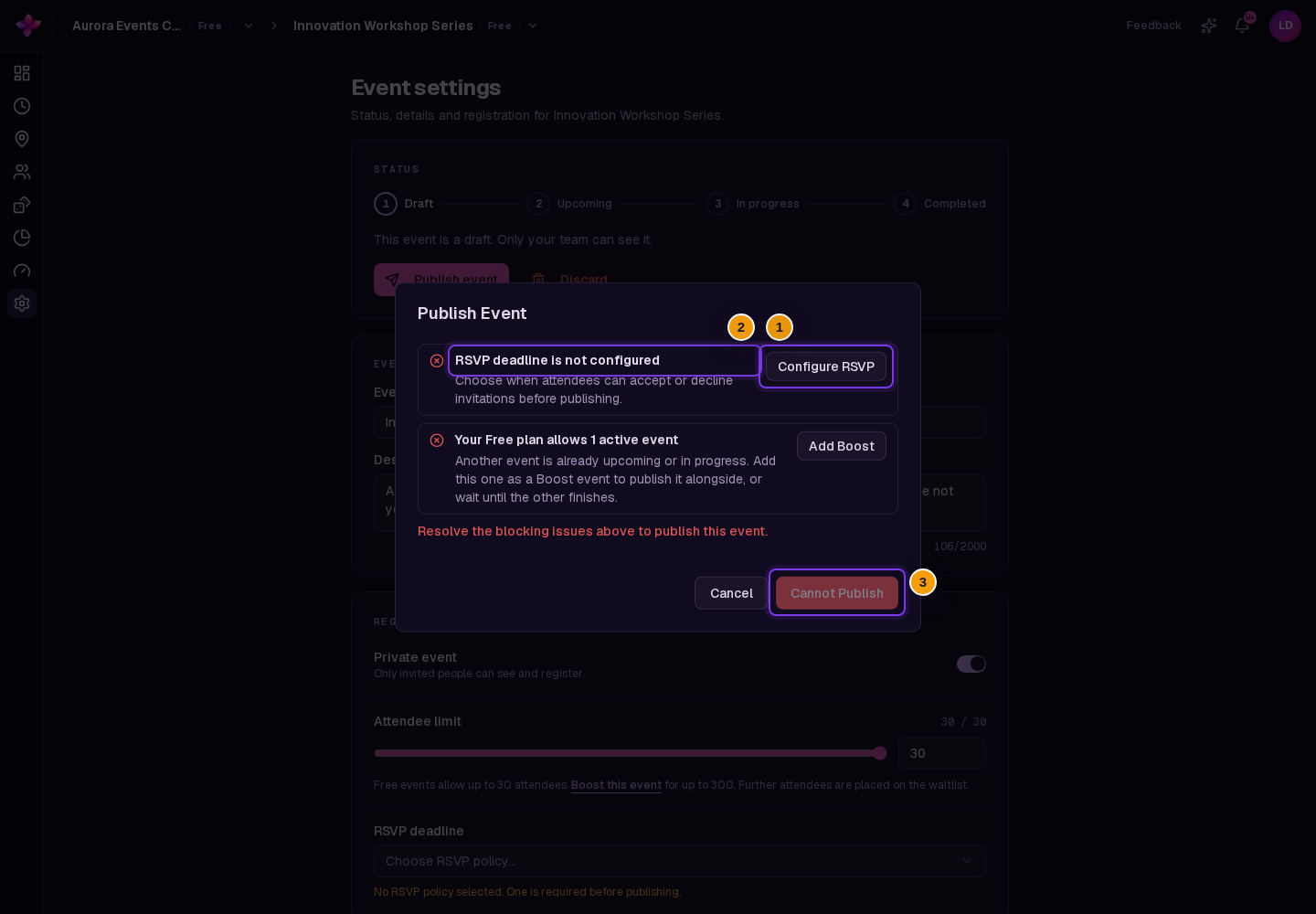
Choose Publish event. The Publish Event dialog checks for warnings and blockers.
Resolve every blocker
Use the fix button shown beside each problem:
- Configure RSVP for a missing RSVP deadline policy;
- Edit schedule for an end time or RSVP deadline in the past;
- Add Boost when another Free event already uses the active event allowance;
- Buy event slot when a Team organisation has used its event allowance for the billing year.
The disabled action reads Cannot Publish until every blocker is cleared.
Review warnings and publish
A past start time is a warning when the end time is still in the future. Check the schedule, then choose Publish Anyway if it is intentional. With no warnings, choose Publish.
Common publishing blockers
RSVP deadline is not configured. Choose Configure RSVP. Select Allow RSVP during event, Must RSVP before event starts or Custom deadline (days before event), then choose Save changes before publishing again.
The event has no start or end time. Open Schedule and add both times. Lylac cannot publish without them.
End time is in the past. Choose Edit schedule and move the end time into the future.
RSVP deadline is in the past. Update the schedule or RSVP policy so the deadline is still open, save the change, then try again.
The Free plan allowance is full. Choose Add Boost, or wait until the other active event finishes before publishing this draft.
The Team event allowance is full. Choose Buy event slot, complete the purchase, then return to the draft and choose Publish event again.
Publishing is refused because of your role. Only organisation owners and admins can publish. Ask one of them to publish the event or update your role.
Next steps
- Follow Publish an event for the full workflow.
- Review Event statuses for lifecycle changes.
- See Plans and inclusions for event allowances.