
Manage the Event Banner
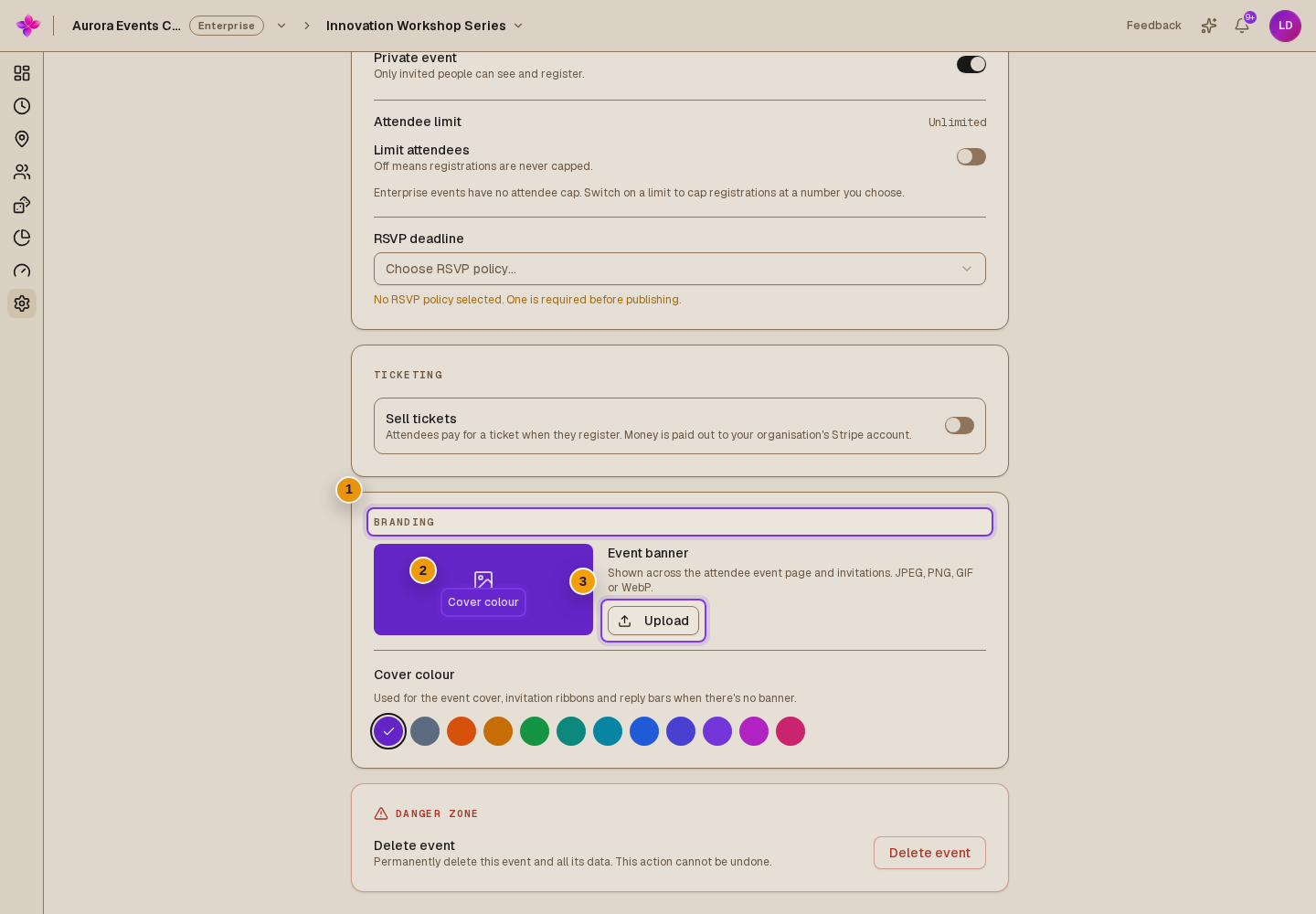
The event banner appears on the attendee event page and invitations. Manage it in Branding under Event settings.
Before you start
You need owner, admin or editor access to the organisation. Use a JPEG, PNG, GIF or WebP image. Lylac checks and compresses the image before upload.
Upload or replace a banner
Choose an image
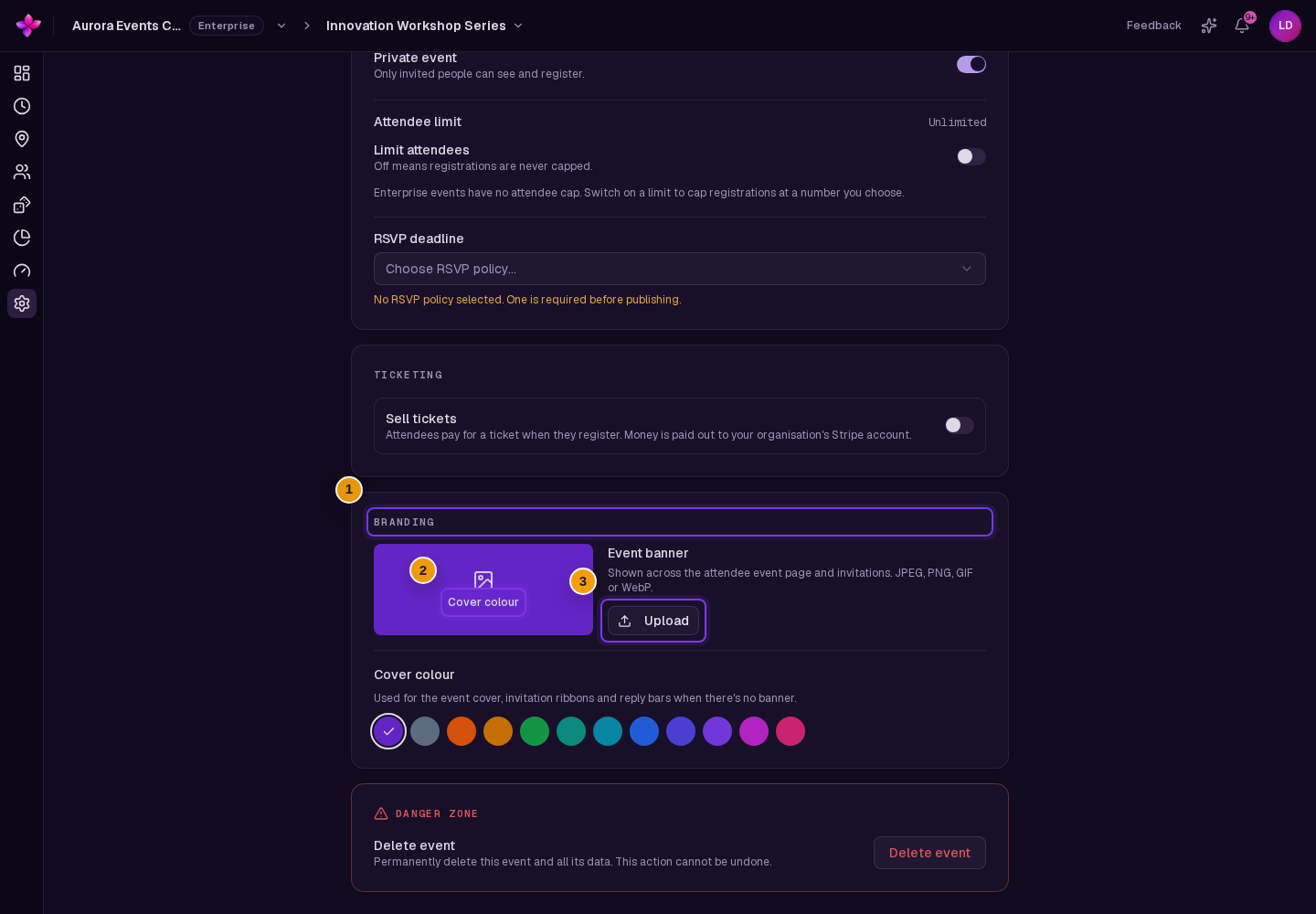
Open Event settings, find Branding, then choose Upload. You can upload a replacement while a saved banner is still present.
Review the preview
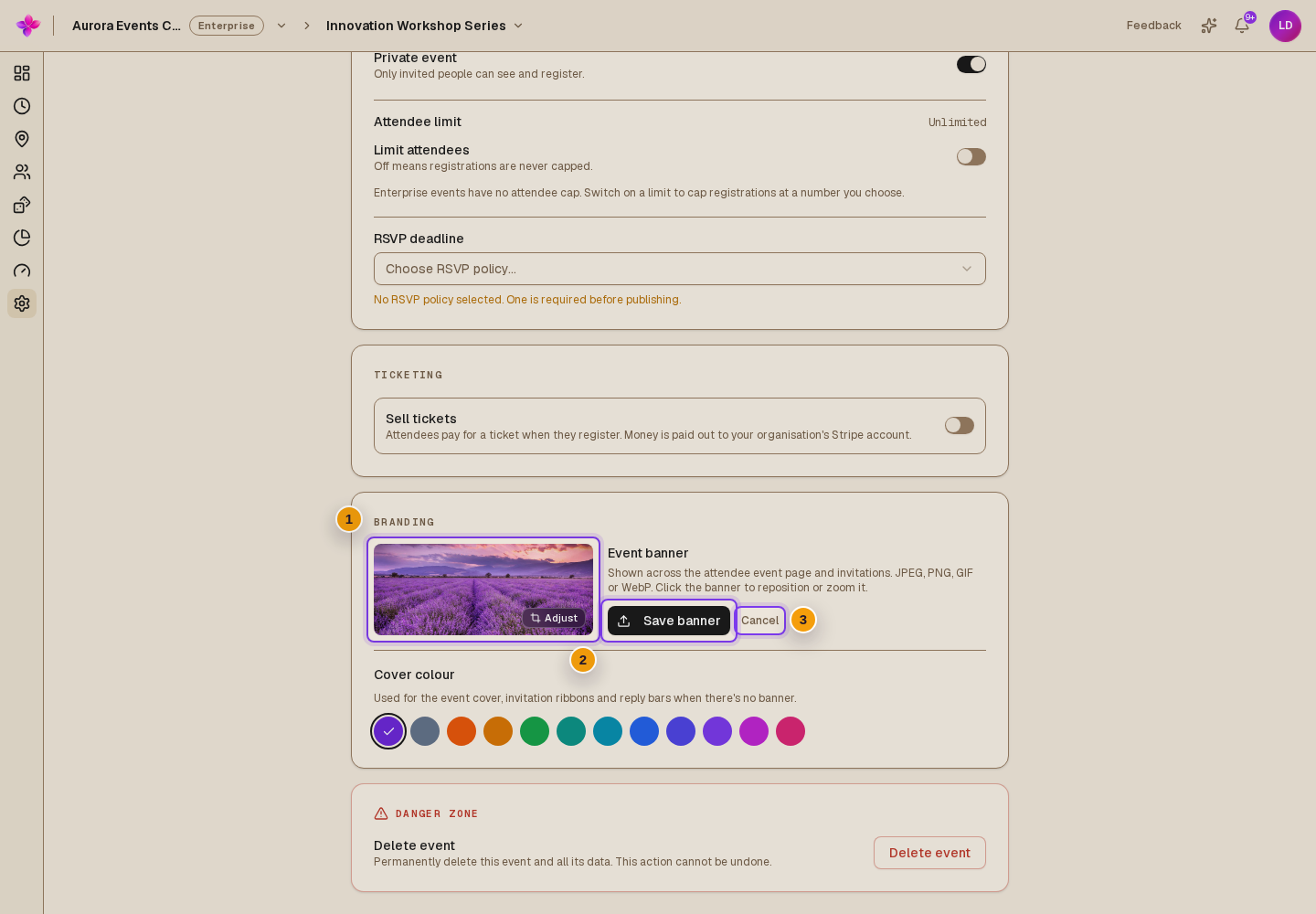
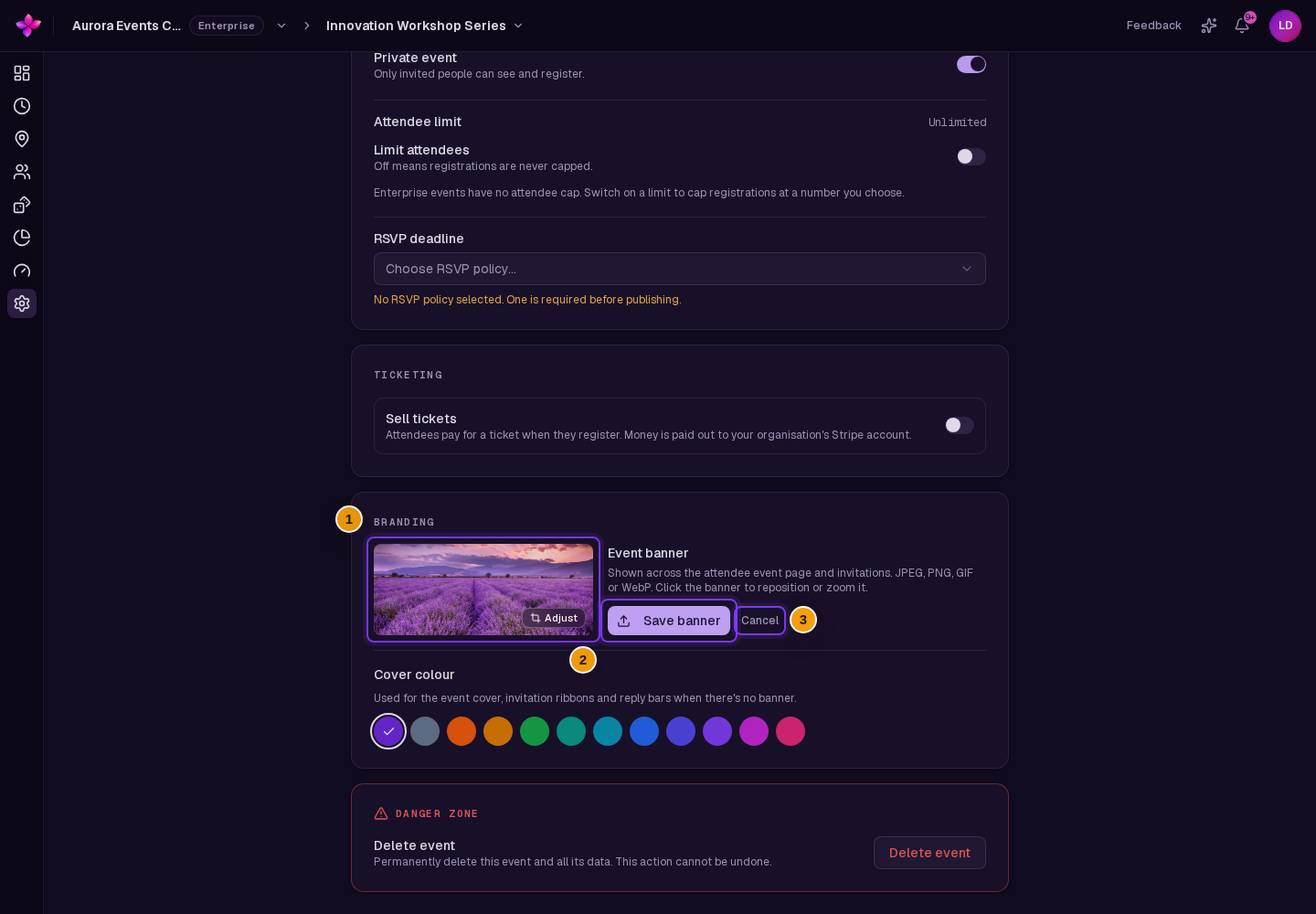
Check the selected image. Choose Cancel beside Save banner to discard the selection and return to the saved banner.
Save the banner
Choose Save banner. Banner uploads save separately from the settings save bar.
Adjust the position
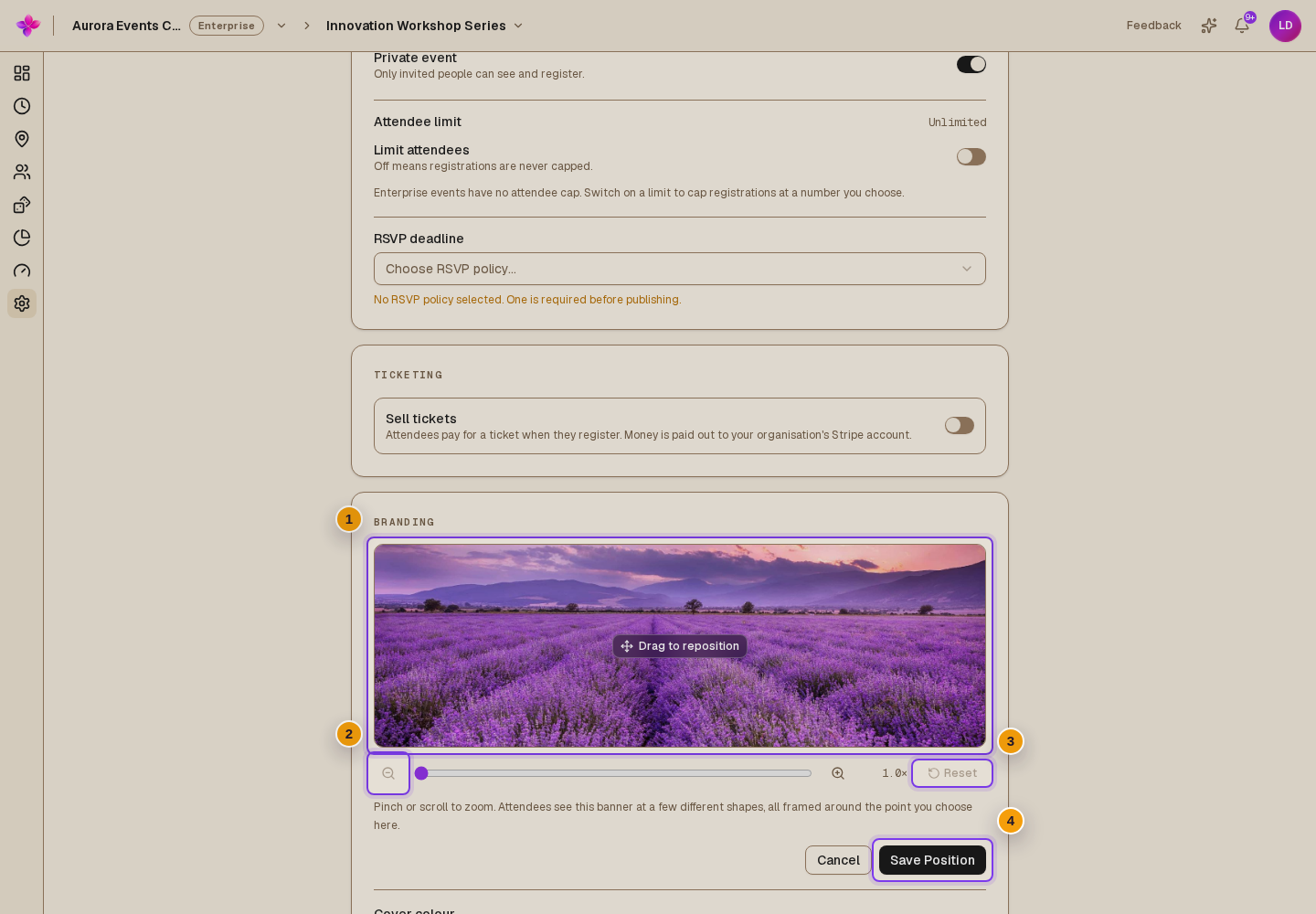
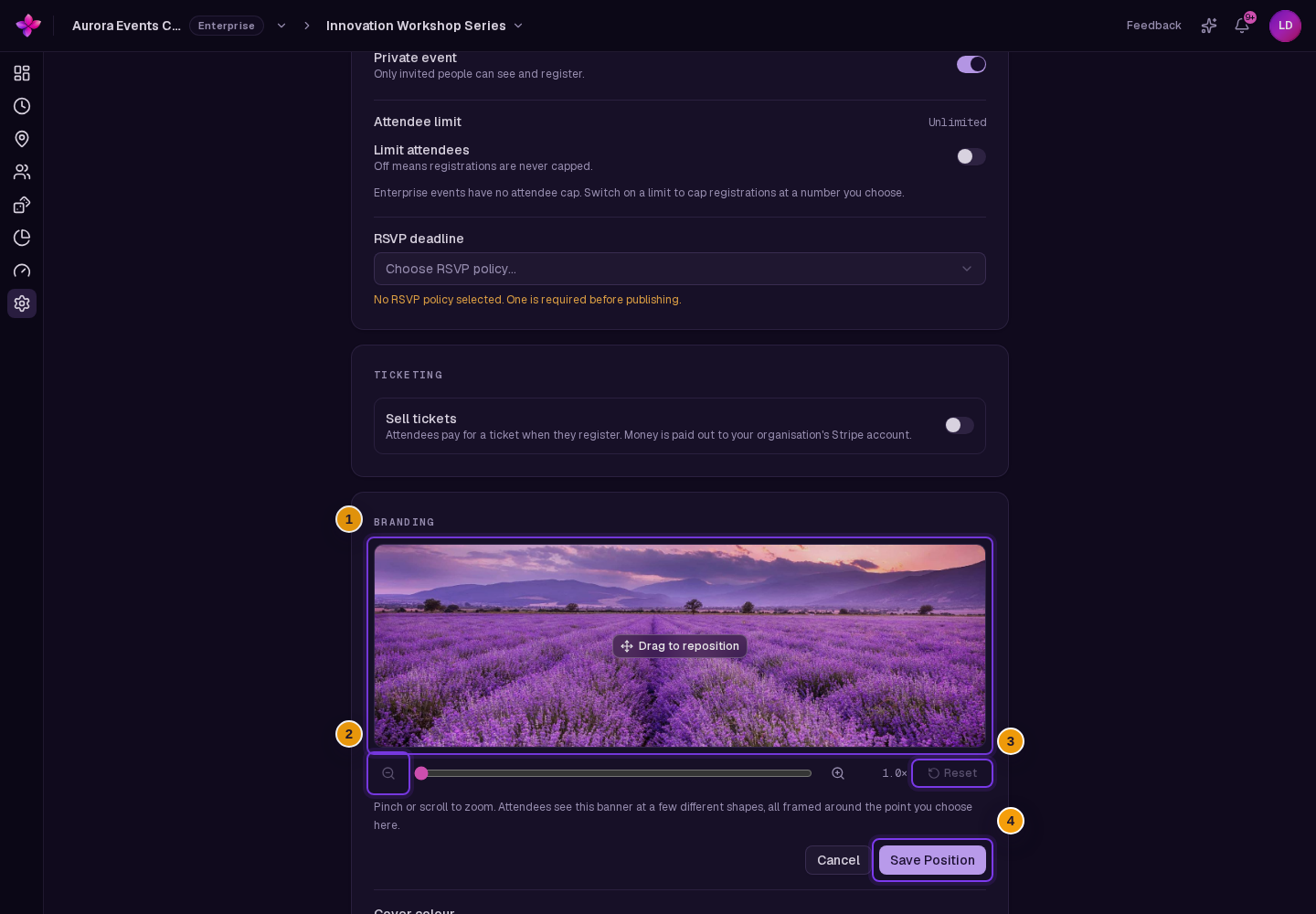
Choose the banner preview to open the position controls. Drag the image and adjust the zoom, then choose Save Position. If you are adjusting a newly selected image, also choose Save banner to upload it.
Remove a banner
Choose Remove beside a saved banner. Read Remove banner, then choose Delete. Without a banner, the event uses its cover colour. To change that colour, choose a swatch under Cover colour, then Save changes.
If something goes wrong
The image is rejected. Check the format and try a smaller file. An image may still be too large after compression.
The old banner returns after Cancel. Cancel discards the new selection. Use Remove to delete the saved banner.