
Manage the Invitation List
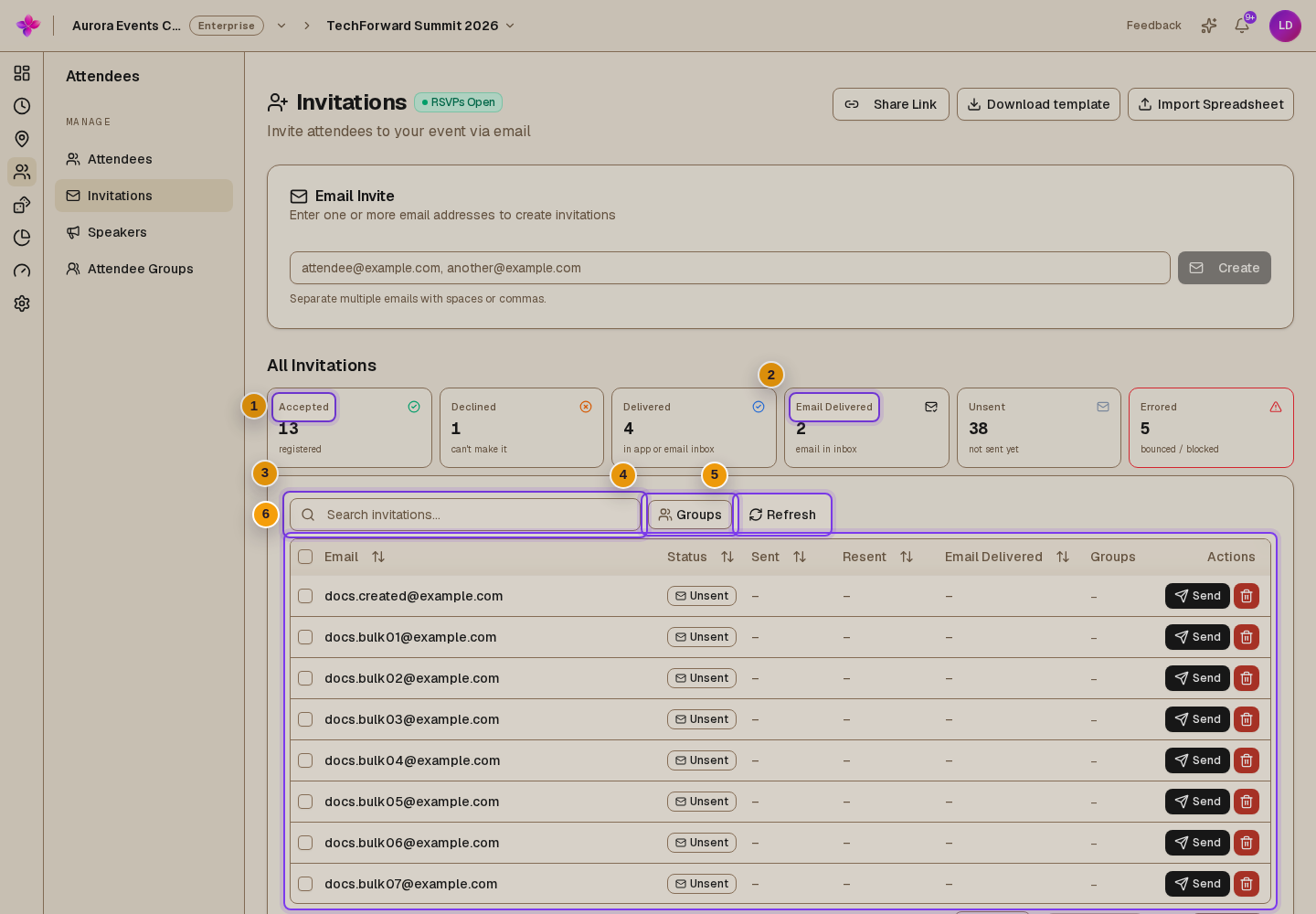
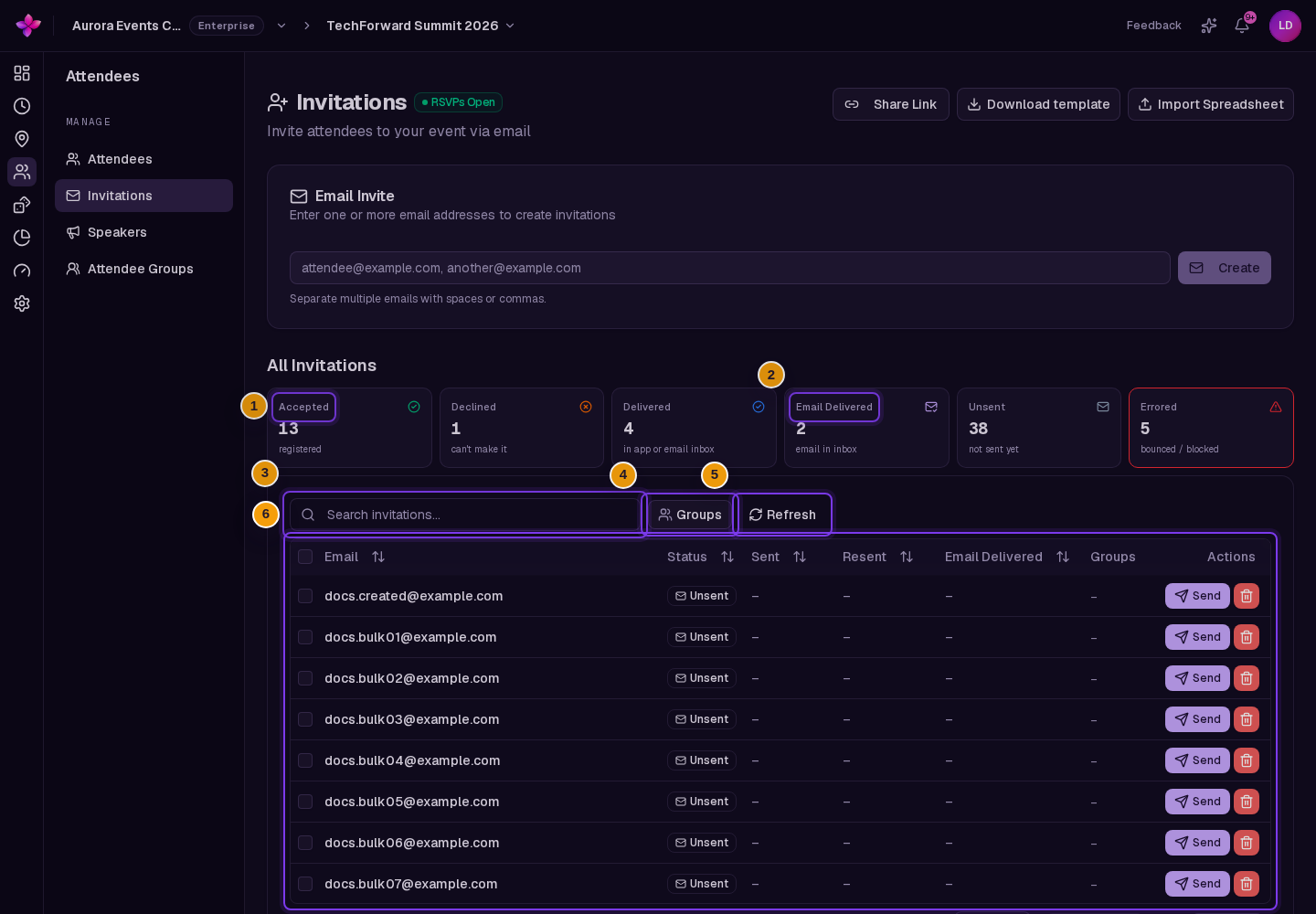
All Invitations shows prepared and sent invitations, responses, delivery information and groups.
Before you start
Owners, admins, editors and viewers can review invitations. You need owner, admin or editor access to send or delete them.
Find invitations
Open the list
From the event, choose Attendees, then Invitations.
Use the summary filters
Choose a summary card such as Accepted, Unsent or Errored to filter the table. Choose the same card again to clear that filter.
Search or filter by group
Use Search invitations to find an address. Open Groups to select one or more groups.
Refresh the results
Choose Refresh to reload the latest responses and delivery information.
Read the columns
| Column | Meaning |
|---|---|
| The invitation address. | |
| Status | Accepted or Declined takes priority. Otherwise the badge shows delivery information, including In app. |
| Sent | When the organiser first sent the invitation. This does not prove email delivery. |
| Resent | When the organiser last resent it. |
| Email Delivered | Confirmed delivery time for the latest invitation email. |
| Groups | The invitation's group memberships. |
| Actions | Send, resend and delete controls. |
Accepted records the response. A person may still be waitlisted if the event is full. Check the Attendees list for attendance. The Delivered summary includes in-app invitations and emails still processing; use Email Delivered when checking confirmed email delivery.
Remove invitations
Select the invitation
Use the row delete action for one invitation, or select several rows and choose Delete.
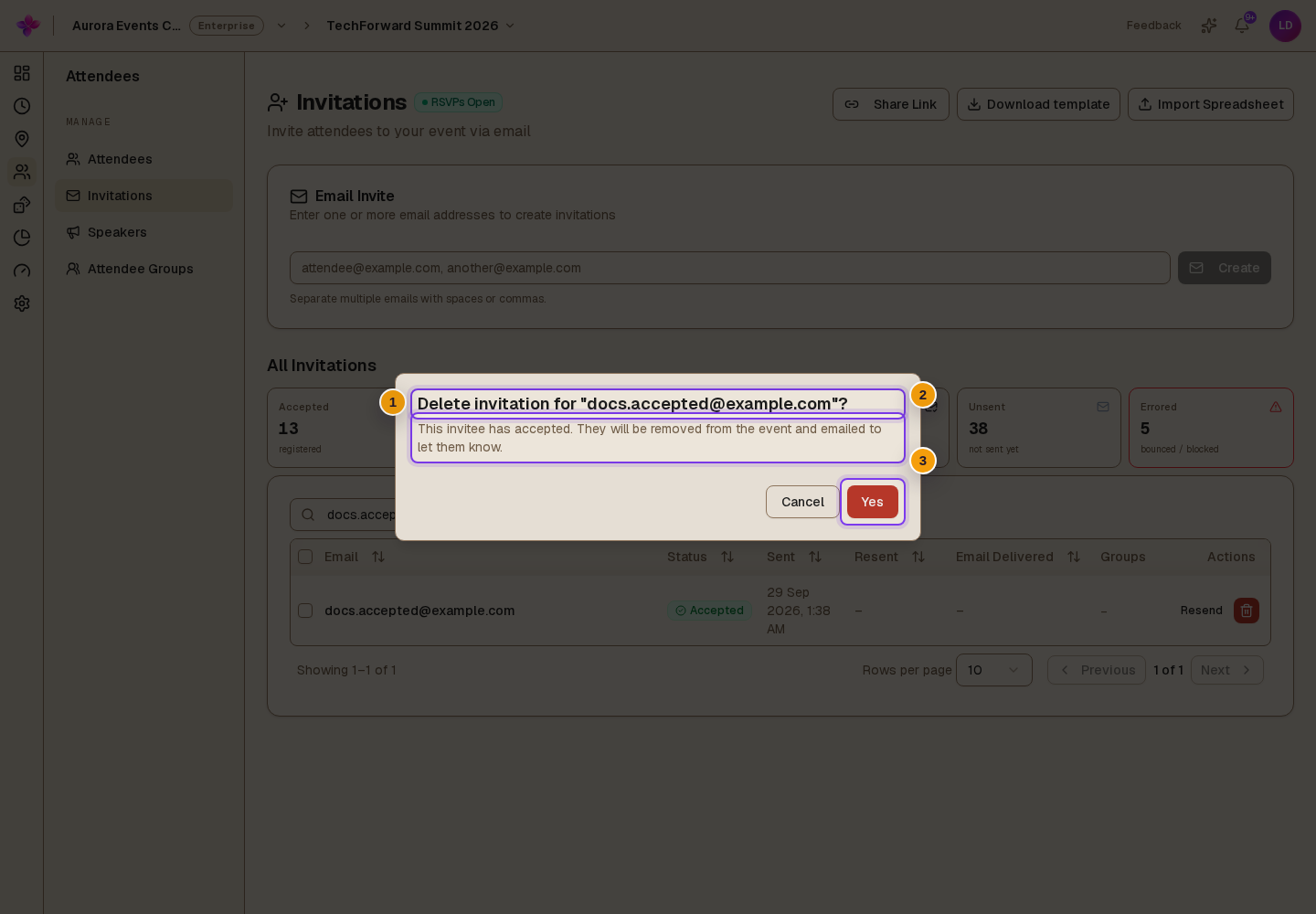
Read the confirmation
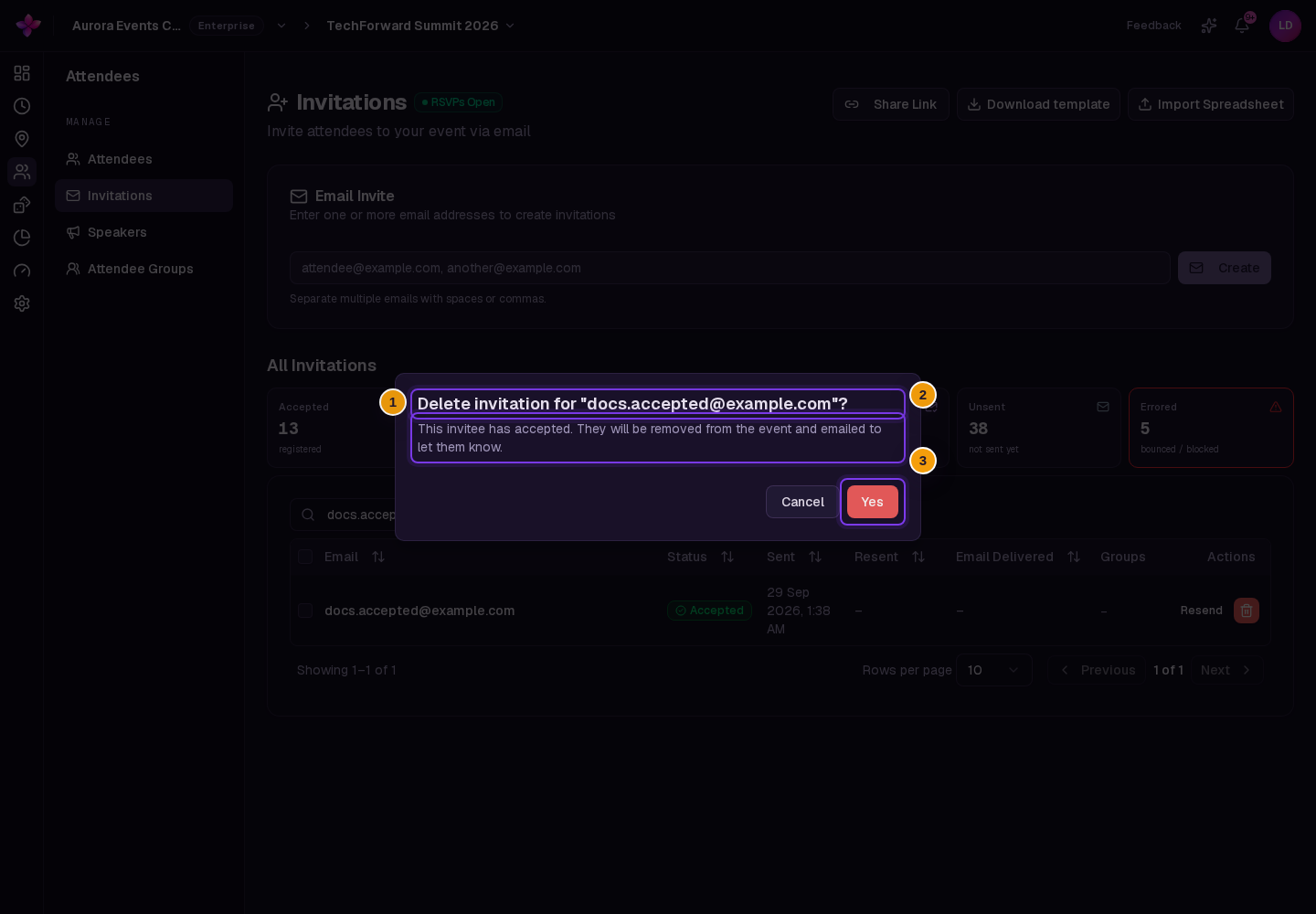
Deleting an accepted invitation also removes the person from the event. Lylac attempts to notify them in the app and by email.
Confirm the removal
Confirm only after checking the selected people. The invitations are removed.
If something goes wrong
No invitations match. Clear the search, deselect groups and clear the active summary-card filter. Then choose Refresh.
You cannot send or delete. Ask an organisation owner or admin to check your role.
An email failed. Check the address and read the status tooltip. See the sending guide for delivery states.