
Invite and Manage Speakers
Use Speakers to manage the profiles used for your event. Creating a speaker also prepares an invitation and adds it to the built-in Speakers group. It does not automatically send an invitation email.
Before you start
You need owner, admin or editor access to the organisation. Have each speaker's email address and display name ready.
Add a speaker
Open Speakers
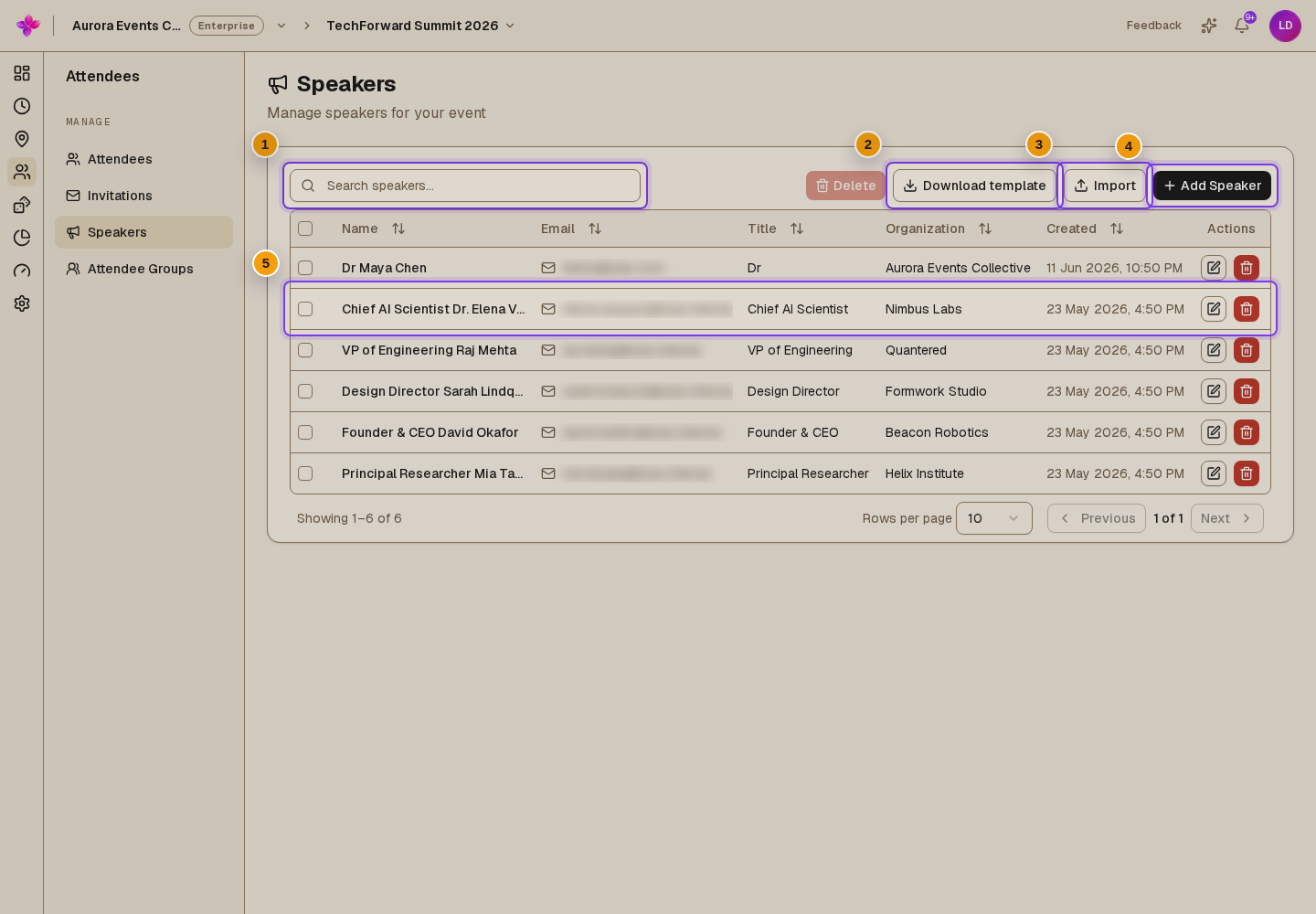
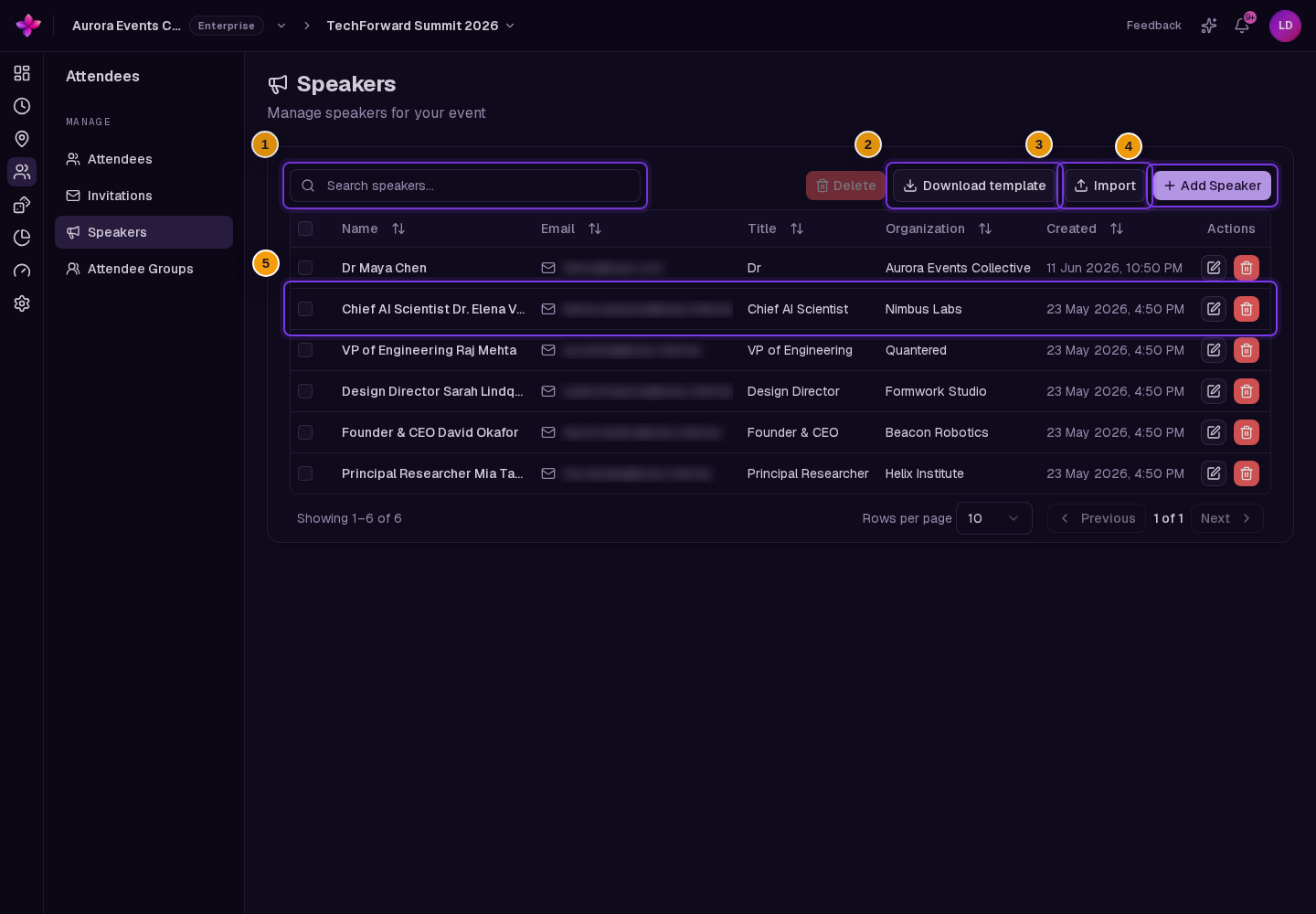
From the event, choose Attendees, then Speakers. Choose Add Speaker.
Enter the profile details
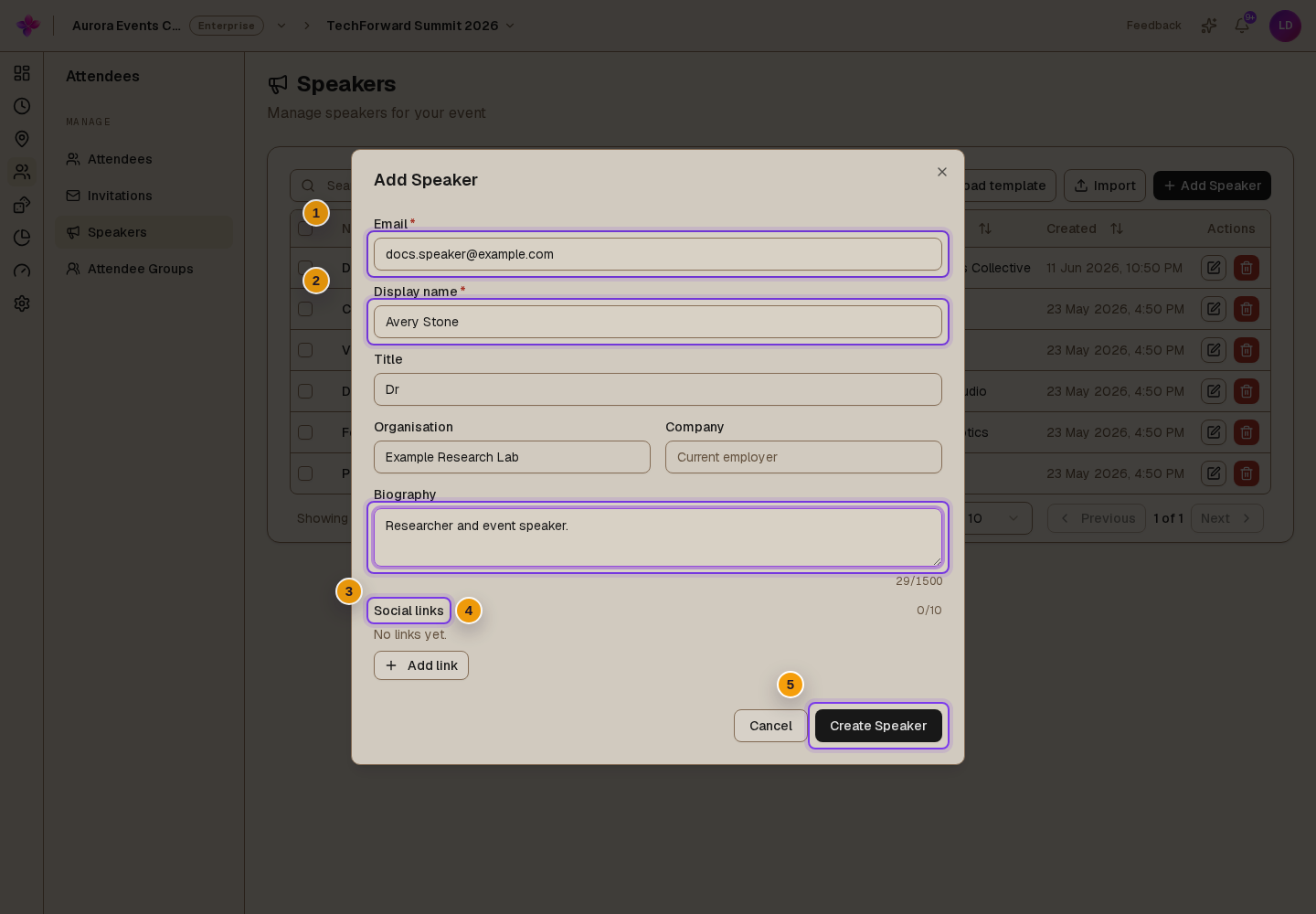
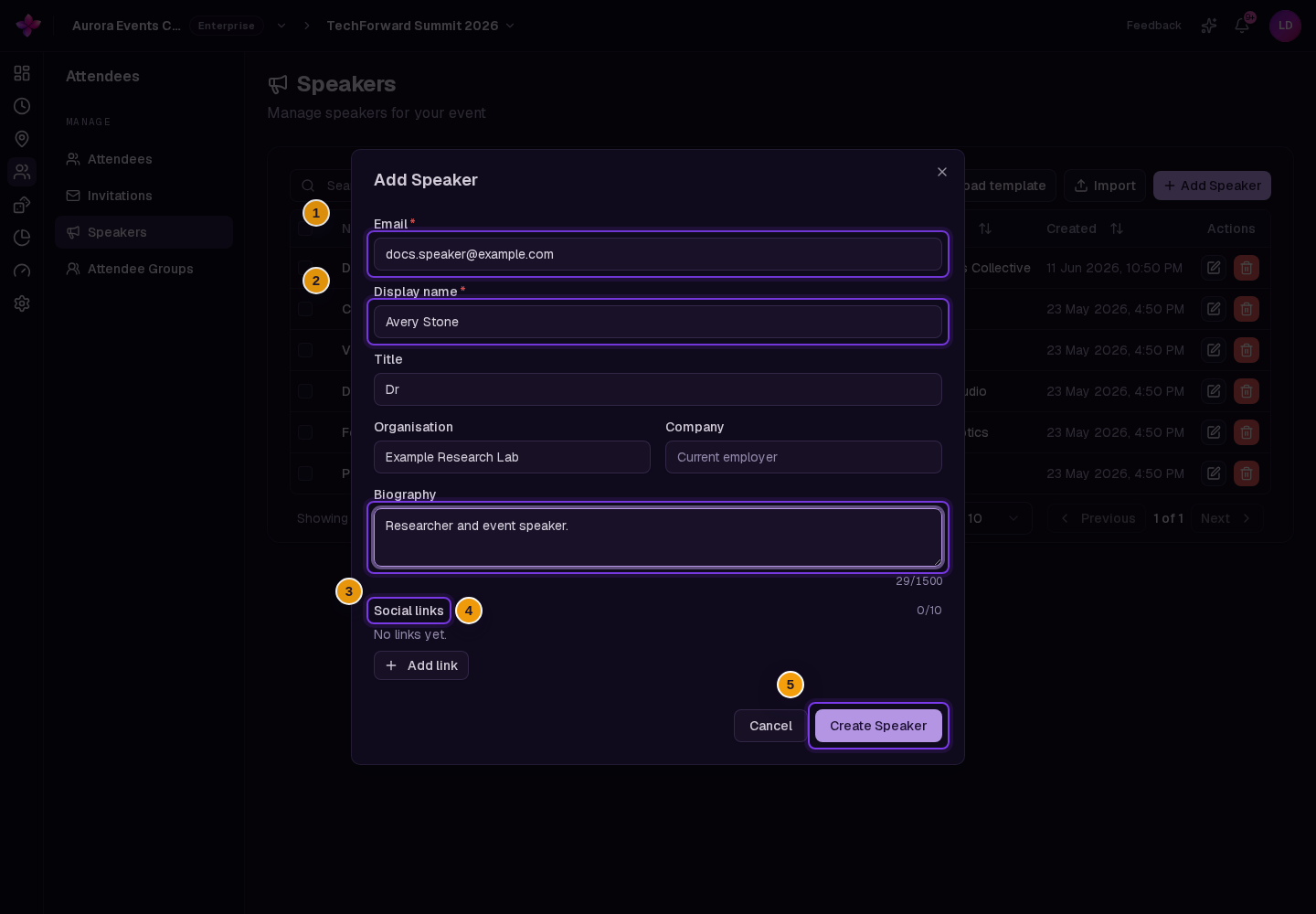
Enter Email and Display name. Optional fields include Title, Organisation, Company, Biography and Social links. Title is an honorific such as Dr or Prof. You can add up to 10 social links.
Create the speaker
Choose Create Speaker and correct any field errors. Review the new profile in the table.
Send the invitation
Open Invitations, find the speaker's address and send the invitation when ready.
Import speakers
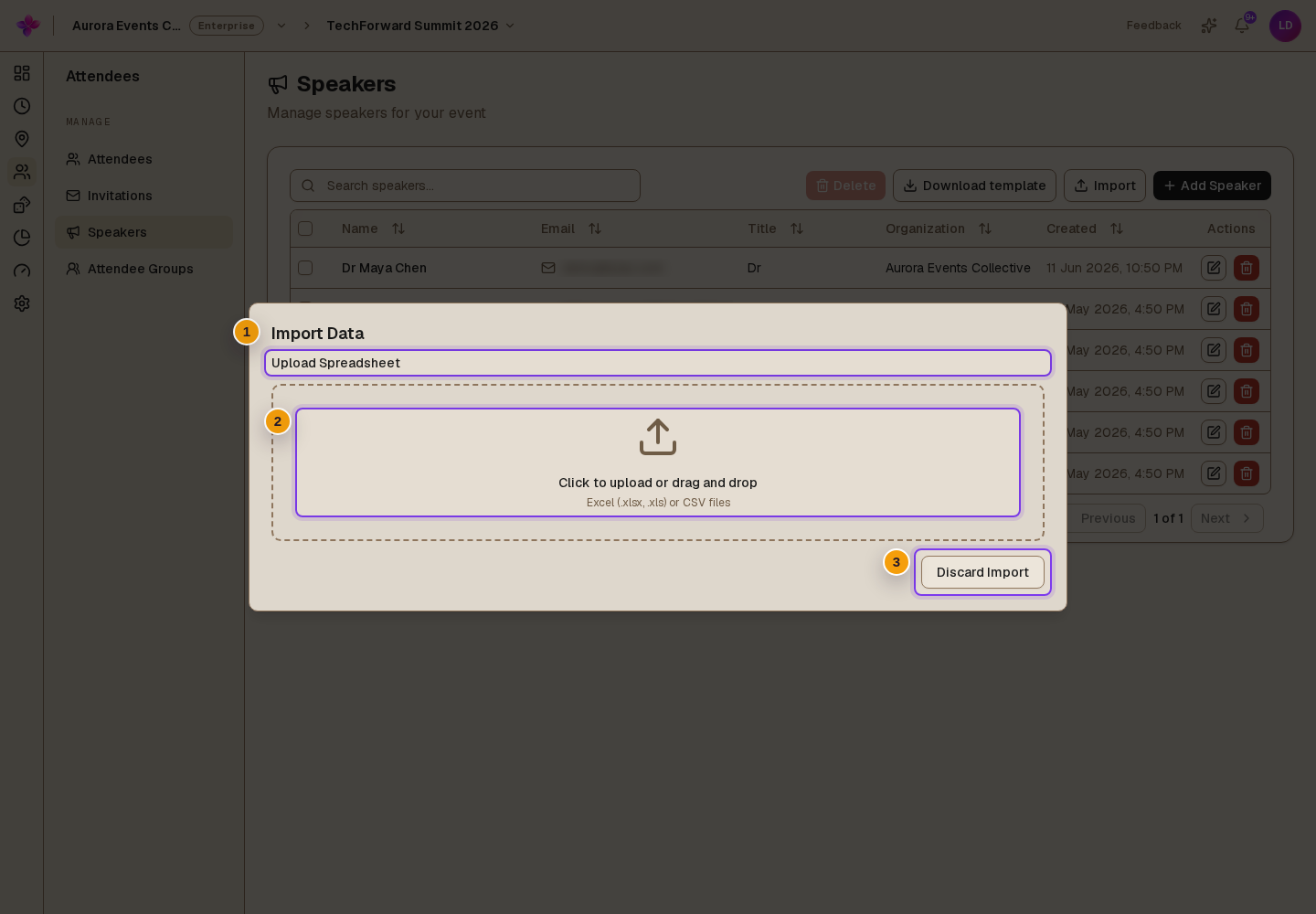
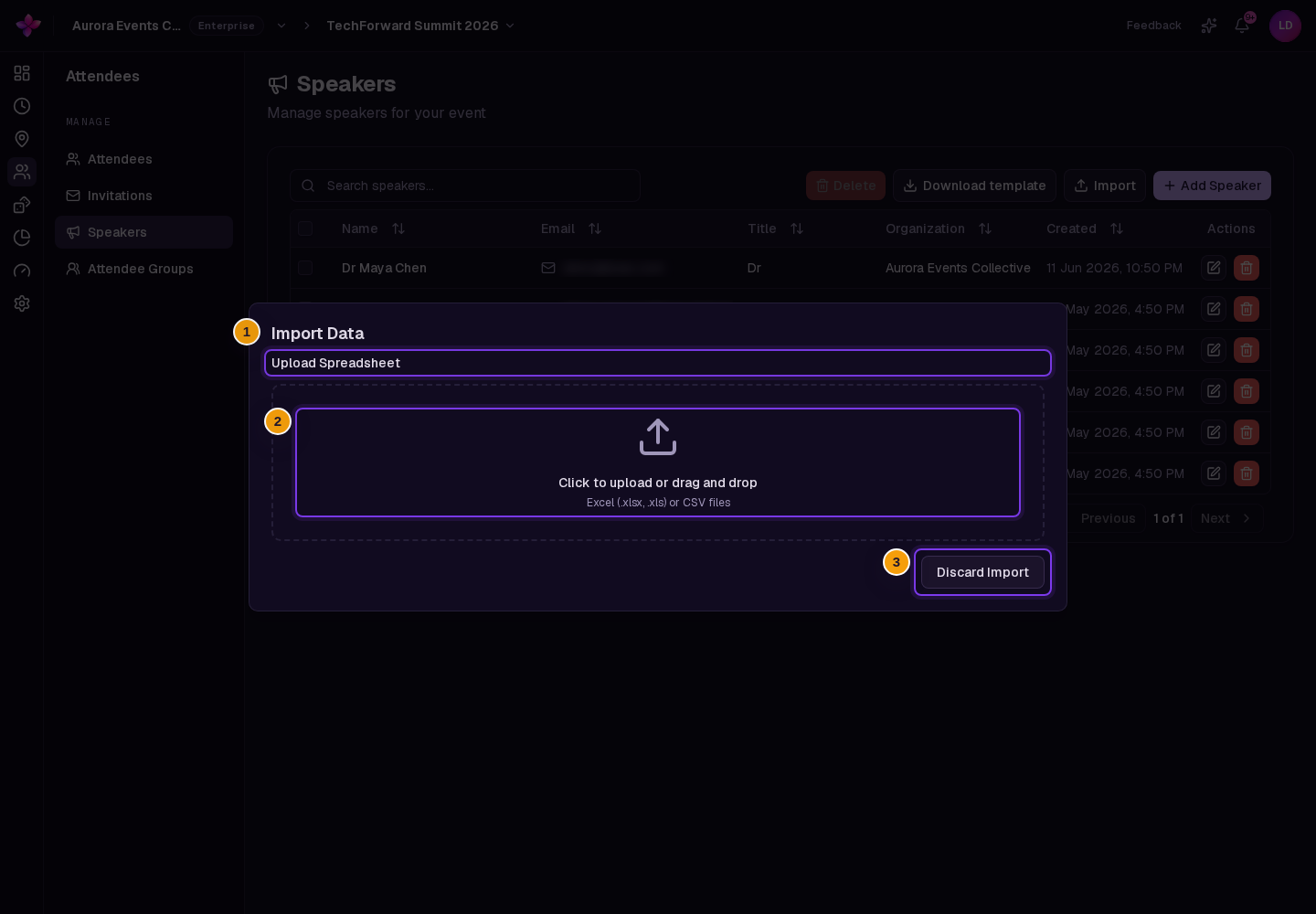
Choose Download template for a file with the supported fields, then Import. Upload a CSV or Excel file and review the mapping. Email and Display name are required. The template also supports profile details and separate LinkedIn, Twitter, website and GitHub URL columns. Fix row errors, choose the Import button with the row count, then Confirm Import.
Edit a profile or picture
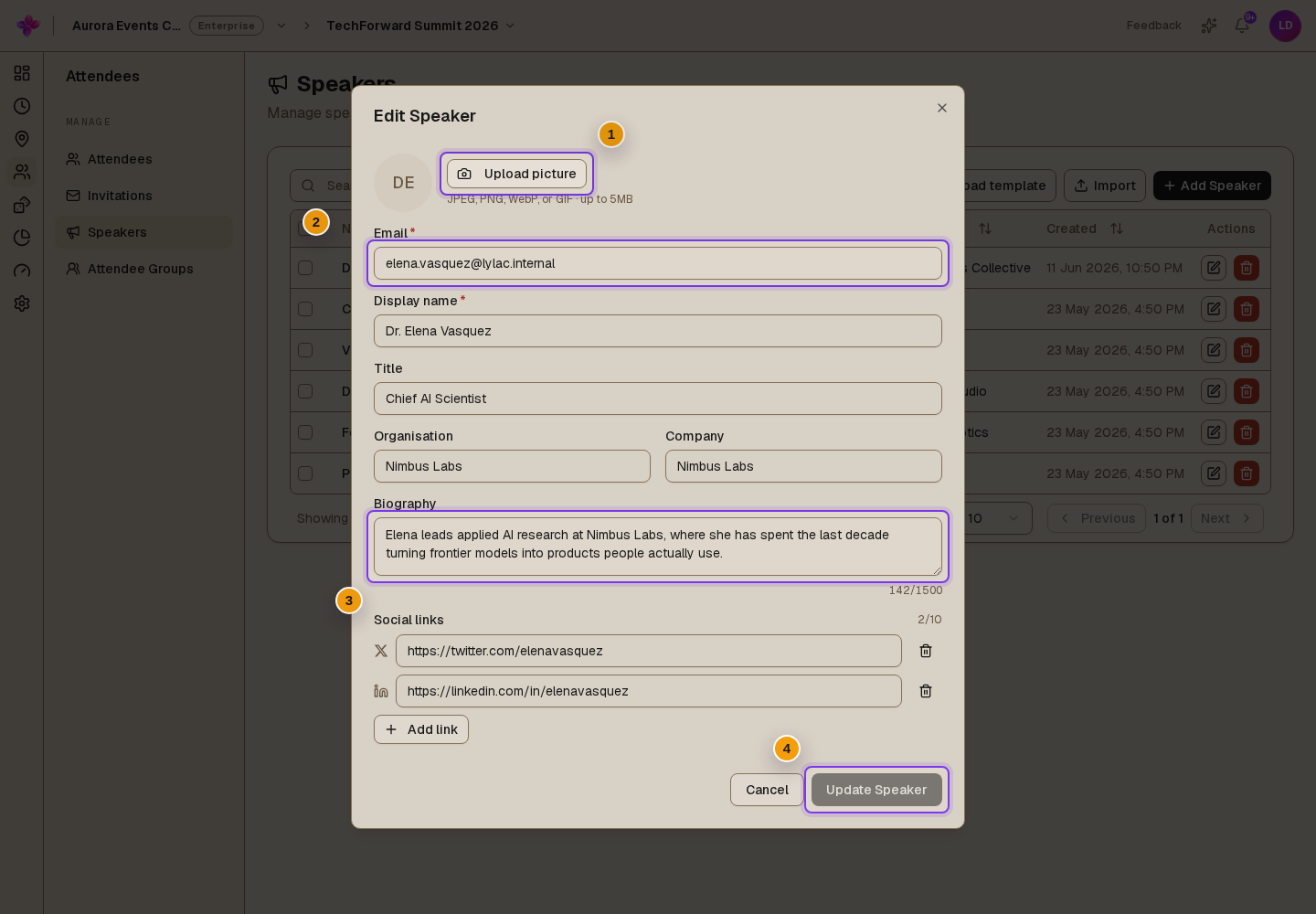
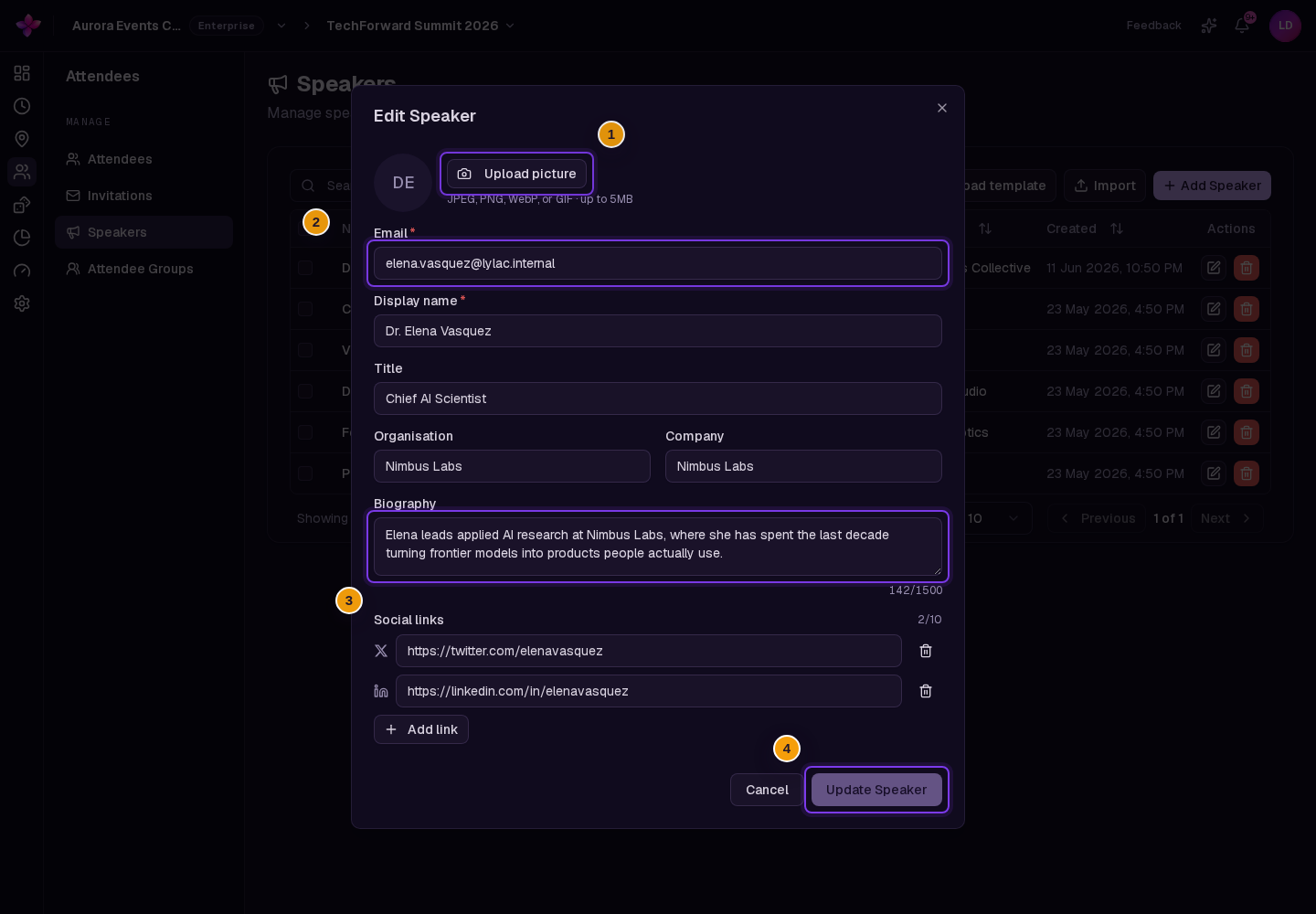
Find the speaker with search and choose the row edit control. Update the fields, then choose Update Speaker. Picture controls appear when editing an existing speaker. Choose Upload picture or Change picture, review the preview, then Update Speaker to save it.
Delete speakers
Use a speaker's delete control, or select several rows and choose Delete. Read the confirmation: deletion also removes those speakers from activities.
If something goes wrong
The speaker cannot be created. Check Email, Display name and the field messages. An email address can only have one speaker profile per event.
The update button is disabled. Change a field or select a new picture first.
A picture is rejected. Use JPEG, PNG, WebP or GIF and try a smaller image.
The speaker email needs correcting. Edit the speaker profile, then check Invitations separately for the correct address before sending.