
Invite and Manage Team Members
Use Team Management to review everyone who can access the organisation and the role assigned to each person.
Owners and admins can invite people and manage non-owner access. Only owners can make owner-level changes. Editors and viewers can review the team list but cannot change team access.
Before you start
You need:
- access to the organisation as an owner, admin, editor, or viewer to review the team;
- owner or admin access to invite, remove, or change non-owner roles;
- owner access to invite, promote, demote, or remove an owner;
- the email address of anyone you want to invite.
Review team access
Open Team
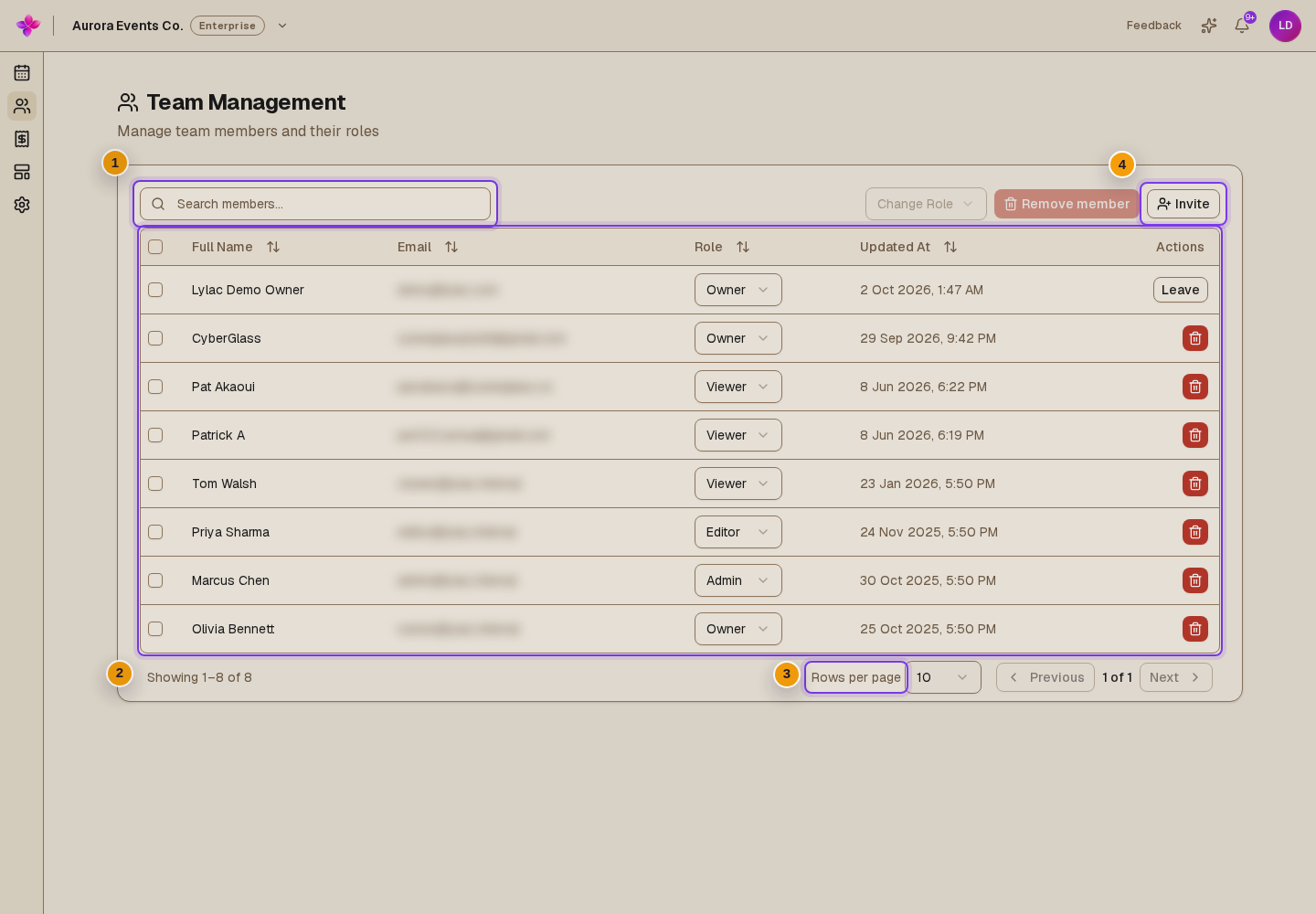
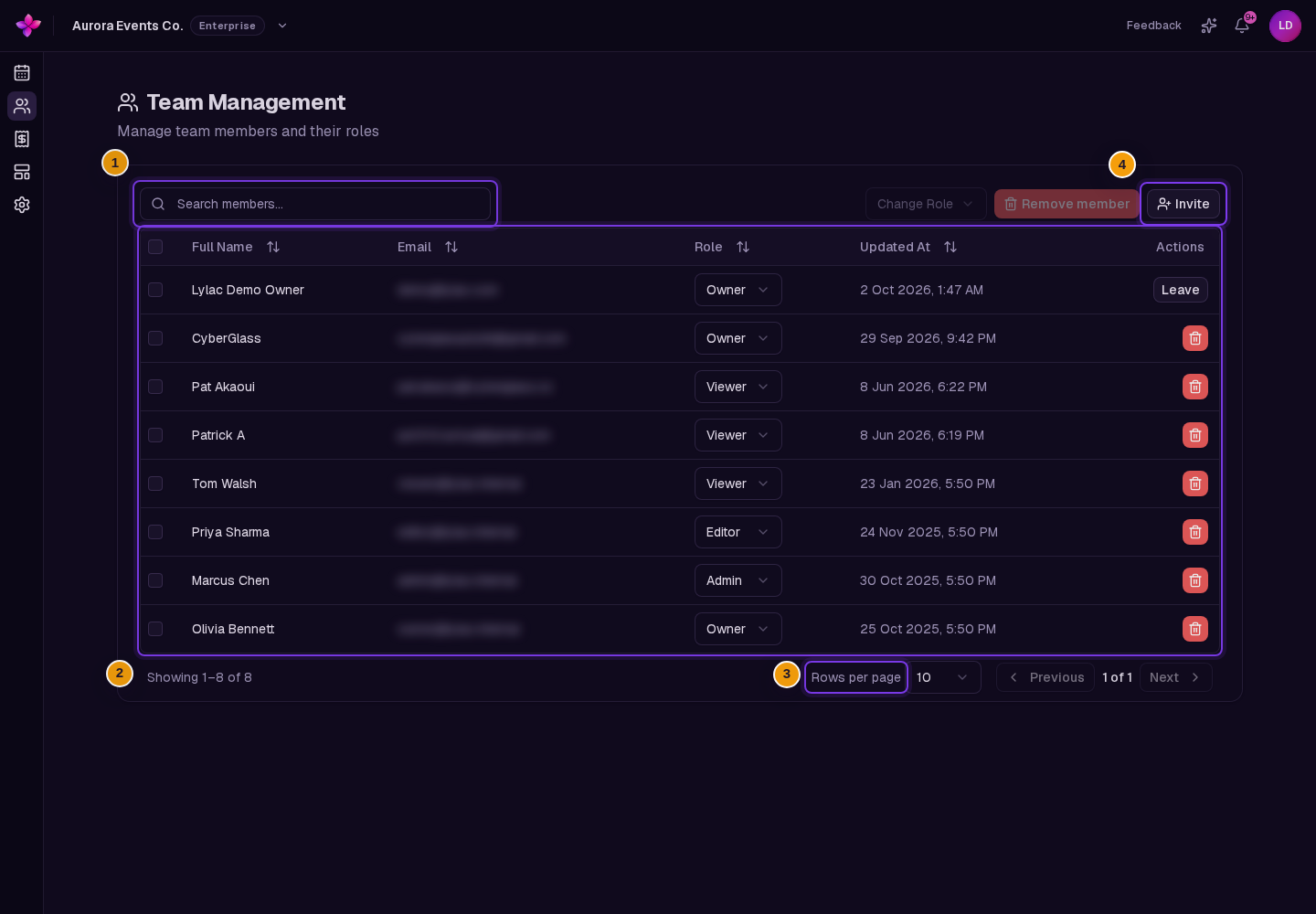
Choose Team in the organisation navigation to open Team Management.
Search the list
Use Search members to find a person by details such as full name, email, or role.
Sort the list
Choose the Full Name, Email, Role, or Updated At heading to sort by that column. Choose it again to reverse the order.
Move through longer lists
Use Rows per page, Previous, and Next when the organisation has more members than fit on one page.
Invite a team member
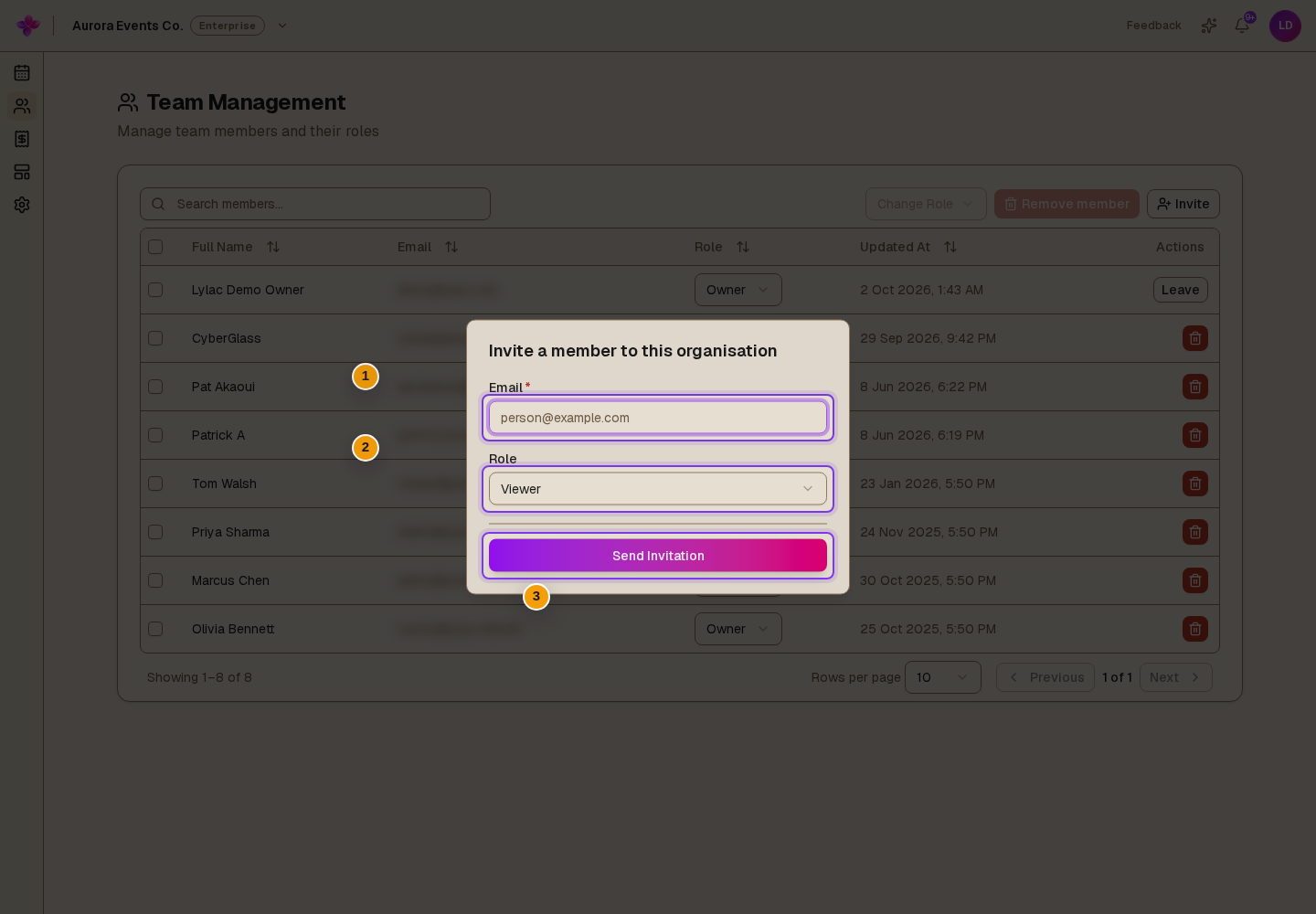
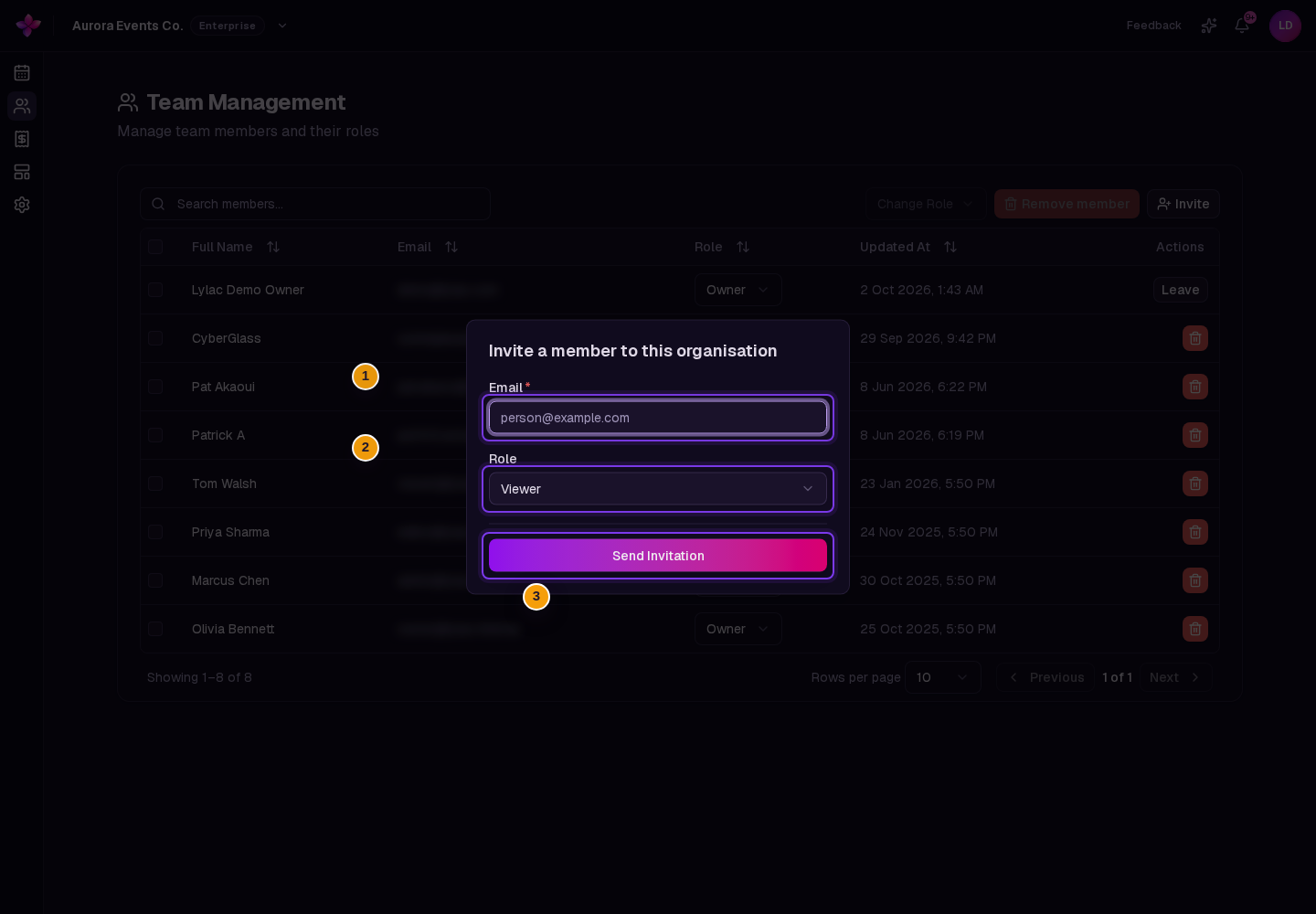
Choose Invite
Choose Invite above the team table.
Enter the email address
Enter the person's address in Email.
Choose a role
Choose Owner, Admin, Editor, or Viewer from Role. Viewer is selected by default. Only an owner can invite another owner.
Send the invitation
Choose Send Invitation. An existing Lylac user is added to the organisation and receives a notification. A person without a Lylac account receives an invitation email.
Inviting someone who is already a member does not change their role. Use the team table to change it instead.
Your plan limits how many team members the organisation can have. When every place is taken, the dialog explains the limit and Send Invitation is unavailable.
Change roles or remove access
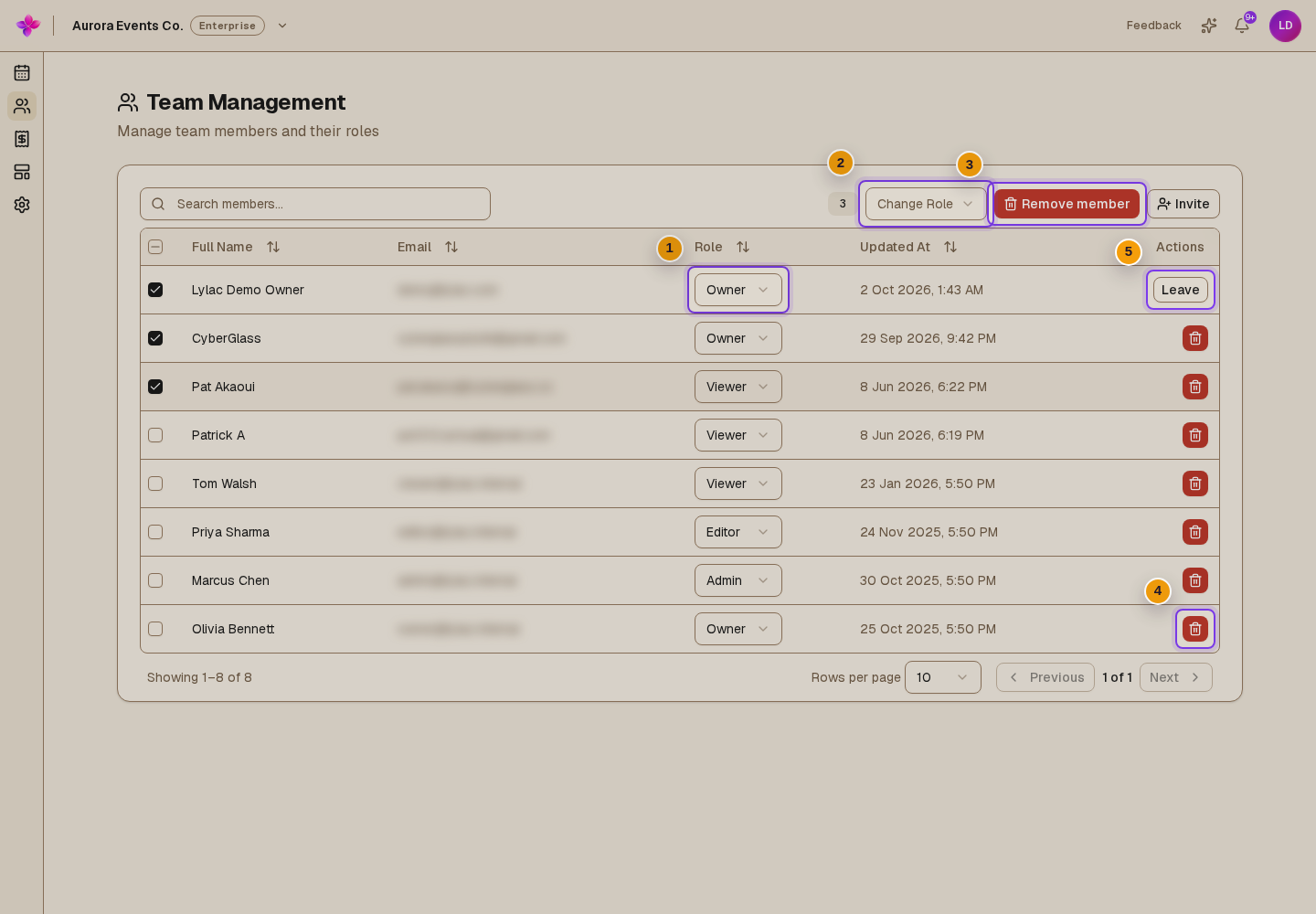
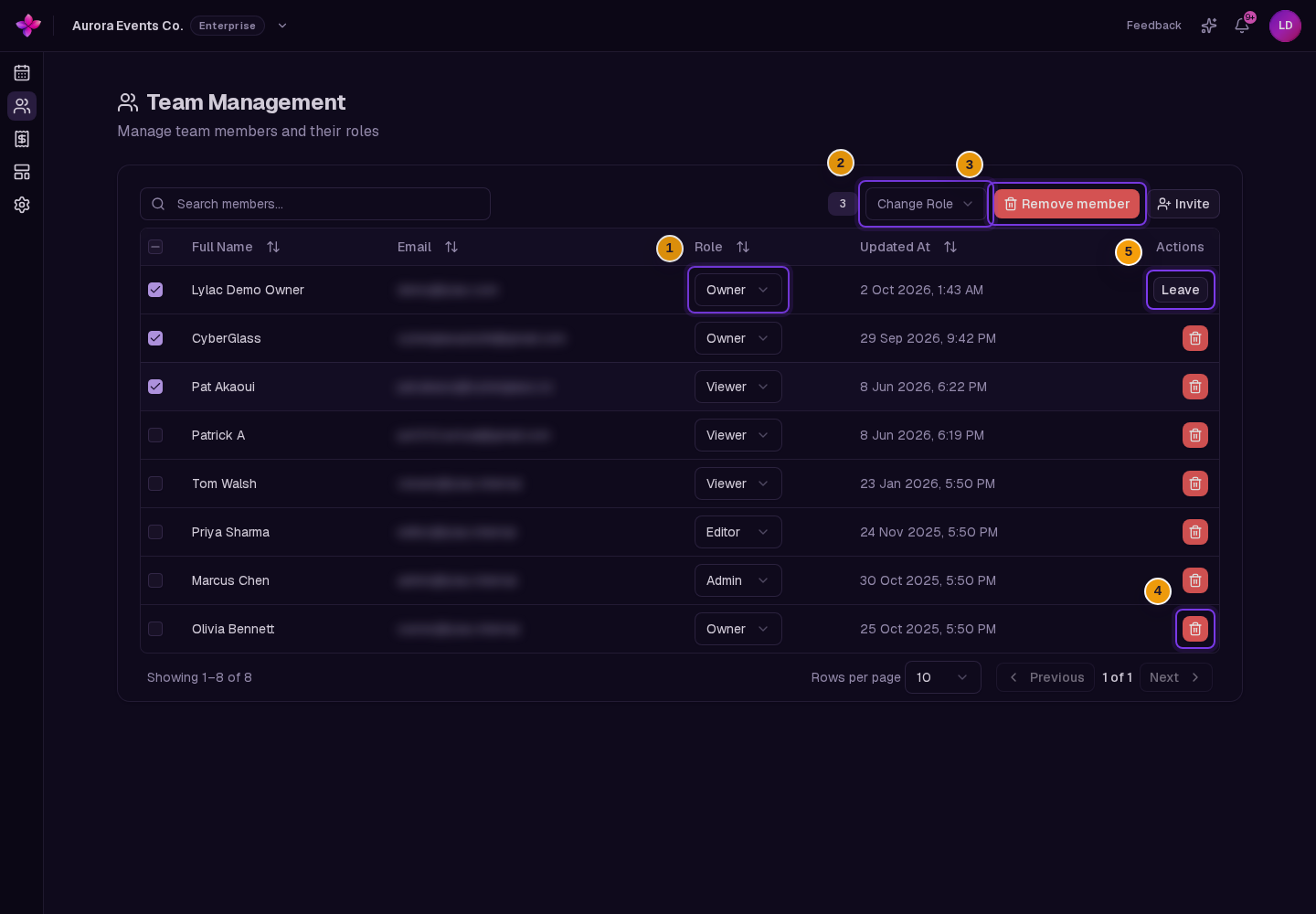
Use a member row for one person, or select checkboxes to change or remove several members together.
Select the member or members
For a single role change, use the Role selector in that person's row. For a bulk action, select the checkboxes beside the members.
Change a role
Choose the new role from the row selector or Change Role, then confirm the change. Only an owner can promote someone to owner or demote an owner.
Remove access
Use the remove button in the Actions column for one person. For several people, select their rows and choose Remove member, then confirm.
Leave the organisation
Choose Leave on your own row and confirm. Lylac returns you to another organisation if one is available, or to New organisation if you have no organisations left.
An organisation must always have at least one owner. The last owner cannot leave, be removed, or be demoted until another owner is in place.
Team management permissions
| Role | Team access |
|---|---|
| Owner | Review the team, invite any role, change any role, remove members, and manage other owners. |
| Admin | Review the team, invite non-owner roles, and change or remove non-owner members. |
| Editor | Review the team list. |
| Viewer | Review the team list. |
If something goes wrong
Send Invitation is unavailable. Every team member place allowed by the organisation's plan may be taken. Follow the upgrade link in the dialog or remove a member first.
The invite fails. Check the email address and your permission for the selected role. Ask an owner to invite someone as an owner.
A role change or removal is rejected. Owner-level changes require an owner. Lylac also blocks any change that would leave the organisation without an owner.
Bulk actions are unavailable. Select at least one member row first.
You cannot leave the organisation. If you are the only owner, make another member an owner before leaving, or delete the organisation.
Next steps
- Create, rename, or delete an organisation.
- See pricing to compare team member limits.