
Set Up the Leaderboard
Use the leaderboard to rank named entries by their daily scores. Each entry can also have an optional group. Lylac adds the daily scores to calculate the total score.
Importing a spreadsheet replaces the entire leaderboard. Any edits made after the previous import are also replaced.
Before you start
You need:
- an existing event;
- owner, admin, or editor access to import, edit, or delete leaderboard entries;
- a CSV or Excel spreadsheet, or the Lylac template;
- between 1 and 31 daily score columns.
Viewers can open the organiser leaderboard. They cannot import, edit, or delete entries.
Import scores
Open Leaderboard
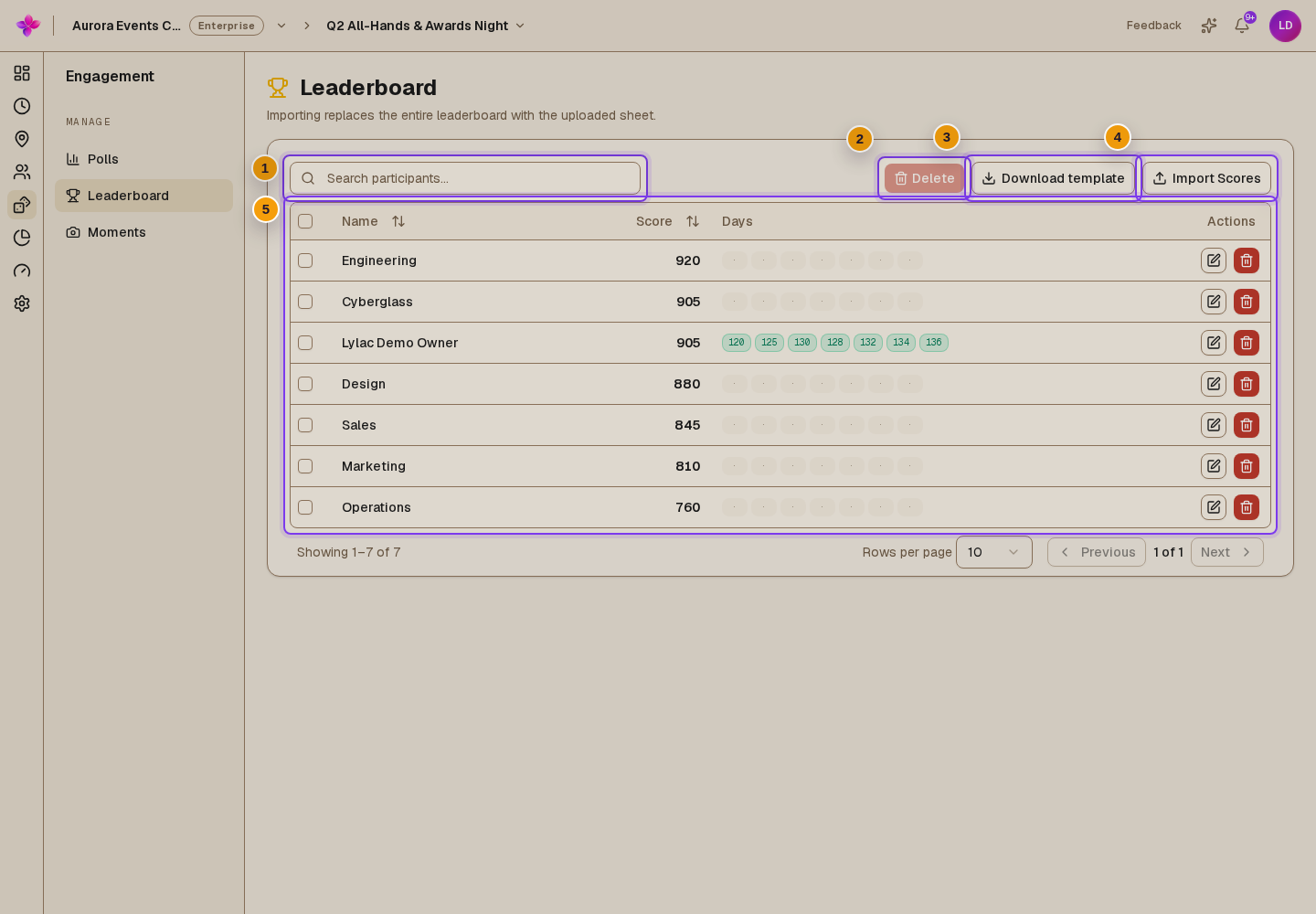
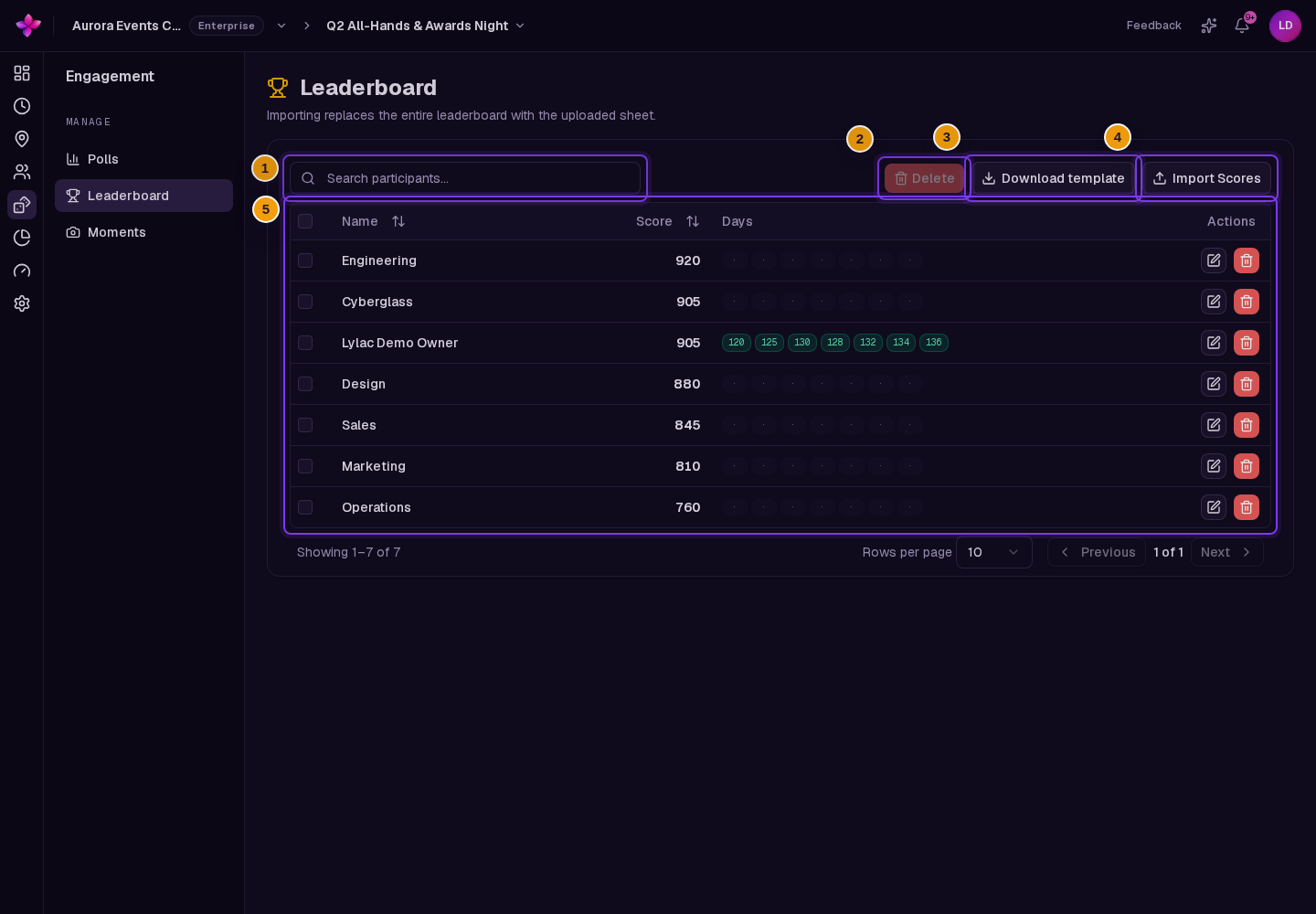
Open the event dashboard. Under Engagement, choose Leaderboard.
Download a template
Choose Download template. Under How many days?, enter a number from 1 to 31 in Days, then choose Download.
Prepare the spreadsheet
Enter a Participant Name for every row. You can add an optional Group and daily score columns such as Day 1 Score and Day 2 Score. Lylac calculates the total from the daily scores.
Upload the file
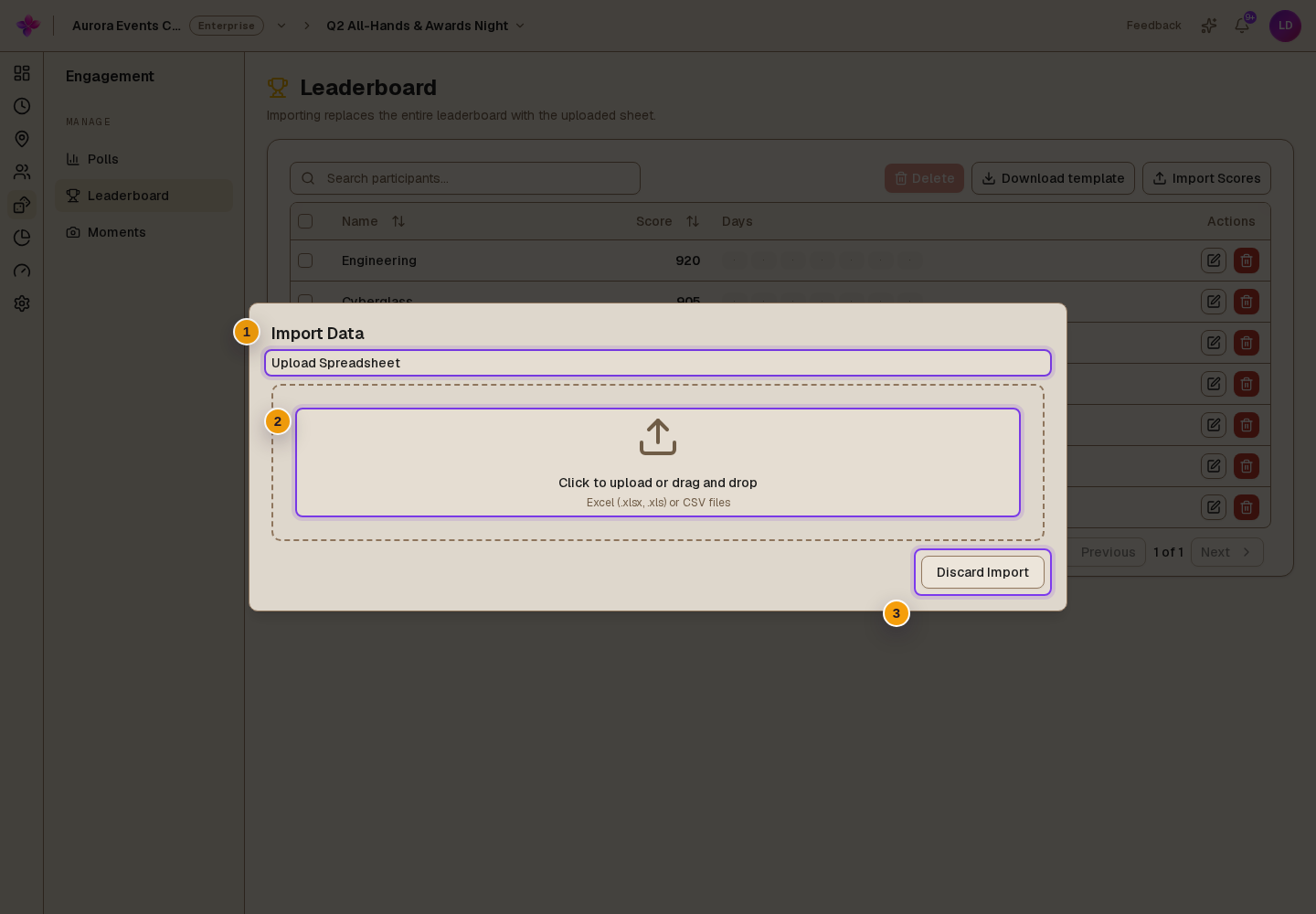
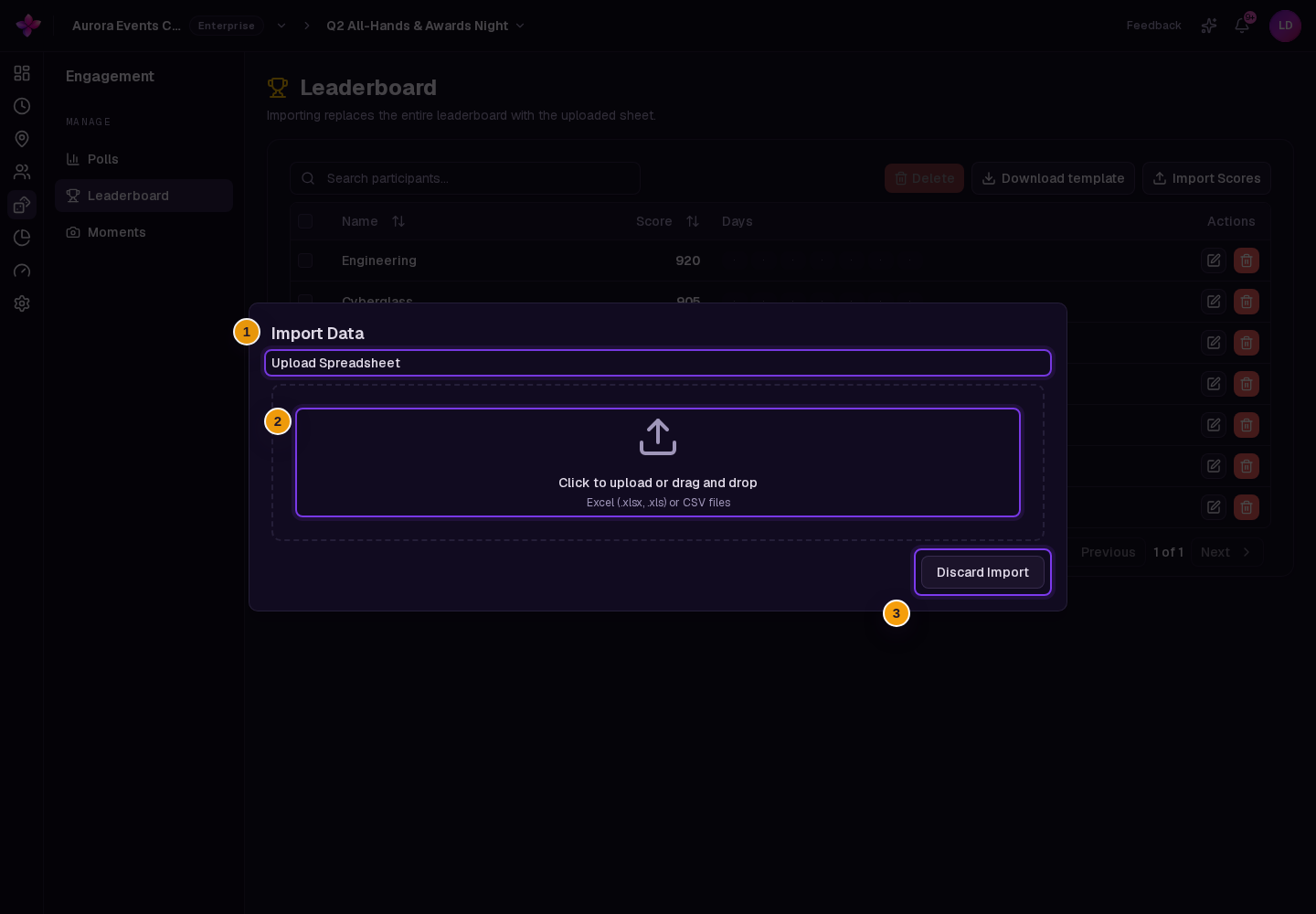
Choose Import Scores and upload an
.xlsx,.xls, or.csvfile. If an Excel file has several sheets, choose the sheet to import.Review and confirm
On Review Mapping, check the column mapping and correct any row errors. Choose Import N rows, review the row count, then choose Confirm Import. The uploaded rows replace the existing leaderboard.
Maintain leaderboard entries
Find an entry
Use Search participants... to narrow the leaderboard.
Edit an entry
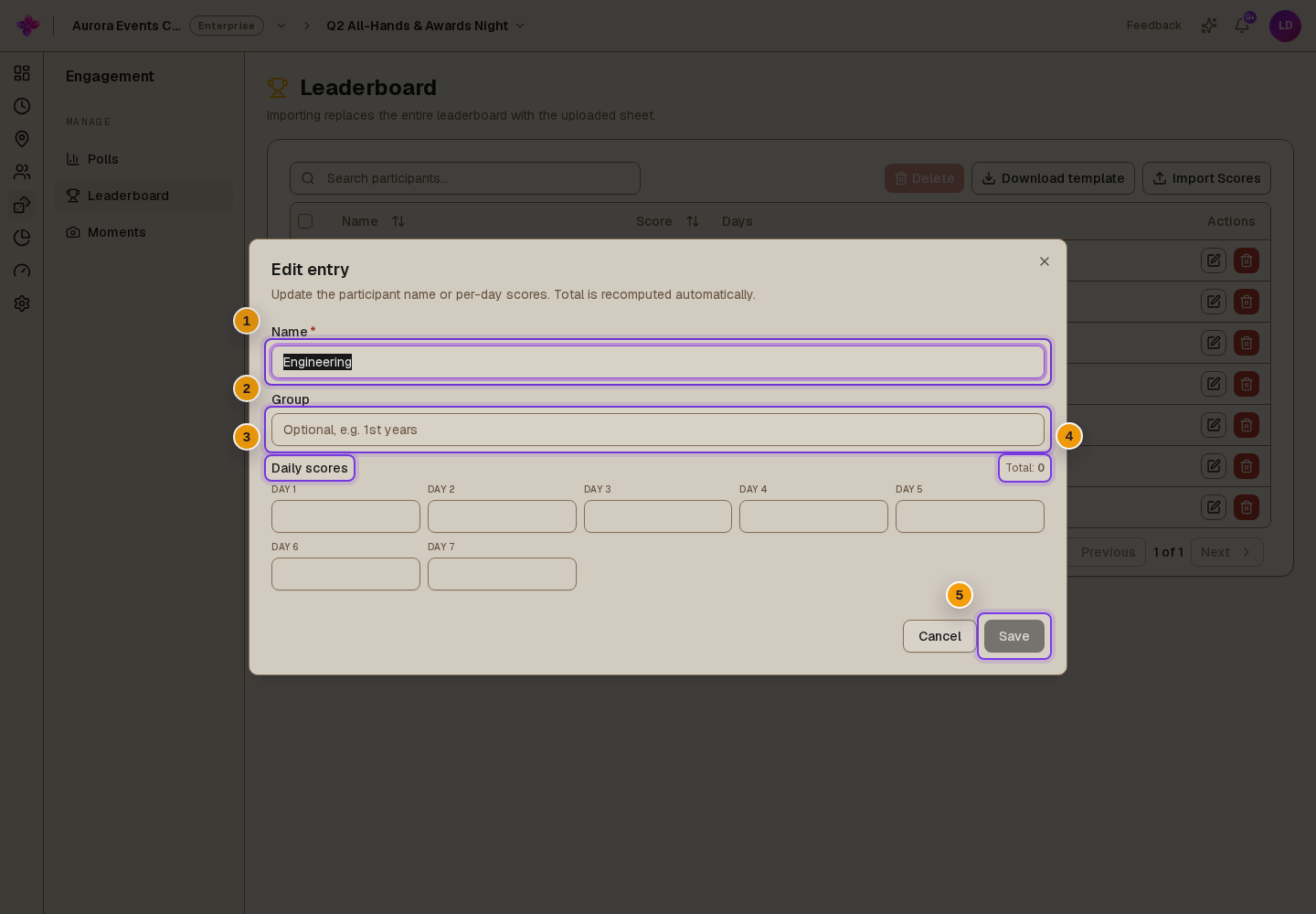
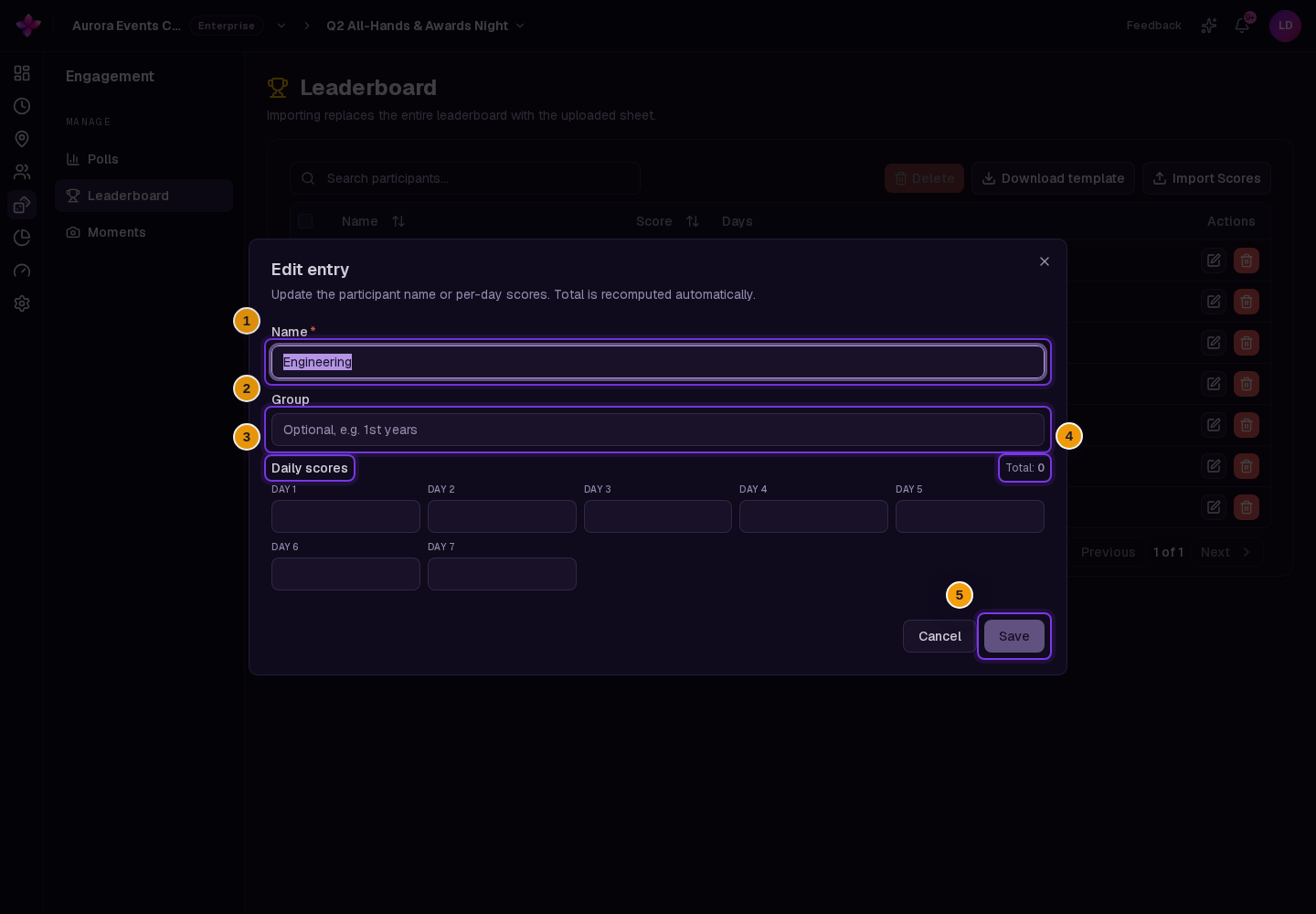
Choose the edit action for a row. In Edit entry, update Name, the optional Group, or the Daily scores. The displayed total updates automatically. Choose Save.
Delete one or more entries
Choose the delete action on one row and confirm the deletion. To delete several entries, select their rows, choose Delete, and confirm.
If something goes wrong
A row cannot be imported. Make sure it has a participant name and that each daily score is a valid number. Correct highlighted errors during Review Mapping.
The day columns are wrong. Download a fresh template with the number of days you need, then copy your scores into it.
Search shows no entries. Clear Search participants.... If the leaderboard is empty, choose Import Scores.
Recent manual edits disappeared. A later spreadsheet import replaces every existing leaderboard entry, including edits made in Lylac.