
Organise Attendees into Groups
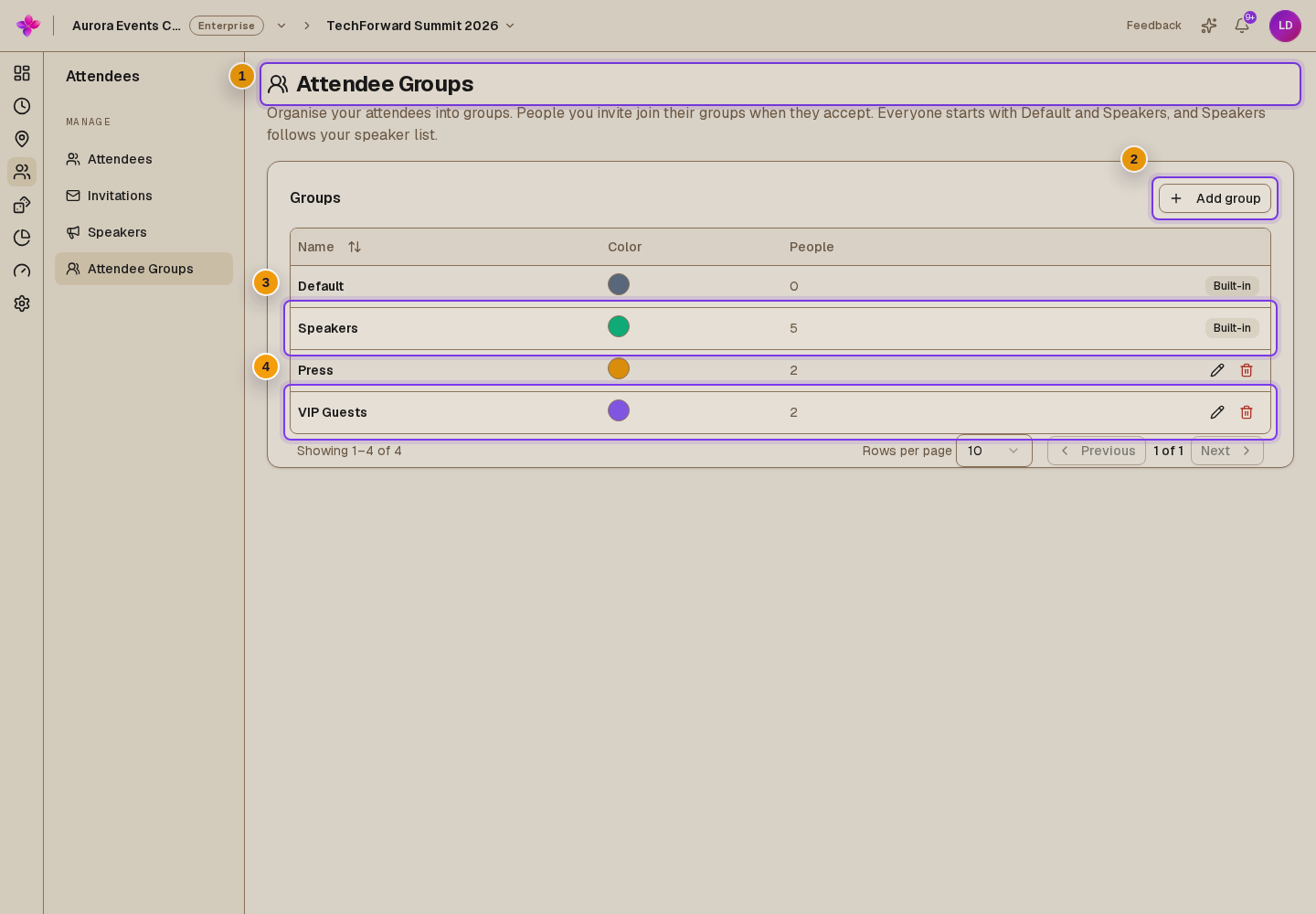
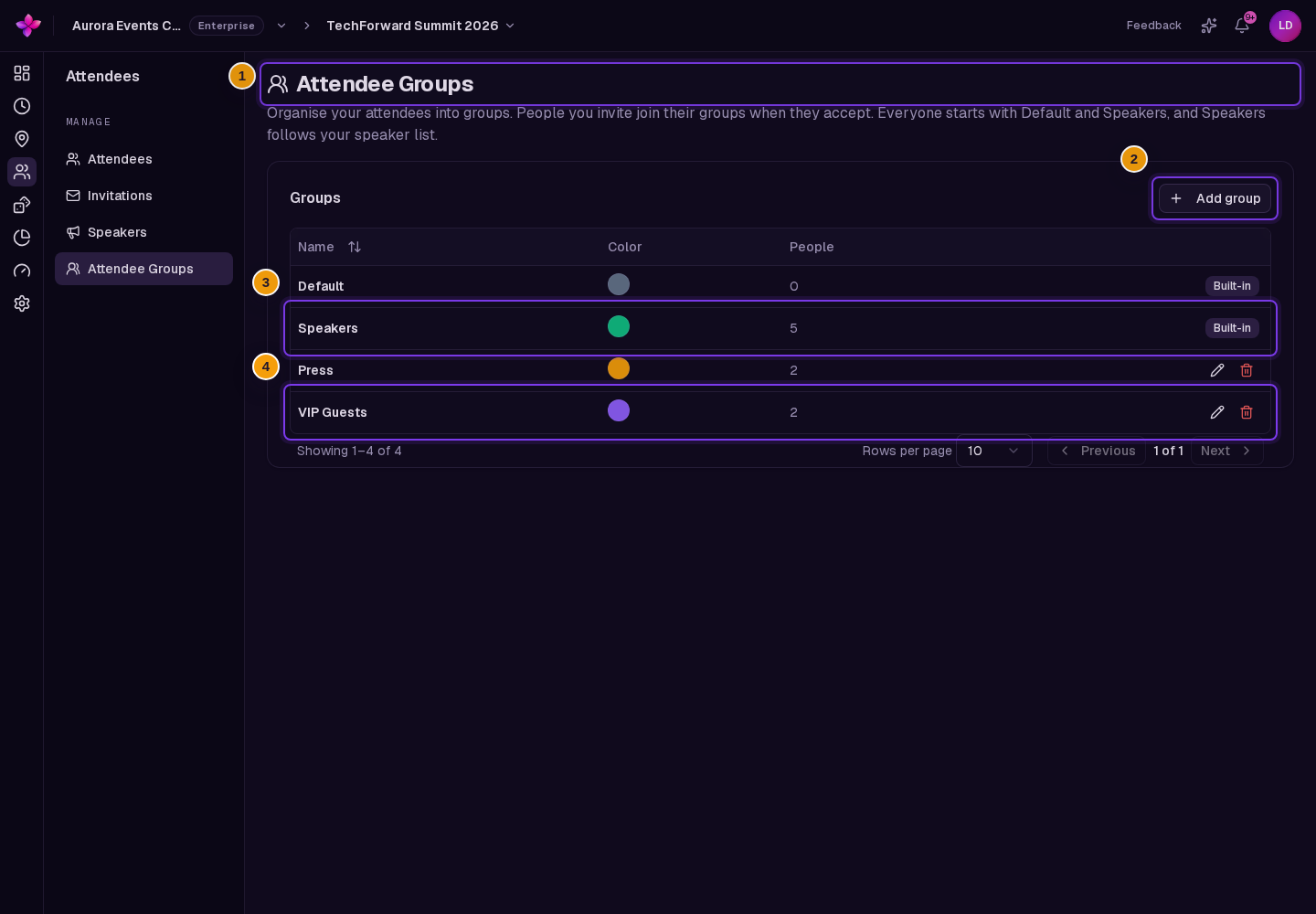
Groups help you organise invitations and send to an audience such as guests or sponsors. Built-in groups cannot be renamed or deleted. Membership in Speakers follows the speaker list.
Before you start
You need owner, admin or editor access to the organisation. Create invitations before adding people to a group.
Create or update a group
Open Attendee Groups
From the event, choose Attendees, then Attendee Groups.
Add a group
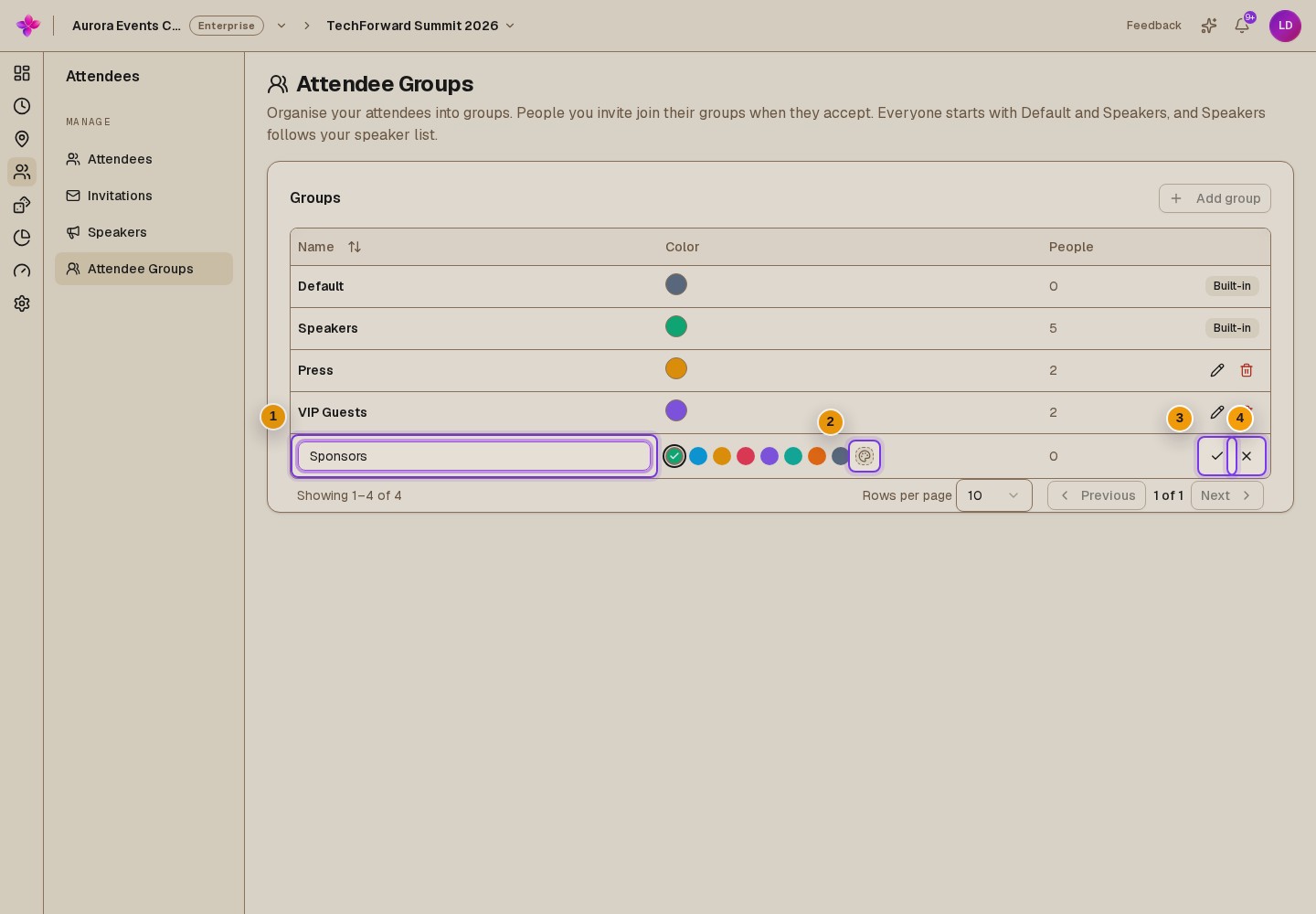
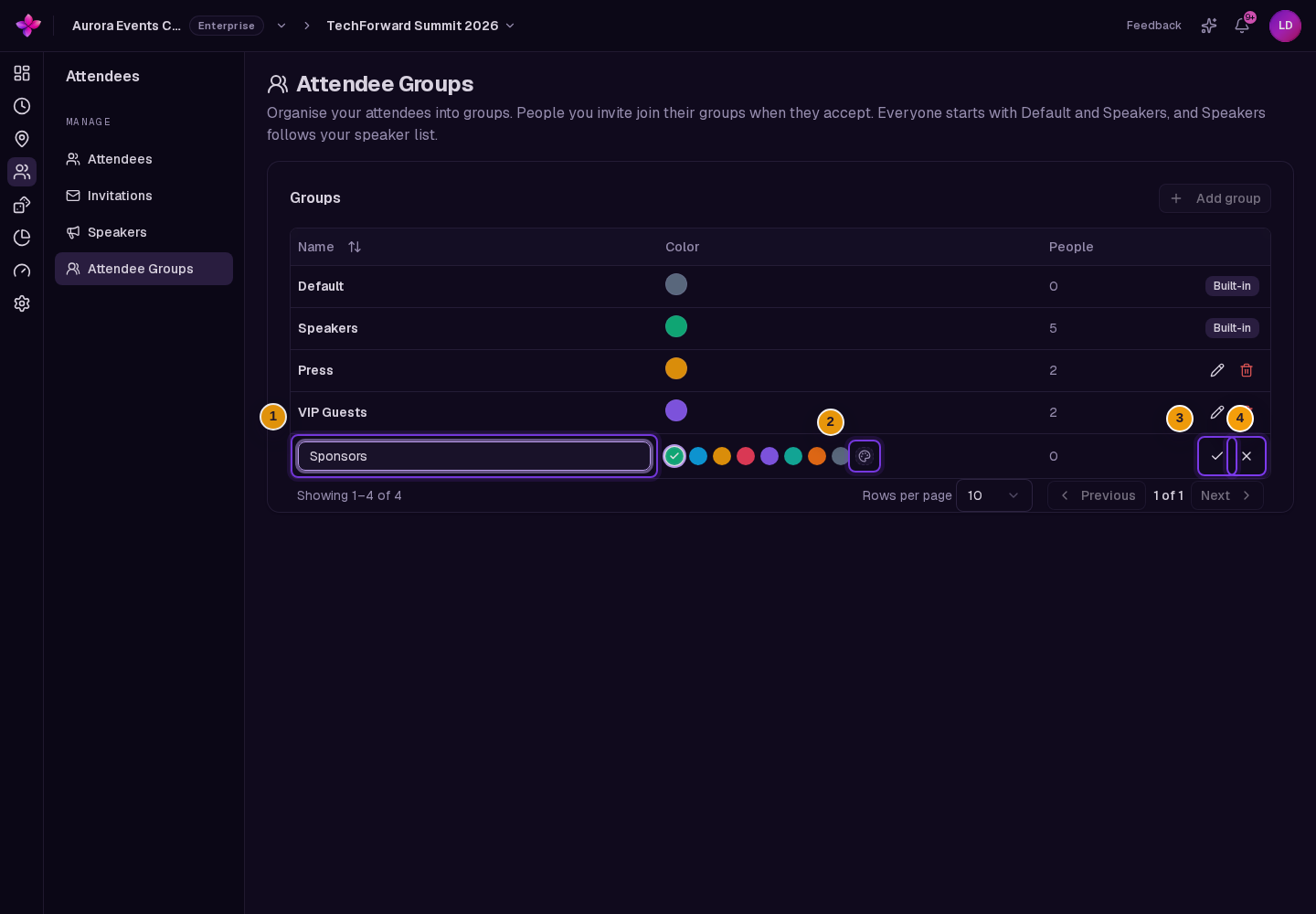
Choose Add group. Enter a name and choose a colour in the new row, then choose the tick labelled Save.
Rename or delete a custom group
Use the row rename or delete control. Confirm deletion when asked. Deleting a group removes its memberships but keeps the invitations. The colour is chosen when the group is created.
Add or remove group members
Select invitations
Return to Invitations and select one or more rows in All Invitations.
Choose Add to group
Choose Add to group and select a group. You can add invitations to custom groups and the default group. The Speakers group is excluded.
Remove membership if needed
Choose Remove from group and select a group containing one of the selected invitations. Change speaker membership through the speaker list.
Send to a group
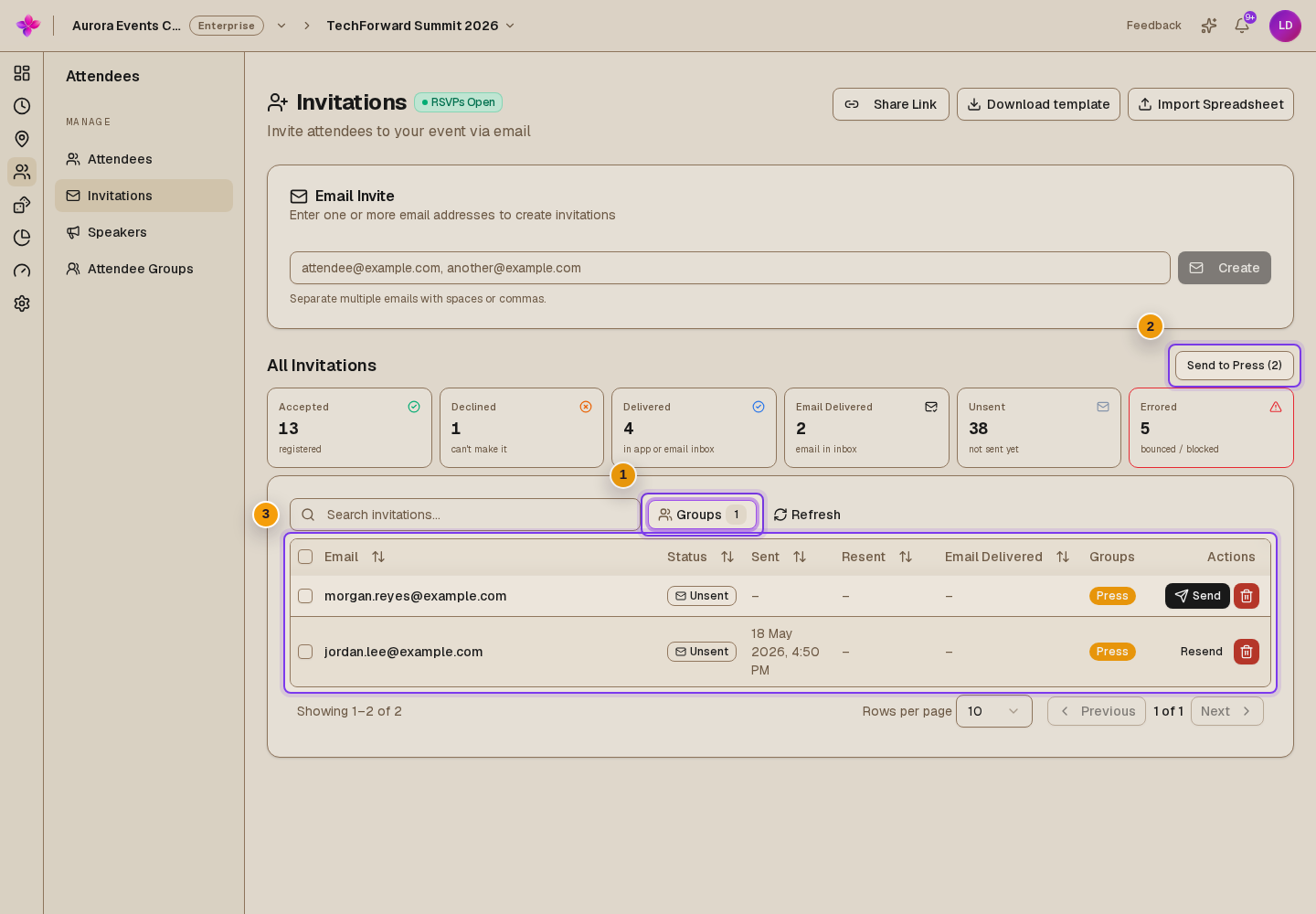
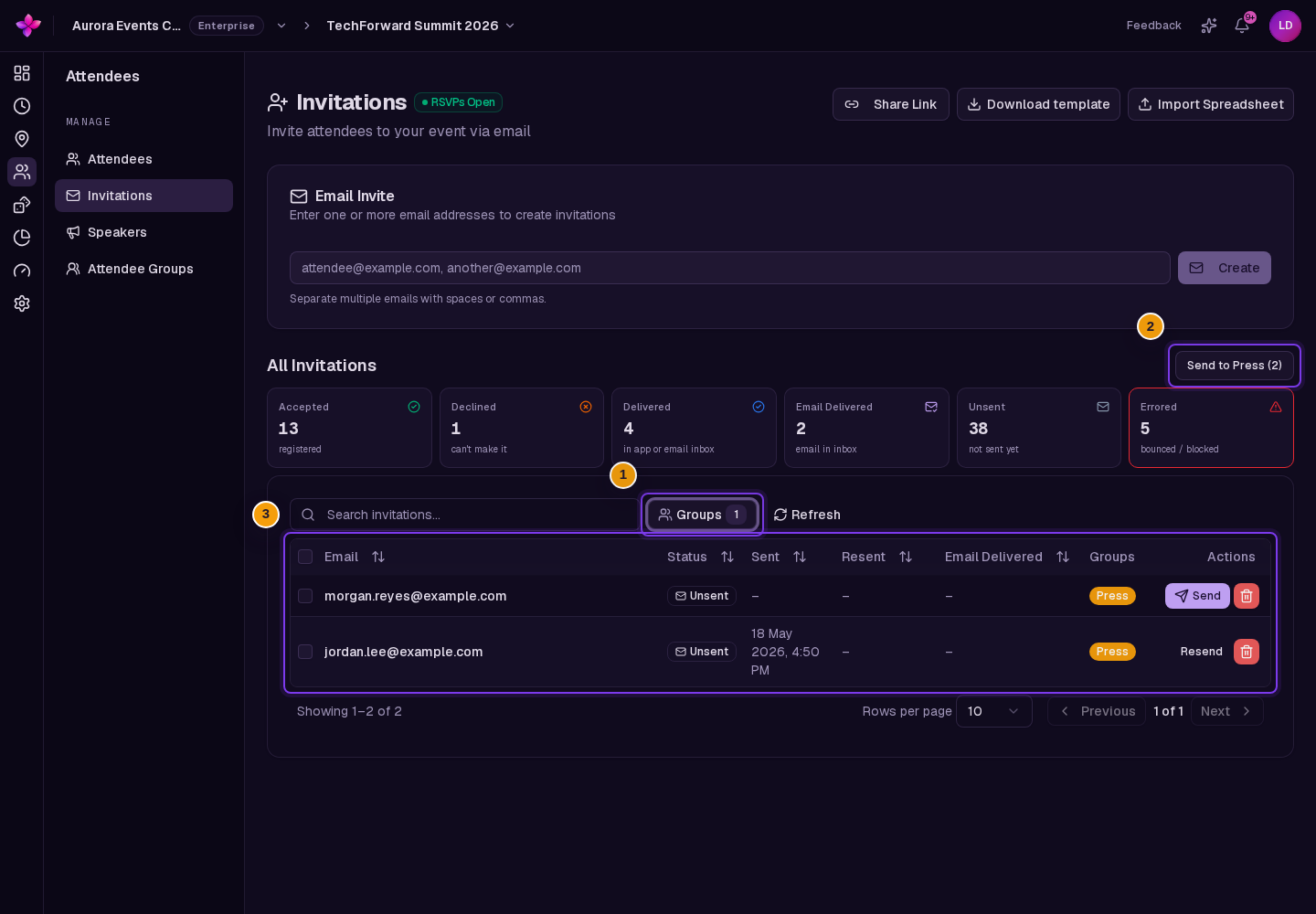
In All Invitations, open Groups and select the groups. The Send to button targets everyone in the selected groups, even if a search or summary filter hides some rows. To review individual recipients and complete bulk confirmation, select the intended pending invitations and choose Send.
If something goes wrong
Add to group is missing. Select invitation rows first. The control needs an available group other than Speakers.
A built-in group cannot be renamed or deleted. Create a custom group with the name you need.
A group cannot be deleted because tickets use it. Move those tickets to another group before deleting it.