
View the Timetable and Event Details
The attendee timetable shows what is scheduled, when each session starts, where it takes place, and which speakers are involved.
Before you start
You need:
- attendee access to the event;
- a confirmed place rather than a waitlist position;
- scheduled sessions if you expect timetable cards to appear.
Review the event and timetable
Open the event
Open Attending, choose Your events, then choose the event card. The event opens on Timetable.
Open event details
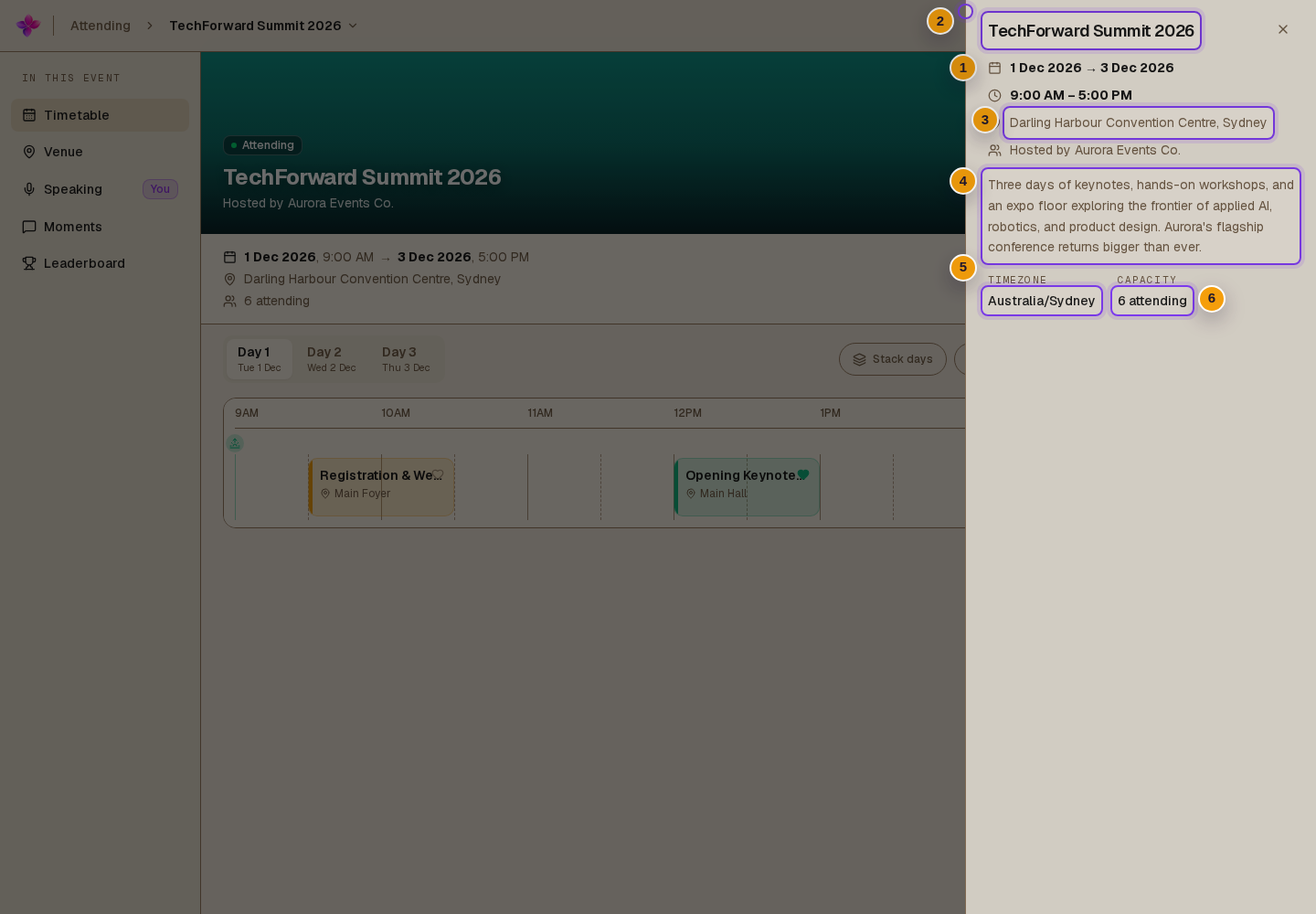
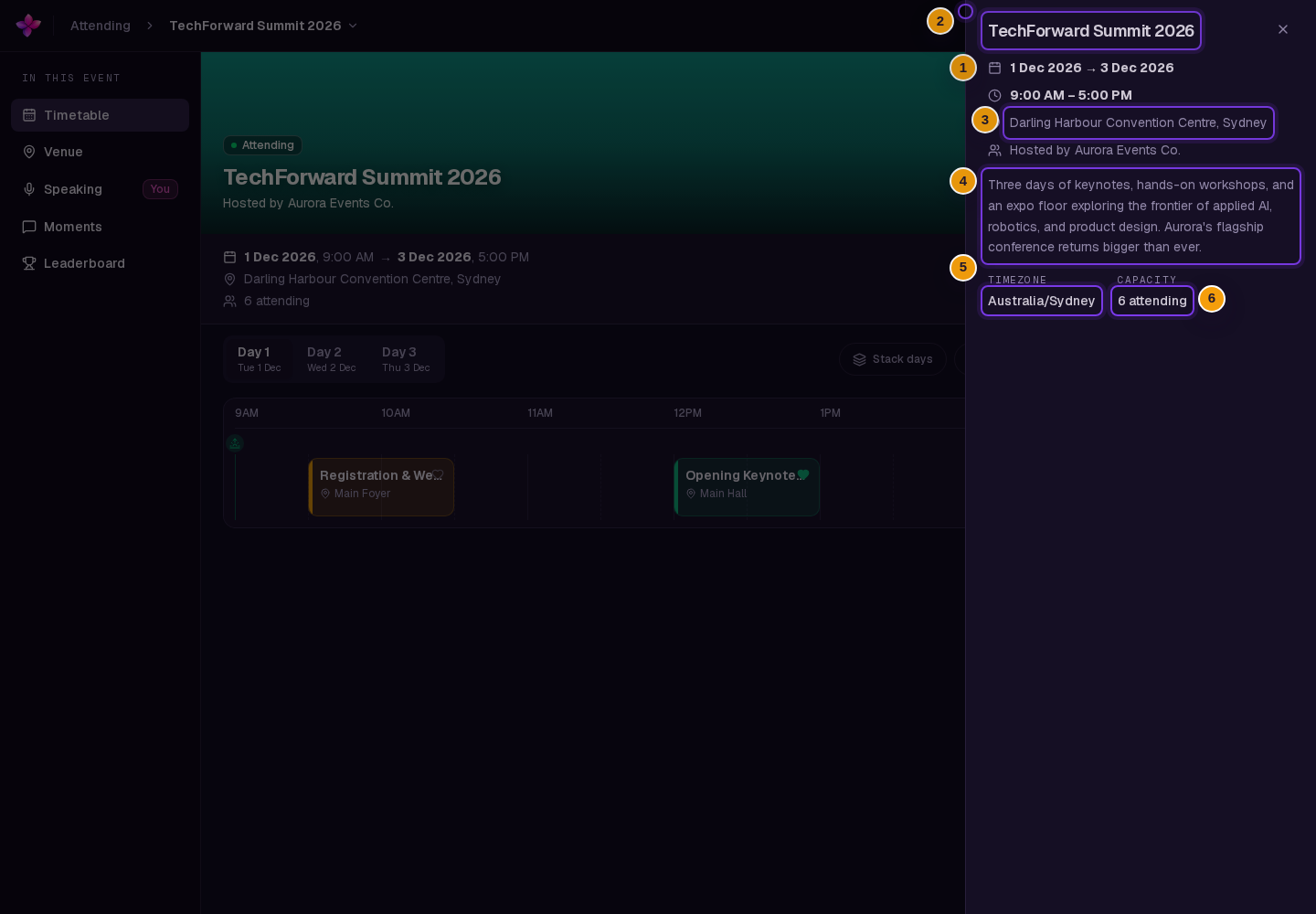
Choose the information bar below the event banner. The event details panel shows the date, time, location, host, description, timezone, and capacity information when available.
Choose a day
Use the day tabs to move through a multi-day event. On a phone or small tablet, you can also swipe between days.
On a larger screen, choose Stack days to show all event days together.
Filter the timetable
Choose Type when the event has more than one session type. Choose Favourites to show only sessions you have saved. Use Clear filters to show the full timetable again.
Open a session
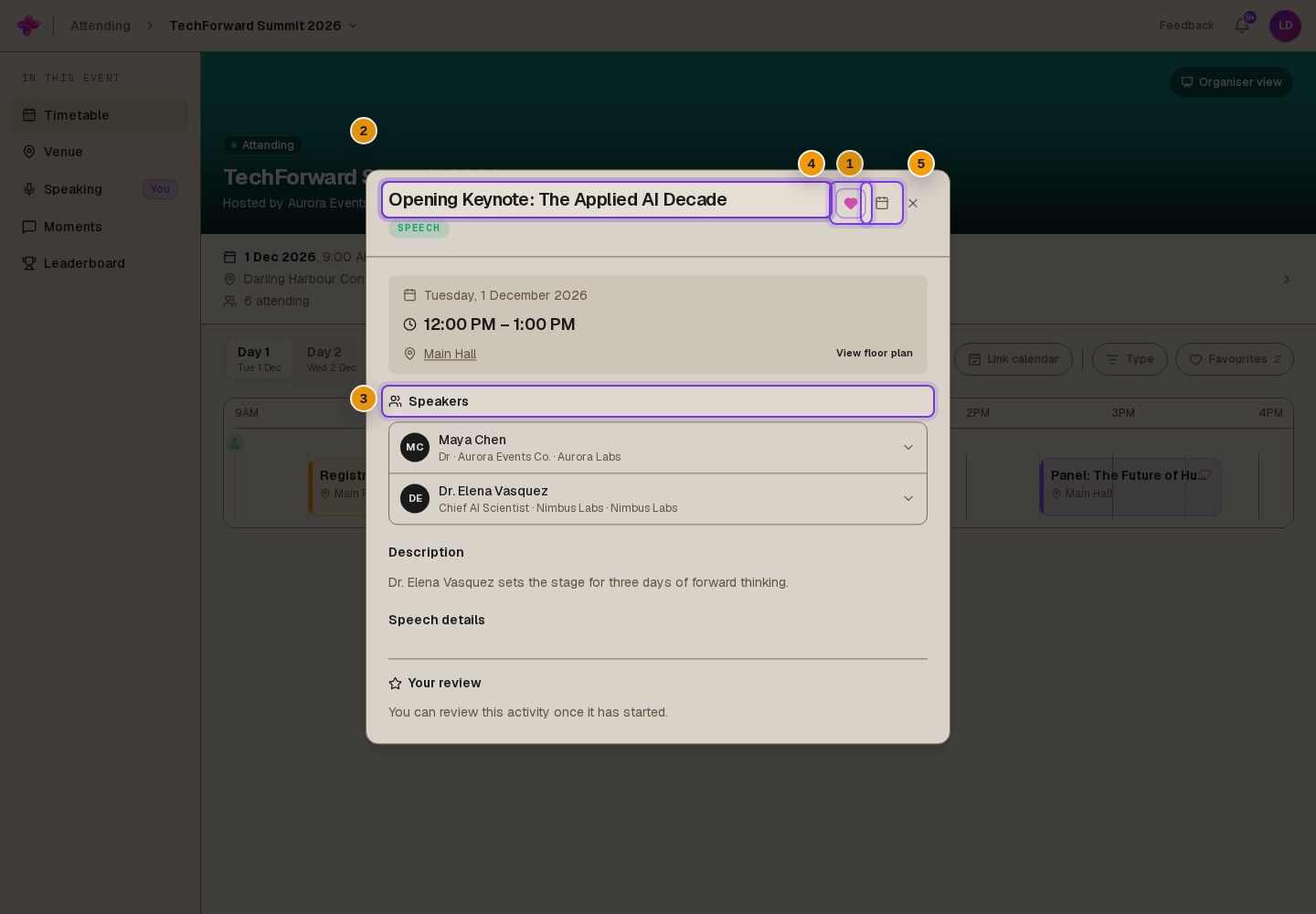
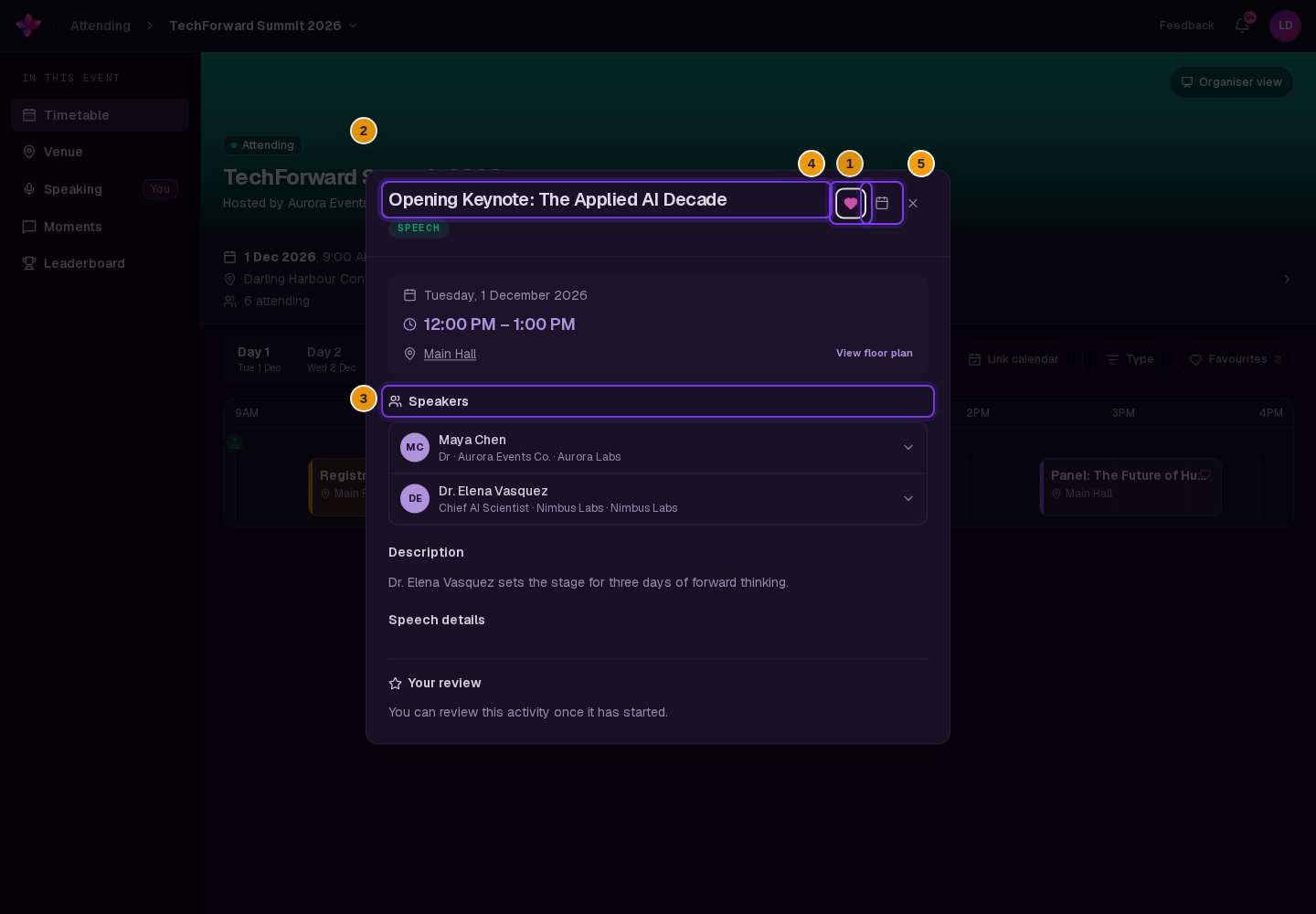
Choose a session card to see its title, type, date, time, location, speakers, description, and any extra details supplied by the organiser.
What you can do from the timetable
- Add or remove a session from your favourites.
- Choose Link calendar to subscribe with Apple Calendar, Google Calendar, or Outlook. You can also copy the subscription link or download an
.icssnapshot. - Choose the calendar action in a session to download an
.icsfile for that session. - Expand a speaker to read their bio and open their listed links.
- Choose View floor plan when the organiser linked the session location to a floor plan.
- Submit or update a review after the session starts while the event is in progress or completed.
If something goes wrong
The timetable is empty. The organiser may not have scheduled sessions for that day. Try another day or check again later.
Sessions disappeared after using a filter. Turn off Favourites, change the Type selections, or choose Clear filters.
You cannot review a session. Reviews open after the session starts. They remain available while the event is in progress or completed, but close after the event is cancelled, discarded, or archived.
A location has no floor plan action. View floor plan appears only when the organiser linked a floor plan to that session location.
Next steps
- Open an event you are attending to return to Your events.
- Manage your invitations if another event still needs your response.